
The me.sap.com data volume management function was terminated. This blog will explain how you can use SAP Focused Run to get an overview of the top 20 tables on HANA based system. There data volume really matters for both cost of the infrastructure and HANA database license costs.
Set up
The setup is part of SAP Focused Run System Analysis. Select the System Analysis tile:
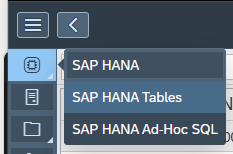
Then select the HANA system for which you want to perform the analysis. Select the tool HANA Tables:
Depending on your SSI settings data might be shown already. If not, select the configuration item to open the configuration screen:
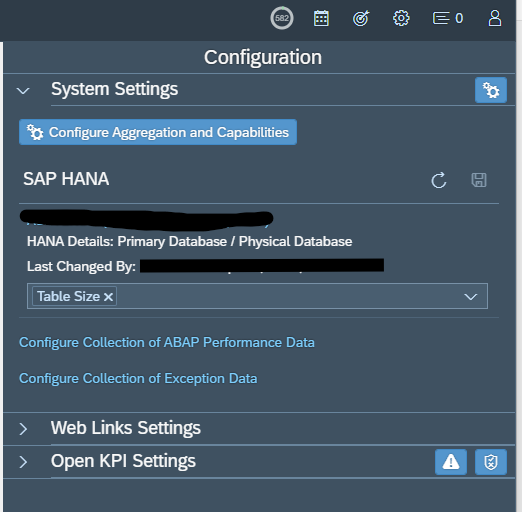
Click the Configure Aggregation and Capabilities button. In the next screen make sure the switch for SAP HANA Table Size is green:
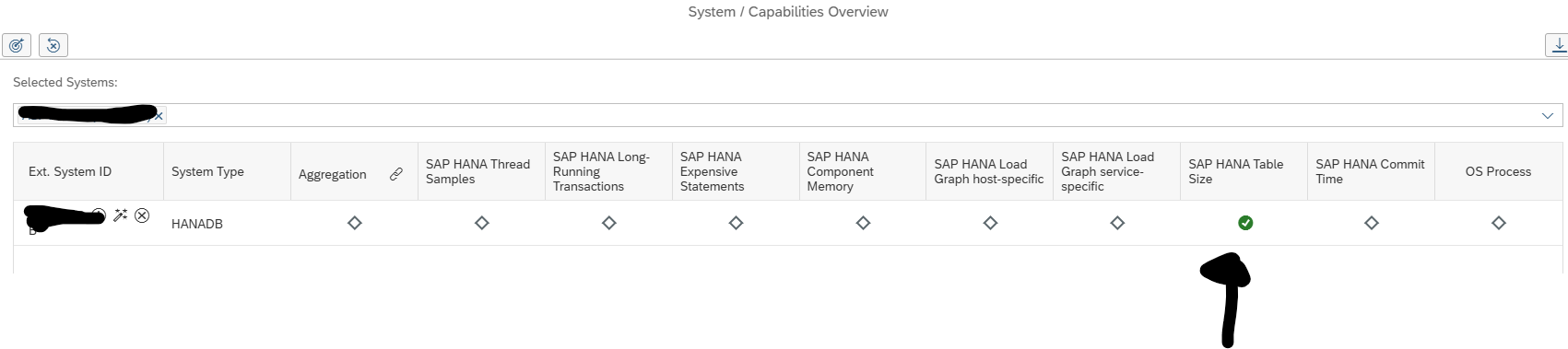
If it is not green yet, click on the grey diamond to activate it:
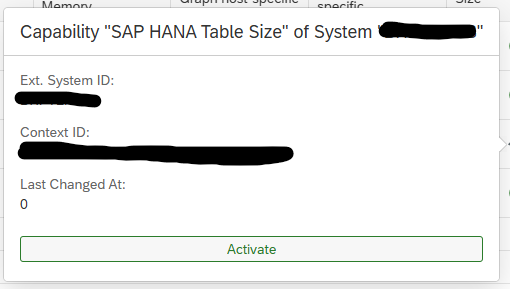
Hit the Activate button to confirm activation.
After activation wait 1 day for data collection.
Top 20 results
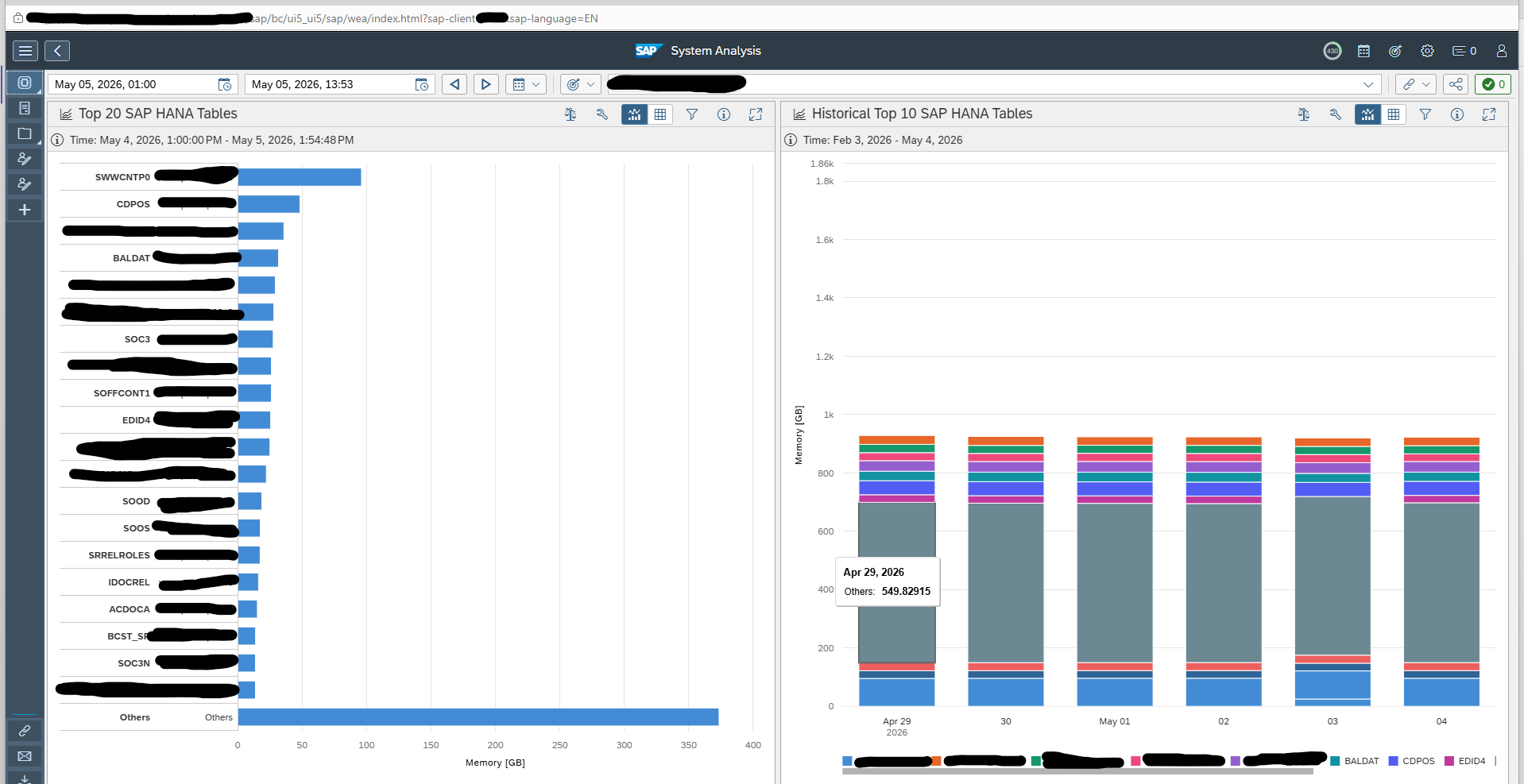
Now you can see the results. On the left hand side the current top 20 tables, and on the right hand side the growth:
SAP background
Background material can be found on the SAP Focused Run Expert portal.
Optionally you can set the function default as active in the SSI by going to table RCA_SSI_CONF with SM30 and add the entry HANA_TABLE_SIZE with activation X.