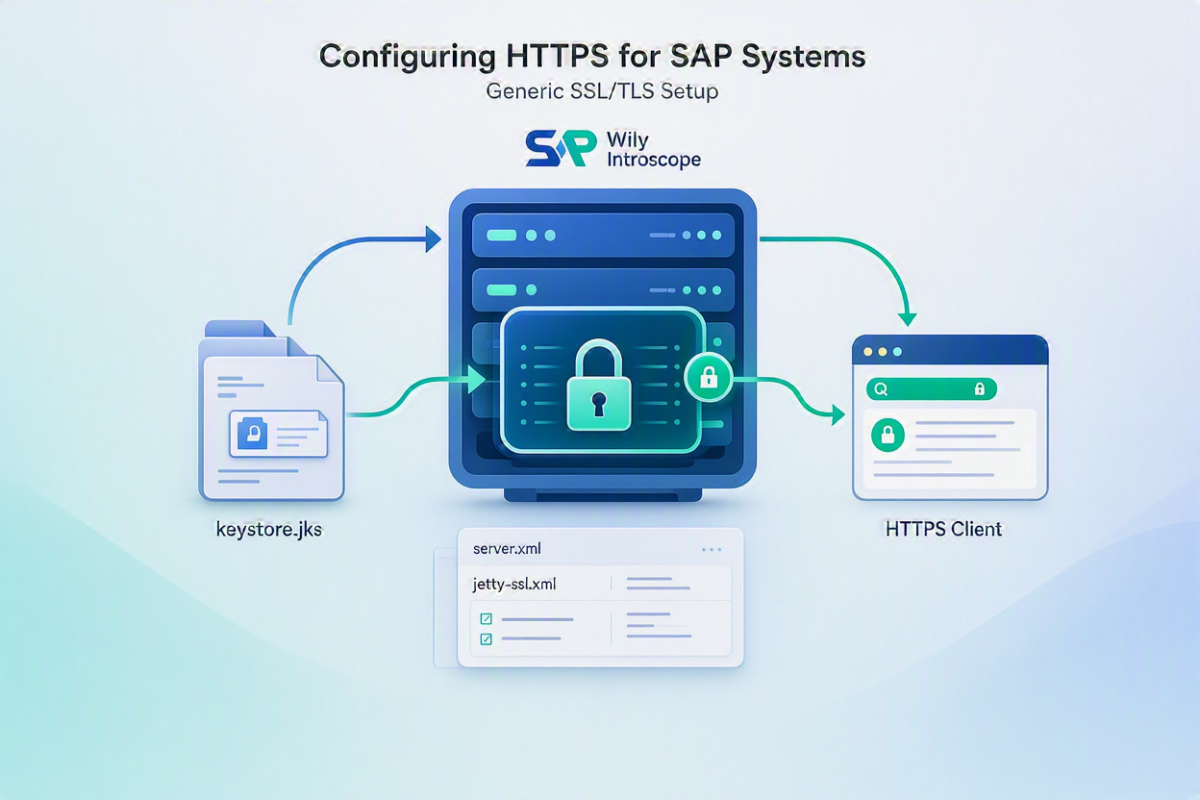
Introduction
SAP Wily Introscope (CA APM) Enterprise Manager (EM) plays a critical role in monitoring SAP system performance. By default, the EM web interface communicates over HTTP, which is not secure for enterprise environments.
For SAP reference page : https://support.sap.com/en/alm/solution-manager/expert-portal/introscope-enterprise-manager/enable-https-introscope.html?anchorId=section_956927644
To ensure secure communication, SAP recommends enabling HTTPS using the embedded Jetty web server.
This blog provides a step-by-step guide to:
- Enable HTTPS in Introscope Enterprise Manager
- Configure Jetty SSL settings
- Use custom certificates (optional but recommended)
Goal
The objective of this configuration is to:
Convert all HTTP-based communication to HTTPS for the Introscope Enterprise Manager.
Overview of the Process
HTTPS setup typically involves the following steps:
- Enable Jetty configuration in Introscope
- Activate the HTTPS port
- (Optional) Configure a custom SSL certificate
- Restart EM and validate the setup
- (Optional) Update SAP Focused RUN (FRUN)
Step 1: Enable Jetty Configuration
Navigate to the following file: <EM_HOME>/config/IntroscopeEnterpriseManager.properties
Find and enable the parameter:
introscope.enterprisemanager.webserver.jetty.configurationFile=em-jetty-config.xml
✅ This activates Jetty customization using the em-jetty-config.xml file.
Step 2: Configure HTTPS Port in Jetty
Open the Jetty configuration file: <EM_HOME>/config/em-jetty-config.xml
Key Points:
- Default ports:
- HTTP → 8081
- HTTPS → 8444
- Ensure:
- HTTPS section is enabled (not commented)
- HTTP section can remain disabled (recommended)
Step 3: Maintain HTTPS Port in EM Properties
Even though Jetty handles the port internally, update this parameter:
introscope.enterprisemanager.webserver.port=8444
👉 This is important for integrations (like Solution Manager) to generate correct URLs.
Step 4: Restart the Enterprise Manager
Restart EM for changes to take effect:
./EMCtrl.sh stop
./EMCtrl.sh start
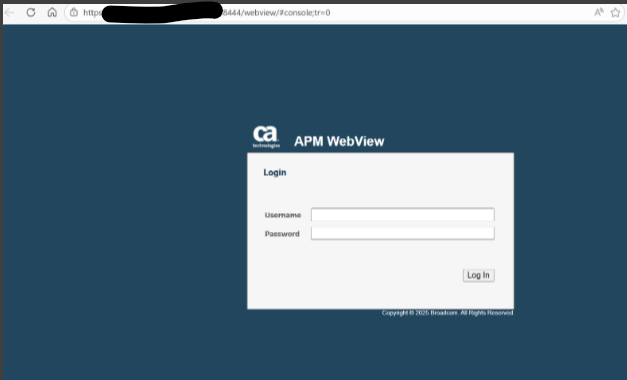
Step 5: Verify HTTPS Access
Access the Enterprise Manager via browser:
https://<hostname>:8444
Validation
Check the EM log file: <EM_HOME>/logs/IntroscopeEnterpriseManager.log
Expected entries:
- HTTPS connector initialized
- SSL certificate details (alias, chain)
✅ If these entries are missing, the SSL configuration is not active.
Configure Your Own SSL Certificate
Using a custom certificate avoids browser warnings and is recommended for production.
Step 5.1: Generate Keystore
keytool -keystore emhttps.jks -storepass <password>-alias emhttps -genkeypair -keyalg RSA -keysize <keylength>-keypass <password>-dname “CN=<hostname>& company details as per PKI>”
Step 5.2: Generate CSR
keytool -keystore emhttps.jks -storepass <password>-alias emhttps -certreq -file SID.csr -ext “SAN=DNS:<hostname>”
Step 5.3: Import Certificates
keytool -keystore emhttps.jks -storepass <password>-importcert -file SID.p7b -noprompt -alias emhttps -trustcacerts
Step 6: Update Jetty Configuration with Certificate
Edit: em-jetty-config.xml : update emhttps password
After applying SSL certificates, restart wily and launch https URL with 8444
Common Issues and Troubleshooting
HTTPS not working
- Check whether the Jetty SSL configuration is actually enabled
- In many cases, the HTTPS section in the configuration file is still commented out
Certificate not recognized
- Verify that the correct alias is being used in the keystore
- Ensure the full certificate chain is present, including any intermediate certificates
SSL errors in the browser
- This often happens when using a self-signed certificate
- Also check for CN/hostname mismatches between the certificate and the URL
Port not accessible
- Confirm that the HTTPS port is open on the firewall
- Make sure the port is properly exposed and the service is listening on it
Best Practices for HTTPS Configuration
- Use certificates issued by a trusted Certificate Authority (CA) for any production environment. Self-signed certificates should be limited to testing only.
- Wherever possible, disable plain HTTP access and enforce HTTPS across all endpoints to avoid unsecured communication.
- Always maintain a secure backup of both the keystore and truststore files, along with their passwords, in case recovery is needed.
Conclusion
Enabling HTTPS in SAP Wily Introscope ensures secure communication between users and the Enterprise Manager. By leveraging Jetty SSL configuration and proper certificate management, organizations can significantly improve the security posture of their monitoring infrastructure.
This setup is a recommended best practice for all enterprise deployments of Introscope.