
Secure Network Communication (SNC) is a key requirement in enterprise landscapes where SAP BTP interacts with ABAP systems via SAP Cloud Connector (SCC). Enabling SNC ensures encrypted RFC communication, mutual authentication, and end‑to‑end protection of sensitive data.
This blog provides a generic, implementation‑ready guide for enabling SNC between SAP Cloud Connector and SAP ABAP systems.
It combines the official SAP documentation with hands‑on technical steps commonly followed in real projects.
Background OSS note: 3536285 – SAP Cloud Connector – How to set up general SNC settings for SAP Cloud Connector.
Why Enable SNC?
SNC provides:
- ✅ Encryption of RFC traffic
- ✅ Strong authentication between Cloud Connector and ABAP systems
- ✅ Integrity protection
- ✅ Compliance with corporate security policies
- ✅ Reduced risk of man‑in‑the‑middle attacks
SNC is increasingly mandatory in SAP landscapes, especially when integrating BTP services with ERP systems.
High-Level Steps
Below is the complete workflow followed during SNC enablement.
✅ 1. Create SEC Directory and Deploy Required SAP Cryptographic Files
On the SAP Cloud Connector host:
- Create a secure SECUDIR directory(/usr/sap/sec/)
- Download and extract the SAP Cryptographic Library from the Download Center (search for sapcryptolib).
- Make sure the Cloud Connector process is running.
- Place the required SAP CommonCryptoLib files inside(/usr/sap/sec/):
libsapcrypto.so(Linux)sapgenpsetool
This directory holds the Personal Security Environment (PSE) used by SNC.
✅ 2. Configure Environment Variables
Set the following environment variables:
SECUDIR=<path to sec directory>
SNC_LIB=<path to SAP crypto library>
setenv SNC_NAME=<p:CN..>
Restart the Cloud Connector service after updating.
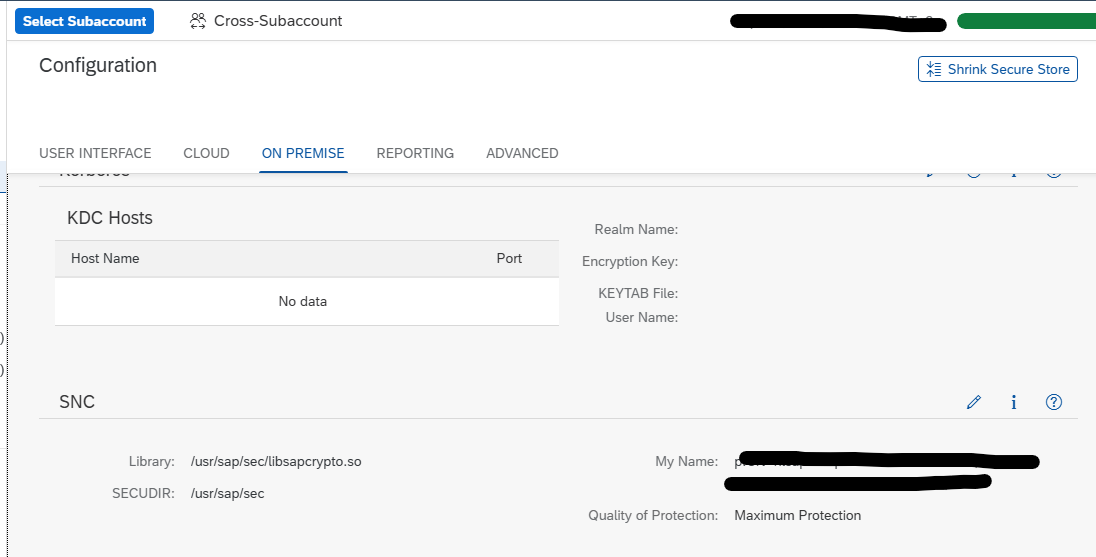
✅ 3. Generate SNC PSE in Cloud Connector
Using sapgenpse, generate a PSE & Sign the Certificate through Your Internal Certificate Authority.
This converts the self‑signed PSE into a fully trusted SNC PSE.
Please read the blog on Certificate Automation for Linux based: https://www.saptechnicalguru.com/automating-sap-certificate-management-using-sls/ for the detailed instructions.
✅ 4. Validate SNC Configuration in Cloud Connector
In the SCC Admin UI:
Configuration → On-Premise → SSL/SNC
Verify:
- SNC is enabled
- SNC name (p:CN=…) is visible
- PSE is correctly detected
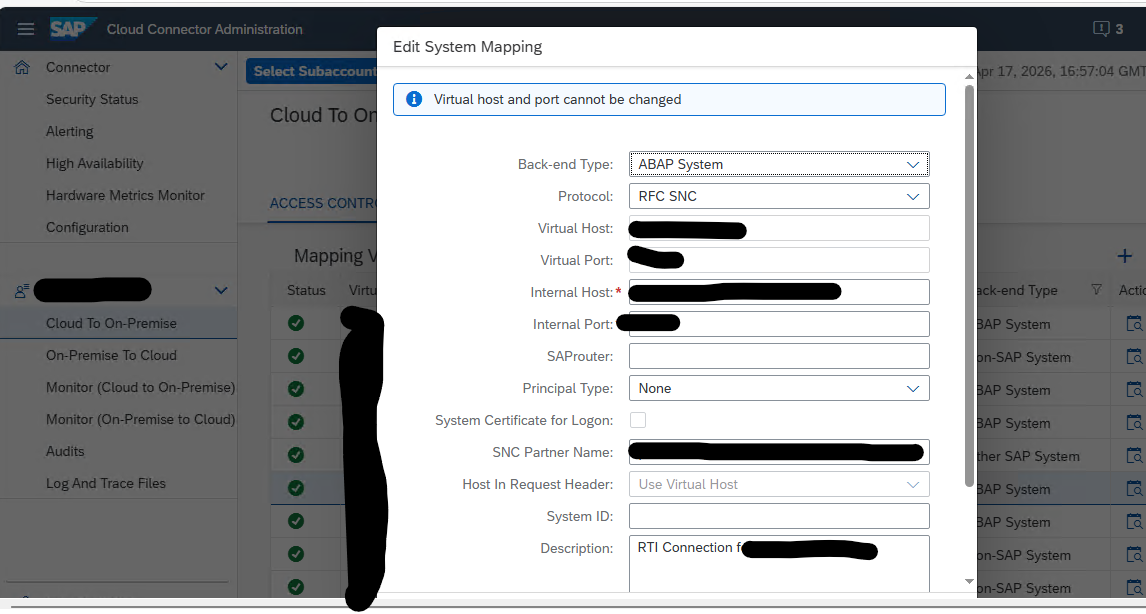
✅ 5. Enable SNC in BTP Subaccount (On‑Prem → Cloud Direction)
In SAP BTP Cockpit:
Connectivity → Cloud Connectors → ABAP Systems
For each RFC connection:
- Enable “Use SNC”
- Maintain SNC partner name of the ABAP system
- Upload the ABAP system’s SNC certificate if required
✅ 6. Configure SNC in the ABAP System (Transaction SNC0)
In the on‑premise ABAP system:
- Maintain SNC names
- Import Cloud Connector certificate into the ABAP Trust Manager
- Ensure profile parameters such as
snc/enableandsnc/identity/asare set
Restart the cloud connection if profile parameters are updated.
✅ 7. Enable SNC in RFC Destinations (SM59)
For each RFC destination:
- Activate SNC
- Maintain the partner SNC name
- Set Quality of Protection (e.g., 3 – integrity + encryption)
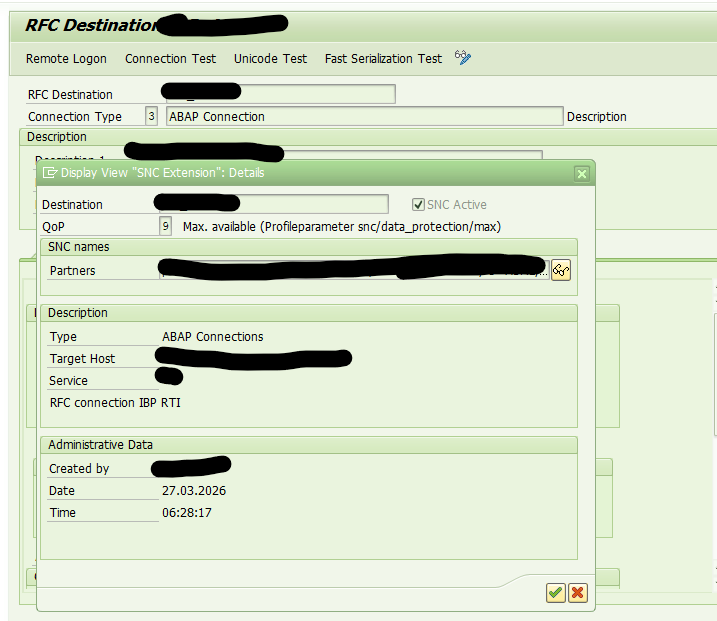
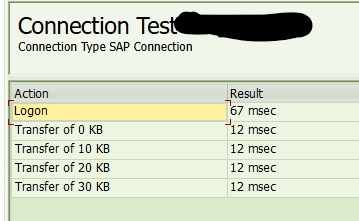
Test the RFC connection to verify SNC handshake.
✅ 8. Enable SNC in BTP (Cloud → On‑Prem Direction)
For outbound connections from BTP:
- Enable SNC
- Configure the SNC partner name (ABAP system)
- Set QOP (quality of protection)
Test communication via integration flows or services.

✅ 9. Functional Validation by Application Teams
Functional teams should validate:
- All RFC-based interfaces
- Connectivity from BTP services (e.g., IBP, CPI)
- Replications and data transfers
All connections should show SNC encryption enabled.
Great blog—thank you for the detailed procedure
Nice it’s very useful
Thanks Raghu!
Thanks Anushka