SAP Focused Run 5.0 OCC Dashboard – Build Powerful Performance Monitoring Dashboards

Introduction:

In today’s complex SAP landscapes, organizations need real-time visibility, proactive monitoring, and actionable insights to maintain system performance and availability. SAP Focused Run (FRUN) provides advanced monitoring capabilities, and one of its most powerful features is the OCC (Operation Control Center) Dashboard.

The OCC Dashboard enables SAP teams to visualize key metrics, monitor performance trends, and detect issues early—all through a flexible, customizable interface.

What is OCC Dashboard in SAP Focused Run?

The OCC Dashboard provides direct access to key technical and business metrics stored within SAP Focused Run. It is designed for SAP operations teams and business experts to create custom dashboards for deep analytics and monitoring.

Key characteristics:

  • Central web interface for dashboard configuration and visualization
  • Supports multiple data providers and monitoring sources
  • Ability to combine and filter multiple metrics in a single view
  • Flexible visualization using charts, tables, and trend analysis

Please find link attached for your reference-[support.sap.com]

How to Setup an OCC Dashboard (Step-by-Step)

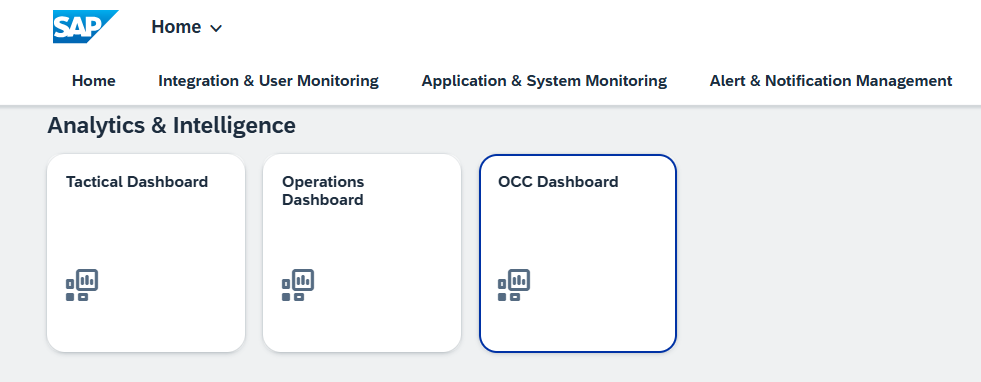
Step 1: Launch Dashboard

  • Navigate to OCC Dashboard Fiori Tile
  • Open dashboard application

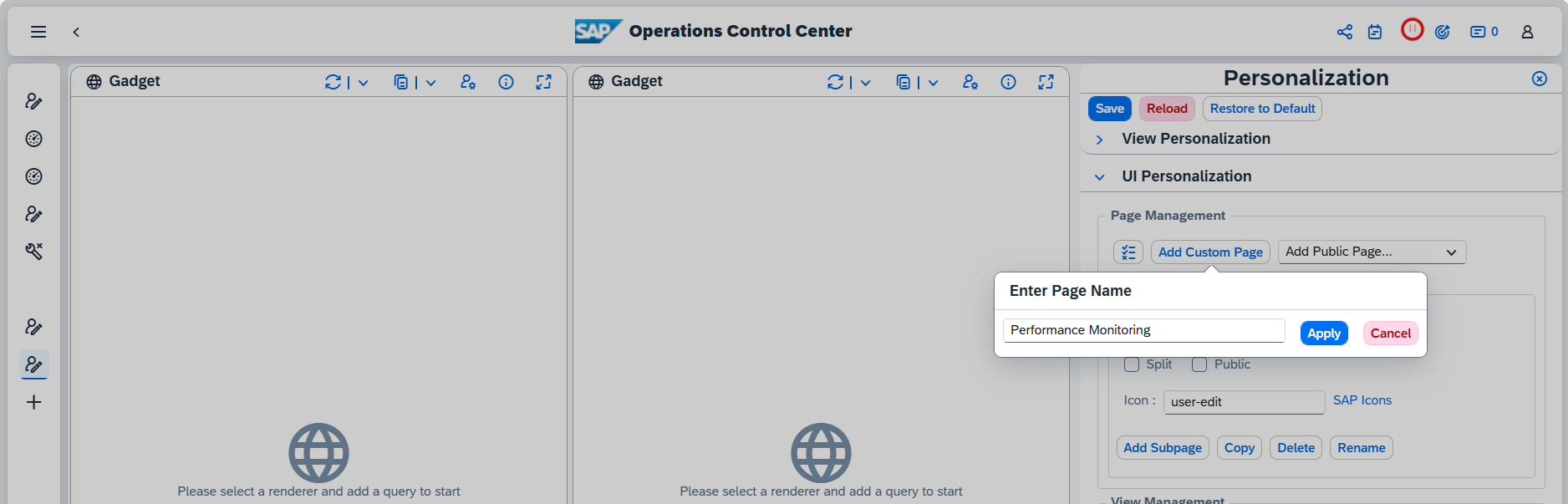
Step 2: Create Custom Page

  • Click “Add New Dashboard / Custom Page”
  • Rename with meaningful name (e.g., Performance Monitoring Dashboard)
Step 3: Define Layout

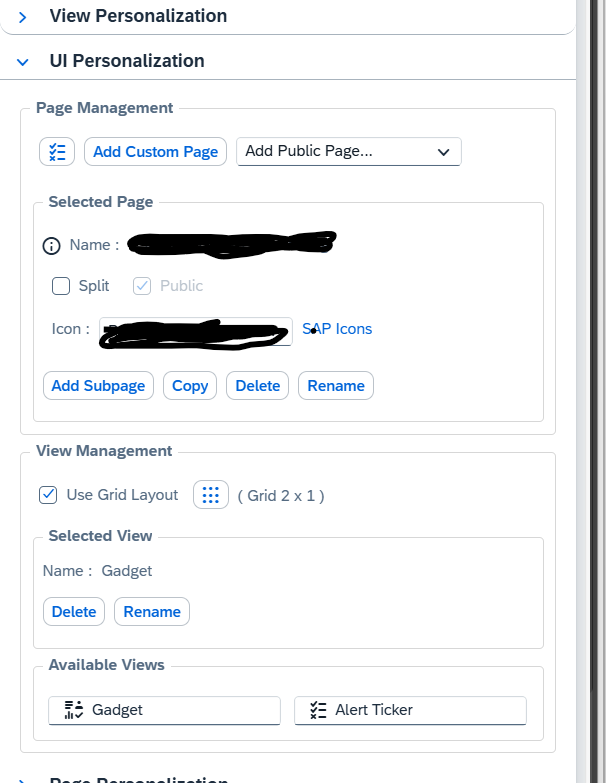
  • Choose layout (e.g., 2×2 grid or custom structure)
Step 4: Add Views / Widgets

  • Select visual components (charts, tables)
  • Drag and drop into layout

Step 5: Configure Metrics (Core Part)

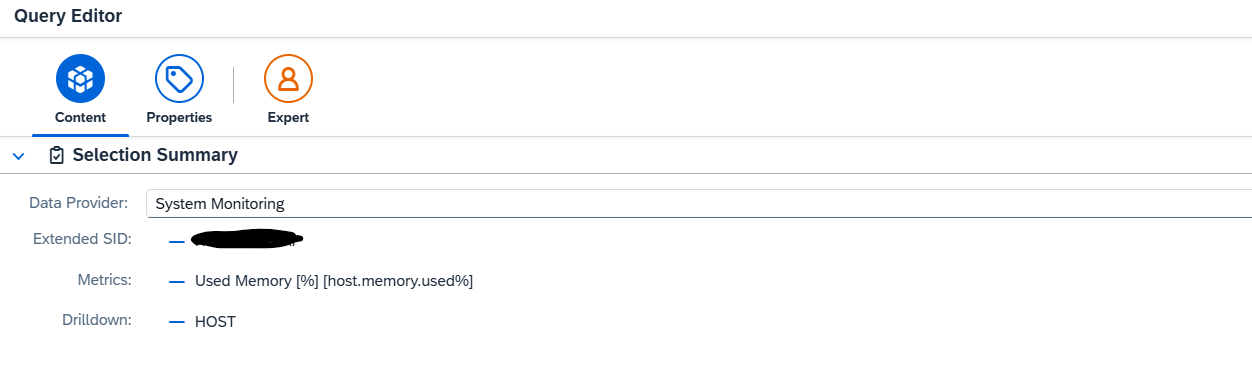
  • Select Data Source (e.g., System Monitoring)
  • Choose:
  • System (SID)
  • Metric (CPU, Memory, Dumps, Response Time)
Step 6: Define Query

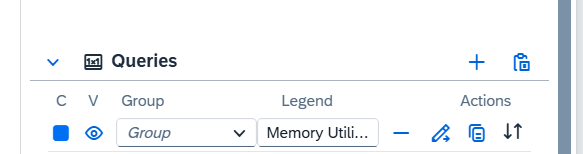
  • Add query using “+”
  • Assign legend name (e.g., Memory Utilization)
  • Configure filters & time range

Step 7: Choose Visualization

  • Line chart → Trends
  • Bar chart → Comparison
  • Table → Detailed analysis

Step 8: Save & Test

  • Validate data correctness

Step 9: Publish Dashboard

  • Make dashboard public for team usage.

Example: Performance Monitoring Dashboard

Dashboard Components:

  • CPU Utilization (Trend Chart)
  • Memory Usage
  • ABAP Dumps per Hour
  • Dialog Response Time
  • System Availability

How OCC Dashboard Helps in Performance Monitoring

1. Real-Time Monitoring

  • Quickly identify performance degradation
  • View metrics across systems in one place

2.Trend Analysis

  • Analyze historical performance trends
  • Detect recurring issues

3. Root Cause Analysis

  • Drill-down capability helps identify bottlenecks

4. Proactive Alerting & Insights

  • Predict issues before system failure
  • Improve system reliability

5. Custom KPI Tracking

  • Track business-relevant KPIs alongside technical metrics

Business Value of OCC Dashboard

  • Reduce downtime and performance issues
  • Improve SLA compliance
  • Faster issue resolution
  • Centralized monitoring for large SAP landscapes
  • Supports high-volume system monitoring environments [support.sap.com]

Key Differences

FRUN 4.0

  • Focus on enhancing OCC dashboard functionality
  • Introduction of new data providers (Events, KPI tracking)
  • Improved visualization and analytics configuration

FRUN 5.0

  • Supports large-scale hybrid monitoring scenarios
  • OCC dashboard becomes part of:
  • Unified monitoring
  • Automation
  • Alert management ecosystem
  • Supports large-scale hybrid monitoring scenarios

Conclusion

The evolution from SAP Focused Run 4.0 to 5.0 in OCC dashboards represents a shift from advanced visualization to intelligent operations

  • FRUN 4.0 enhanced the OCC dashboard with stronger analytics, new data providers, and KPI-driven monitoring, making it a powerful visualization tool.
  • FRUN 5.0, however, elevates this capability by embedding the OCC dashboard into a broader, unified monitoring ecosystem—enabling end-to-end visibility across hybrid landscapes, integrated alert management, and scalable operations.

SAP Focused Run OCC dashboard

OCC dashboards are the most flexible form of dashboarding in SAP Focused Run. It is completely up to you to define any dashboard based on the available data.

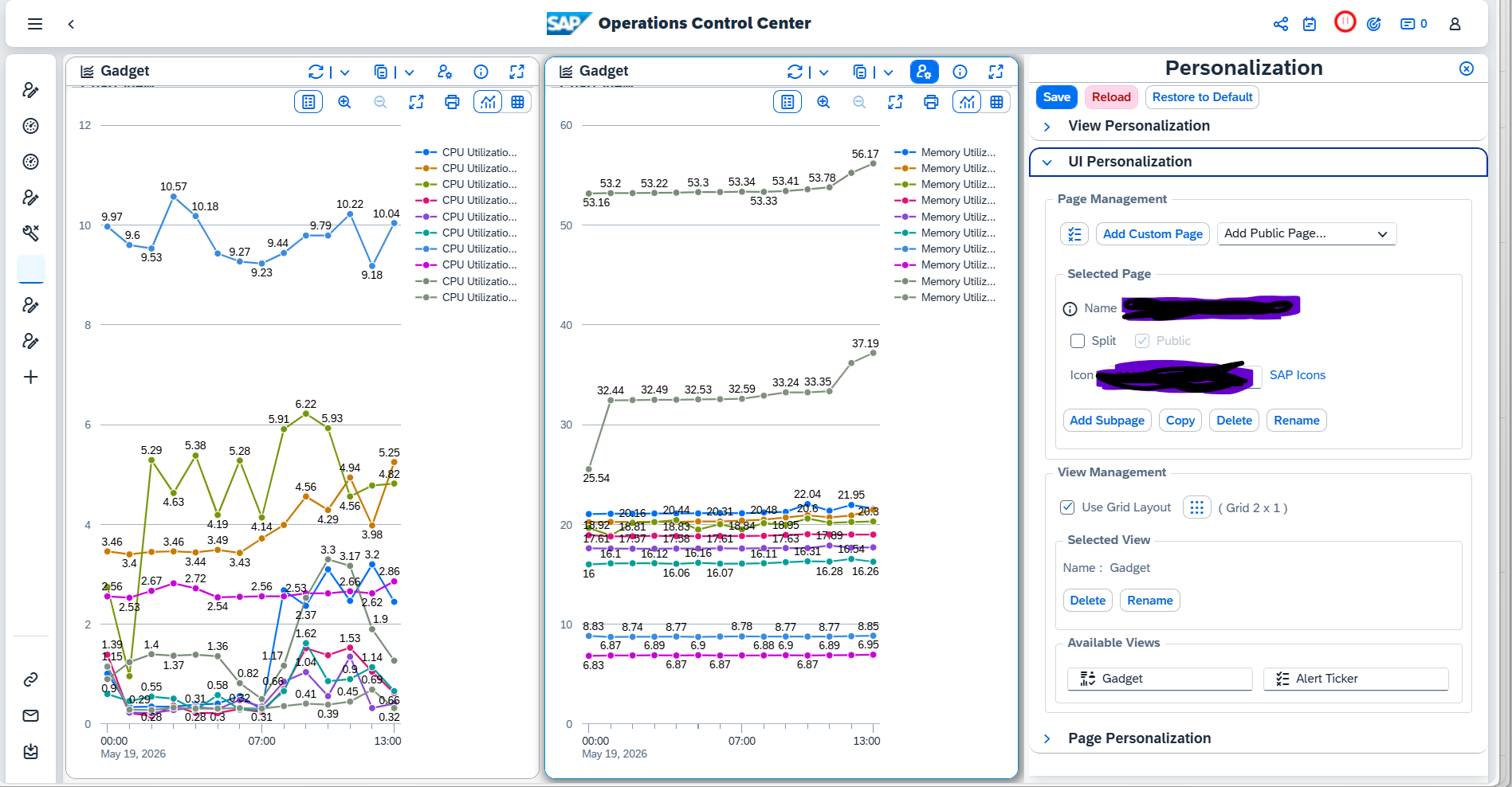
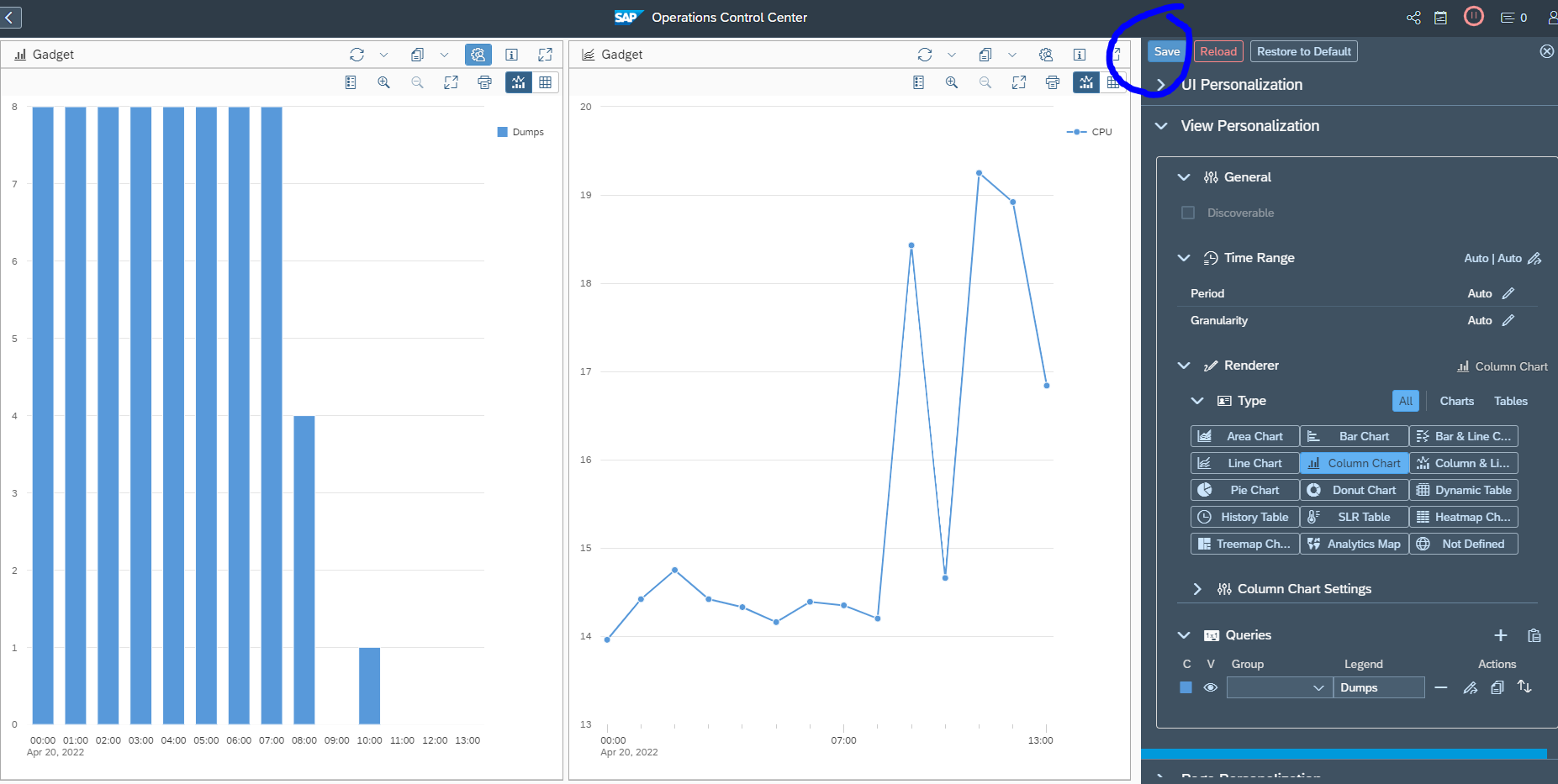
The explanation below will give a quick introduction on how to setup a dashboard with as example a line graph with CPU for one system and amount of short dumps per hour for that system in a bar chart.

Set up new dashboard

Start the OCC dashboard Fiori tile:

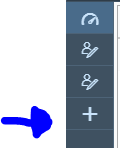
Click the add a new dashboard icon on the left:

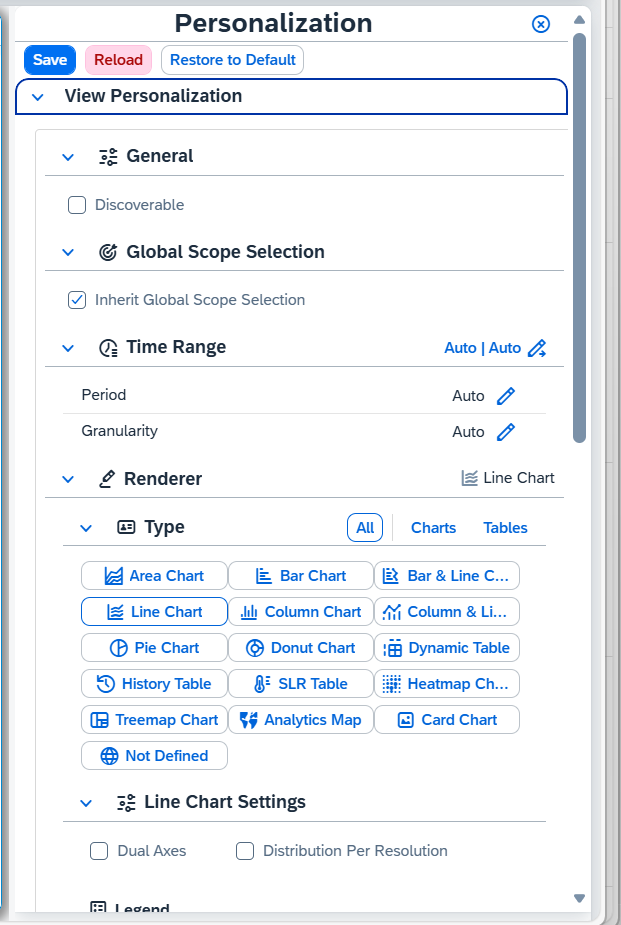
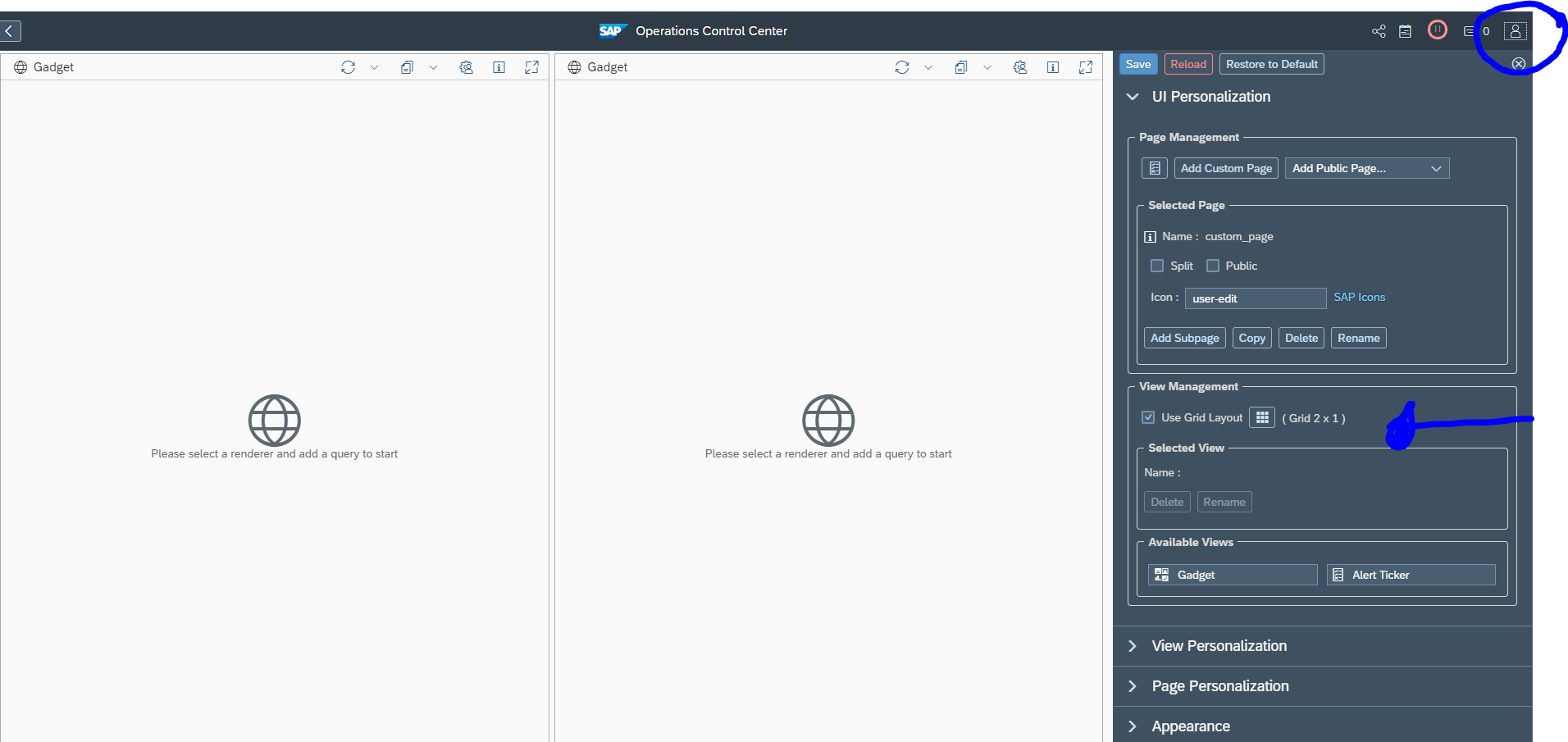
Now open on the right hand side icon the personalization. Here you can change the default 2 by 1 layout if want as well:

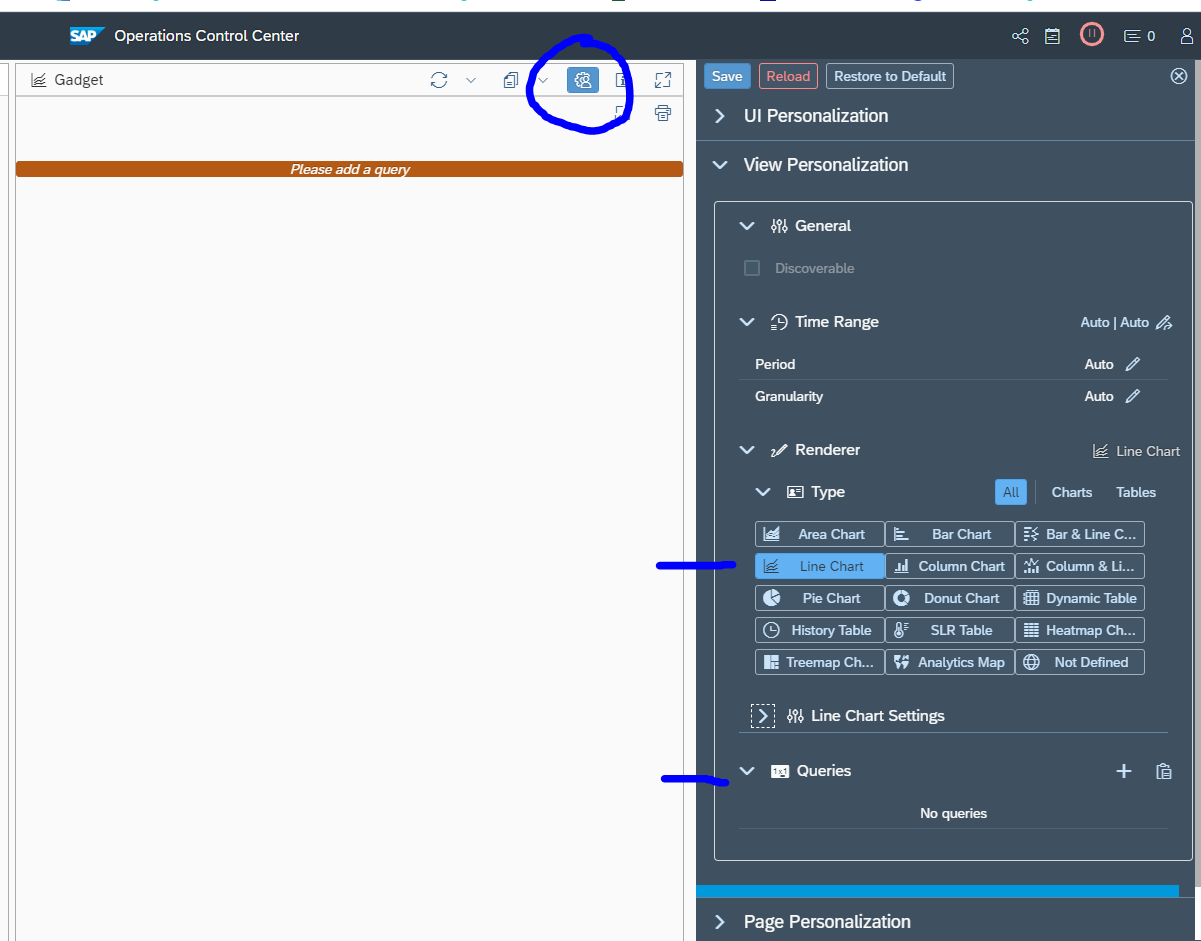
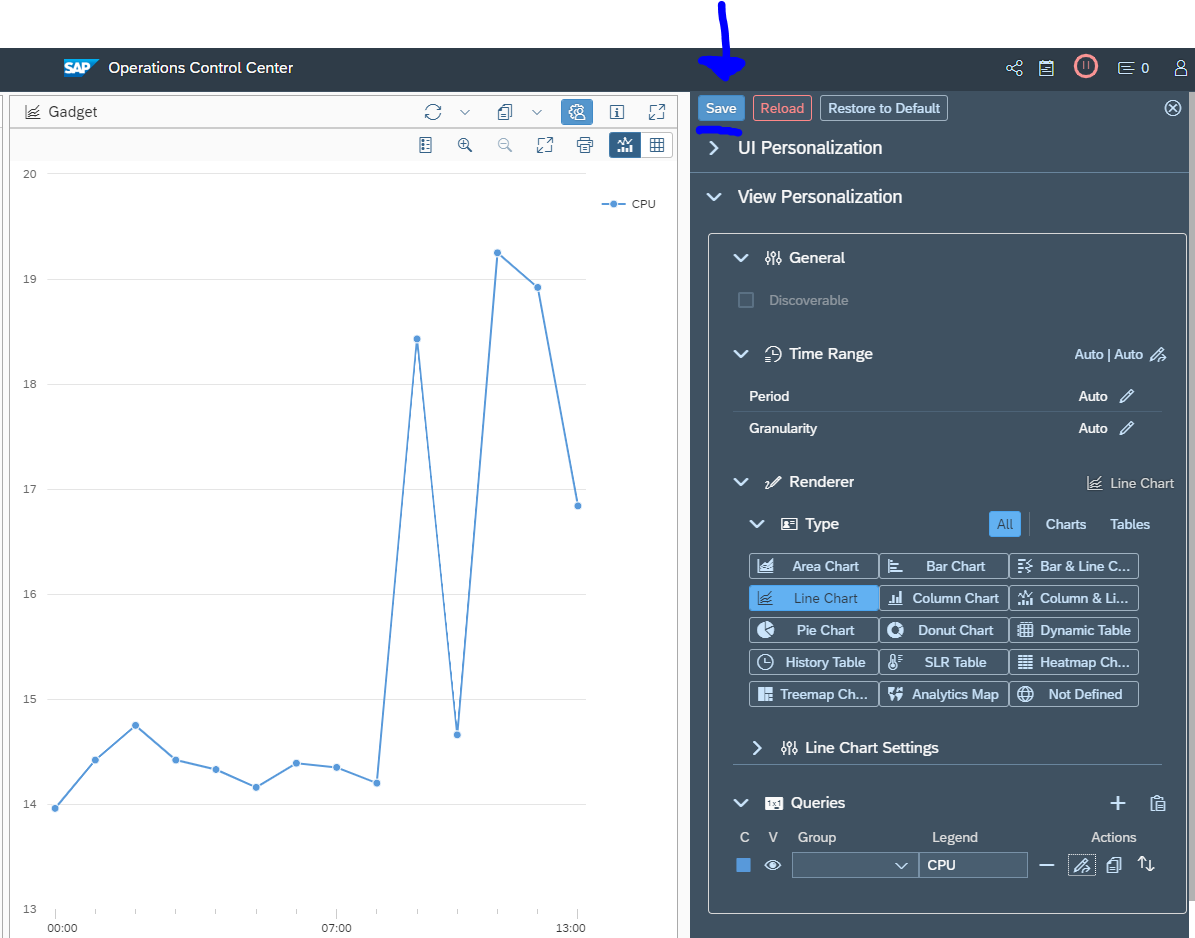
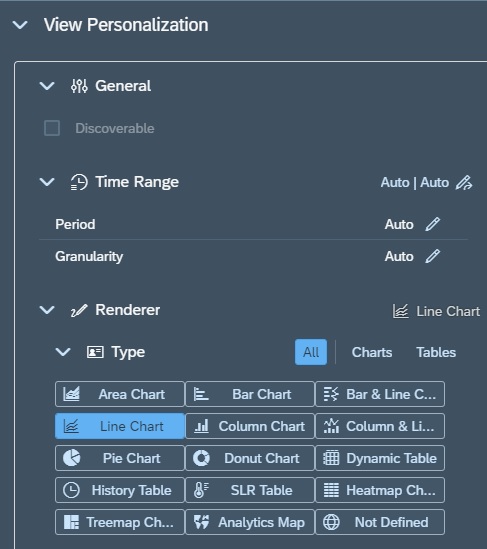
Now per gadget, select the personalization. First choose the type of graph, then select the query details:

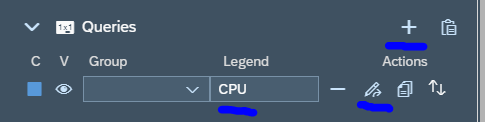
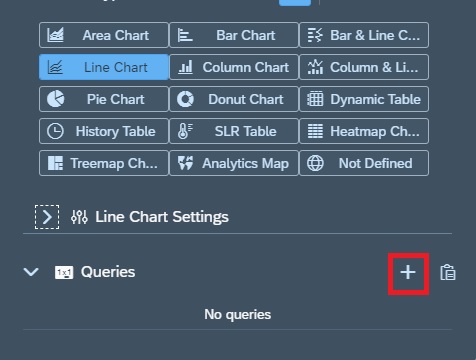
Add the query by clicking the Plus sign:

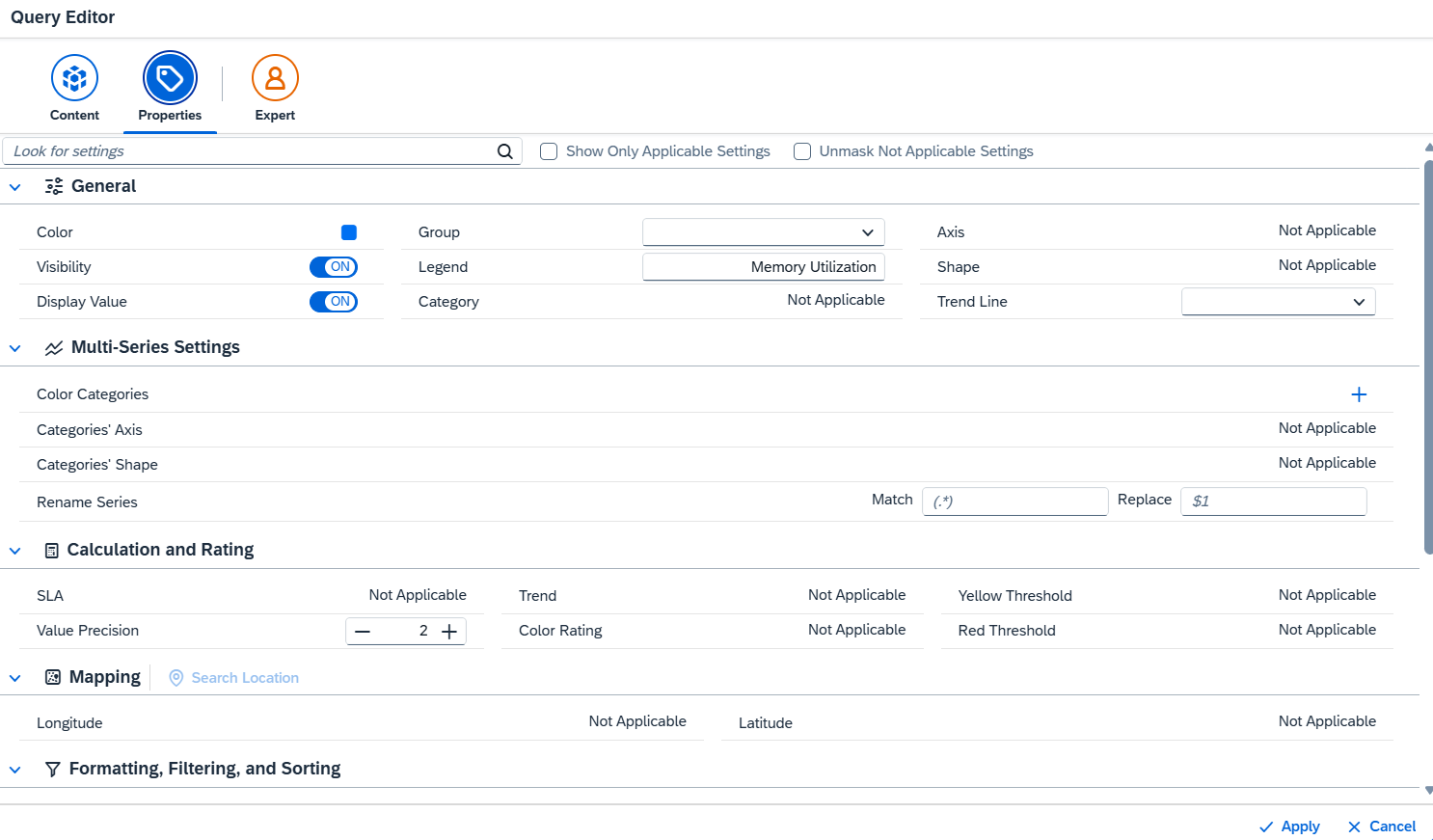
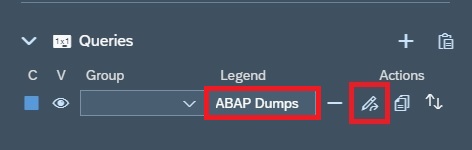
Give the legend a name and press the Change query button:

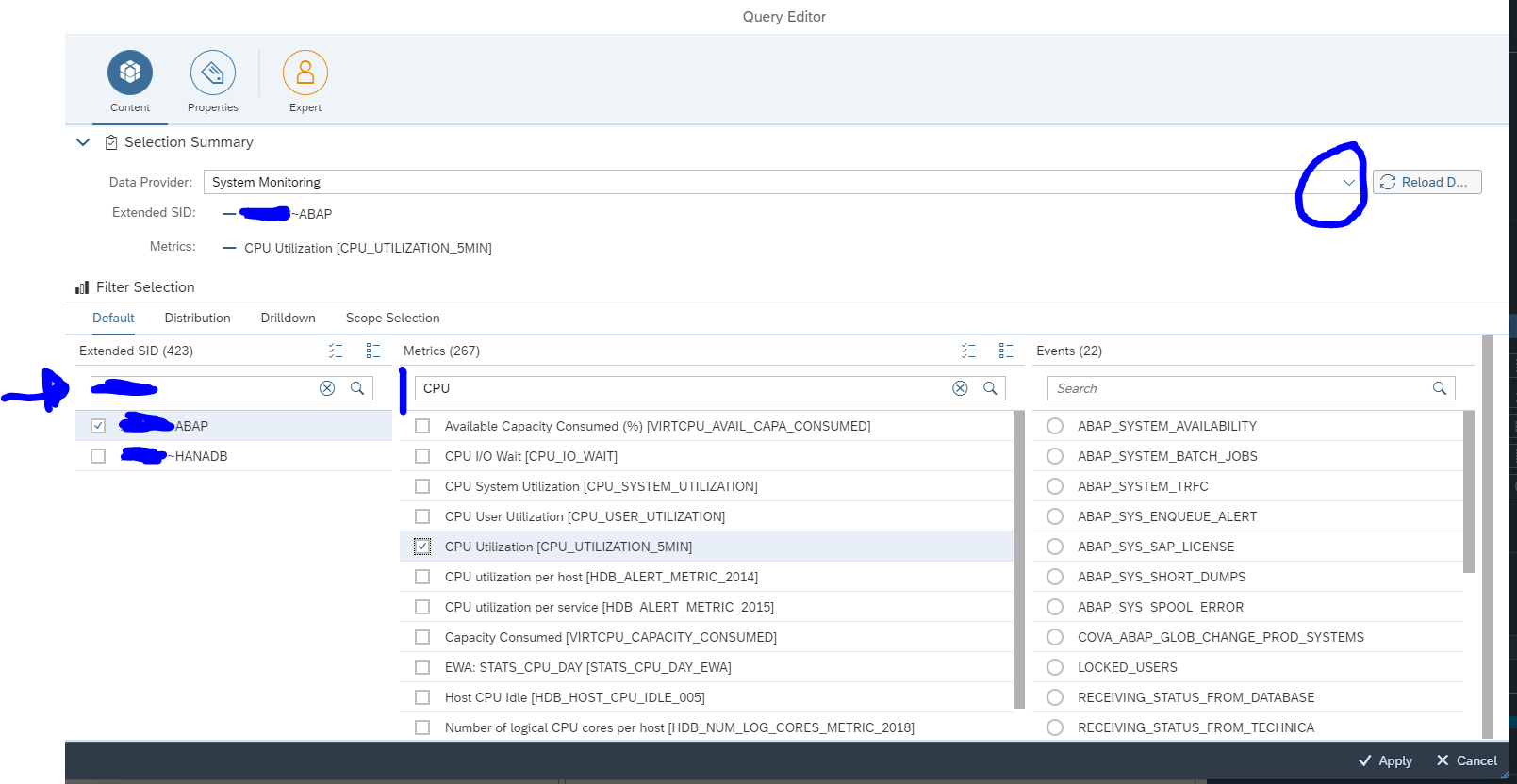
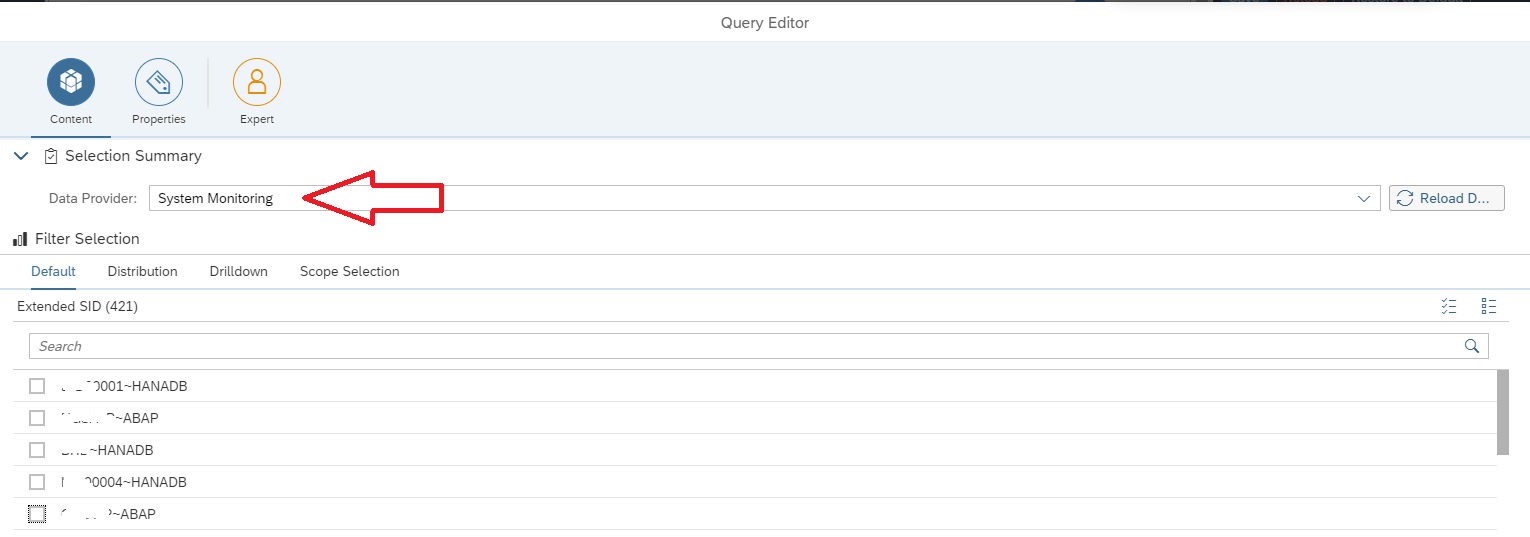
First select the data source. In this example we choose system monitoring. Select next your system, and select the metric (in this case CPU). Don’t forget to save on top of the personalization!

We repeat for the other gadget, but now select short dumps per last hour as example:

Test your dashboard to see if the results are according to your expectation.

Make dashboard public

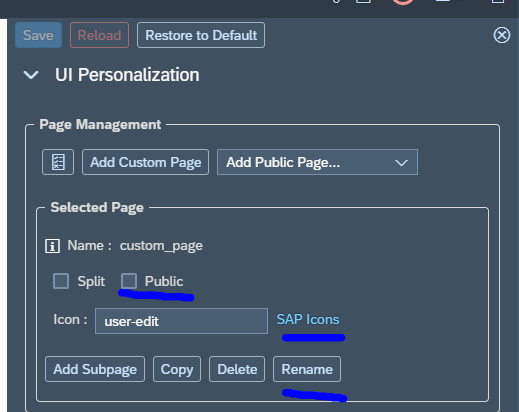
If you are happy with your dashboard, you can make it public. To do so, go to the personalization options:

Set the selected page to public, select a proper icon, and rename the default user-edit to a proper name and don’t forget to Save.

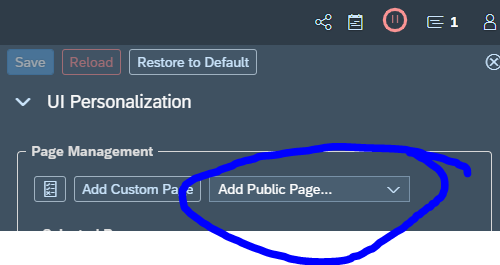
Other users can now add you dashboard from their UI personalization menu by clicking the Add Public Page and add your dashboard:

ABAP short dump trend analysis

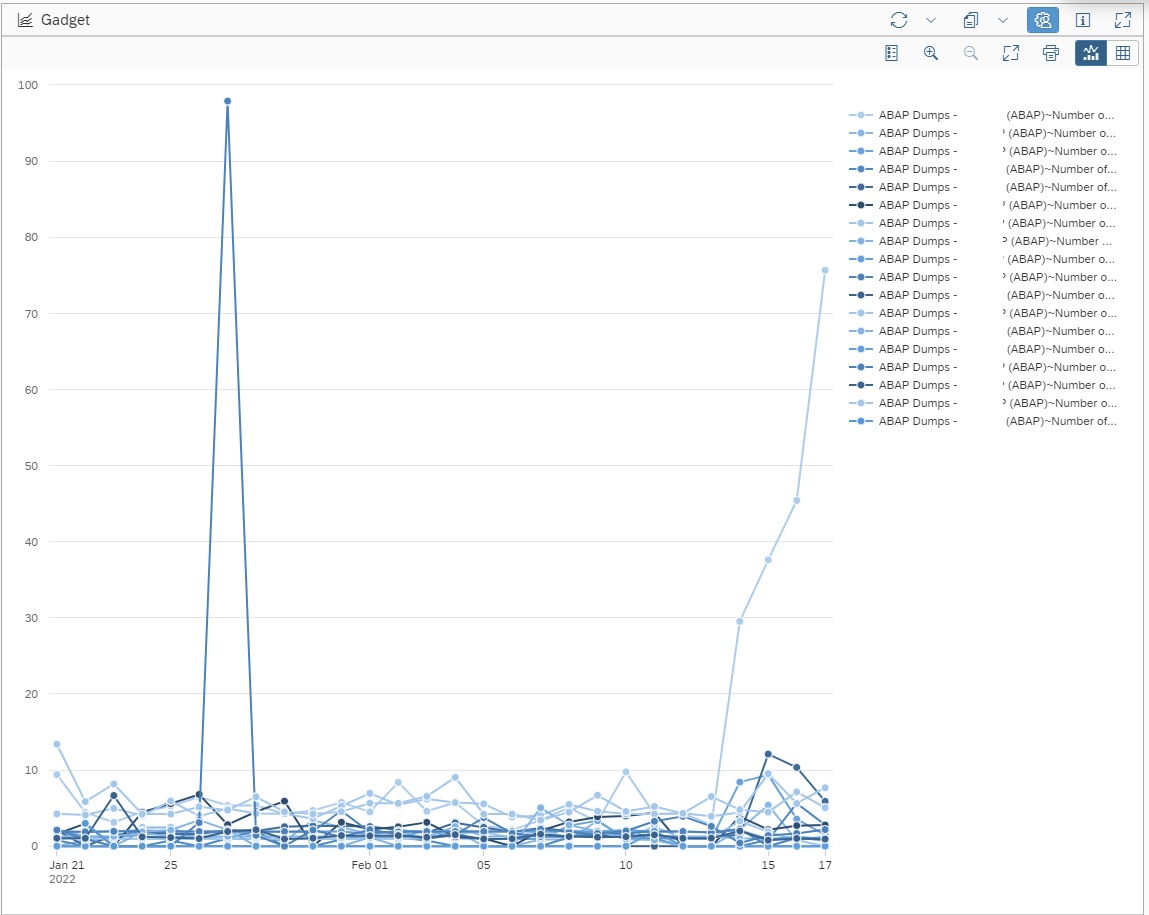
We can use SAP Focused Run OCC Dashboards to build a ABAP Dump Trend Analysis dashboard.

Using OCC Dashboard we can use the data provider for System Monitoring to pull the data of Short Dumps per day metric in to a trend chart.

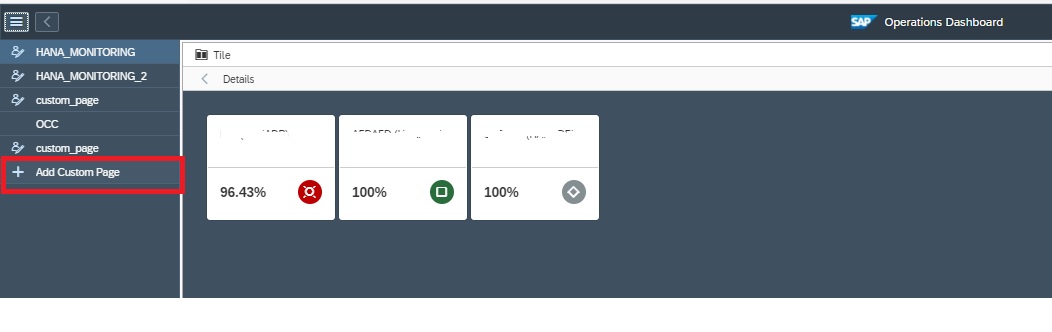
In the OCC Dashboard app you can create a new dashboard page by clicking on Add Custom Page in the navigation panel.

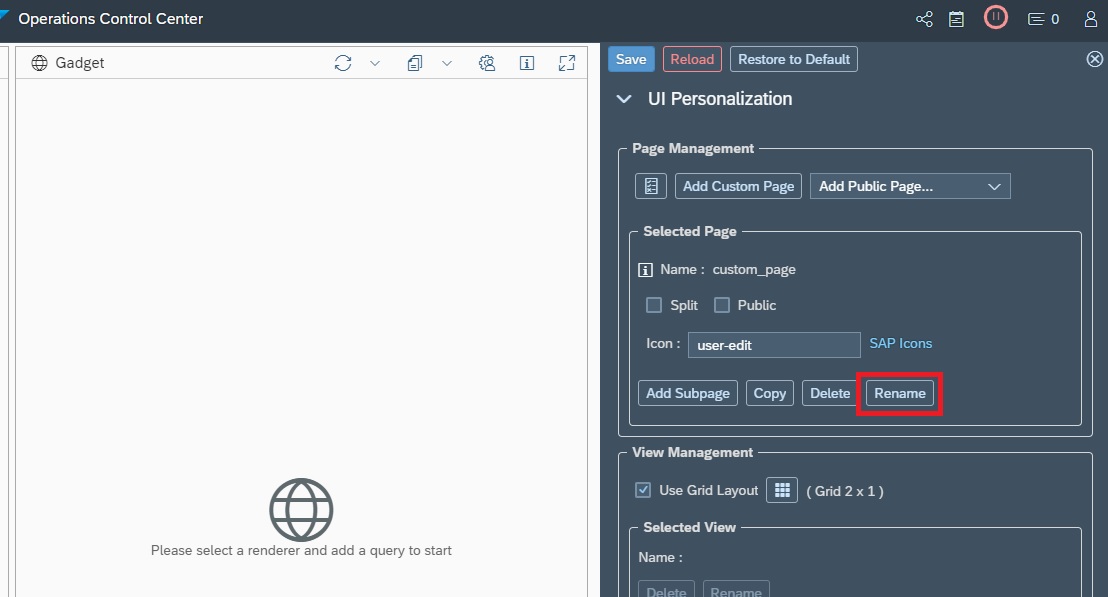
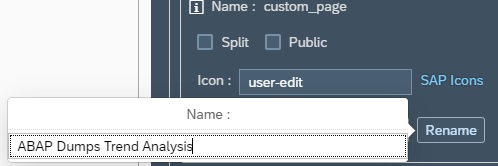
By default your new page will be named as custom_page, you can rename your page by clicking on Rename in the settings section and then providing a new name.

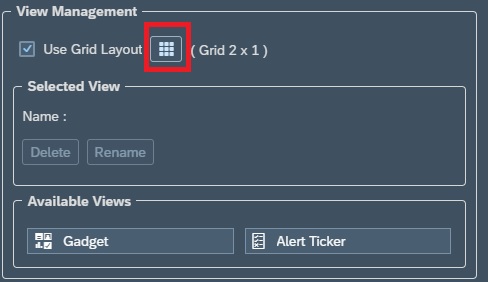
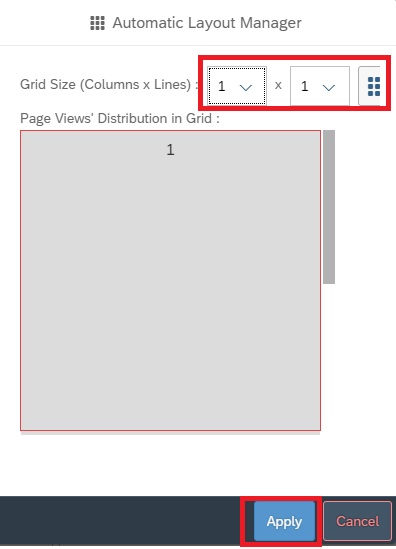
In the View Management section of the settings area you can modify the grid layout. By default you have 2 columns in 1 row. In this example we will change to 1 X 1 to keep just the ABAP Dump Trend Analysis dashboard. (Note: we can add a dashboard to each grid in the layout).

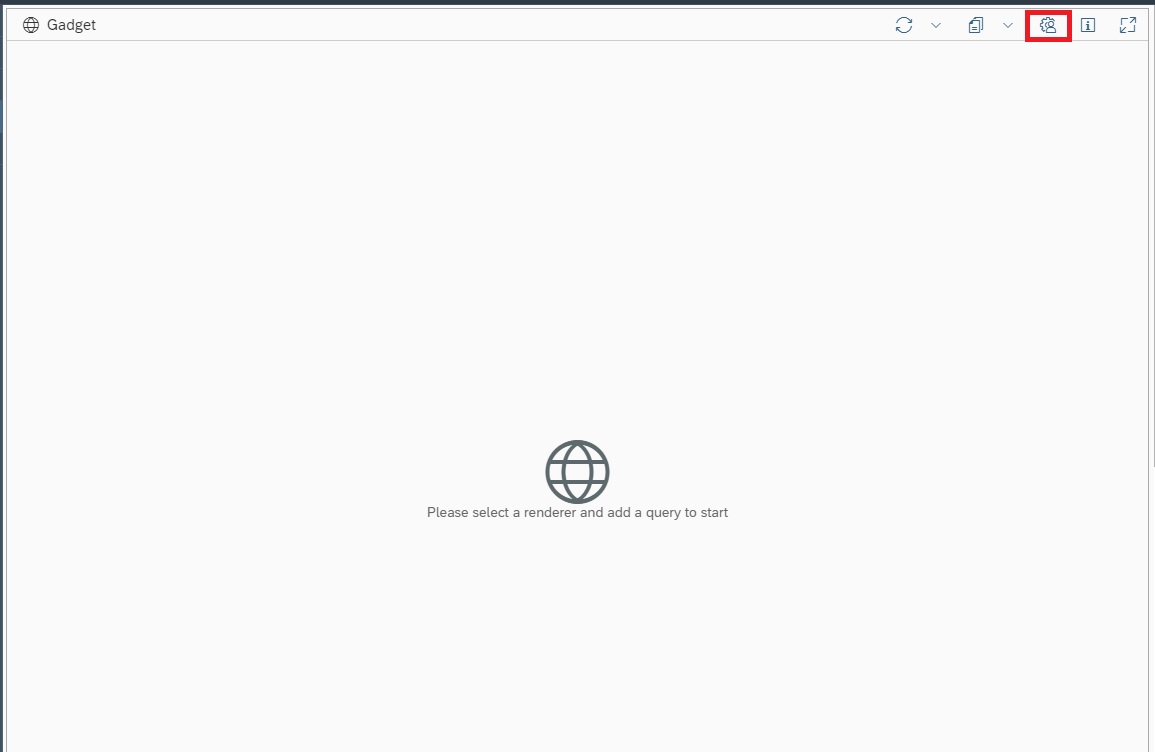
Now for adding the dashboard to the pane we just created, we click on the settings button for that pane.

Then in settings area, under View Personalization –> Render we select the graph type. In this case we want to perform a trend chart so we select Line Chart.

Now we need to create a query for the chart that would provide the data for our graph. For this in the Query section we click on the + sign to add a query.

Now in the Query Section, for the newly added row you provide a name under Legend and then click on the change button to start editing the query.

In the Query Editor screen select the data provider System Monitoring.

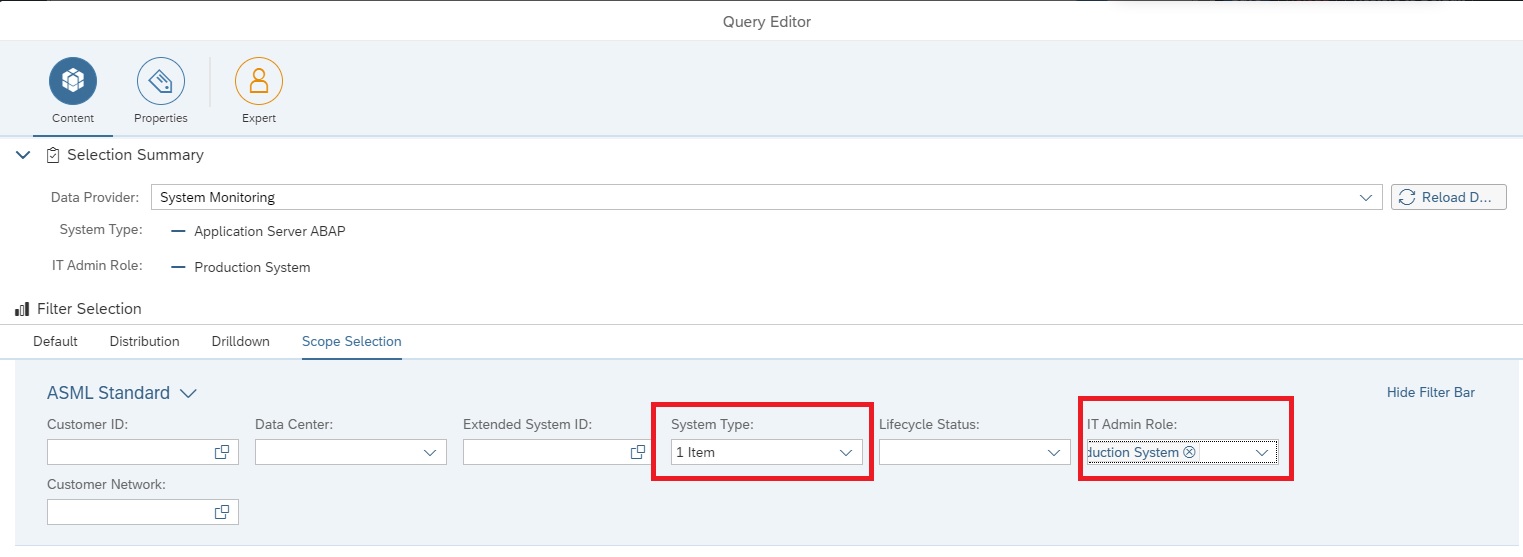
Now we navigate to the Scope Selection tab to select the managed systems for which the dashboard should display data. In this example we selected System Type as Application Server ABAP and IT Admin role as Production to select all ABAP production systems.

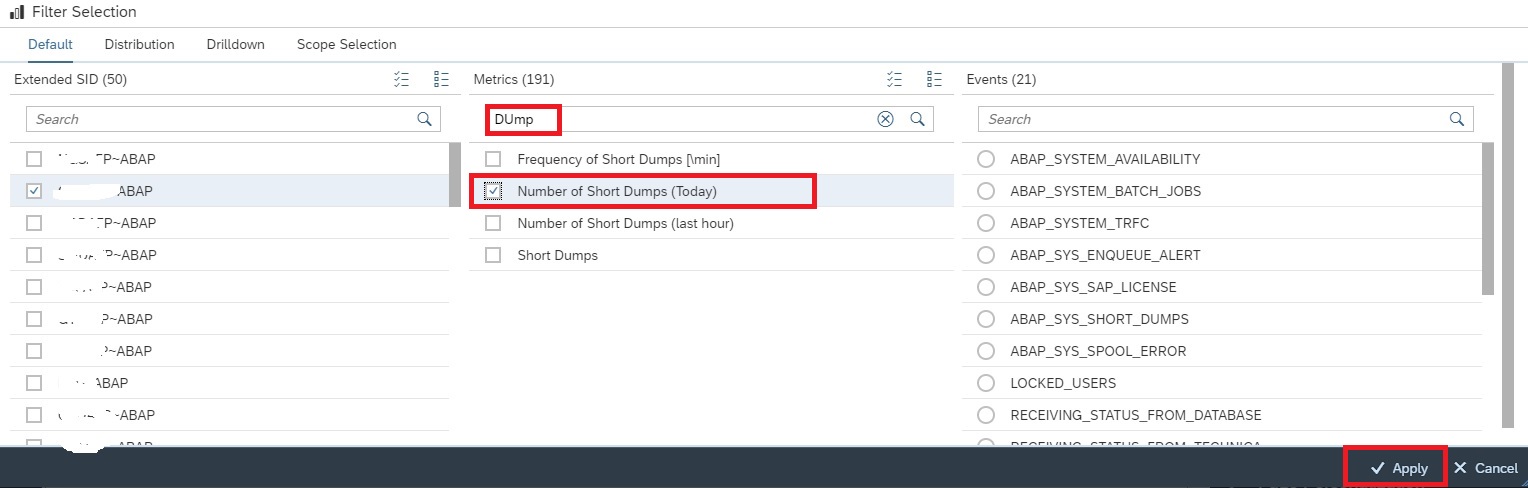
Now in the Default tab , under Extended SID select any ABAP system and then under Metrics tab select the metric Number of Short Dumps (Today). Click on Apply button to activate the selection.

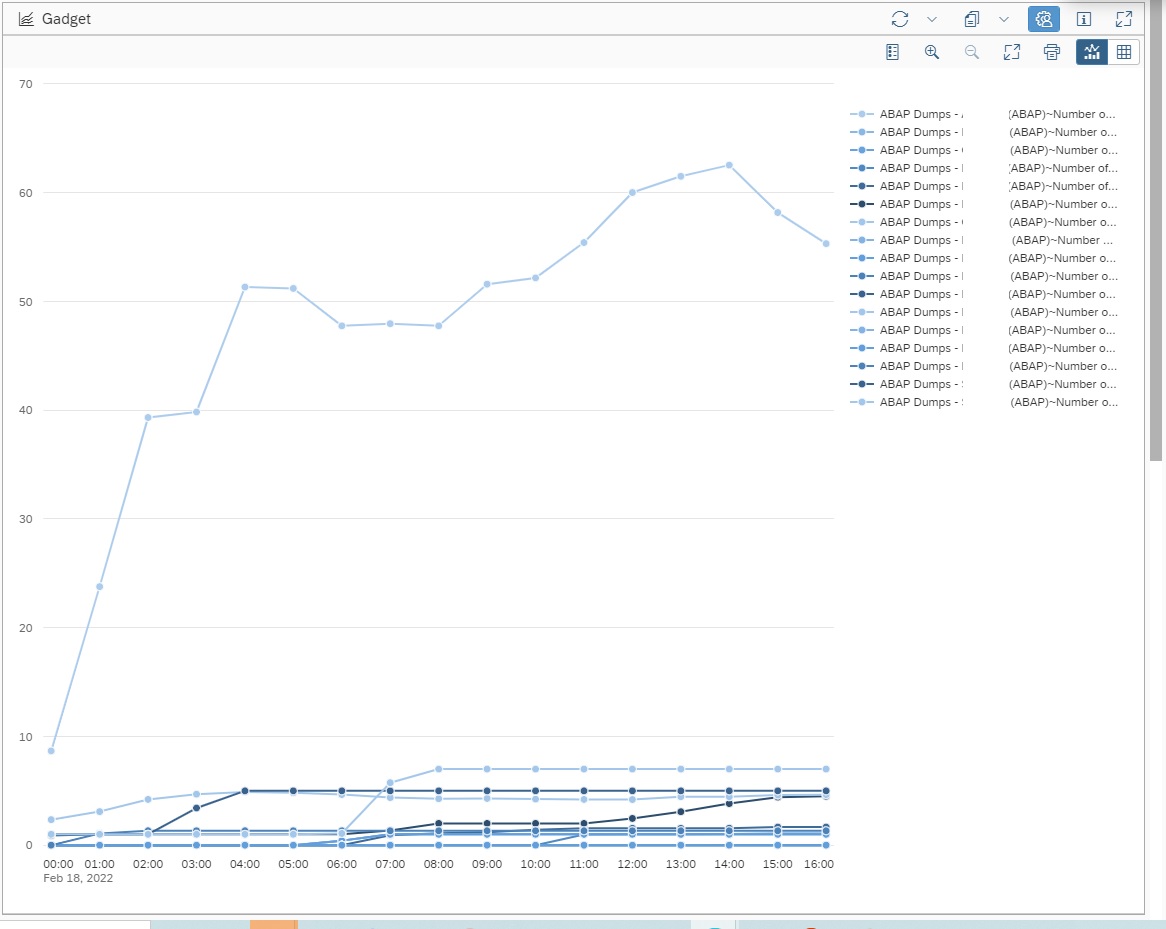
Now you can see the ABAP Dumps trend lines for the selected scope of managed systems in the graph.

Note: By default a graph for System Monitoring data provider will select Auto resolution of data which will show the data for today with hourly frequency.

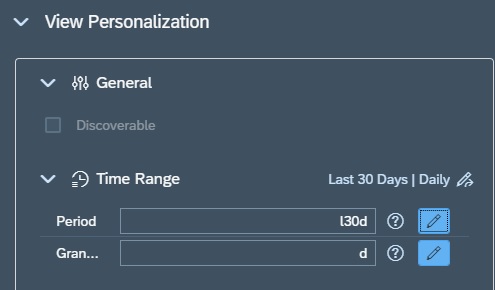
You can change the resolution in the Time Range Section in the Settings area. For example here we set Period for last 30 days as “l30d” and Granularity for every day or daily as “d”.

Note: OCC Dashboard graphs will always average out the data as per the granularity set for the graph w.r.t actual collection frequency of the selected metric. For instance if the metric Number of Short dumps (Today) has a hourly frequency and we show the daily data in the graph, then the value shown in the graph will be average of all hourly data collected by the metric for that day, which will of course be different from the actual final daily count. Hence to ensure data shown on graph is accurate, ensure that the Number of Short Dumps (Today) metric has a daily frequency. Then the granularity of the graph and the metric data collection frequency being exactly same, both will have the exact same and accurate data.

To know more abut OCC Dashboards and all possibilities with it you can refer to SAP Documentation here.

<< This blog was originally posted on SAP Focused Run Guru by Frank Umans and Manas Tripathy (Simac). Repost done with permission. >>