SAP ABAP on Eclipse will be replaced with ABAP on visual studio (background is explained in this blog). Developments in the RAP framework and AI Joule will be done in ADT-VS. If you are looking for Eclipse ADT installation, read this blog. Both Eclipse ADT and ADT-VS require the ABAP backend installation of the ADT tools, which is the same for both and described in this blog.
Installation and connection to backend
Frequently asked questions blog refers to the formal help.sap.com page on ADT for visual studio code.
Simple steps:
- Install Visual Studio Code on your laptop from this URL Download Visual Studio Code – Free AI Code Editor for Mac, Linux, Windows.
- Launch the newly installed tool
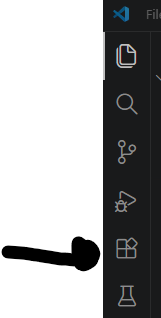
- Go to the Extension on the left hand side:
Search for the ABAP Development tools and install them:
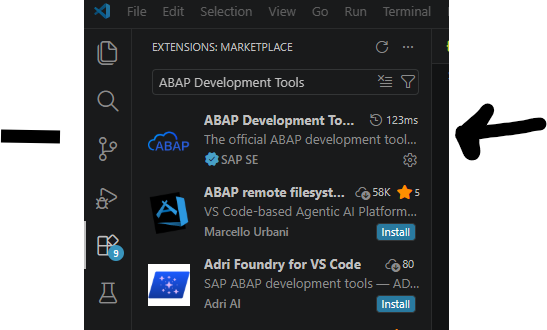
4. Wait for the installation to finish and restart the Visual Studio
5. To add an ABAP destination, click in the menu View and select Command Pallette, and key here ABAP: New Destination
6. In the popup select on the right hand side the + button:

7. Select RFC to backend or HTTP to cloud system:
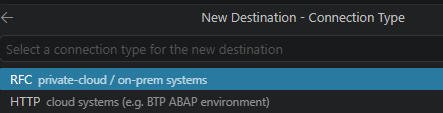
If you take RFC, the popup will show entries from your SAP GUI.
8. Enter User ID, password, client (be careful here: default it will give you 000, this is NOT what you want), language and password if SSO is not setup
Using the studio
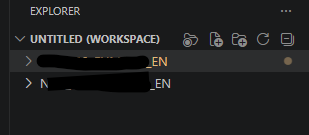
On the left hand side the connections are visible. Right click on any and select the option Logon to Destination:
Rest is same as ADT. Do realize that not all editors are yet working in Visual Studio.
Background references
ABAP AI Joule: read this blog, and this blog. Do realize AI ABAP Joule is licensed and not free of use.
All about ABAP for VS code: blog.