This blog is a continuation of the generic setup explained in the blog on this page.
Many SAP components running on Linux (Host Agent, Web Dispatcher, Message Server, and HANA) store their certificates in local PSE files instead of STRUST.
To automate certificate enrollment and renewal, these components use two tools:
- sapgenpse → creates PSE files and generates CSRs
- sapslcscli → enrolls and renews certificates through SAP Secure Login Server (SLS)
This page describes the generic and simplified approach for automating certificate enrollment and renewal for:
- SAP Host Agent
- SAP Web Dispatcher
- SAP Message Server / ICM (Linux)
- SAP HANA pse
All of them use the same command‑line workflow.
Process:
1. Create the Registration PSE (ra.pse)
This PSE is used by the system to authenticate with Secure Login Server (SLS).
sapgenpse gen_pse -p <PSE_PATH>/ra.pse “CN=<SystemID>
Note: It is recommended to use password‑less certificates for automated renewals to ensure the process runs smoothly without requiring manual input.
2. Add the Root CA Certificate
sapgenpse maintain_pk -p <PSE_PATH>/ra.pse -a <Root_CA_File>.cer

This allows the RA PSE to trust your PKI.
3. Generate the TLS Server PSE & CSR
sapgenpse get_pse -p <pse_path>SAPSSLS.pse -r csr.txt “CN=<Server-FQDN>”
Generates the HTTPS certificate request (CSR). Used for Host Agent, Web Dispatcher, Message Server, HANA, etc..
4. Maintain DNS / SAN in SLS (Fresh Enrollment Only)
Before performing the first enrollment:
- Open SLS administration
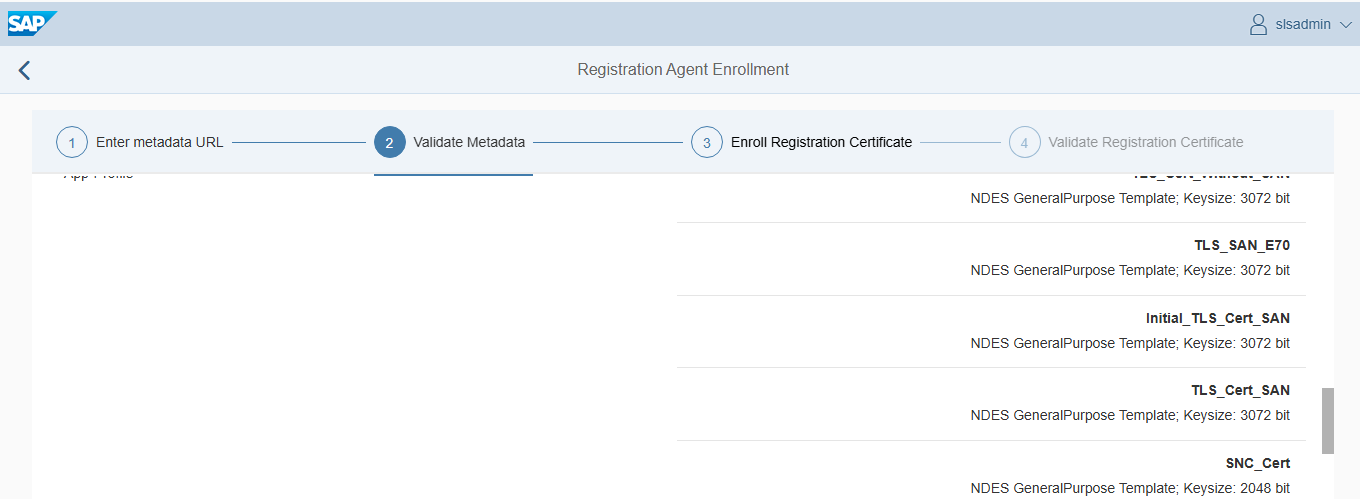
- Go to the TLS profile (example: Initial_TLS_Cert_SAN)
- Add correct DNS / SAN values
- Save
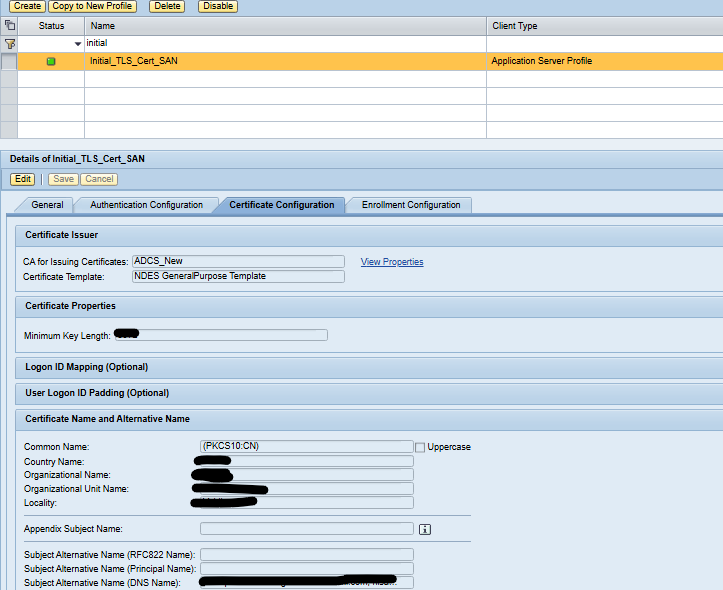
This ensures the certificate is issued correctly.
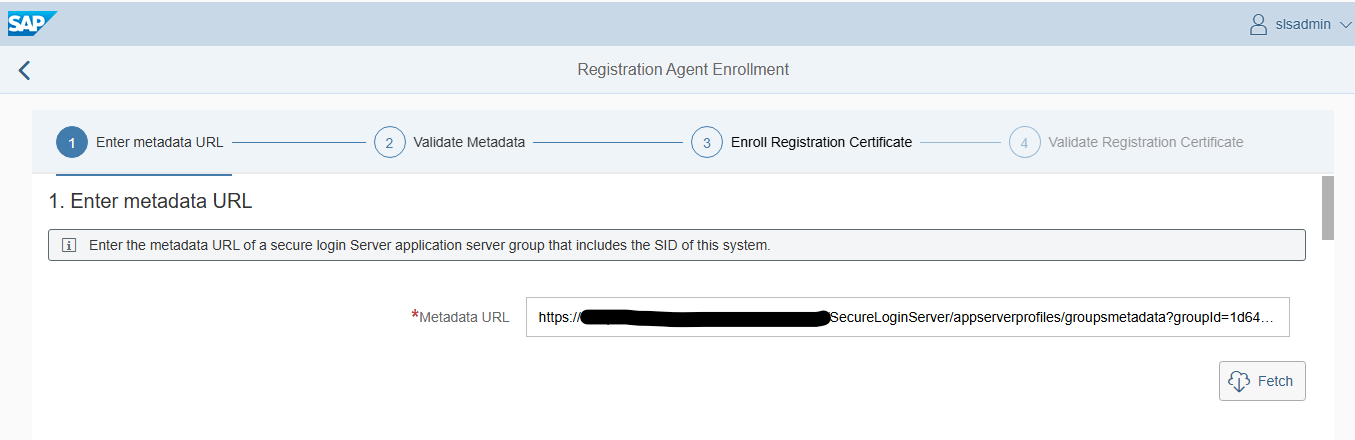
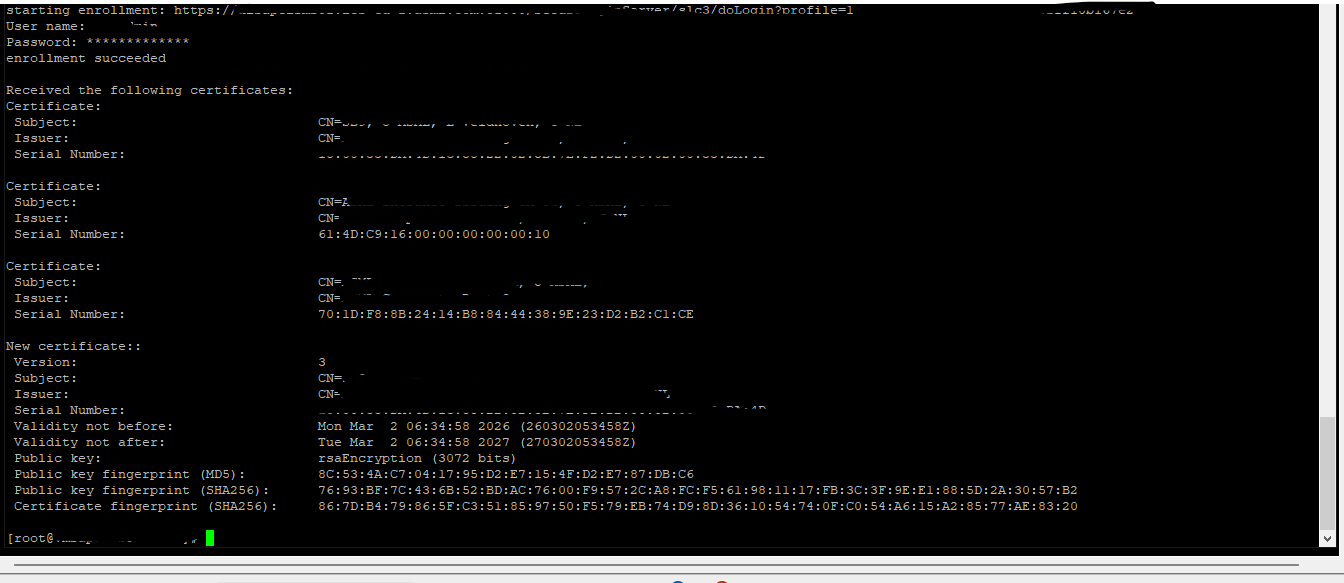
5. Perform the Initial Enrollment
/<sapslscli_path>/sapslscli enroll -r /<pse_path>/ra.pse -i -e ‘SLS_enrollemnt_metadata’
This will:
- Send CSR → SLS → PKI
- Retrieve certificate
- Update SAPSSLS.pse
Enrollment is one-time only.
6. Renew the Certificate (Automated)
/<sapslscli_path>/sapslscli renew -r /<pse_path>/ra.pse -p /<pse_path>/SAPSSLS.pse -g 365 -e ‘SLS_Renewal_Profile_URL’
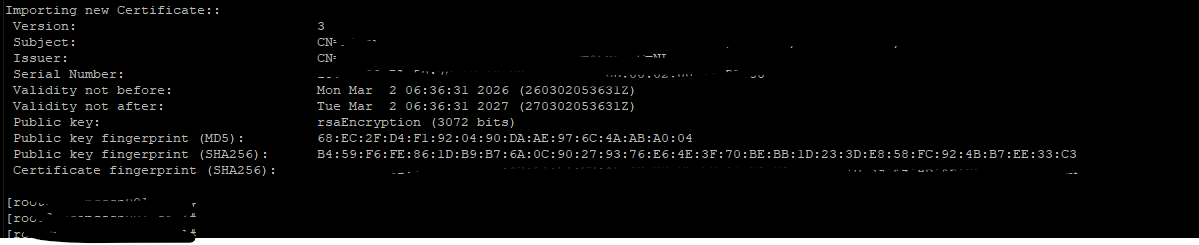
-g 365 = renew 365 days before expiry. (you can adjust it)
Each SLS certificate profile has its own metadata URL.
Renewal replaces the certificate in the PSE automatically
7. Automate with a Cron Job (Linux Scheduler)
To enable automation, configure a cron job that periodically executes the renewal command with the corresponding SLS certificate profile.
We use background job in SAP ABAP and Job Scheduler in SAP JAVA system. In case of non-ABAP non-JAVA systems we can use OS tool like Cron jobs to execute this script on daily basis.
Explanation of Each Placeholder:
| Placeholder | Meaning |
|---|---|
<PSE_PATH> | Directory where PSE files are stored (e.g., /usr/sap/<SID>/<INSTANCE>/sec) |
<sapslcscli_path> | Directory containing the sapslcscli executable (e.g., /usr/sap/<SID>/<INSTANCE>/exe) |
<SLS_Renewal_Profile_URL> | Metadata URL of the specific SLS certificate profile used for renewal |
-g 30 | Renews the certificate 30 days before expiry (you can adjust this) |
Now all certificates can be renewed automatically using command line tool of SLS server and it will save manual efforts by enabling automation using SLS certificate life cycle management functionality.