This blog will explain how to setup print list archiving.
Questions that will be answered are:
What is use case of print list archiving?
How to setup print list archiving?
How to test print list archiving?
How to troubleshoot issues with print list archiving?
Goal of print list archiving
The business sometimes needs to store report output for a longer period of time. They can print the information and put it in their archive. This leads to a big physical archive.
You can also give the business the option store their output electronically in the SAP content server.
Set up or check content repository
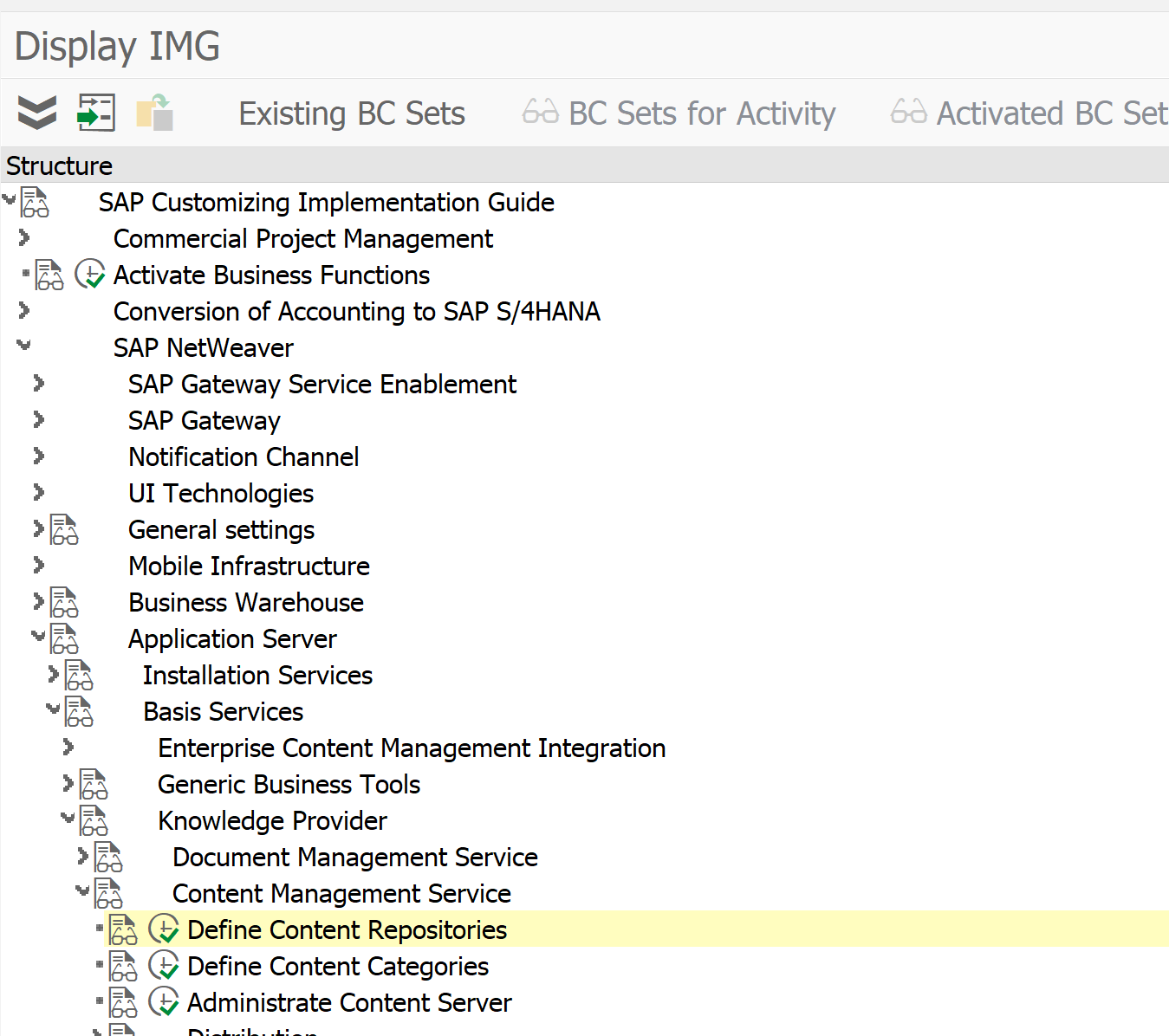
First check which content repository you want to use to store the print lists. The type of content repository must be “ARCHLINK”. Menu path in customizing is as follows:
Or you can go there directly with transaction OAC0.
Content repository A2 is default present in the system and is used in the example below. A2 is pointing towards the SAP database for storage. For productive use a SAP content server in stead of SAP database.
Customizing for print list archiving
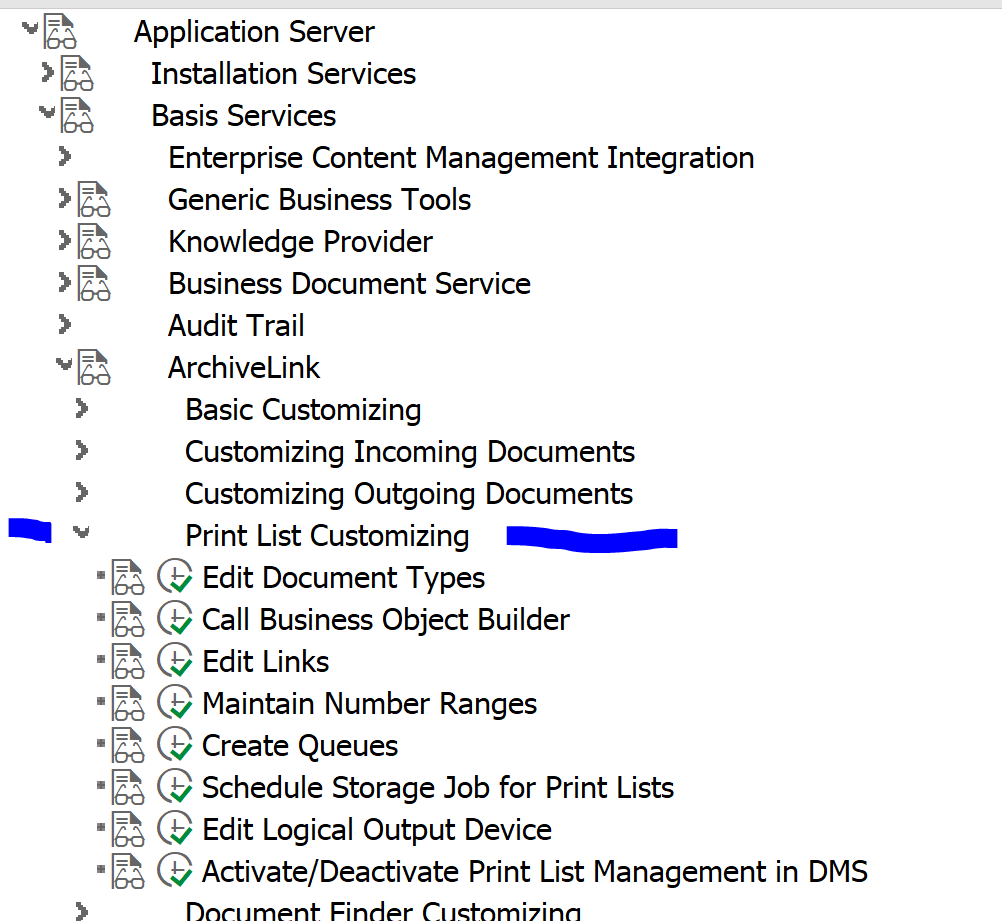
In the following customizing path you find all the actions required for the print list archiving:
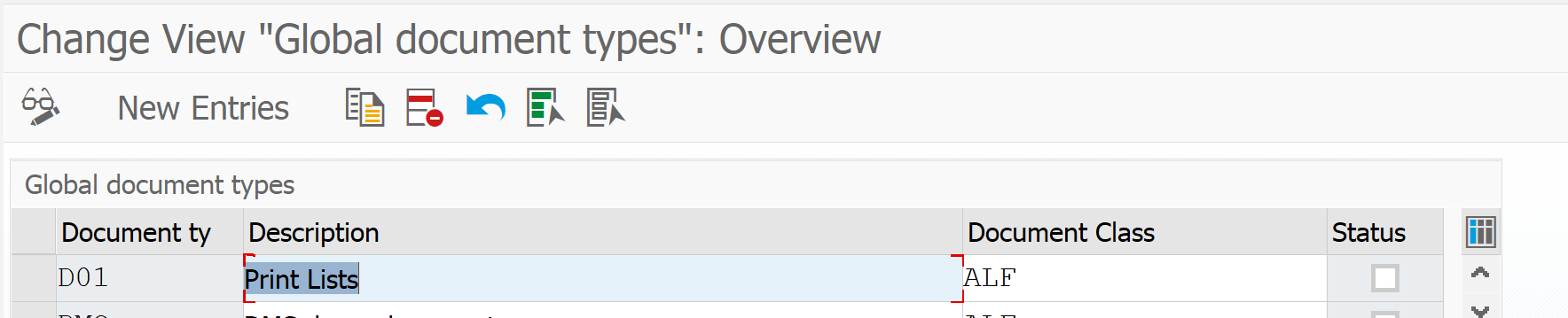
First check that print list document type D01 is present and is using ALF as document class:
In the Edit links section, you can set for document type D01 which content repository is should use.
Then check if the number ranges for archivelink are properly maintained (if empty create new number range):
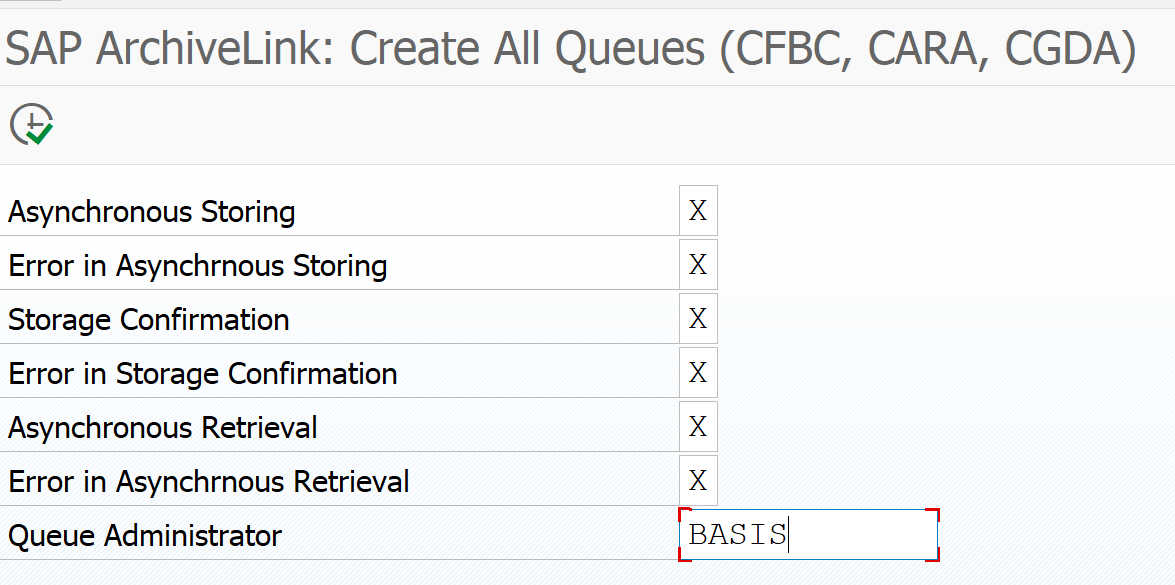
Then activate the print list queues:
Next step is to select the action to schedule the storage job. This job should not run faster than every 15 minutes.
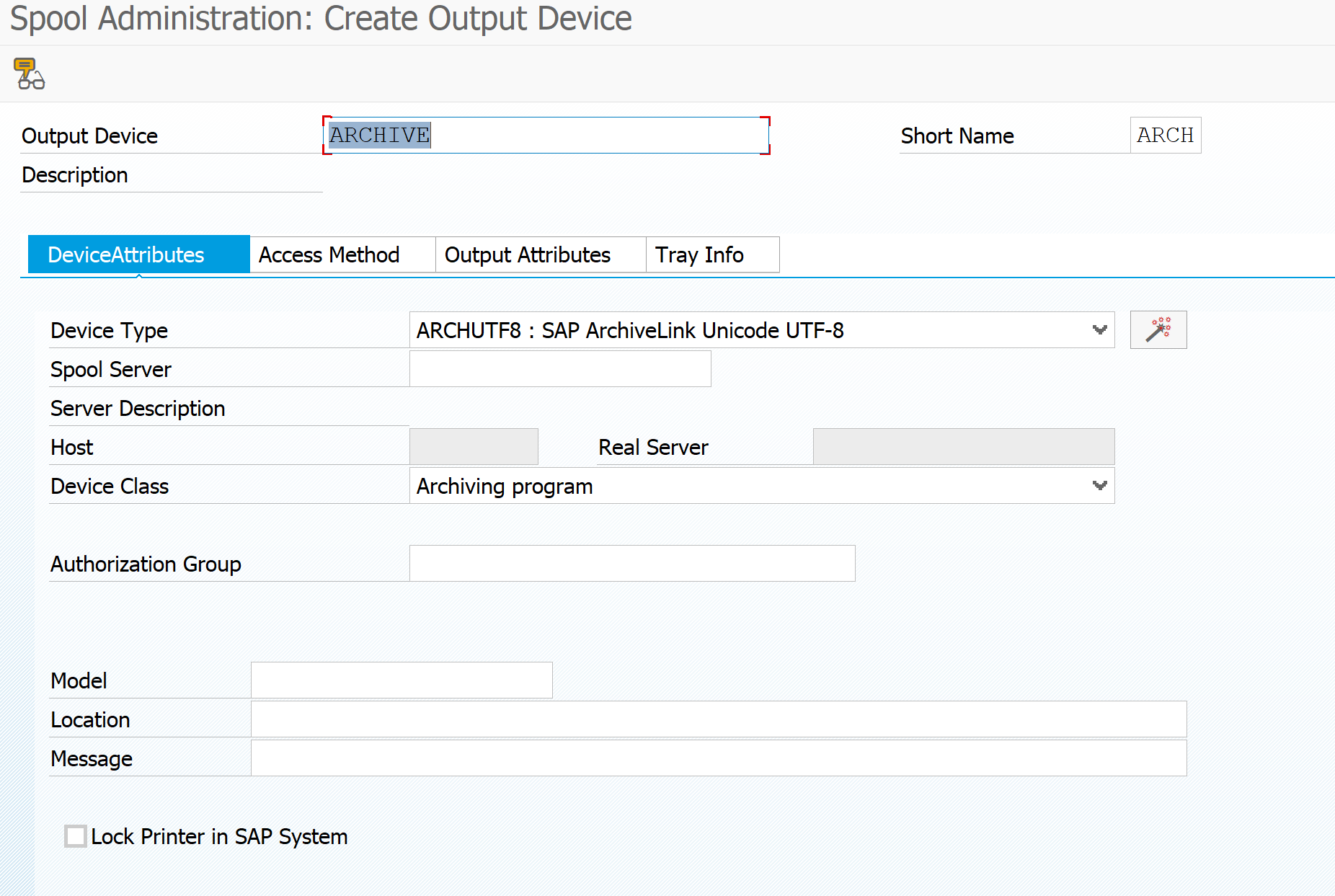
Final step is to setup the archive printer. You can later on see it with transaction SPAD as well.
Important here: short name must be ARCH. Device type and device class must be set to archiving.
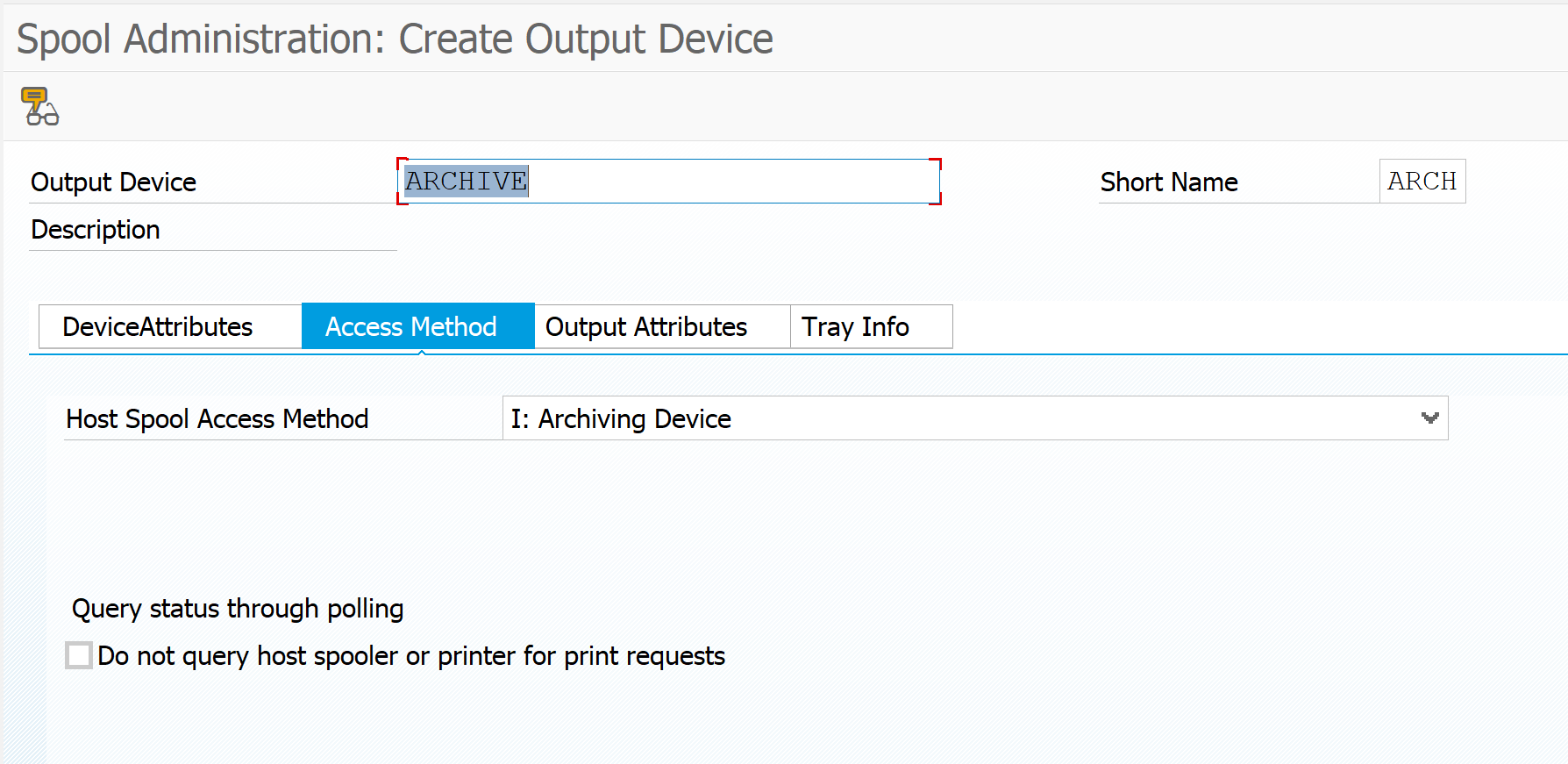
On the access method tab also set access method to archiving.
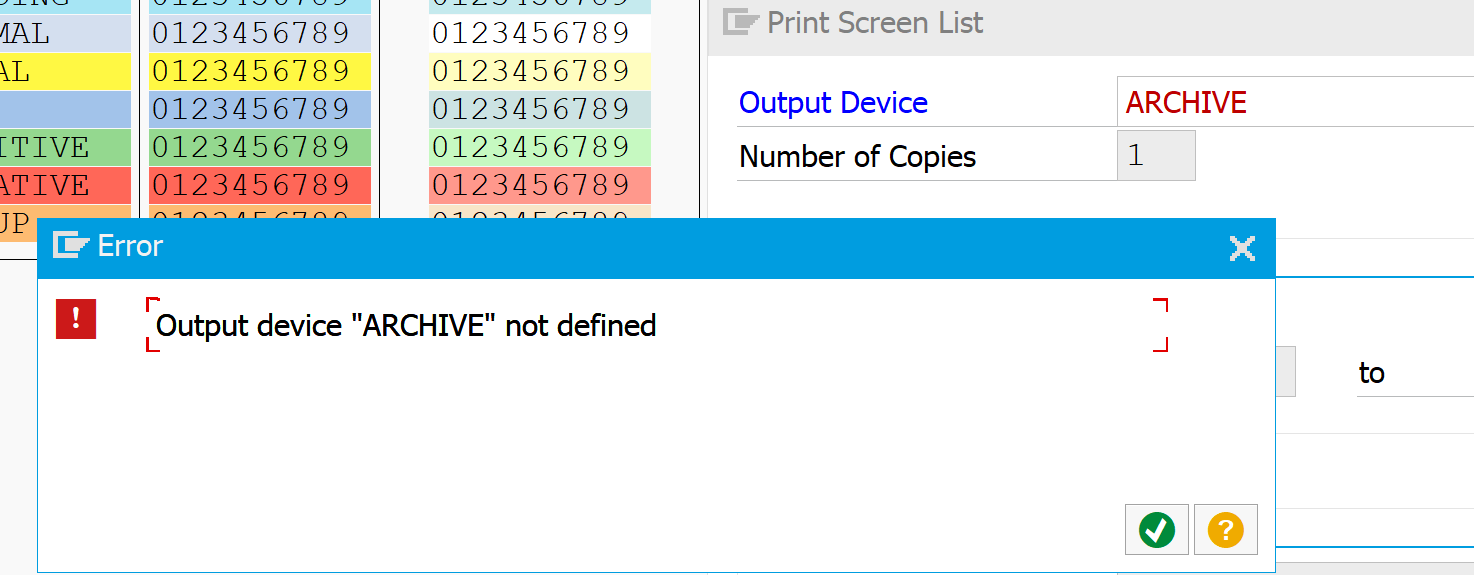
If you follow this procedure you will initially run into this strange screen:
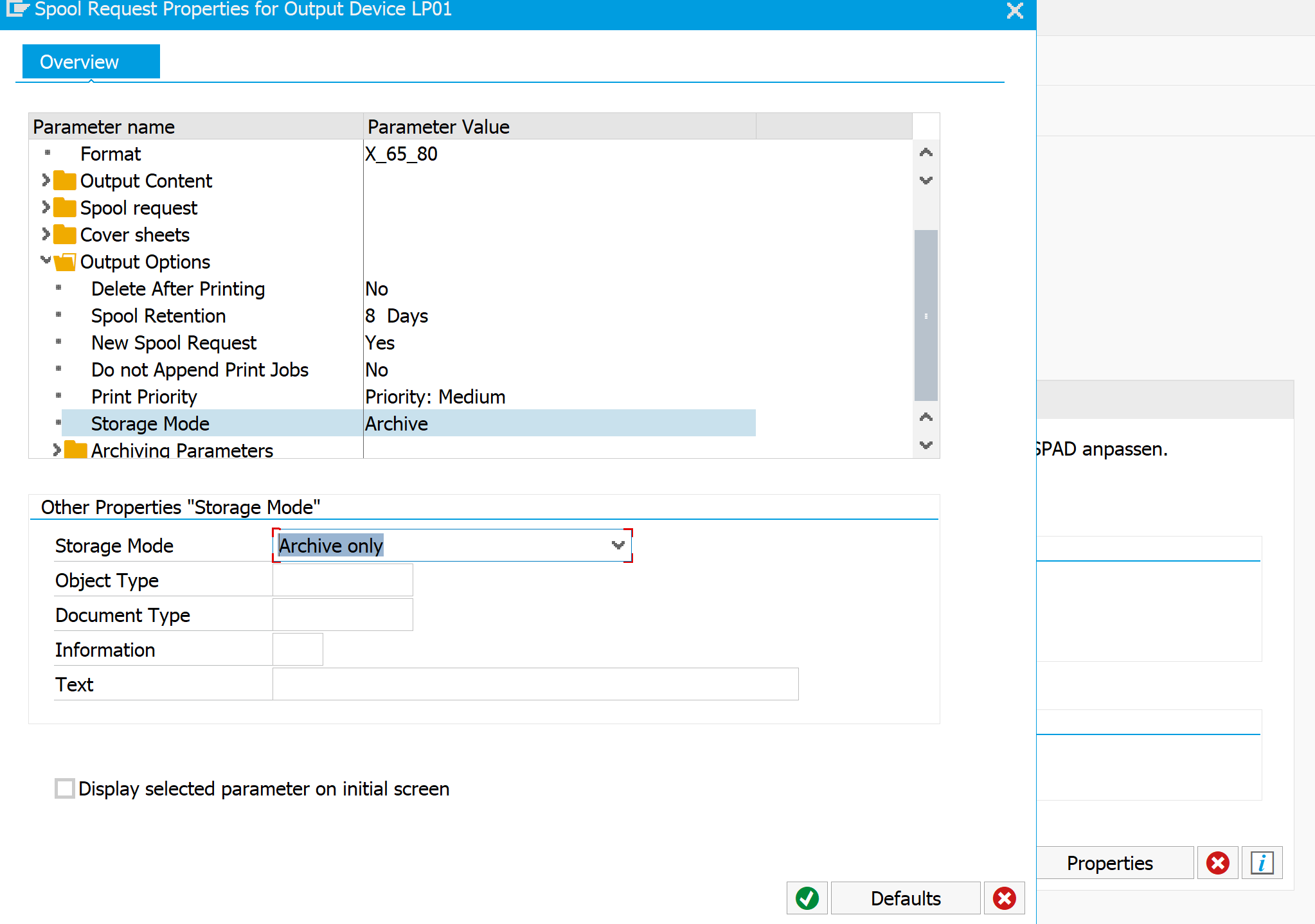
You didn’t do anything wrong yet. The problem is that the option for print to archive is not displayed by default. First go to the properties of a working printer to enable the archiving output option:
The rest of the note is self explaining:
Start SE38 and run program SHOWCOLO
Print the output list to printer ARCHIVE and archive mode selected
Goto SP01 find the spool, select menu path Print with changed parameters
Hit the Archive button
Start transaction OAM1 and hit the execute button next to Archive queue
Start transaction OADR to read from the archived print lists
From the list take the document and select the button “Display from storage system”
This blog will explain about technical cleanup to reduce the SAP database growth and to regain control of it.
Questions that will be answered are:
How to run the standard SAP clean up jobs?
Where can I find full list of items that could be cleaned up?
How to run the cleanup of some common objects?
Database reorganization after cleanup?
How can I clean up old idocs?
How can I clean up old table logging?
How can I clean up old application logs?
How can I clean up old RFC logs?
How can I clean up old change pointers?
How can I delete workflow logging?
How can I archive workflows?
How can I delete SAP office documents?
How can I delete old audit log data?
How can I execute specific clean up for BI systems?
How can I execute specific clean up for solution manager system?
Many more…. use search for table name
This blog assumes you have followed the step in this blog to get insight into your fast growing SAP tables. Or you use the me.sap.com/dataoverview function (see this blog for details).
In the past there was a function called data aging. This is superceded by HANA NSE (Native Storage Extension). To set up NSE, read the instructions in this blog.
This blog focuses on technical data objects archiving and clean up by performing deletion. If you want to setup functional archiving, start reading this blog.
For non-production systems, you can clean up more aggressively than on a productive system. To save time, there is a mass clean up program, where you can fire many clean up programs in one go. Read more on this dedicated blog.
HANA NSE (native storage extension)
Next to deletion, you can also offload a lot of technical tables from memory by using HANA NSE (native storage extension). Read more in this blog.
SAP standard clean up jobs
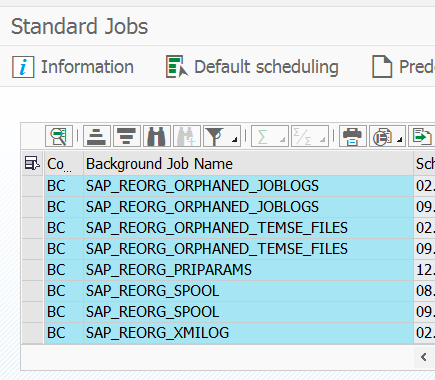
Using SM36 you can plan all SAP standard jobs (which include a lot of clean up jobs for spools, dumps, etc) via the button Standard Jobs.
By hitting the button Default scheduling in an initial system, or after any upgrade or support package, the system will plan its default clean up schedule.
S4HANA has different set up of standard jobs. See blog.
Clean up of old idocs
Idoc data is stored in EDI* tables. Largest tables are usually EDI40, EDIDS and EDIDC.
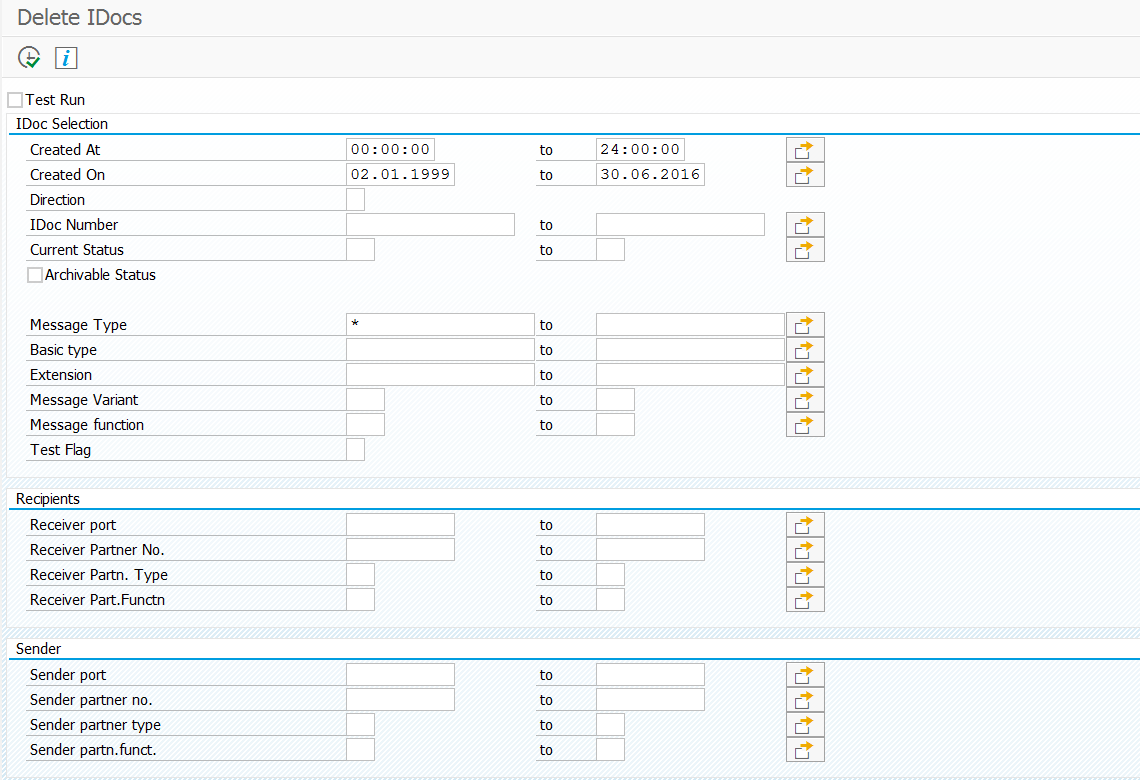
Old idocs can be deleted using transaction WE11.
In batch mode you can schedule it as program RSETESTD.
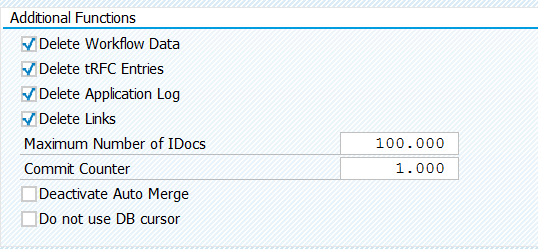
In the bottom of the selection screen are the technical options:
The idoc deletion job can fail if there is too many data to process. If they happens remove the 4 tick boxes here and use the separate deletion programs: RSWWWIDE, RSARFCER, SBAL_DELETE and RSRLDREL2. These 5 combined programs will delete the same, but run more efficiently. This procedure is also explained in OSS note 1574016 – Deleting idocs with WE11/ RSETESTD.
IDC8 links the inbound IDoc with the tRFC ID in the inbound IDoc. IDCA links the outbound IDoc with the tRFC ID in the outbound IDoc. These link are used for everything from troubleshooting to completely updating the IDoc. Older entries are no longer needed.
Clean up of table logging
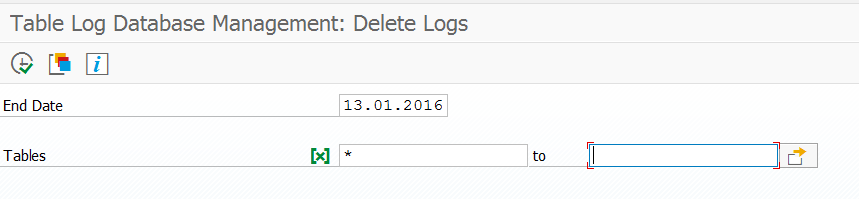
Table logging is stored in table DBTABLOG (general information on table logging can be found in this blog). Deletion can be done using transaction SCU3 and then choosing the option Edit/Logs/Delete, or by using program RSTBPDEL.
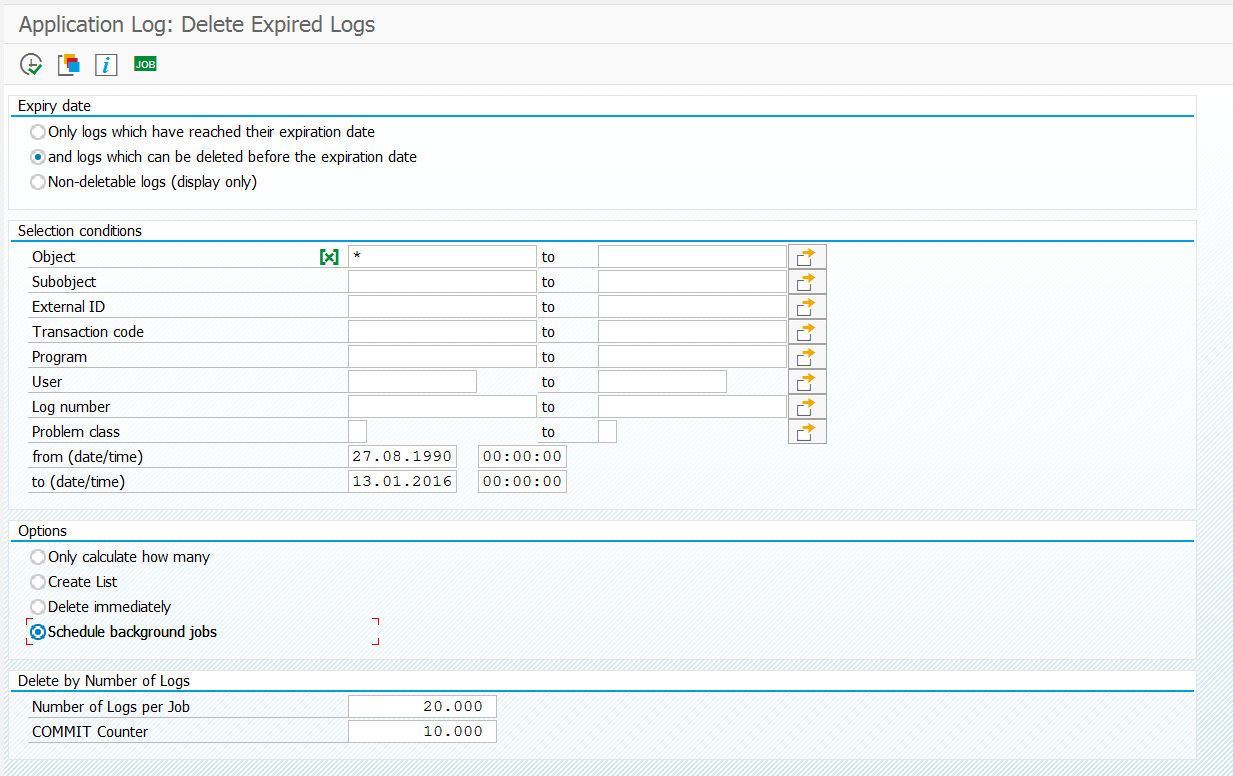
Application logging (SLG1) is stored in tables BALDAT and BALHDR (for general information on the use of the application log, read this blog). Deletion can be done using transaction SLG2 or by using program SBAL_DELETE.
The last options to fine tune the number of logs per job and the commit counter setting do not appear by default. Select menu option Program/Expert mode first.
Many applications can write data to the application log. In customizing there are settings per application to log for example all, or only errors. For a productive system logging all can cause the application log entries to grow very rapidly. Consider then to lower the log level.
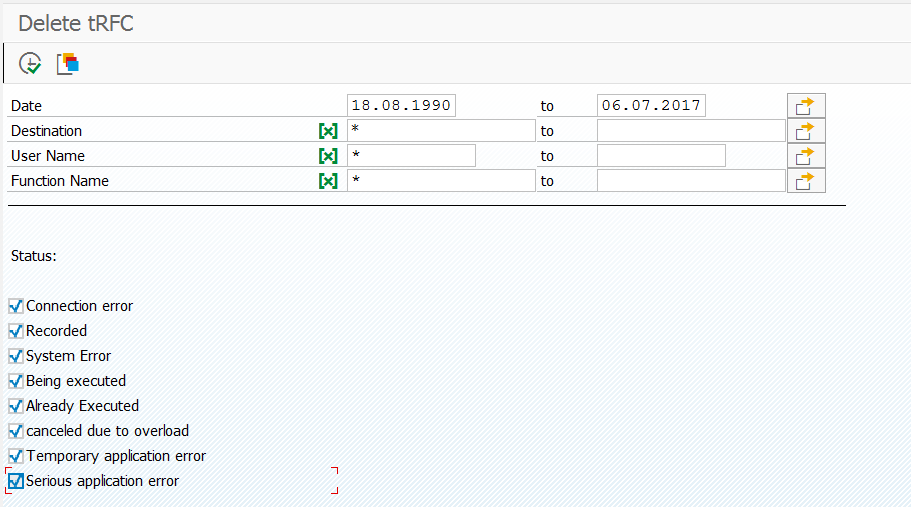
Old RFC data can be deleted using transaction SM58, selecting some data, then in the overview screen select the menu option Log File/ Reorganize. Or by starting program RSARFCER.
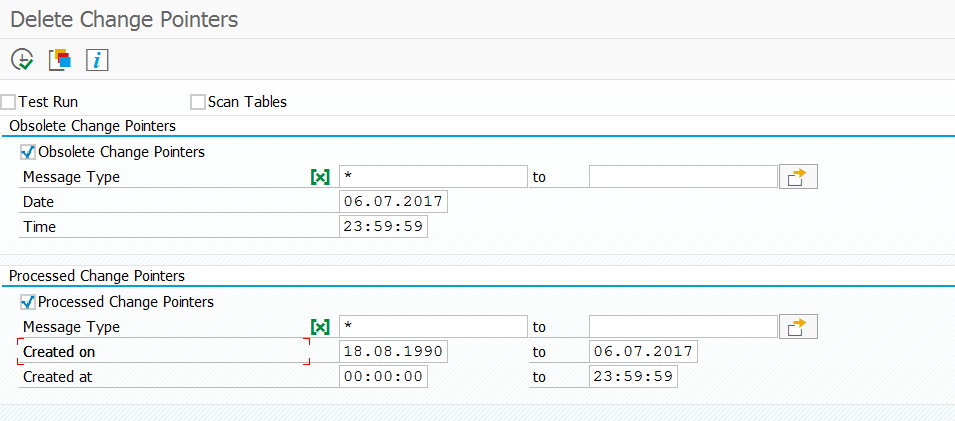
If you are using MDG: it has its own set of change pointer tables (MDGD_CP_REP_STAT). Clean up transaction code is MDGCPDEL. Program for batch job clean up is RMDGCPCLR.
Workflows are stored in many tables starting with SW*.
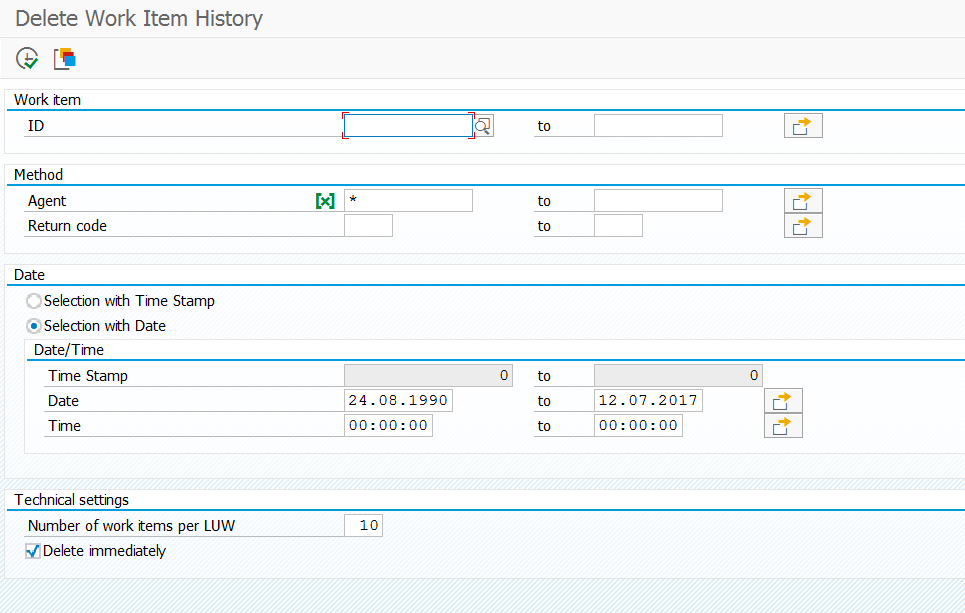
You can delete work item history with transaction SWWH or program RSWWHIDE.
This clean up will only do the work item technical history and not the workflow itself. If workflow itself can be deleted or is to be archived is a functionality decision that the depend on the business and audit needs.
The workflow deleting program can create large amount of spools. If this is not wanted use the NULL printer.
If your business is using the GOS (generic object services) to see workflows linked to a business document, and they cannot retrieve the archived work item, please follow carefully the instructions in OSS note 2356250 – Not able to view archived workflows.
If you want to delete the actual workflow you have to run transaction SWWL, program RSWWWIDE (for specific workflow task deletion), or transaction SWWL_TOPLEVEL (to start from the top level).
Take care that before deleting workflows you have checked that these are not needed for audit or financial proof. Some workflows will contain approval steps with a recording of who approved what at which time.
If you have a large amount of items in your SAP inbox, you can delete them via program RSSODLIN. Background is in OSS note 63912 – SAPoffice: Delete user sessions.
Test this first and check with the data owner that the documents are no longer needed.
For a full explanation on deleting SAP office documents (including all the pre-programs to run) and bug fix notes: read this dedicated blog on SAP office document deletion.
After running RSBCS_REORG, consider also to run program RSBCS_ADRVP to clean up outdated where‑used lists for both personal (ADRVP) and company (ADRV) addresses that are no longer linked to any active BCS data.
Usually the business will not allow deletion of SAP office document (unless they are very old). You might be ending up with a SOFFCONT1 table of 100 GB or more.
In stead of deleting SAP office documents, you can also migrate them to a content server. Read more in this blog.
Change documents
Change documents do contain business data changes to business objects. If tables CDHDR and CDPOS grow very big, you start with an age analysis. You can propose to business to delete change documents older than 10 years. 10 years is the legal time you need to keep a lot of data. Deletion is done via program RSCDOK99. If business does not want to delete, but keep the data in the archive, you can use data archiving object CHANGEDOCU. Retrieval of archived change documents is via transaction RSSCD100.
If you have large SYS_LOB tables, most likely these are occupied with attachments. Consider setup of SAP content server (see blog) and then migrate the documents from the SAP database to the content server (see blog).
To analyze SYS_LOB tables, follow the instructions in this dedicated blog.
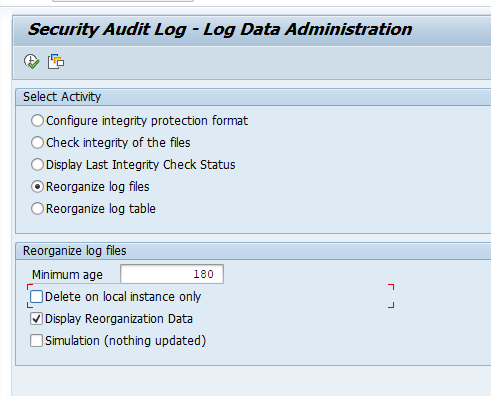
You can schedule program RSAUPURG or program RSAU_FILE_ADMIN with the right variant to delete old Audit log data:
Before deleting audit log data, first agree with your security officer on the retention period. More on audit log in this blog.
Clean up of user role assignment data
If you have an older system, you will find that many users will have double roles assigned, or roles with validity dates in the past. This will lead to large amount of entries in table AGR_USERS. You can clean up by compressing this data with program PRGN_COMPRESS_TIMES. Read more in this blog.
Large WBCROSSGT table
Table WBCROSSGT is used to store the ABAP where used index. Might be large after upgrade. Use program RS_DEL_WBCROSSGT to delete and program SAPRSEUB to recreate the indexes.
The master data replication framework can fill up table The master data replication framework can fill up table DRFD_SERVOUT_LOG fast with a lot of logging data. Run program RDRF_DELETE_LOG (transaction DRFLOGDEL) to clean up these logs.
For clean up of a solution manager system, read this dedicated blog.
Clean up for SAP Focused Run
For clean up of a SAP Focused Run system, read this dedicated blog.
Updating statistics
If you are running Oracle database it is wise to include in technical clean up job as last step the online reorganization of tables or indexes using program RSANAORA. See blog.
When converting to S/4 HANA you could end up with smaller physical HANA blade and need to buy less memory licenses from SAP
Less data storage leads to less costs (think also about production data copied back to acceptance, development and sandbox systems)
Back up / restore procedures are longer with large databases
Performance is better with smaller databases
Database growth
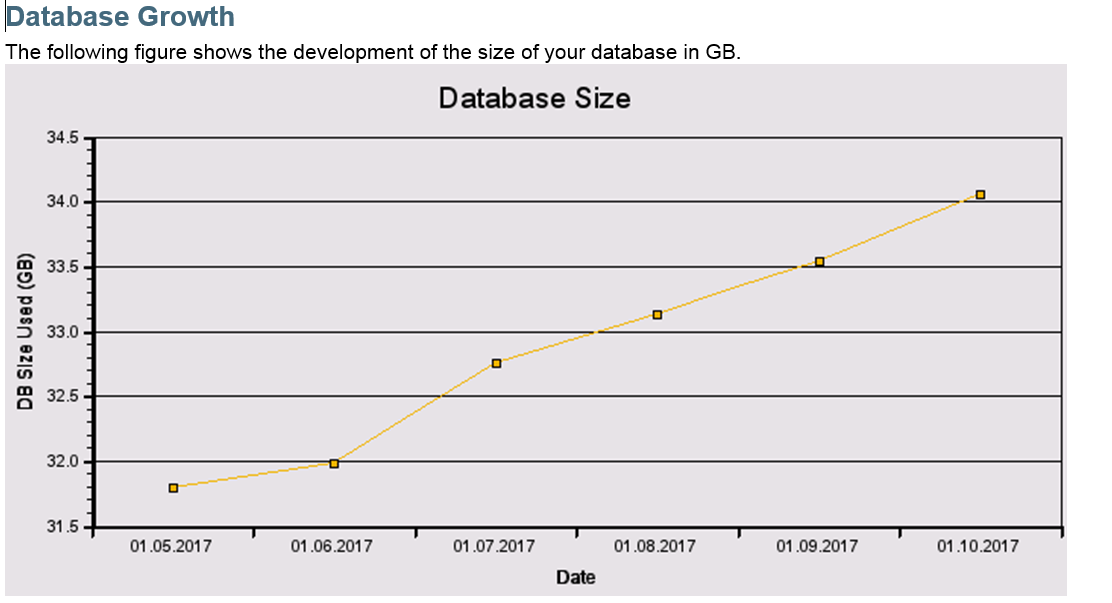
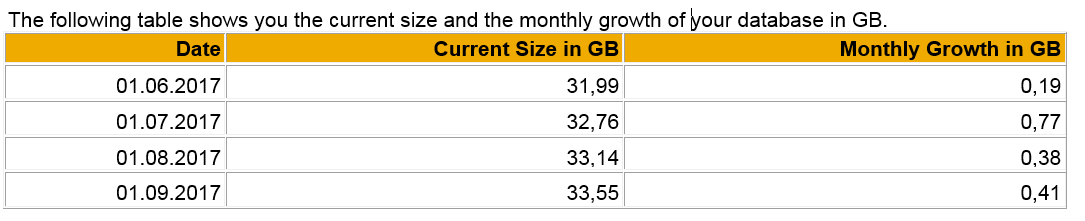
The most easy way to check if the database is growing too fast or not is using the Database Growth section in the SAP EWA (early watch alert). The EWA has both graphical and table representation for the growth:
You now have to determine if the growth is acceptable or not. This depends a bit on the usage of the system, amount of users, business data, and if you already stretched your infrastructure or not.
General rules of thumb:

1. Growth < 1 GB/month: do not spend time.
2. Growth > 1 GB/month and < 5 GB/month: implement technical clean up.
3. Growth > 5 GB/month: implement technical clean up and check for functional archiving opportunities.
Which are my largest tables?
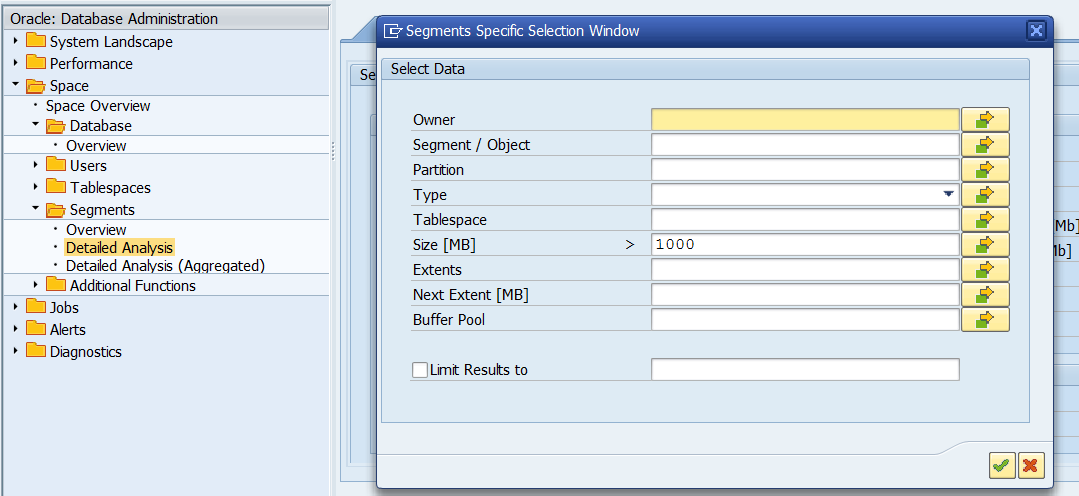
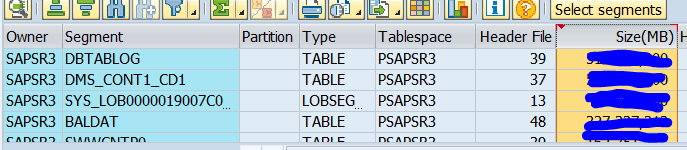
To find the largest tables and indexes in your system start transaction DB02. In here select the option Space/Segments/Detailed Analysis and select all tables larger than 1 GB (or 1000 MB):
Then wait for the results and sort the results by size:
You can also download the full list.
Data volume management on me.sap.com
The me.sap.com site has a data volume management page for your systems.
For the background on this page, you can read this dedicated blog.
Analysis of the large tables
Processing of the tables is usually done by starting with the largest tables first.
You can divide the tables in following categories:
Technical data: deletion and clean up can be done (logging you don’t want any more like some idoc types, application logging older than 2 years, etc): see blog on technical clean up
Technical data: archiving or storing can be done (idocs you must store, but don’t need fast access to, attachments)
In Oracle based systems, you might find large SYS_LOB tables. To analyze these, read this special blog.
SAP has a best practice document called “Data Management Guide for SAP Business Suite” or “DVM guide”. This document is updated every quarter to half year. The publication location is bit hidden by SAP under their DVM (data volume management) service. In the bottom here go to SAP support and open the How-to-guides section. Or search on google with the term “Data Management Guide for SAP Business Suite” (you might end up with a bit older version). The guide is giving you options per large table to delete and/or archive data.
Most common technical tables you will come across:
EDIDC, EDIDS, EDI40: idocs
DBTABLOG: table changes
BALHDR, BALDAT: application logging
SWW* (all that start with SWW): workflow tables
SYS_LOB…..$$: attachments (office attachments and/or DB storage of attachments and/or GOS, global object services attachments)
Detailed table analysis for functional tables: TAANA tool
For detailed analysis on functional tables the TAANA (table analysis) tool can be used. Simply start transaction TAANA.
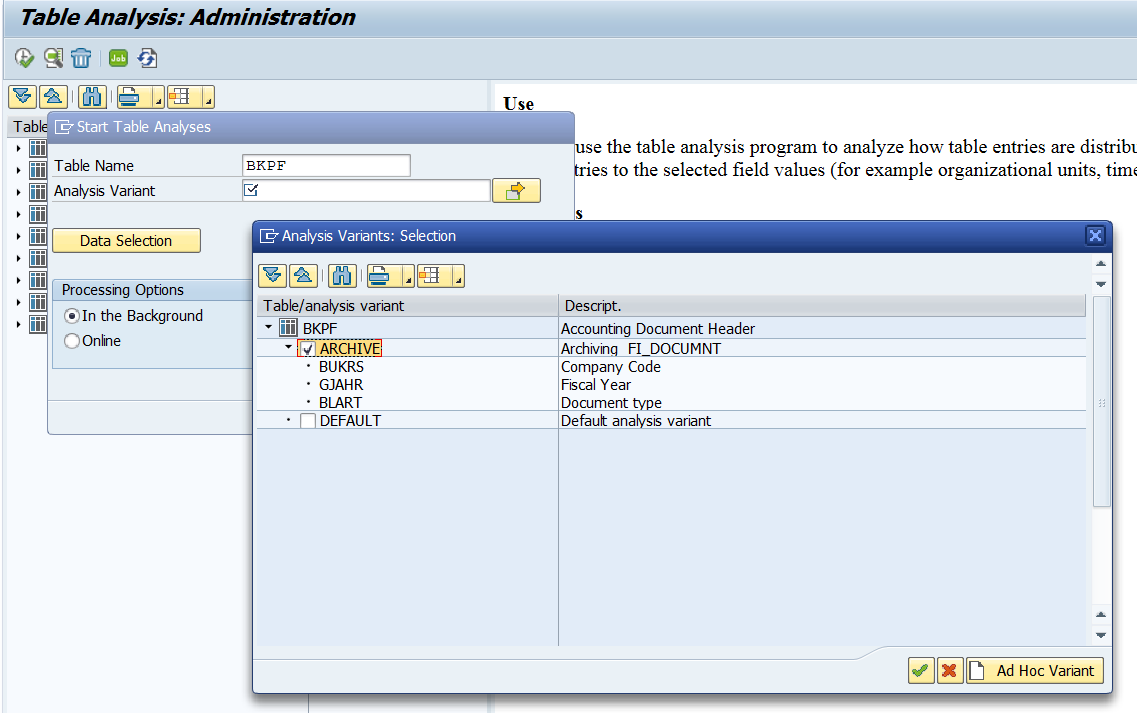
Now create a table analysis variant by giving the table name and selection of the analysis variant:
The default variant will only do a record count. Some tables (like BKPF in this example) come with a predefined ARCHIVE variant. This is most useful option. If this option does not fit your need, you can also push the create Ad Hoc Report button and define your own variant.
Caution: with the ad hoc variant select your fields with care, since the analysis will count all combinations of fields you select. Never select table key fields
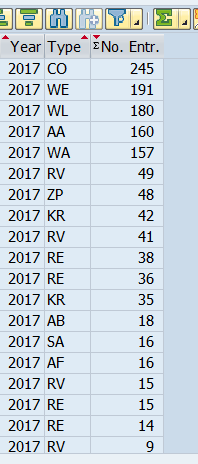
Results of TAANA are visible after the TAANA batch job is finished.
By running the proper TAANA analysis for a large functional table you get insight into the distribution per year, company code, plant, document type etc. This will help you also estimate the benefits of archiving a specific object.
For TAANA improvement on dynamic subfields, please check this blog.
If you run on HANA, you can also use SE16H for the table analysis.
One of the easier technical ways to lower the volume of data on a live HANA system is to setup HANA NSE (native storage extension). This will not reduce the data volume, but will reduce the amount of data in memory by keeping old data on disc. Read more in this blog.
SAP data volume management via SAP solution manager
SAP is offering option to report on data volume management via SAP solution manager directly or as a subsection in the EWA. Experience so far with this: too long in setup, too buggy. The methods described above are much, much faster and you get insight into a matter of hours. The DVM setup will take you hours to do and days/weeks to wait for results…. TAANA and SE16H are way faster.