RAL: read access logging

The SAP audit log records transactions, program executions and much more. But it cannot answer questions that are more sensitive. For example, how can you proof that your employee did or did not see a bank account number, or a basic salary pay? Here is where the RAL read access logging function will help. It will record if a user did have display access to a sensitive field (and the value shown to the user). It can be used to proof a user did see. Or when there is no logging (and the logging is setup correctly), help the employee to proof he/she did not see any sensitive data.

This blog will explain the technical setup. Please do check carefully any privacy, legal, HR and other implications of switching on this functionality.

Questions that will be answered in this blog:

  • How to setup up RAL from the basis technology side?
  • How to create a RAL recording?
  • How to activate RAL?
  • How to use RAL monitoring?

RAL technical setup

Activate in SICF transaction the following services:

  • SRALCONFIG
  • SRALMANAGER
  • SRALMONITOR
  • SRALUTIL

If needed set in RZ11 the parameter sec/ral_enabled_for_rfc to 1.

Now start transaction SRALMANAGER:
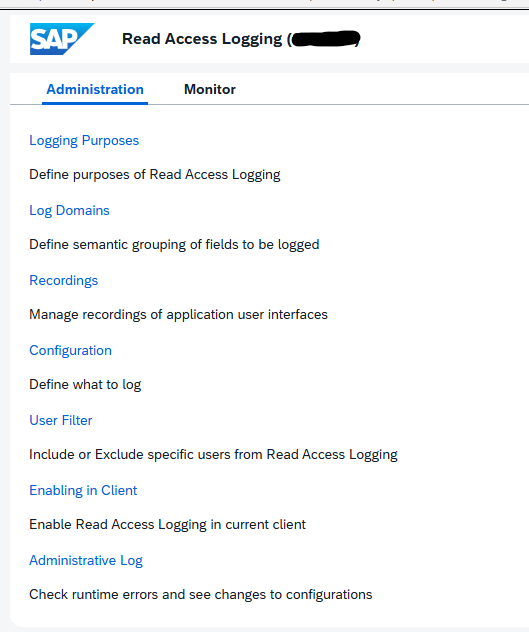
Choose the option Enabling in Client:
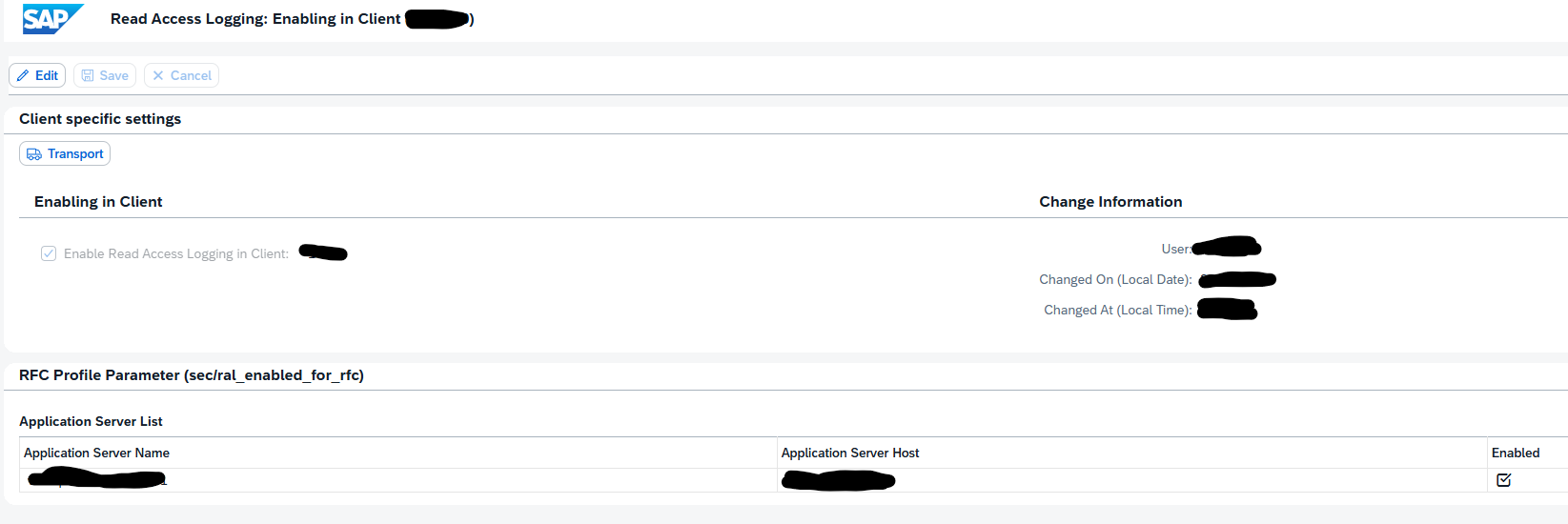
Press change, enable, and Save.

You can run program SRAL_CHECK_PREREQUISITES to see if all activations are done correctly (oss note 2158630 – RAL: Program to check prerequisites).

Create a RAL recording

A recording is needed to indicate which fields need to be added to the read access log. In transaction SRALMANAGER, choose recordings and then create a new one:
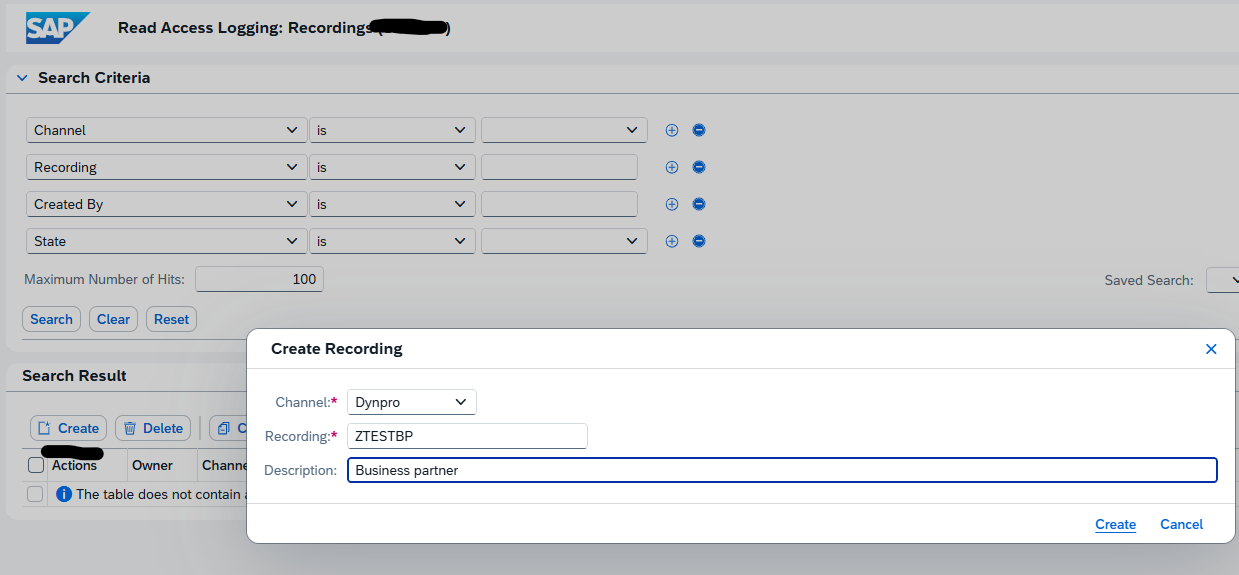
We use the example ZTESTBP for business partner.

In the line for the recorder there are 3 buttons:

First one is to display.
Second one to start the recording.

Third one is to add the recording user.

Start the recording:
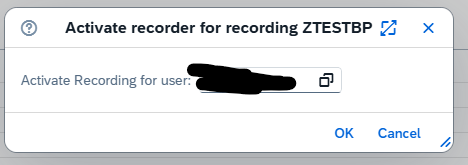
Now important: keep the web session open.

Go to the SAP GUI and execute your transaction. When you want to add a field to the RAL logging, select the field, press CTRL, right click and select the option “RAL: record field” or use the CTRL+L shortcut.

If you do not add fields the recording is empty!

When completed go back to the RAL admin web screen and press the icon to Stop the recording.

Now you can display the recorded fields:
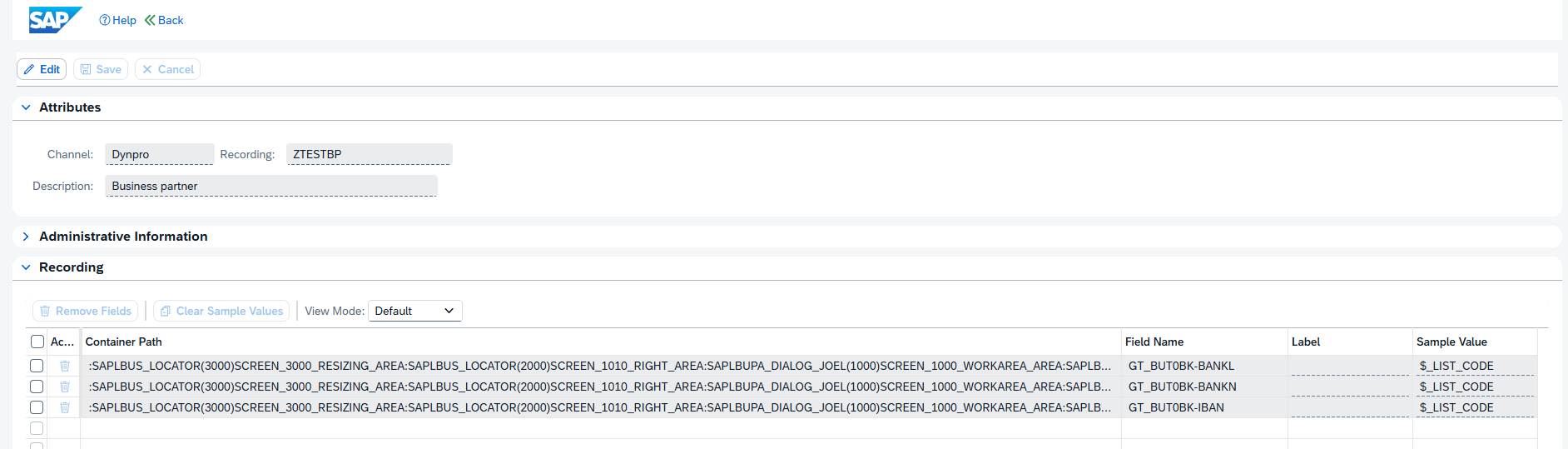
Create a RAL configuration

We can now use the recording to create a configuration. In the transaction SRALMANAGER choose configurations and create a new one:
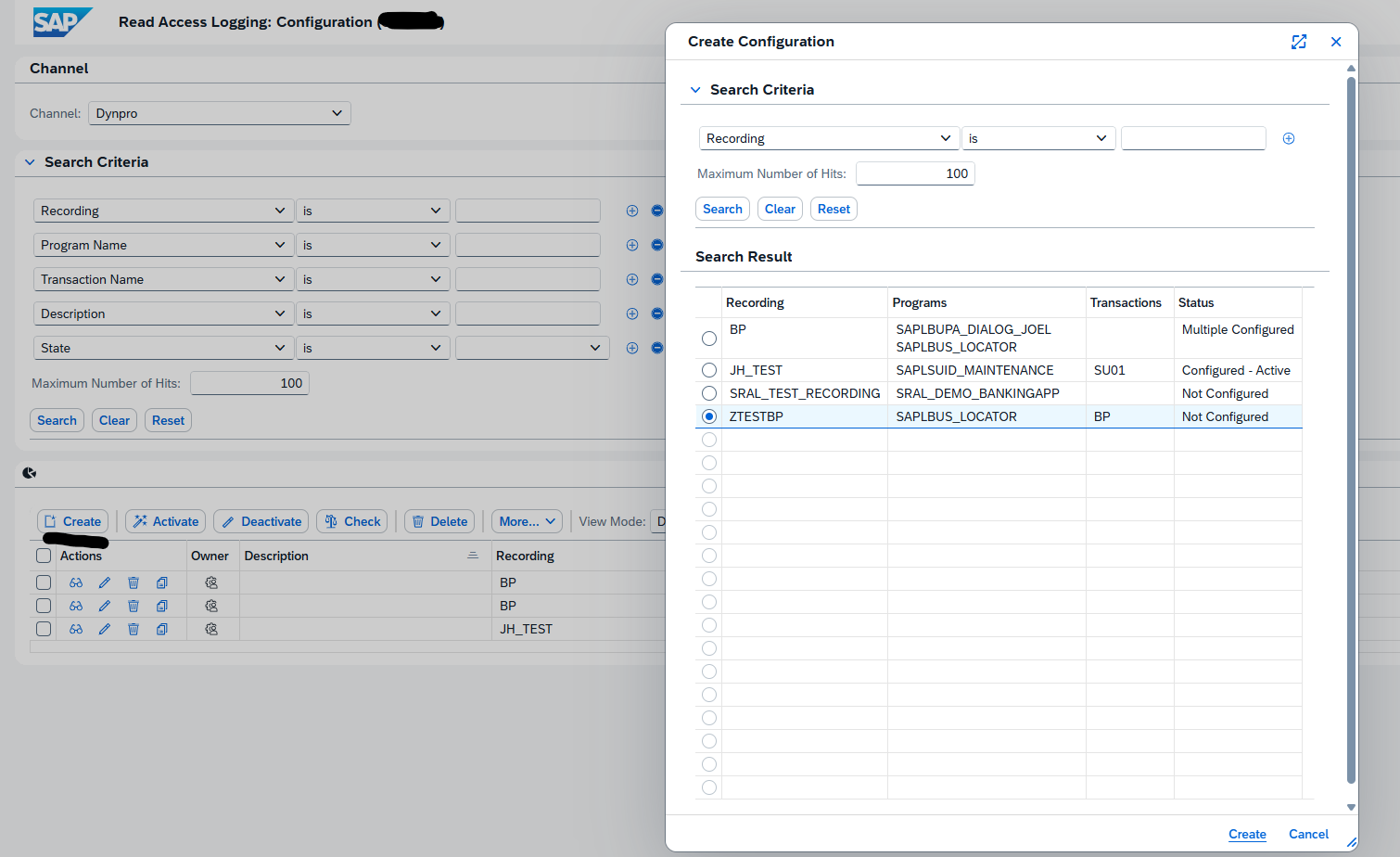
In the new complex screen, create a new log group. Then drag and drop from the field list on the bottom left to the target fields:
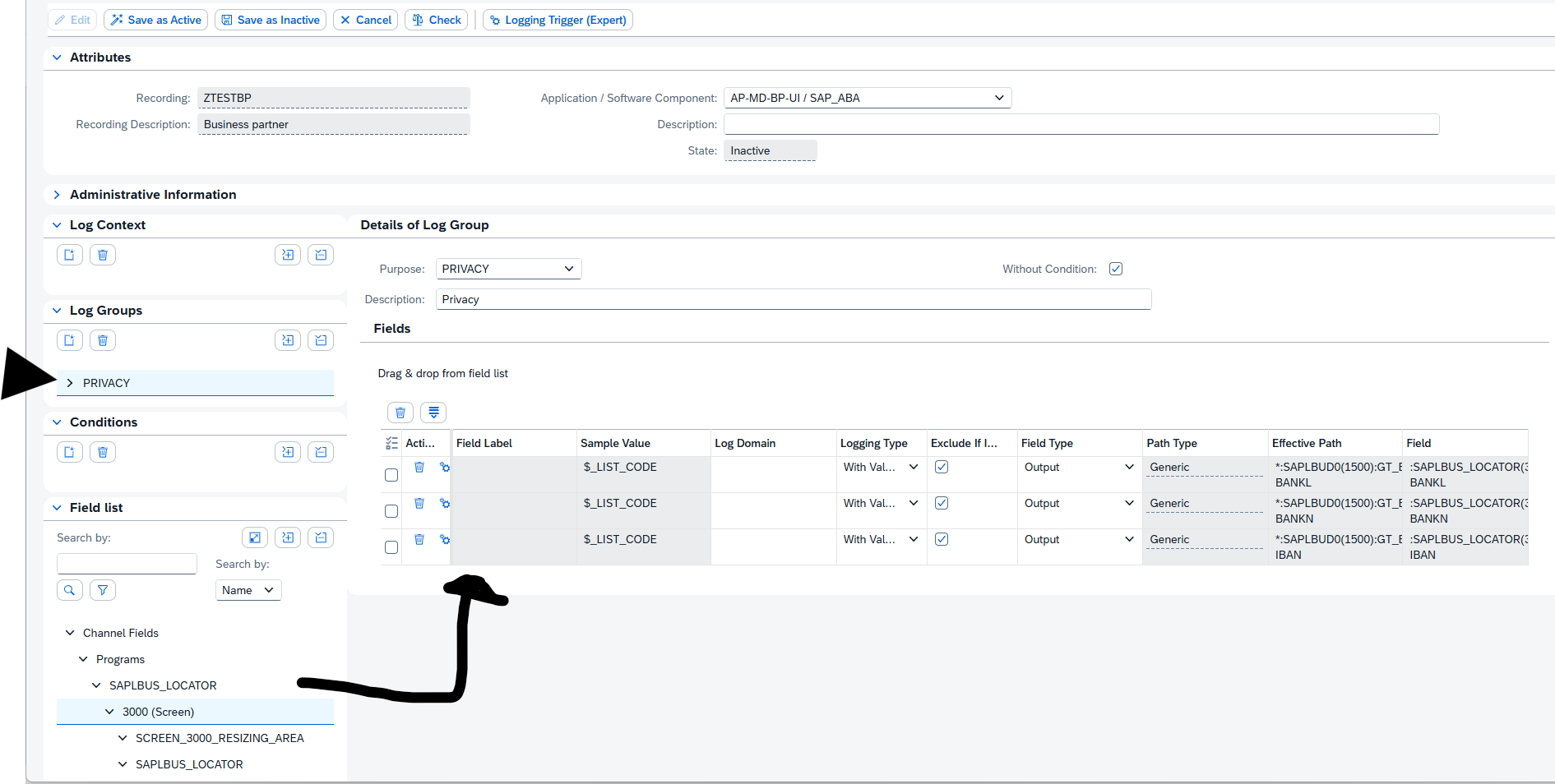
Then first Check the consistency and when ok, activate the configuration:

Using the RAL logging database

In the administration use the second tab for monitoring, or use transaction RALMONITOR to jump directly to the monitoring database. Important here: select the RAW database first! Then select your criteria:
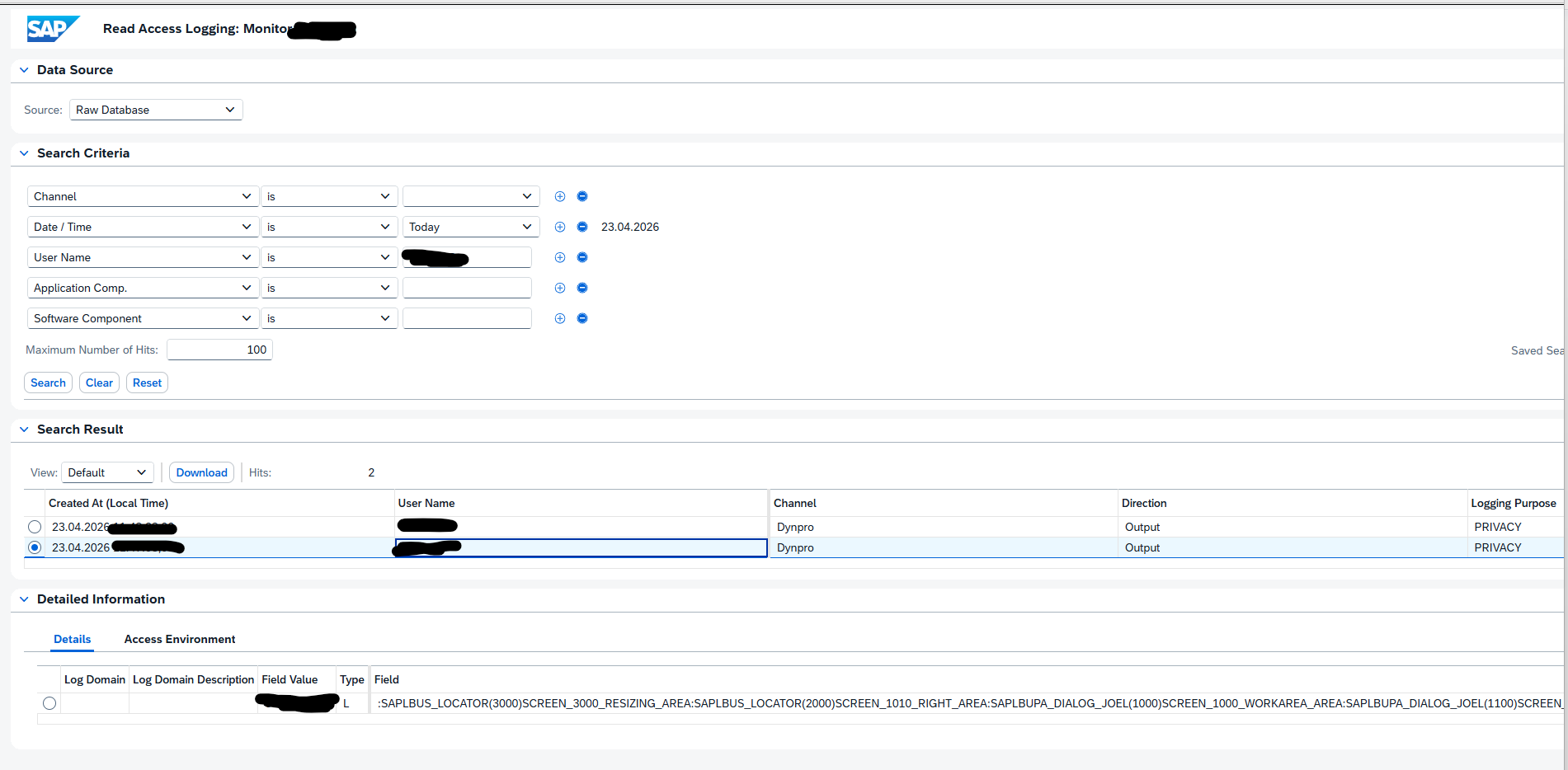
In the search results you can select the details. In the Field Value at the bottom, you can see the actual value that the user has seen on its screen.

SAP background and references

RAL help file: Read Access Logging | SAP Help Portal.

Background on recording function: Read access logging(Recording functionality) – SAP Community.

Background on dynpro: Read Access Logging – Dynpro Configuration Step-by… – SAP Community.

Background OSS notes:

Bug fixes:

SAP Menu

In some cases you might be asked on the SAP menu. How it is build up, which transaction codes are in there, who is using SAP menu, and how is using the company created menu. And other questions.

Getting menu data can be done in several ways.

Who is using which menu

Check who is using SAP menu is explained in OSS note 3074602 – How to check who are using user menu and who are using SAP menu for all users.

Structured download of menu

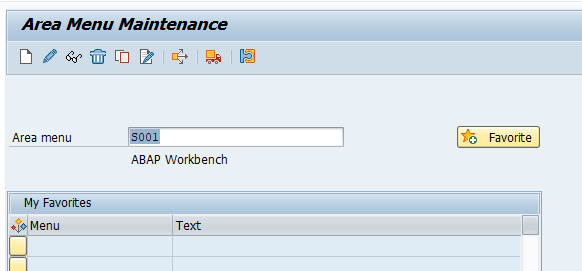
Start transaction SE43N and select the menu and press display. In our example S001 for ABAP workbench:

For the main menu in ECC or S4HANA, check for SAP1 as the entry.

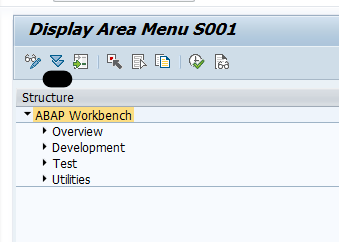
You now see the menu in not-expanded mode:

If the tree is large, you get a warning that the full tree is not exploded:

Make sure all the nodes you need information from are expanded.

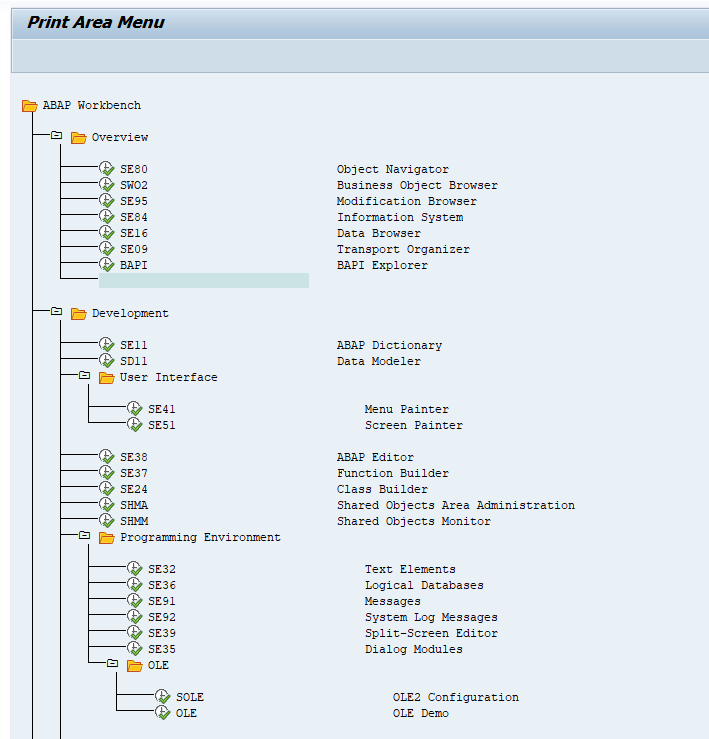
Now select the menu option Area Menu and then Print to switch to the print mode:

With function System / List / Save / Local file, you can download the list to CSV or TXT file. And import that again to Excel if needed.

ABAP or function module to get data

You can run program SSM_LIST or check Function Module MENU_GET_MENU_TREE_NEW or MENU_R3_SSM_LOAD_MENU_DATA.

This gives list of transaction codes. The texts for the transaction codes are stored in table TSTCT.

Solved: How to download list of transaction from SAP area … – SAP Community

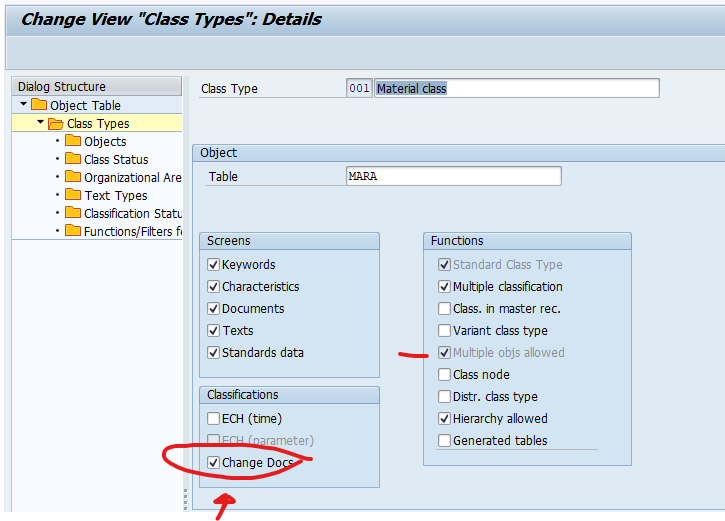
Activate change documents for classification

SAP generates a lot of change documents for a lot of objects. Unfortunately for classification (for example for materials), this is not enabled by default.

The procedure to activate change documents for classification is described in OSS note 1705101 – How to Activate Classification Change Documents.

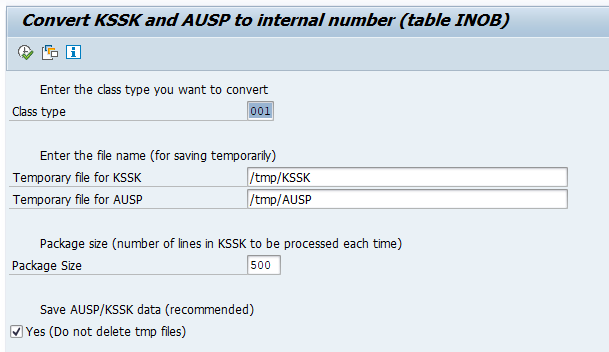
First you need to run program RCCLUKA2 as described in OSS note 942691 – Information about using RCCLUKA2. Depending on the amount of records this program runs minutes to several hours.

Program RCCLUKA2 convert the key of the classification. Any custom code reading KSSK and AUSP directly might need to be updated!

Once the program is done, you can use transaction O1CL to activate the change documents:

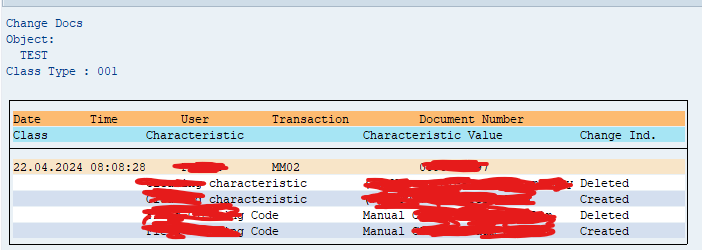
In the material master classification screen the menu option Environment/Change Documents is now enabled and will show the changes to classification done:

SLG1 application log

SLG1 application log is a powerful function in supporting productive system. This blog will explain the backgrounds.

Questions that will be answered in this blog are:

  • What is the intended use of SLG1 application log?
  • Should SLG1 application log be used by the business or IT only?
  • How can I download or export the logs from SLG1?
  • How can I clean up or delete SLG1 logging?

Intended use of SLG1 application log

The SLG1 application log is primarily intended for use by IT staff to support the SAP system. The logging can be used to analyze issues that the user is reporting, without IT staff requiring direct access to the business data transactions (not even to display data). Most standard SAP applications will log errors in the application log.

The logging can be for:

  1. Technical errors
  2. Functional error (like missing customizing)
  3. (master) data errors

When you are having frequent (master) data errors that primarily show in SLG1 application logging, it can make sense to give access to SLG1 for your business key users. You should train them on the transaction, since it might be too technical for them.

Use of SLG1 application logging transaction

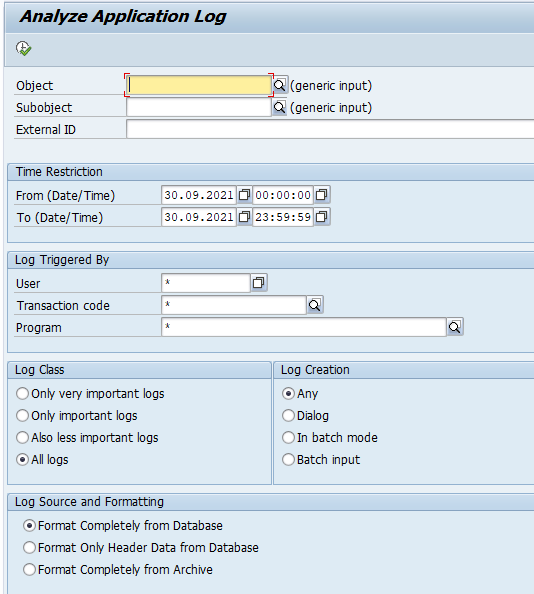
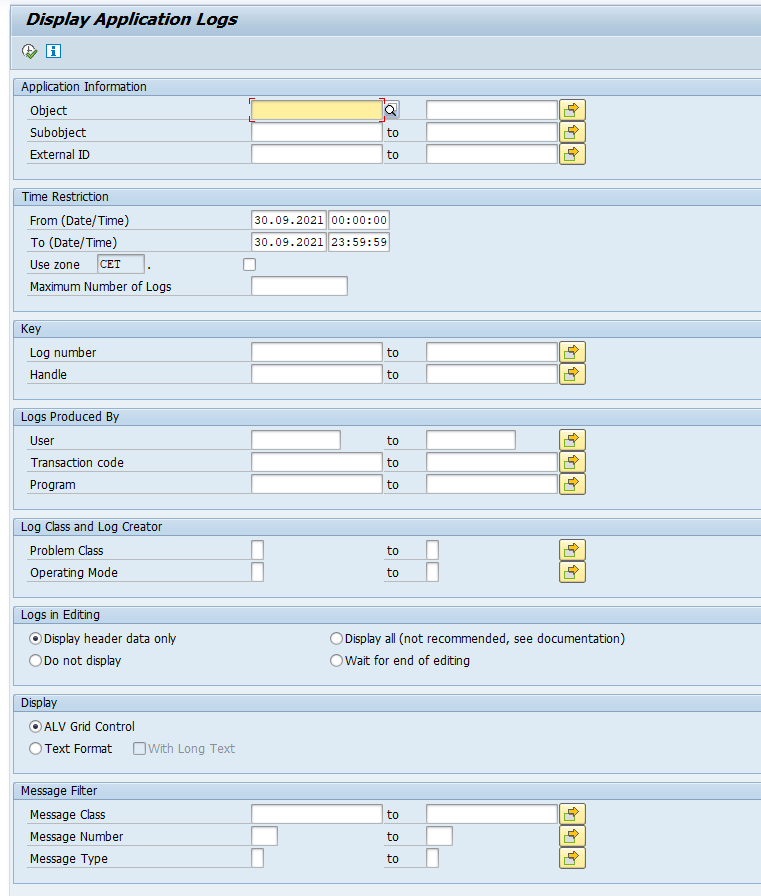
Start the application logging with transaction SLG1 and fill the required fields:

Best to start with Only important logs to reduce the volume.

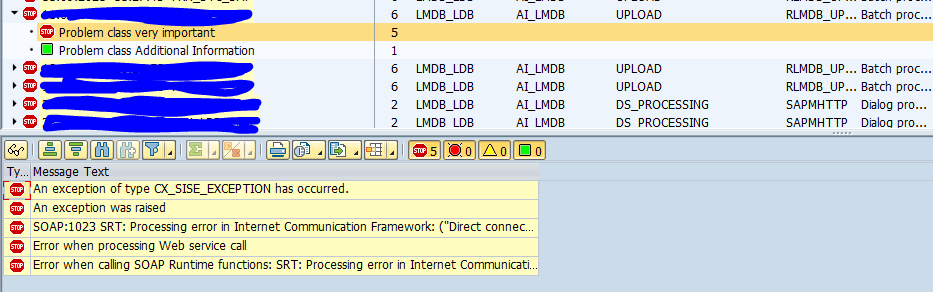
Output can look like below:

On top open the alert and click on it. At the bottom part of the screen the details will be displayed.

SLG1 objects

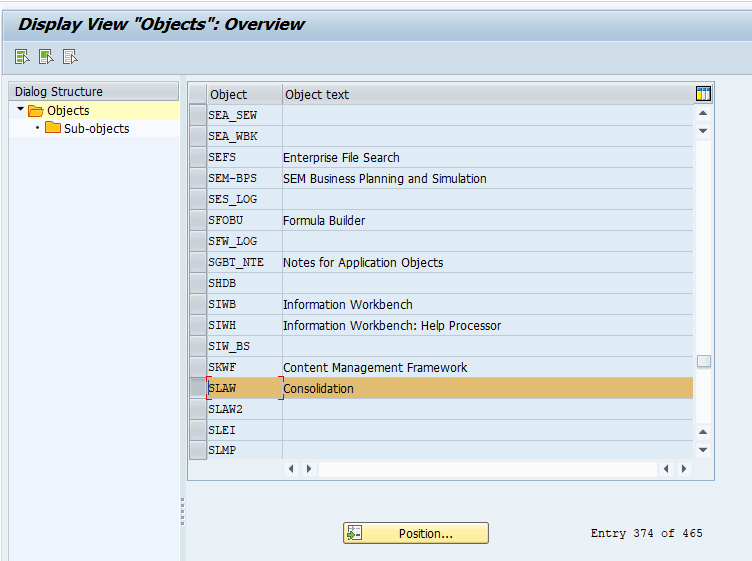
The object and subobjects for data filtering in SLG1 are defined in transaction SLG0:

Export of SLG1 logging

To export SLG1 logging, start transaction SLGD:

The output of SLGD can be done on ALV screen, from which you can download the data.

More background in OSS note 2546052 – Transaction SLG1 – Cannot download or export error logs.

Deleting SLG1 application log

You can use transaction SLG2 to delete the application log. For more details see blog on technical clean up.

Logging levels

Next to deletion there is another option to reduce the amount of application log entries: setting the logging level. In many customizing settings for diverse applications, the log level can be set. This can range from: error only to everything. The everything setting is typical for a development system. The error only is typical for a productive system. Upon issues, you can still set the productive system temporarily to everything. Unfortunately: this feature is per function and has to be setup in customizing in the specific application, and not all functions support the log level settings function.

ABAP code to write to application log

If you want to write entries to the application log in your custom ABAP code, read this blog.

Relevant OSS notes

System log messages and audit log messages

System and audit log message are used in many different ways and applications.

When you have a system log message code or audit log message code, you might want more information, or in some cases change the severity level of the code.

Questions that will be answered in this blog are:

  • Where can I find the definition of the system log message codes and their long text?
  • Where can I find the definition of the audit log message codes and their long text?
  • How can I change the severity of system log and audit log messages?

Maintenance of system log and audit log messages

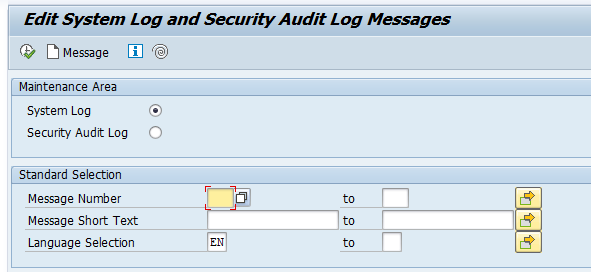
Maintenance of system and audit log messages is done with transaction SE92:

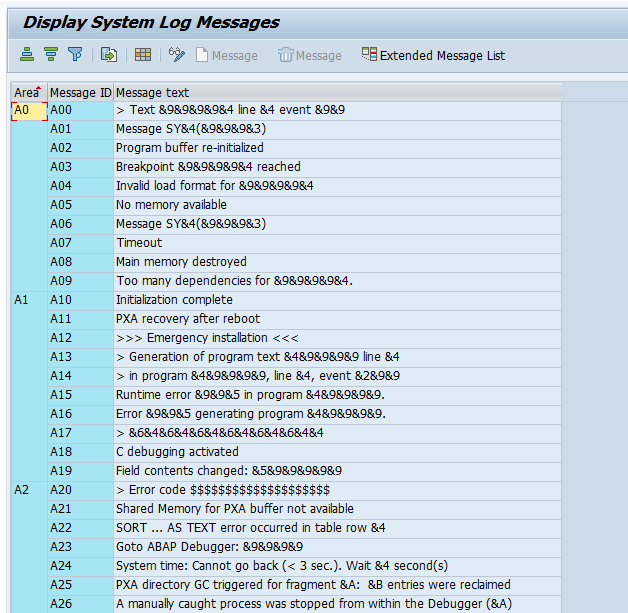
You can now get a list of messages:

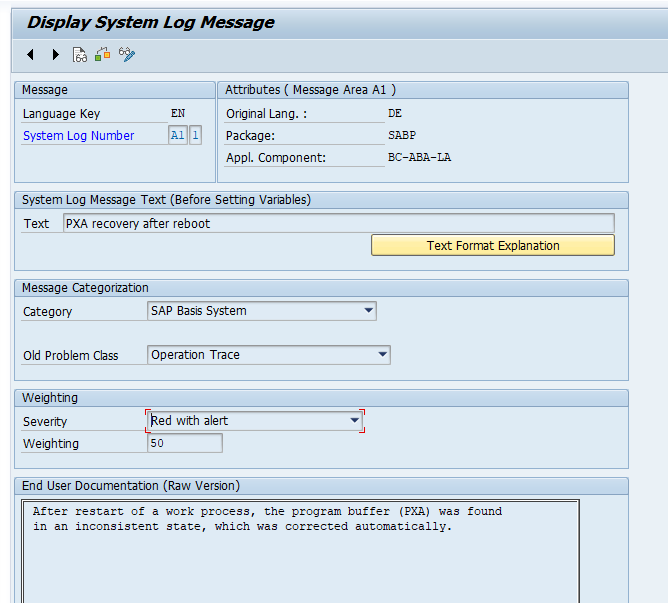
And per message you can see the details:

In the details you can see the short text, long text and the Severity. The severity will determine the traffic light in the SM21 system log overview.

For ABAP code to write the new message to the system log, read this blog.

Audit log change of severity

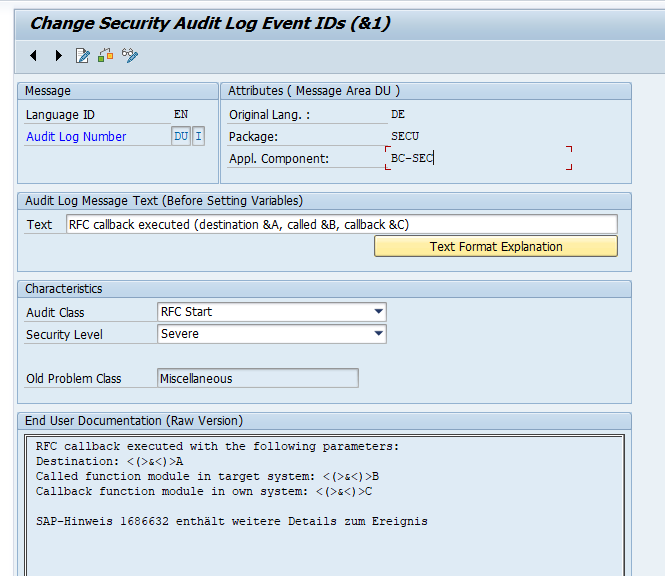
You can also change audit log severity:

Changing from default SAP does require a key.

Related OSS notes

OSS notes: