Wily Introscope tips & tricks

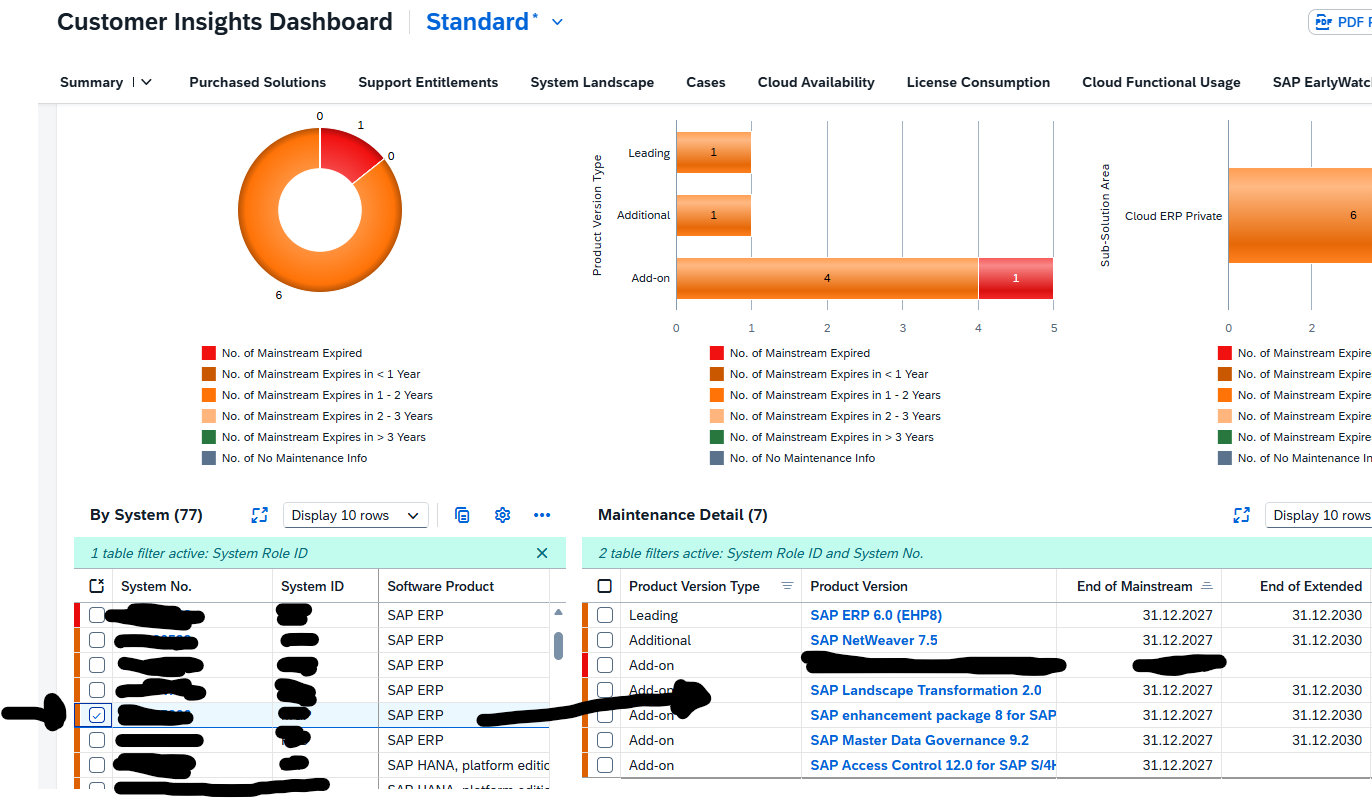
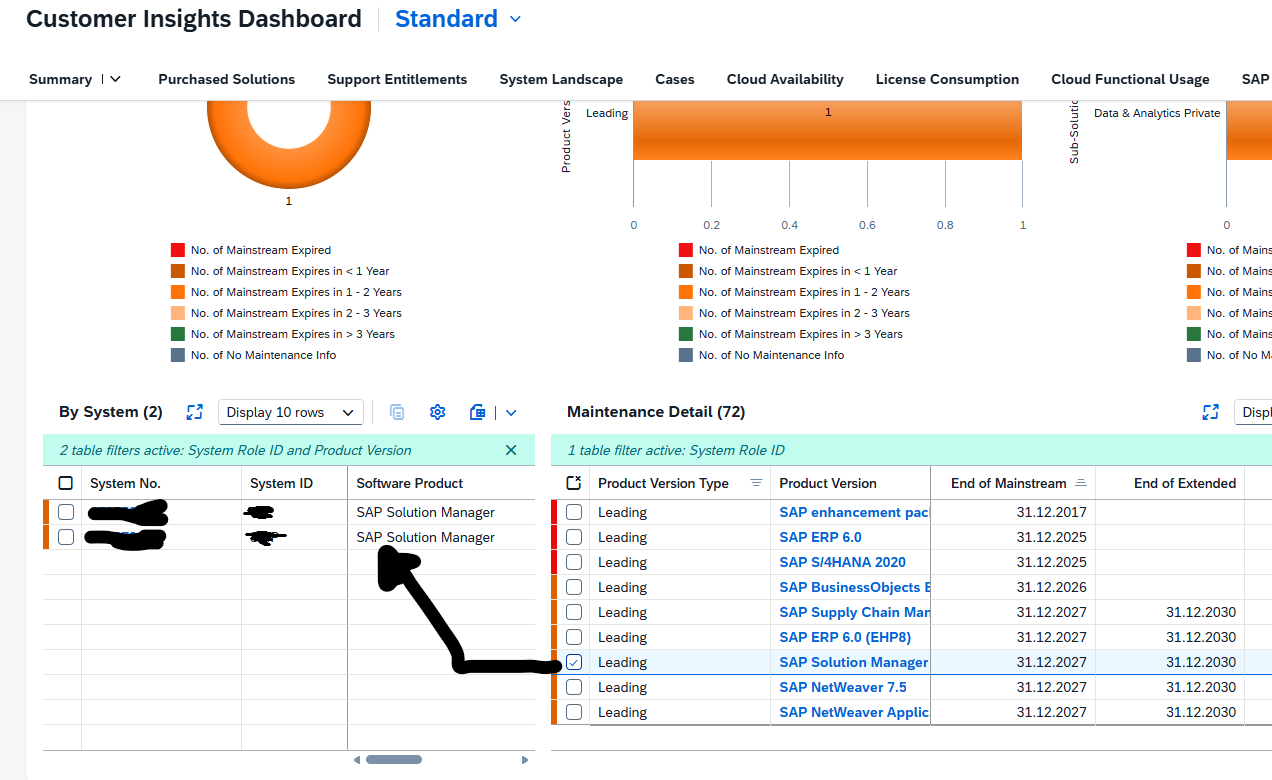
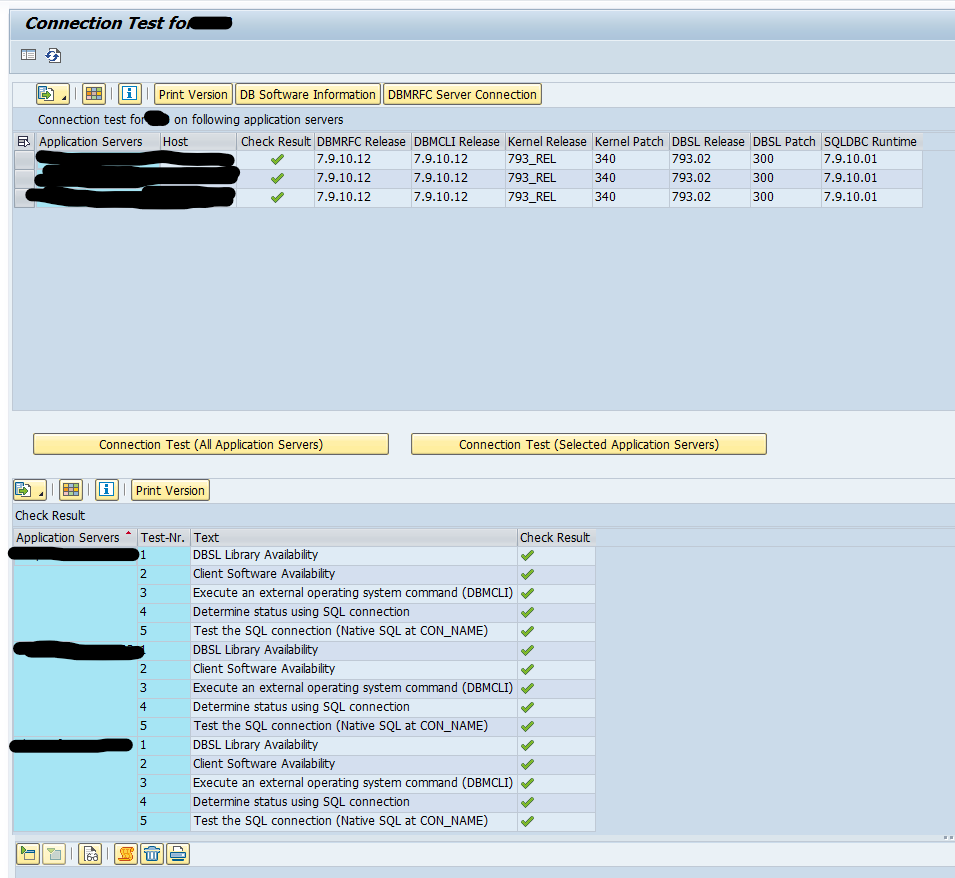
Wily Introscope is used in SAP JAVA and BO(DS) systems for diagnostics and analysis. This blog will give tips & tricks for the Wily Introscope tool.
General KBA OSS note for Wily Introscope: 3013495 – Central KBA for Introscope (SV-SMG-DIA-WLY and XX-PART-WILY). General public websites is on this link.

Landscape considerations and restrictions

OSS notes:

Installation and support

OSS notes:

Be aware that Wily Introscope is a 3rd party product with short lifecycle. Typically only 1 year support.

Other relevant OSS notes


SAP audit log data archiving BC_SAL

SAP audit log can have high volumes. For that reason most companies use file system to write the audit log.

If you have a SIEM (Security Information and Event Management) solution (like SAP enterprise treat detection, Onapsis, SecurityBridge and many more) that needs to scan your audit log, the best way is to store the audit log data in the database. This ensures that the audit log can be analyzed at high performance.

The unfortunate side of storing in the database means that the audit log table can grow quite fast, which is expensive especially if you run on HANA.

To counter the high costs, you can unload the data from the database into archive files for SAP audit log. This means that your most recent data is in the database for fast analysis, and your history is on cheaper disc storage.

This blog will explain how to archive production order data via object BC_SAL. Generic technical setup must have been executed already, and is explained in this blog.

If you still have files, you must first move the files to database table, before you can archive them. See OSS note 3055825 – RSAU_LOAD_FILES for transferring audit log data to the SAL database.

Object BC_SAL

Go to transaction SARA and select object BC_SAL.

Dependency schedule is empty, so there are no dependencies:

Main table that is archived:

Technical programs and OSS notes

Write program: RSAU_ARCHIVE_WRITE

Delete program: RSAU_ARCHIVE_DELETE

Read from archive: RSAU_ARCHIVE_READ

Reload from archive: RSAU_ARCHIVE_RELOAD (handle with care, can always lead to inconsistencies and issues), see OSS note 3094328 – RSAU_ARCHIVE_RELOAD | Reloading Security Audit Log archives

Relevant OSS notes:

Application specific customizing

For archiving object BC_SAL there is no application specific customizing needed.

Executing the write run and delete run

A high level description of the run is given in OSS 3137004 – How to archive and delete audit log from DB.

In transaction SARA, BC_SAL select the write run:

Select your data, save the variant and start the archiving write run.

After the write run is done, check the logs. BC_SAL archiving has high speed, and high percentage of archiving (normal is 100%).

Proved a good name for the archive file for later use!

Deletion run is standard by selecting the archive file and starting the deletion run.

Data retrieval

Data retrieval is via program RSAU_ARCHIVE_READ, or SARA and select the read button:

After pressing execute, you will get a popup screen to select the archive files. Output is a simple ALV list with the audit log event details.

Audit log integrity protection

This blog will explain how to switch on integrity protection for file based audit log. For full explanation of the SAP audit log, read this blog.

The main OSS note for this feature is 2033317 – Integrity protection format for Security Audit Log.

Activation steps

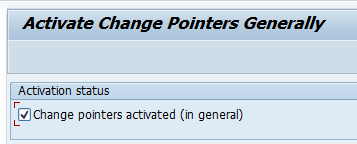
Step 1. In RZ11 set parameter rsau/integrity to 1.

Step 2. In transaction RSAU_CONFIG set the Protection format active tick box in the Parameter section:

Step 3. In transaction RSAU_ADMIN and create the HMAC key:

Step 4. Save this HMAC key properly including the passphrase!

Checking and validation steps

To validate if the audit log files integrity is ok (no tampering has been done), start transaction RSAU_ADMIN and select the option: Check Integrity of the Files:

Now run and see the results.

You can also run program RSAU_FILE_ADMIN in batch mode (for example every weekend), so that the integrity checking is done on regular basis. In that case, you can use the faster option to Display the Last Integrity Check Status.

Reference OSS notes

SE39 ABAP split screen editor

The SE39 transaction is used to compare two ABAP’s in split screen mode. This can be two ABAP programs in single system, or by clicking on the button Compare Different Systems between two systems. With the cross system comparison the tool will ask for which RFC to use.

Usage of SE39

Start transaction SE39. In this example we will take a copy of a standard SAP BAPI and compare it with the original (to find clones, read this blog):

Press display to compare. Initially not much happens, except source code on the left and right.

Press the Comparison On button:

Result now shows the delta’s with indicators on the left side of the screen:

Use the buttons Next difference from cursor and the other button to quick jump through the code to find the differences.

References

Bug fix notes:

3539141 – Splitscreeneditor: Error for empty source in version management

3564002 – SE39: improve handling of inactive programs

3568037 – Enhancements are not being displayed in SE39 for remote systems

SNOTE : Note Analyzer

For some use cases you can use the Note Analyzer in SNOTE to validate if all the relevant OSS notes for that specific function are applied with the latest version.

OSS note 3200109 – SNOTE : Note Analyzer contains PDF with the full user manual of this tool.

The short manual is: start transaction SNOTE, go to menu Goto / Other Tools / Launch Note Analyzer.

As example we take the xml file from OSS note 3365856 – Note Analyzer Input File for SAP Readiness Check for SAP S/4HANA upgrades as input. Now press the Analyze button. Wait and analyze the output:

Here you can see some notes are still needed to be implemented and/or updated with newer version.

HANA NSE (Native Storage Extension)

1. Introduction

SAP HANA Native Storage Extension (NSE) in a built-in method of SAP HANA, which can be activated and used to offload data to the filesystem, without the need to load it into memory.

The database size can be increased without the need to scale-up or scale-out the database.

All data in the database has a Load Unit property, which defines how data is accessed, loaded and processed by the HANA database.

The data in NSE is “page-loadable”, which means that it is loaded on request by the HANA resource manager into the NSE buffer cache.

The buffer cache manages its own memory pools allocating memory on demand, releasing unused memory and applying smart caching algorithms to avoid redundant I/O operations. A good sizing is important. Too small can lead to Out-Of-Buffer (OOB) events and performance issues. Too large is a waste of memory.

The NSE Advisor is a tool that provides recommendations about load units for tables, partitions or columns. It helps to decide which data should be placed in NSE being page loadable. The required view is “M_CS_NSE_ADVISOR”, which results in a list of tables, partitions and columns with suggestions on whether they should be page or column loadable.

1.1 Reasons

The main reasons for implementing HANA NSE, are:

  • Reduce HANA memory footprint
  • Reduce HANA License Costs
  • Reduce Hardware Costs (no need to Scale-Up or Scale-Out)

1.2 Restrictions

Currently, it is not possible to change the partitioning definition as well as the load unit of a table at once.
First, the table needs to be partitioned using the heterogeneous partitioning definition, afterwards, the load unit can be changed for the whole table or individual partitions.

2. Load Units

There are two types of load units:

  • Column-loadable: columns are fully loaded into memory when they are used.
  • Page-loadable: columns are not fully loaded into memory, but only the pages containing parts of the column that are relevant for the query.

The load unit can be defined with CREATE or ALTER statements for tables, partitions or columns.

When not specified, it contains the value “DEFAULT”, which is “column loadable”, but it takes over the value from its parent: Table -> Partition -> Column

Example:

TypeSpecified Load UnitEffective Load Unit
TableDEFAULTCOLUMN
PartitionPage LoadablePage Loadable
ColumnDEFAULTPage Loadable

3. Identify WARM data

3.1 Static Approach

Based on these characteristics and some knowledge about your applications you can apply a static approach to identify warm data:

  • Less-frequently accessed data in your application(s) is e.g. application log-data or statistics data. Their records are often written once and rarely read afterwards.
  • Less-frequently accessed data is also historical data in the application. Some application tables have e.g. a date/time column that provides an indicator to “split” a table in current and older (historical) parts. This table split can be implemented by a table range-partitioning in the HANA database, where the partition key is e.g., the data/time column in your table.

Without too much knowledge about the applications running on the database, you may also monitor the table access statistics in HANA (m_table_statistics or in the SAP HANA Cockpit) to identify rarely accessed tables.

3.2 Dynamic Approach

This can be achieved with the NSE Advisor.

Since S/4HANA 2021 there are over 150 objects delivered during the EU_IMPORT phase from SAP. The most common once are dictionary tables like DD03L, DOKTL, DYNPSOURCE, TADIR etc. This means every customer with S/4 2021+ will now use NSE. So, please take care of your configuration.

4. Implementation

The NSE implementation contains 3 phases:

  • Pre-checks
  • Plan
  • Execute

4.1 Pre-checks

Before starting, it is wise to perform some checks to define the current situation.

The following SQL commands can be executed in the HANA tenant on which the NSE will be activated:

  • Used memory
select to_decimal(sum(USED_MEMORY_SIZE)/1024/1024/1024,2,2) "Memory Gb" from M_SERVICE_COMPONENT_MEMORY;
  • Memory size for tables
select to_decimal(sum(MEMORY_SIZE_IN_TOTAL)/1024/1024/1024,2,2) as "MEM_SIZE_GB" from M_CS_TABLES;
  • Memory size per component
select COMPONENT, to_decimal(sum(USED_MEMORY_SIZE)/1024/1024/1024,2,2) "Memory Gb" from M_SERVICE_COMPONENT_MEMORY group by COMPONENT order by COMPONENT;
  • Column store size
select to_decimal(sum(PAGE_SIZE*USED_BLOCK_COUNT)/1024/1024/1024,2,2) as "CS Size GB" from M_DATA_VOLUME_PAGE_STATISTICS where not PAGE_SIZECLASS like '%-RowStore';

4.2 Plan

This phase consist of determining the objects candidates that can be offloaded. There are a few possible options which can/should be combined to come to a proper offload plan.

These are the possible options:

  • NSE Advisor
  • Technical and Dictionary Tables
  • Tables with a low read count
  • Partitions with low read count
  • Statistic Server Tables
  • Audit Log Tables
  • Partitioning
4.2.1 NSE Advisor

The NSE advisor should only be used either with the HANA Cockpit or the built-in procedure. A mix of both will lead to wrong results.

Use the advisor for representative workloads of your system.

To limit the CPU consumption of the NSE Advisor, set the following parameters:

  • min_row_count     Exclude objects with less than X rows (default: 10000)
  • min_object_size    Ignore objects smaller than X bytes (default: 1048576)
Note: NSE Advisor Recommendations are NOT persistent over a restart!
4.2.1.1 Enable NSE Advisor

Enable via the HANA Cockpit:

Go to the HANA database, select view “All”. In tile “Native Storage Extension”, click in the three dots and choose “Configure NSE Advisor”:

Set the “Enable NSE Advisor” to “ON” and change the “Minimum Object Size” to “1024” MB:

4.2.1.2 Retrieve NSE Advisor recommendations

Generally, the NSE Advisor recommends that you change the load unit of a table, partition, or a column to:

  • Page-loadable to reduce memory footprint without much performance impact.
  • Column-loadable to improve performance by keeping hot objects in memory.

The following views can be queried to determine the advices from the NSE Advisor:

M_CS_NSE_ADVISOR

An overview of the objects to be changed:

select * from M_CS_NSE_ADVISOR order by confidence desc;

Same as previous, but in more readable format and only selecting required columns:

select SCHEMA_NAME as SCHEMA, TABLE_NAME, PART_ID, COLUMN_NAME, GRANULARITY as CHANGE_ON, CONFIDENCE,to_decimal(MEMORY_SIZE_IN_MAIN/1024/1024/1024,2,2) as "SIZE_MEM_GB", to_decimal(MAIN_PHYSICAL_SIZE/1024/1024/1024,2,2) as "SIZE_PHYS_GB"from M_CS_NSE_ADVISORwhere not CONFIDENCE = '-1'order by CONFIDENCE desc;

M_CS_NSE_ADVISOR_DETAILS

An overview with more details of all the objects checked:

select * from M_CS_NSE_ADVISOR_DETAILS order by confidence desc;

Same as previous, but in more readable format and only selecting required columns:


select SCHEMA_NAME as SCHEMA, TABLE_NAME, PART_ID, COLUMN_NAME, GRANULARITY as CHANGE_ON,CONFIDENCE, CURRENT_LOAD_UNIT as CHANGE_FROM, TARGET_LOAD_UNIT as CHANGE_TO,to_decimal(MEMORY_SIZE_IN_MAIN/1024/1024/1024,2,2) as "SIZE_MEM_GB",to_decimal(MAIN_PHYSICAL_SIZE/1024/1024/1024,2,2) as "SIZE_PHYS_GB"from M_CS_NSE_ADVISOR_DETAILSwhere not CONFIDENCE = '-1'order by CONFIDENCE desc;

Explanation of the columns:

Column nameRenamed ColumnDescription
SCHEMA_NAMESCHEMADisplays the schema name.
TABLE_NAMEDisplays the table name.
COLUMN_NAMEDisplays the column name. When the recommendation level is not column, this field is not applicable and the value NULL is used.
PART_IDDisplays the table partition ID. When the recommendation level is not Partition, this field is not applicable, and the value is 0.
CURRENT_LOAD_UNITCHANGE_FROMDisplays the current load unit for this object: COLUMN/PAGE.
TARGET_LOAD_UNITCHANGE_TODisplays the recommended load unit for this object: COLUMN/PAGE.
GRANULARITYCHANGE_ONDisplays the object level at which the recommendation for this table is given: TABLE, PARTITION, or COLUMN.
MEMORY_SIZE_IN_MAINSIZE_MEM_GBDisplays the memory consumption size, in bytes, per granularity of the object in main memory. If not LOADED, the value is 0 is used.
MAIN_PHYSICAL_SIZESIZE_PHYS_GBDisplays the storage size, in bytes, per granularity of the object.
CONFIDENCEHow sure the NSE advisor is about performing the change.
Note: Columns $trexexternalkey$ or $AWKEY_REFDOC$GJAHR$ are internal columns (SAP Note 2799997 – Q15 “How to handle NSE advisor recommendations to move columns like $trexexternalkey$ or $AWKEY_REFDOC$GJAHR$?”) that refer to the primary key respectively a multi-column index/concat attribute. Indexes can be moved to NSE as well.

Identify index name:

select SCHEMA_NAME, TABLE_NAME, INDEX_NAME, INDEX_TYPE, CONSTRAINT
from INDEXES where TABLE_NAME = '<table_name>';

Change the index load granularity

ALTER INDEX "<schema>"."<index_name>" PAGE LOADABLE;
4.2.1.3 Disable the NSE Advisor

In the same screen as the enable function, now set the “Enable NSE Advisor” to “OFF”.

4.2.2 Technical and Dictionary Tables

Some technical and dictionary tables can be offloaded, as they are not read often and only inserts are being performed.

Examples: Change documents (CDPOS, CDHDR), Application Log (BALDAT), IDocs (EDID4), Table changes (DBTABLOG), Archiving (ZARIX*).

It comes down to the following tables:

  • CDPOS *
  • CDHDR *
  • BALDAT
  • EDID4
  • DBTABLOG
  • ZARIX%
  • %~OLD          (SAP Note 2198923)

Note: Be careful with CDPOS and CDHDR, as after changing these tables, the NSE advisor gives:

  • CDHDR should be changed back to COLUMN loadable.
  • CDPOS should be changed back to COLUMN loadable for columns OBJECTID and CHANGENR
4.2.2.1 Page Preferred versus Page Enforced

Starting SAP S/4HANA 2021, there are tables with ‘paged preferred’ load unit in ABAP Data Dictionary (DDIC):

Run report DD_REPAIR_TABT_DBPROPERTIES for all tables (‘check only’ option) to determine tables having a ABAP DDIC load unit ‘page preferred’ but have actual load unit ‘column’ in the HANA database.

For a quick glance on the load unit settings in DDIC, you may check field LOAD_UNIT in table DD09L:

‘P’= ‘page preferred’, ‘Q’ ‘page enforced’

The following query can be used to determine the table partitions of which the preferred load unit is ‘PAGE’, but the actual load unit is ‘COLUMN’:

select a.SCHEMA_NAME, a.TABNAME, a.LOAD_UNIT, b.LOAD_UNIT, to_decimal(sum(b.MEMORY_SIZE_IN_TOTAL/1024/1024/1024,2,2) "Memory G"from <SAP Schema>.DD09L a, M_CS_TABLES b where a.TABNAME = b.TABLE_NAME and b.LOAD_UNIT = 'COLUMN' and a.LOAD_UNIT = 'P' group by a.TABNAME, a.LOAD_UNIT, b.LOAD_UNIT order by sum(b.MEMORY_SIZE_IN_TOTAL/1024/1024/1024) desc;

For more information, see SAP Note 2973243.

Column Preferred or Page Preferred

  • Column Preferred is the default behavior.
  • The load unit is only applied to the database table (runtime object in SAP HANA) upon creation of the table. As a consequence, if the DDIC setting of an existing table that is initially “column loadable” is changed to “page preferred” in a new release of SAP S/4HANA, an upgrade to that release will not change the load unit setting of the database table – the table will remain “column loadable” in SAP HANA.
  • Changing from one preferred load unit to another does not change the load unit on the database.
  • The ABAP DDIC consistency check does not consider the load unit. It is accepted if the load unit on the database differs from the values specified in the DDIC.
  • During a table conversion, the actual NSE settings of the runtime object in the HANA database will be preserved. 

Column Enforced or Page Enforced

  • The load unit is specified upon creation of the table. Furthermore, changes to the load unit in the ABAP DDIC result in corresponding changes on the database.
  • Changing the enforced load unit results in a corresponding change on the database.
  • The ABAP DDIC consistency check takes the load unit into account. Different values for the load unit in the DDIC and on the database result in tables that are inconsistent from the DDIC point of view.
  • For the “Page Enforced” load unit setting, the technical restrictions apply as described in the context of S/4HANA 2020. 
  • For the “Enforced” flavor of load unit settings, the behavior during table conversion is as described in the context of S/4HANA 2020.

4.2.3 Statistics Server Tables

The ESS (embedded statistics server) tables are not part your business workload. They are used for the performance and workload data of the system. This means they are only used for read load when you have some issues and your DBA or SAP is analyzing the system.
These column tables of the SAP HANA statistics server are not using NSE as default. It is recommended to also activate NSE for the column tables of the SAP HANA statistics server.

Determine the current load unit:

select distinct LOAD_UNIT from SYS.TABLES where SCHEMA_NAME = '_SYS_STATISTICS' and IS_COLUMN_TABLE = 'TRUE' and IS_USER_DEFINED_TYPE = 'FALSE';

When the output value is ‘DEFAULT’, activate NSE for column tables of HANA statistics server using PAGE LOADABLE by running the following command with a user with sufficient permissions:

call _SYS_STATISTICS.SHARED_ALTER_PAGE_LOADABLE;

4.2.6 Audit Log Tables

Starting with HANA 2.0 Rev. 70 it is possible to page out the table “CS_AUDIT_LOG_”.

Check the current setting with the following command:

select LOAD_UNIT from SYS.TABLES where SCHEMA_NAME = '_SYS_AUDIT' and TABLE_NAME = 'CS_AUDIT_LOG_';

When the output value is ‘DEFAULT’, activate NSE for the audit log tables with the following command:

ALTER SYSTEM ALTER AUDIT LOG PAGE LOADABLE;

4.2.7 Partitioning

When NSE is used for a table (regardless of whether the full table is page loadable, or only selected columns or partitions), comparatively small partitions should be designed in order to optimize IO-intensive operations such as delta merges. Because of the focus on IO, the relevant measurable is not the number of records per partition, but rather the partition size in bytes. When using NSE with a table, partition sizes should be smaller than 10 GB. This also means that if the size of a table that is fully or partially (selected columns) in NSE reaches 10 GB, this table should be partitioned.

This should be analyzed and tested carefully and depends highly on the usage of the table by your business. Mostly the current and the last year is interesting for most scenarios. This means anything older than 2 years can be paged out. Here you have to choose a partition attribute. Mostly there is a time range attribute like FYEAR or GJAHR. Here you can partition by year / quarter / month. This depends on the amount of data.

Monitoring the buffer hit ratio, fill degree of partitions, performance of SQLs (may be new coding which was not analyzed) and creating new partitions for new months, quarter or years. It is an ongoing process and every new HANA revisions has its own new features.

The following query retrieves partitioned tables with range partitions older than 3 years.

select a.schema_name, a.table_name, c.part_id, replace(b.LEVEL_1_EXPRESSION,'"','') "Column",
max(c.LEVEL_1_RANGE_MIN_VALUE) "Last_Range_From",
max(c.LEVEL_1_RANGE_MAX_VALUE) "Last_Range_To",
to_decimal(d.memory_size_in_total/1024/1024/1024,2,2) as "MEM_SIZE_GB", to_decimal(d.disk_size/1024/1024/1024,2,2) as "DISK_SIZE_GB"
from m_tables a, partitioned_tables b, table_partitions c, m_table_partitions d
where a.IS_COLUMN_TABLE = 'TRUE'
and a.is_partitioned = 'TRUE'
and b.level_1_type = 'RANGE'
and a.table_name = b.table_name
and b.table_name = c.table_name
and c.table_name = d.table_name
and c.part_id = d.part_id
and d.load_unit <> 'PAGE'
and b.LEVEL_1_COUNT > 1
and c.LEVEL_1_RANGE_MAX_VALUE < add_years(current_timestamp,-4)
and not c.LEVEL_1_RANGE_MAX_VALUE = ''
group by a.schema_name, a.table_name, b.LEVEL_1_EXPRESSION, b.LEVEL_1_COUNT, c.part_id, to_decimal(d.memory_size_in_total/1024/1024/1024,2,2), to_decimal(d.disk_size/1024/1024/1024,2,2)order by a.table_name, c.part_id;

Follow the link for a full overview of the topic Partitioning in SAP HANA.

4.3 Implement

This phase consist of 3 sub-phases:

  • Configure HANA NSE Buffer Cache
  • Add objects to NSE
  • Monitor the NSE Buffer Cache

4.3.1 Configure HANA NSE Buffer Cache

The following HANA parameters should be set:

  • max_size OR max_size_rel
  • unload_threshold
InifileSectionParameterValueRemarks
global.inibuffer_cache_csmax_size10% of RAMExplicitly specifies the upper limit of the buffer cache, in MBs.
max_size_rel% of GALSpecifies the upper limit of the buffer cache as a percentage of the global allocation limit (GAL) or the service allocation limit if set.
unload_threshold80% of max_sizeSpecifies the percentage of the buffer cache’s maximum size to which it should be reduced automatically when buffer capacity is not fully used. 80% is a good starting value.

Note: When both max_size and max_size_rel are set, the system uses the smallest value. When applying the values to a scale-out system at the DATABASE layer, max_size_rel will be relative to the allocation for each host, which can be different for each.

SQL Commands to be performed in the SYSTEMDB:

ALTER SYSTEM ALTER CONFIGURATION ('global.ini','SYSTEM') SET ('buffer_cache_cs','max_size') = '<size_in_MB>' WITH RECONFIGURE;
ALTER SYSTEM ALTER CONFIGURATION ('global.ini','SYSTEM') SET ('buffer_cache_cs','max_size_rel') = '10' WITH RECONFIGURE;
ALTER SYSTEM ALTER CONFIGURATION ('global.ini','SYSTEM') SET ('buffer_cache_cs','unload_threshold') = '80' WITH RECONFIGURE;

4.3.2 Add objects to NSE

For the identified objects (tables, columns, indexes, partitions), you can change the load unit to the required value with the following commands:

  • Table
    ALTER TABLE <TABLE_NAME> <TYPE> LOADABLE;
  • Index
    ALTER INDEX <INDEX_NAME> <TYPE> LOADABLE;
  • Column
    ALTER TABLE <TABLE_NAME> ALTER (<COLUMN> ALTER <TYPE> LOADABLE);
  • Partition
    ALTER TABLE <TABLE_NAME> ALTER PARTITION <PARTITION_ID> <TYPE> LOADABLE;

4.3.3 Monitoring the Buffer Cache

4.3.3.1 HANA Cockpit

The buffer cache can be monitored from the HANA Cockpit tile “Native Storage Extension”.

4.3.3.2 SQL Commands

Also the following views can be queried:

  • HOST_BUFFER_CACHE_STATISTICS
  • HOST_BUFFER_CACHE_POOL_STATISTICS
4.3.3.2.1 NSE Buffer Cache Usage

The following query can be used to determine the current usage of the NSE Buffer Cache. The “Used%” should be below 80:

select to_decimal((sum(USED_SIZE)/1024/1024/1024) / (avg(MAX_SIZE)/1024/1024/1024) * 100,2,2) "Used %"
from M_BUFFER_CACHE_STATISTICS

where CACHE_NAME = 'CS'
group by CACHE_NAME;
4.3.3.3.2 NSE Buffer Cache Hit Ratio

The following query can be used to determine the Hit Ratio of the NSE Buffer Cache. The “Hit Ratio %” should be above 90:

select to_decimal(avg(HIT_RATIO),2,2) "HIT_RATIO %" from M_BUFFER_CACHE_STATISTICS
where CACHE_NAME = 'CS'
and not HIT_RATIO = 0
group by CACHE_NAME;
4.3.3.4.3 Max. NSE Buffer Cache Size

The following query can be used to determine the maximum possible size of the NSE Buffer Cache, based on the current offloaded objects:

select to_decimal(sum("Size_in_GB")/1024/1024/1024,2,2) "Size_in_GB"
from
(select sum(ESTIMATED_MAX_MEMORY_SIZE_IN_TOTAL) "Size_in_GB"

from M_CS_TABLES
where LOAD_UNIT = 'PAGE'
union
select sum(UNCOMPRESSED_SIZE) "Size_in_GB"
from M_CS_COLUMNS
where LOAD_UNIT = 'PAGE'
and not TABLE_NAME in (select TABLE_NAME from M_CS_TABLES where LOAD_UNIT = 'PAGE')
union
select sum(INDEX_SIZE) "Size_in_GB"

from M_RS_INDEXES
union
select sum(MEMORY_SIZE_IN_TOTAL) "Size_in_GB"
from M_TABLE_PARTITIONS
where LOAD_UNIT = 'PAGE'
and not TABLE_NAME in (select TABLE_NAME from M_CS_TABLES where LOAD_UNIT = 'PAGE'));
4.3.3.4.4 NSE Buffer Cache Max. Size vs Configured Size

The following query can be used to determine the maximum possible size of the NSE Buffer Cache, based on the current offloaded objects versus the configured size.

The “Max vs Conf %” should be lower than 100:

select to_decimal((sum(a."Size_in_GB")/b."Max_GB")*100,2,0) as "Max_vs_Conf %"
from
(select sum(ESTIMATED_MAX_MEMORY_SIZE_IN_TOTAL) "Size_in_GB"
from M_CS_TABLES
where LOAD_UNIT = 'PAGE'
union
select sum(UNCOMPRESSED_SIZE) "Size_in_GB"
from M_CS_COLUMNS
where LOAD_UNIT = 'PAGE'
and not TABLE_NAME in (select TABLE_NAME from M_CS_TABLES where LOAD_UNIT = 'PAGE')
union
select sum(INDEX_SIZE) "Size_in_GB"
from M_RS_INDEXES
union
select sum(MEMORY_SIZE_IN_TOTAL) "Size_in_GB"
from M_TABLE_PARTITIONS
where LOAD_UNIT = 'PAGE'
and not TABLE_NAME in (select TABLE_NAME from M_CS_TABLES where LOAD_UNIT = 'PAGE')) a,
(select top 1 MAX_SIZE "Max_GB"
from _SYS_STATISTICS.HOST_BUFFER_CACHE_STATISTICS
order by SERVER_TIMESTAMP desc) b
group by b."Max_GB";
4.3.3.3 SAP Focused Run monitoring

Active monitoring of the buffer cache can also be implemented using SAP Focused Run.

The metrics should be configured for each HANA tenant database, in System Monitoring / Performance / Database Performance.

The following metrics are being monitored.

NSE Buffer Cache MetricYellowRedSQL Reference
Usage> 80> 90See NSE Buffer Cache Usage
Hit Ratio< 95< 90See NSE Buffer Cache Hit Ratio
Max. Size vs Configured Size>= 98>= 100See NSE Buffer Cache Max. Size vs Configured Size

4.3.4 Edit NSE Buffer Cache

If the NSE Buffer Cache should be resized, based on the analysis above, calculate the required size in MB.

In the HANA Cockpit this can be changed in the Buffer Cache Monitor screen, by clicking on the button “Configure Buffer Cache Size”:


Set the required values (in MB) and click “Configure”:

This can also be changed with an SQL command:
(Change the <size_in_MB> to the correct value)

ALTER SYSTEM ALTER CONFIGURATION ('global.ini','SYSTEM') SET ('buffer_cache_cs','max_size') = '<size_in_MB>' WITH RECONFIGURE;

5. Performance impact

5.2 NSE Advisor

The NSE Advisor, in theory, cause an overhead on the database, however in practice we haven’t noticed a significant increase in CPU/Memory Consumption.

5.2 NSE Buffer Cache

NSE Buffer Cache sizing is an important and regular exercise.

Configuring a too large buffer cache size that would avoid any disk I/O, but also keep too many and rarely accessed warm data in memory, would lead to the best performance, but inefficient buffer cache size. If that required, it would be better to keep all data as column loadable (no NSE usage)

Configuring a too small buffer cache size where the requested warm data cannot be loaded into memory (leads to query cancellation, i. e. Out-of-Buffer event). Or, the disk I/O for warm-data processing causes an unacceptable query performance which might even affect the decrease of the overall system performance of HANA.

Note:
It is not recommended to aggressively define a very low percentage to enforce the buffer cache to release allocated memory. It may lead to the situation where the buffer cache needs to allocate memory immediately after releasing that memory.
The de-allocation and re-allocation of memory brings a lot of overhead and performance degradation in NSE.

6. Required Permissions

Analysis can be done with your personal user-id. But do set up the required HANA roles and permissions.

7. Periodic Tasks

The following tasks have to be performed regularly (at least every 6 months):

  • Monitoring
  • Check out-of-buffer events
  • Run NSE advisor

7.1 Check Out-Of-Buffer Events

When your buffer cache is not large enough to handle your workload, SAP HANA generates an alert message.

During an out-of-buffer situation, regular user tasks may be rolled back, and critical tasks (for example, recovery) use the emergency buffer pool.

Checking the OOB-events can be performed via the HANA Cockpit, in tile NSE, choose “Buffer Cache Monitor” and select tab “Out of Buffer Events”.

For each out of buffer entry, the following information is provided:

ColumnDescription
Host/PortSpecifies the host name and internal port of the HANA service.
TypeSpecifies the type of the event.
ReasonSpecifies additional information for the event (for example, the number of buffer cache used and how many buffer cache are needed).
Creation TimeSpecifies the time the event occurred.
Update TimeSpecifies the time the event was last updated.
Handle TimeSpecifies the time a user performed an operation that resolved or alleviated the issue related to the event.
StateSpecifies the current state of the event (for example, NEW, HANADLED).

Determine the reason why these OOB-events happened. This can have several causes:

ReasonPossible Solution(s)
Buffer cache size too lowIncrease the NSE Buffer Cache
Objects being accessed too frequentlyChange the load attribute, to put them into main memory again
Partition the table and determine which partitions should be put to NSE

7.3 Run NSE Advisor

Activate the NSE Advisor once every 6 months, during as respective workload, to review the current NSE settings.

This might give an indication that tables have to be added to the main memory again and/or that additional tables can be offloaded to the NSE.

8. References

Data volume management on me.SAP.com

Sad news: this excellent SAP function is going to retire: 3690851 - End of Maintenance for the DVM Application

The data volume management application on me.sap.com has been matured in the last few years.

The application can be accessed directly via this URL: https://me.sap.com/dataoverview.

Start screen

On the start screen it is important to first select the System and Analysis Date.

The top part:

The top part contains overview for database size.

Then there are tiles to start working on:

  • Optimize memory usage
  • Optimize disk usage
  • Custom table footprint
  • Achievements
  • Growth statistics
  • Technical HANA analysis
  • Use of NSE (native storage extension)
  • Link to the DVM roadmap function

If you scroll down to the bottom part:

Here you find tiles that can help you on:

  • Memory limits
  • Optimize memory usage
  • Record analysis per year
  • Optimize disc usage

Use case 1: finding objects for archiving and/or deletion

In the first tile “Optimize memory usage” you can get details on potential objects to archive and delete:

SAP uses a default archiving retention period which is quite aggressive. Please be aware your business might be more conservative.

Use case 2: custom table footprint

The main tile for custom table footprint already indicates the % of table size that is for custom tables.

Inside the tile you can see which table is larger and/or is having many entries:

For custom tables you can consider writing dedicated clean up programs.

Use case 3: check effectiveness of your NSE setup

You can use the NSE tile to check the effectiveness of your NSE (native storage extension) setup (follow this link to blog on NSE explanation). And you can see if more object might be eligible for NSE.

And the details:

Setup

The basic setup to use this function is described in OSS note 2716655 – How To Use the Data Volume Management APP – Step by Step guide.

Bug fix OSS notes:

XPRA transport actions

XPRA actions can be a must to to trigger actions after import. The most know is to trigger the RV80HGEN program jointly with update of requirement or formula.

The XPRA can also be misused by hackers to execute actions right after transport import. Since XPRA is done with the DDIC user upon import, it will take the rights from DDIC as well. Very often DDIC has SAP_ALL assigned.

Correct usage of XPRA

To add a XPRA action, go to the transport via SE10 or SE01 and press change. Then use the Insert Row button to manually add the XPRA action:

Add program ID R3TR, object type XPRA and object name the program to be executed. In this case the RV80HGEN program.

Now save the transport.

Upon import the program will be executed at the end of the import. This can be seen in the transport import log details:

Other XPRA programs

Next to RV80HGEN there are more known XPRA programs:

2400599 – List of Programs to regenerate CUSTOM fields after upgrade or patch update lists RGUGBR02, SAPFACCG and RFBIBLG0.

1365712 – Generating FI programs during posting after importing an SP lists program RGZZGLUX to regenerate the finance programs.

1855686 – Dump in XPRA phase because of FAGL_VIEWS_GENERATE_ALL lists program SAPLFAGL_VIEWS_GENERATE (and old program SAPFACCG).

Misuse of XPRA

Off course any developer can add a malicious XPRA statement to execute a program upon import.

What to do about this?

Prevention is not possible. Detection is possible. See the blog on adding a critical object check to the transport check tool. In this case add a check on R3TR XPRA and program *. This will detect any XPRA object.

ABAP training: Function Modules: Function Groups

Function modules are grouped together in Function Groups. This can be grouping around a similar business object. For example a module to create, update, read data of a business object.

Creation of a Function Group

To create a function group start transaction SE37, and select menu Goto / Function Groups / Create Group:

Fill out the name and description, and press Save.

The function group is not useful yet, since it is not active. To activate go to the Change Function Group in the same menu and select the Master Program button to jump to the master program:

Now you can activate the Function Group.

Function group content

Once you have created one or more function modules, the modules can be seen in the Mater program by double clicking on the function module include ending with XX.

ABAP training: Data Dictionary: Search Help

A search help can be created to speed up input data field for the end user. It can be used to quickly narrow down possible entries based on input criteria. Search helps can be assigned to data elements or database table fields.

Creation of search help

Start transaction SE11 and selection the option Search help and press Create:

In the selection screen choose Elementary search help:

The main search help screen opens:

Enter a description. And assign in the Selection method field your table. If you split the main table from the text table, you can assign the text table in the Text table field. In the dialog behavior the most common is to Display values immediately.

Always set a hotkey by assigning it a letter. When you create a Collective search help the search helps are sorted by this letter assignment.

In the parameters set your fields. IMP means it is input. EXP is there on the output. The LPos field determines the seqeuence on the output.

Now check and activate your search help.

Test the search help with the test button:

Assigning search help to table

The search help is not automatically used. You can assign it to the data element in SE11:

Or you can assign is specifically in SE11 in a table defintion:

Select the row, press the Srch Help button and assign the search help.

Most common is to assign it to a data element.

Advanced topics

If you want to use type-ahead and fuzzy search in search helps, read this blog.