SAP Focused Run monitoring applications

This blog will explain specific items to keep in mind when monitoring certain applications.

Applications discussed and explained:

  • Adobe document servers (ADS)
  • BW systems
  • Cloud connectors
  • Content servers
  • ECC and S4HANA servers
  • EWM (enterprise warehouse management) servers
  • GTS (global trade system) servers
  • Netweaver gateway FIORI hub systems
  • SCM (supply chain management) servers
  • SLT servers
  • Web dispatchers

For each system we explain the monitoring of productive and non-productive system.

Adobe document server (ADS) application monitoring

Adobe Document Server (ADS) is used to generate PDF’s for output and/or interactive PDF forms.

Monitoring productive ADS systems

When monitoring a productive system, you will need to finetune the monitoring templates for:

  • SAP J2EE 7.20 – 7.50 Application template, for the JAVA application
  • SAP J2EE 7.20 – 7.50 Technical instance template, for the JAVA application servers
  • System host template
  • Database template

JAVA APPLICATION TEMPLATE for adobe document server monitoring

Make sure you cover in the JAVA application template the following items:

Availability:

  • JAVA HTTP availability
  • Expiring certificates
  • JAVA license expiry

From the JAVA instance template make sure to cover the following items:

  • J2EE application status
  • Instance HTTP availability and logon
  • JAVA server node status
  • GC (Garbage collection)

Fine tune the metrics so you are alerted on situation where the system is having issues.

ADobe document server template for monitoring

ADS has a specific Technical instance template.

Make sure you activate it:
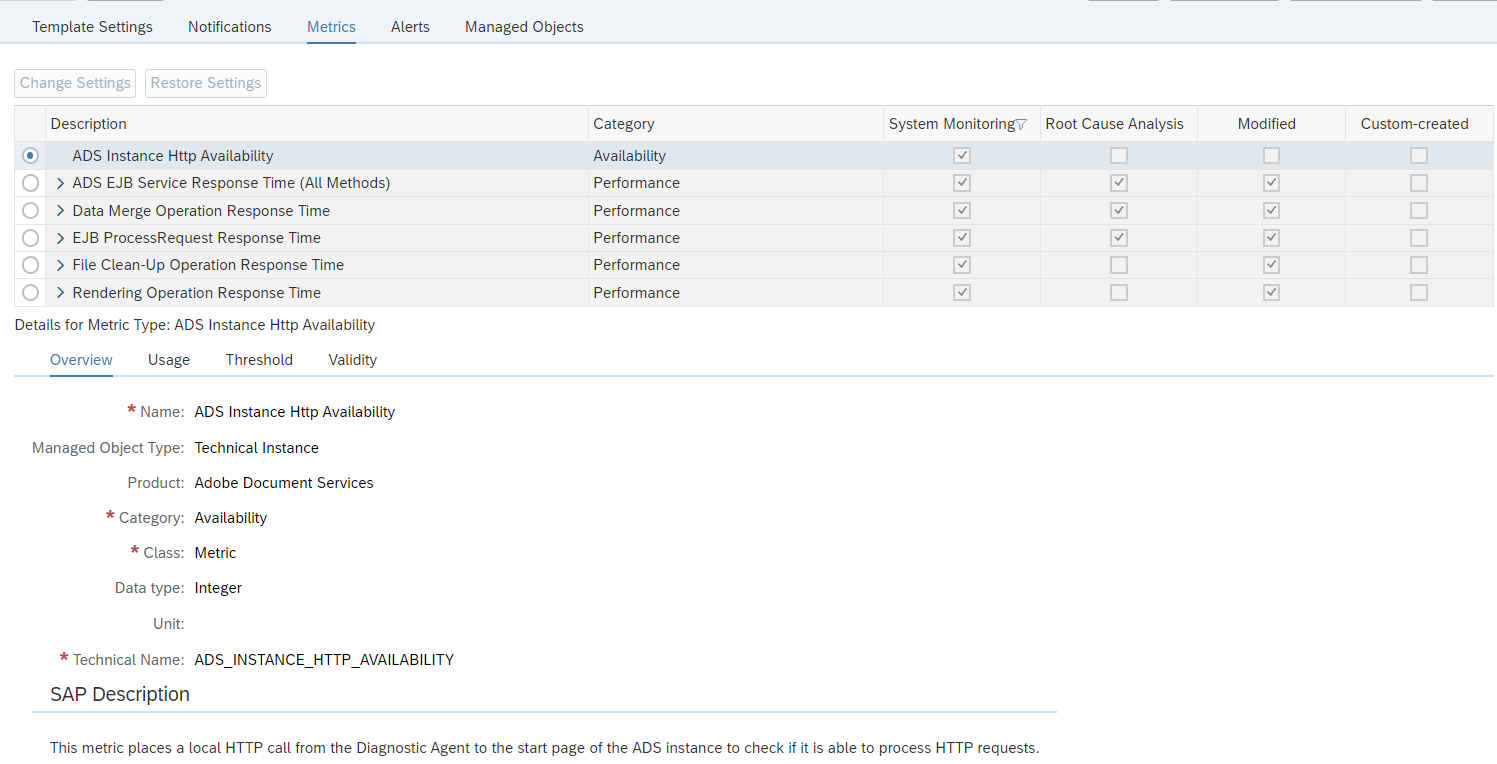
Most important here is the first one: ADS availability. Please make sure you are alerted when this one is not available.

BW application monitoring

BW systems are at the often used as reporting systems within an SAP landscape.

The basic monitoring of a BW system is the same as for any ABAP based system.

For a BW system some numbers are typically higher than on an ECC or S4HANA system. Response times of 1.5 seconds would indicate horrible performance on ECC, but are normal on a BW system.

Process chain monitoring

BW uses process chains. To monitor process chains, read this dedicated blog.

Cloud connector application monitoring

The Cloud connector is used between on premise systems and Cloud solutions provided by SAP.

Monitoring of cloud connector focuses on availability and connectivity.

Monitoring productive cloud connector systems

The cloud connector template contains all the needed elements out of the box:
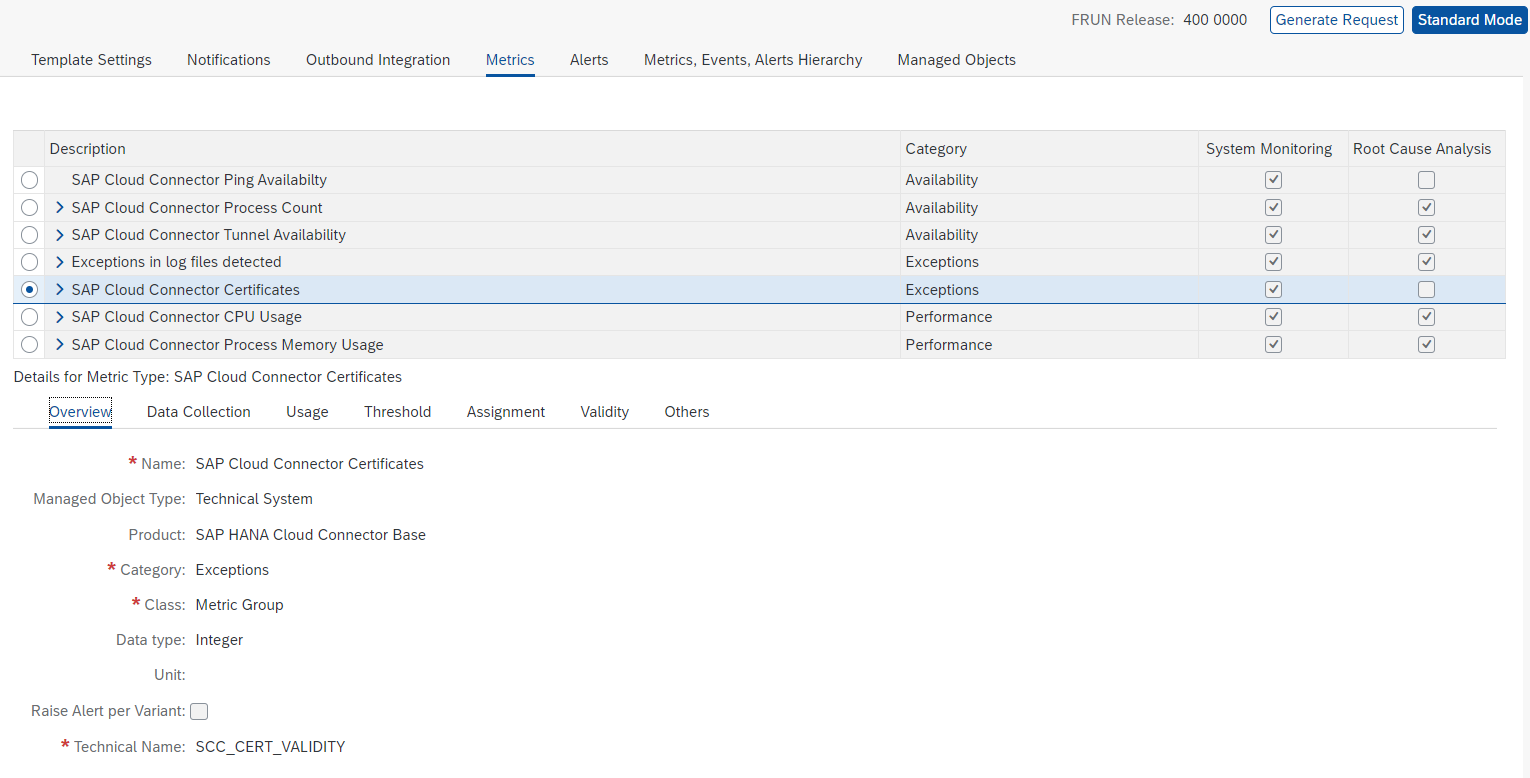
If your landscape has only one cloud connector that is also used for non-productive systems, you might find a lot of issues in the non-productive system. Like expired certificates, channels not working, many logfile entries. If the cloud connector is very important for your business, it is best to split off the productive cloud connector from the non-productive usage. This way you can apply sharp rule settings for production: even single issue will lead to alert. While on non-production the developers will be making a lot of issues as part of their developer process.

Monitoring non-productive cloud connector systems

In your landscape you might have a non-productive cloud connector that is used for testing purposes. In the non-productive cloud connectors you might apply a different template with less sensitive settings on certificates, logfiles and amount of tunnels that are failing.

Relevant OSS notes for cloud connector monitoring

3391143 – Cloud Connector system is not coming into SAP Focus Run LMDB

Content server application monitoring

Content servers are often used to store attachment and data archiving files. They are technical systems with usually no direct access for end user. End users normally fetch and store data form content server via an ABAP or JAVA application.

Technical setup for content server monitoring

The technical setup for monitoring content server in SAP Focused Run is described in detail in a PDF attached to OSS note 3151832 – SAP Content Server 6.40/6.50/7.53 Monitoring with SAP Focus Run. There is no need to repeat here.

The main part of content server monitoring is availability.

ABAP connection to content server monitoring

In some cases both your ABAP stack and content server are up and running, but communication between them is failing on application level. This leads to not working system for end users. Root causes can be firewall issues, certificate issues, or somebody altered settings.

To test the ABAP system connection to content server a custom ABAP program is needed. See this blog. You can schedule the program in batch and set up a new custom metric to capture the system log entry written by the program.

System host template for content server monitoring

For system host the regular CPU, memory, disc template is sufficient. Finetune the thresholds to your comfort level.

Database template for content server monitoring

Important items of the database template:

  • Database availability
  • Database health checks
  • Backup

In most installations it is chosen to install Content Server with the SAP MaxDB database (similar to LiveCache).

Relevant OSS notes for content server monitoring

ECC and S4HANA application monitoring

ECC and S4HANA systems are at the core of each SAP landscape, and most vital to the business.

When monitoring a productive system, you will need to finetune the monitoring templates for:

  • ABAP 7.10 and higher Application template, for the ABAP application
  • ABAP 7.10 and higher Technical instance template, for the ABAP application servers
  • System host template
  • Database template

ABAP application template

Make sure you cover in the ABAP application template the following items:

Availability:

  • Message server HTTP logon
  • System logon check
  • RFC logon check
  • License status
  • Certificates expiry
  • Update status

Performance and system health:

  • Critical number ranges
  • Enqueue lock % filled
  • SICK detection
  • Dumps last hour
  • Update errors last hour
  • Cancelled jobs last hour
  • Long running work processes and jobs (see blog)

Security:

  • Global changeability should be that the system is closed
  • Locking of critical users like SAP* and DDIC (see blog)

Fine tune the metrics so you are alerted on situation where the system is having issues.

ABAP application server template

Make sure you cover in the ABAP application server template the following items:

Availability:

  • Local RFC logon test
  • Local HTTP logon test
  • Local Logon test
  • Message server disconnects (see blog)

Application server performance and health:

  • Amount of critical SM21 messages
  • No more free work processes (see blog)
  • Update response times

You can consider to setup extra custom metrics for the application servers:

System host template

For system host the regular CPU, memory, disc template is sufficient. Finetune the thresholds to your comfort level.

Database template

Important items of the database template:

  • Database availability
  • Database health checks
  • Backup

Functions monitoring

Next to the availability and performance mentioned above, check also for monitoring certain functions:

EWM (enterprise warehouse management) application monitoring

EWM systems are at the often used as stand alone systems that make sure logistics and warehousing can keep running at high availability. If the connected ECC or S4HANA system is down, EWM can continue to support logistics operations.

EWM can be older version based on SCM/BI system core. Newer EWM systems are using S4HANA with EWM activated as standalone.

Extra in an EWM system are the use of qRFC and the CIF (Core interface). And many EWM systems have users that interact with the system via ITS GUI based handheld scanners.

EWM systems are at the often used as stand alone systems that make sure logistics and warehousing can keep running at high availability. If the connected ECC or S4HANA system is down, EWM can continue to support logistics operations.

EWM can be older version based on SCM/BI system core. Newer EWM systems are using S4HANA with EWM activated as standalone.

Extra in an EWM system are the use of qRFC and the CIF (Core interface). And many EWM systems have users that interact with the system via ITS GUI based handheld scanners.

CIF monitoring

The CIF is the core interface between SCM and ECC system. The interface typically uses RFC and qRFC. And it is working both ways.

Setup for the CIF specific RFC’s and qRFC’s the monitoring:

Handheld scanners

Many EWM systems are having interaction with scanners via the ITS server. Basically this is a small web page on a scanning device.

Make sure you monitor the availability of the URL’s that the scanners are using. More on URL monitoring can be found in this blog.

GTS (global trade system) application monitoring

GTS systems are at the not frequent in use. When in use they do play a vital role in import and export business scenario’s when good are crossing borders.

Since a GTS system is normally installed, and often no to little maintenance and software changes are performed on the system. Also basis teams tend not to look at it too often, since it normally runs stable.

In case of non-availability of GTS, ECC scenario’s linked to GTS might fail and can causes severe business disruptions.

For this reason it is important to set up monitoring in FRUN for your GTS system and also configure mail alerts in case of issues. They will not happen too often, but when they happen you can act fast. This will also save the basis team spending a lot of time on checking GTS system for log (most cases, the checks are good).

When monitoring a productive system, you will need to finetune the monitoring templates for:

  • ABAP 7.10 and higher Application template, for the ABAP application
  • ABAP 7.10 and higher Technical instance template, for the ABAP application servers
  • System host template
  • Database template

The next step is to set up interface monitoring for RFC from the ECC system towards the GTS system.

Netweaver Gateway Fiori hub system application monitoring

Netweaver Gateway systems are used to host Fiori applications.

Netweaver gateway template

For Netweaver gateway, also assign and fine tune the Gateway template:

The important custom check on URL availability is best to setup as well: read this blog for instructions.

Consider to setup interface monitoring for RFC‘s from End User to Gateway and Gateway to ECC backends.

SCM (supply chain management) application monitoring

SCM systems are at the often used logistics optimization systems. They are mainly used in combination with traditional ECC systems. They are less needed in combination with S4HANA systems (or you can use the embedded SCM of HANA).

The core of an SCM system is a BI system. Many data is using similar extractors and process chains as a BI system. Hence follow the tuning needed for a BI system.

Extra in an SCM system are the LiveCache and the CIF (Core interface).

The basic monitoring of an SCM system is the same as for any ABAP based system.

For an SCM system some numbers are typically higher than on an ECC or S4HANA system. Response times of 1.5 seconds would indicate horrible performance on ECC, but are normal on an SCM system.

LiveCache monitoring

LiveCache is normally running on a MaxDB database.

So it is important to activate, assign and finetune the metrics for the MaxDB database:
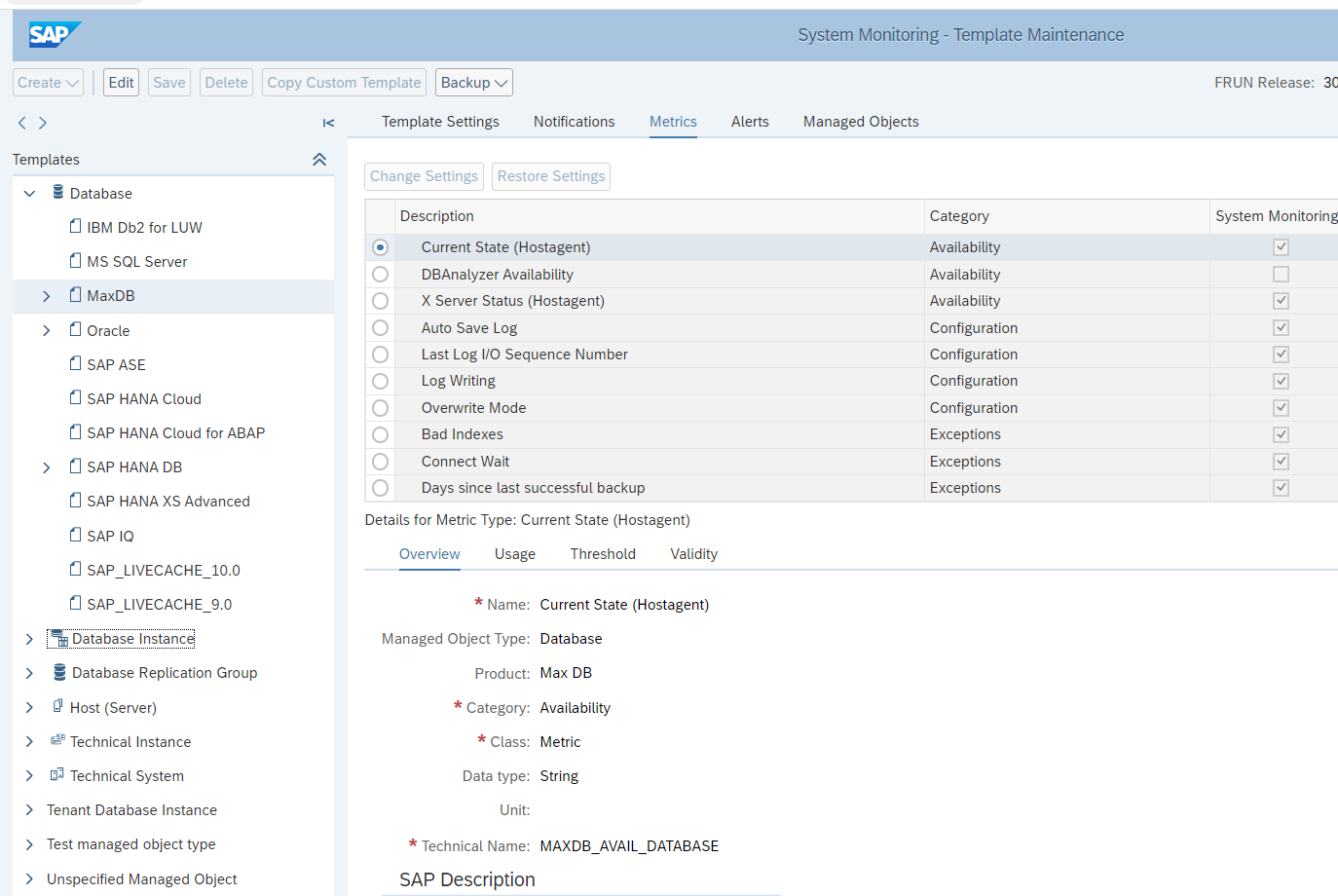
Focus on:

  • Availability
  • Backup
  • Performance

Next to the database, you also need to activate, assign and finetune the LiveCache specific application template:
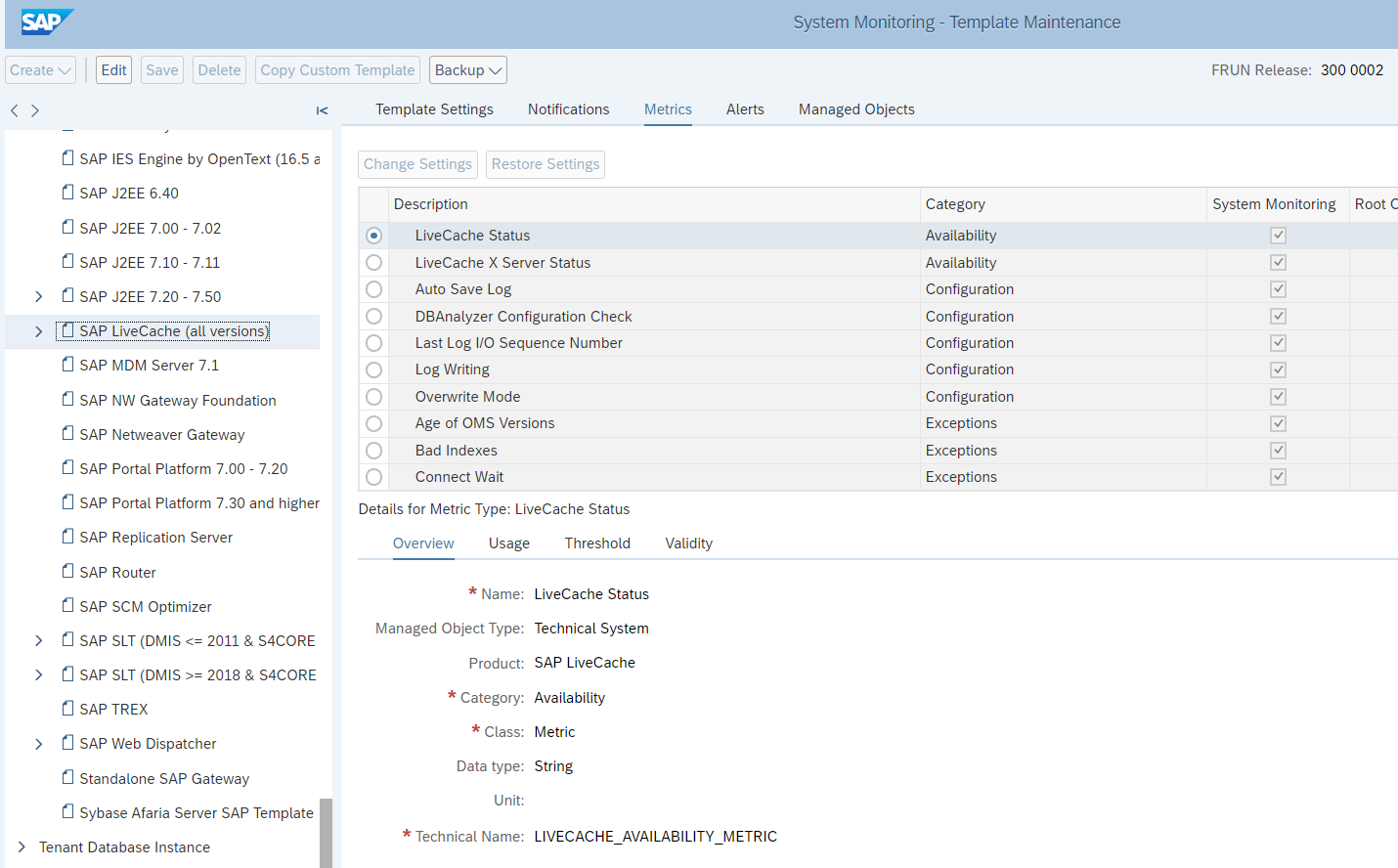
This template contains the primary elements to monitor for the LiveCache functions like:

  • Availability of LiveCache as a function
  • Structure check for LiveCache
  • Memory issues for LiveCache specifically

Fine tune the metrics so you are alerted on situation where the system is having issues.

CIF monitoring

The CIF is the core interface between SCM and ECC system. The interface typically uses RFC and qRFC. And it is working both ways.

Setup for the CIF specific RFC’s and qRFC’s the monitoring:

Process chain monitoring

SCM uses process chains. To monitor process chains, read this dedicated blog.

SLT system application monitoring

SLT systems are mainly used to replicate data from source systems like ECC and S4HANA towards target systems like Enterprise HANA, HANA cloud and other data pool systems.

SLT DMIS template for SLT system

For SLT systems, apply the SLT DMIS template:
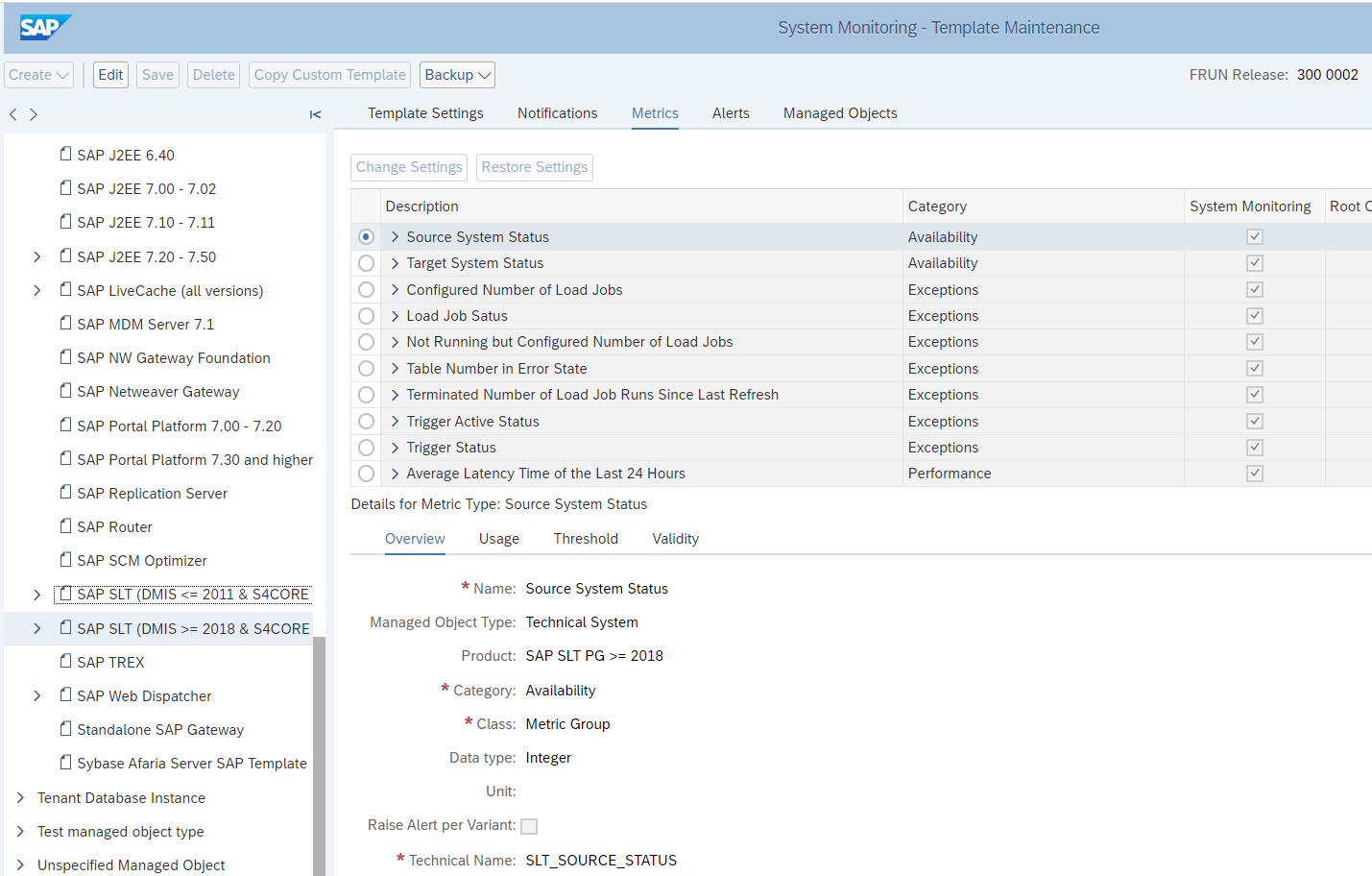
In the SLT system itself, make sure job /1LT/IUC_HEALTH_C with program R_DMC_HC_RUN_CHECKS runs. This will collect data that is needed for SLT itself, but which is also re-used by SAP Focused Run.

OSS notes to apply and check:

Anyhow you should make sure to regularly apply the notes for the DMIS component. See this blog.

SLT DMIS dummy template backend system

For SLT to work, the DMIS component is installed in both the SLT system and the backend system. For the backend system SLT component, Focused Run will pick up the template as well. But this will not make any sense in monitoring, since it is the source system and not the SLT system.

For this reason, set up a dummy empty template with every monitoring item disabled:
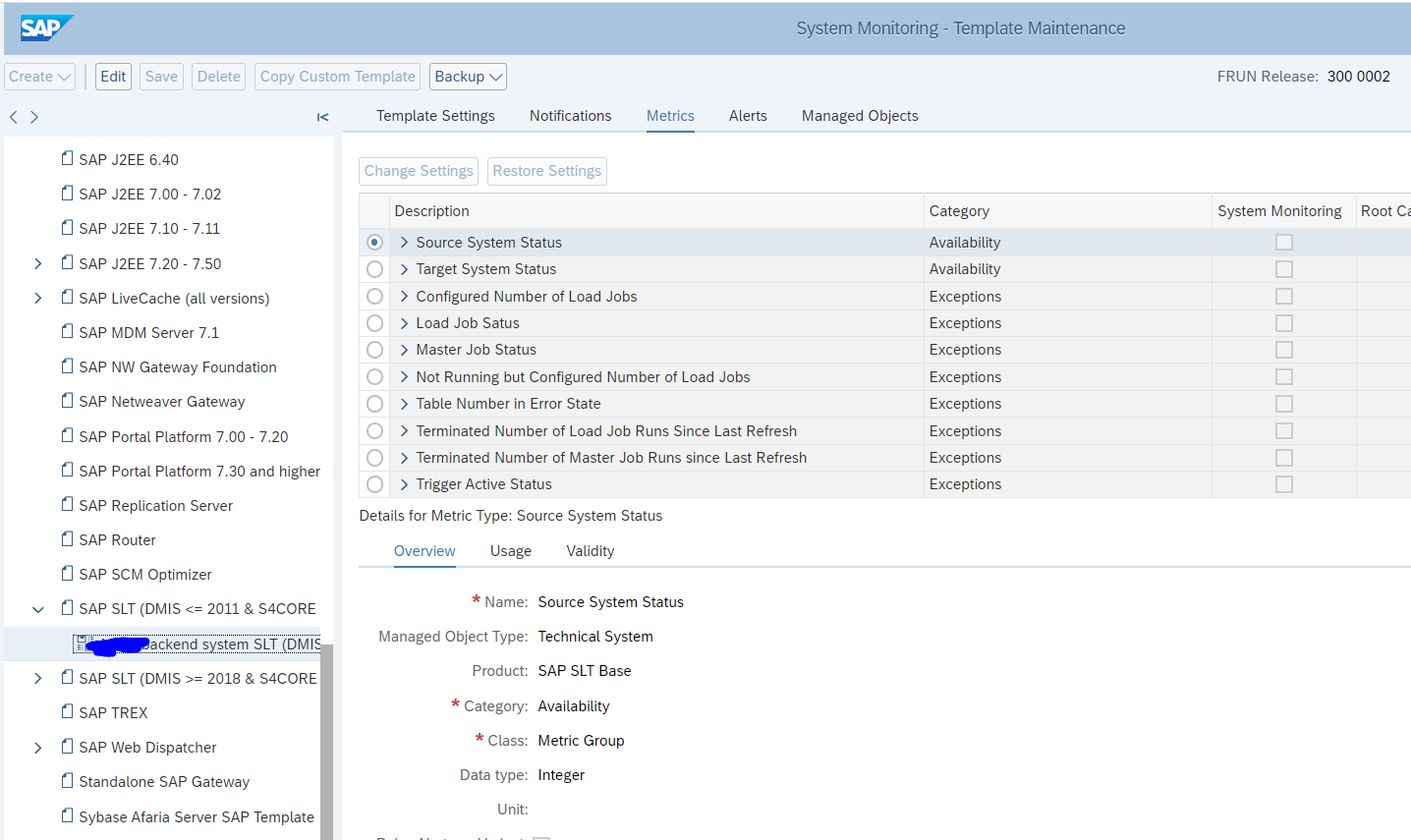
Assign this dummy template to your backend system.

SLT integration monitoring

Set up the SLT integration monitoring to monitoring communication.

Web dispatcher application monitoring

Standalone web dispatchers are used to load balance web traffic towards ABAP and/or JAVA systems. Common use case is to have web dispatcher for a large Netweaver Gateway FIORI installation.

Monitoring productive cloud web dispatchers

Monitoring of web dispatchers focuses on availability, connectivity and performance.

The web dispatcher template contains most needed elements out of the box:
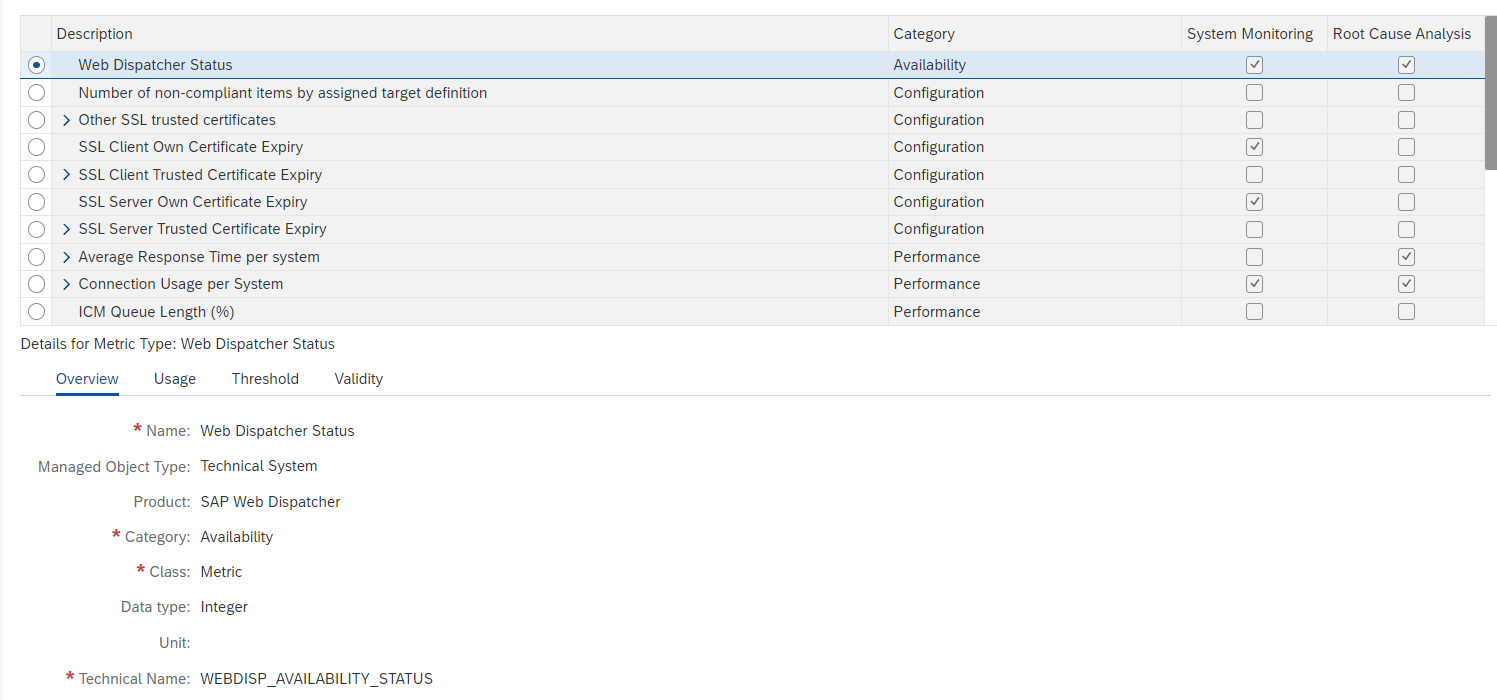
Issues with performance are often caused by limitations set in the web dispatcher configuration. Keep these settings active.

You might want to add specific custom metric to monitor the most important URL for your web dispatcher. Read more in this specific blog.

Next to this setup the normal host monitoring to make sure the file system and CPU of the web dispatcher are not filling up and causing availability issues for the web dispatcher function.

Monitoring non-productive web dispatcher systems

For monitoring non-productive web dispatcher systems, it is normally sufficient to restrict to host and availability monitoring.

Relevant OSS notes for web dispatcher monitoring

3373764 – Issue with Content Server on Web dispatcher templates

LMDB OSS notes

3104059 – Troubleshooting ABAP Data supplier populating LMDB

<< This blog was originally posted on SAP Focused Run Guru by Frank Umans. Repost done with permission. >>

SAP Focused Run health monitoring overview

Health monitoring can be used to monitor special use cases:

  • SLL certificate monitoring
  • Windows service monitoring
  • OS process monitoring
  • OS scripts
  • Logfile monitoring
  • URL availability monitoring

Health monitoring

Health monitoring can be started with the Fiori tile:

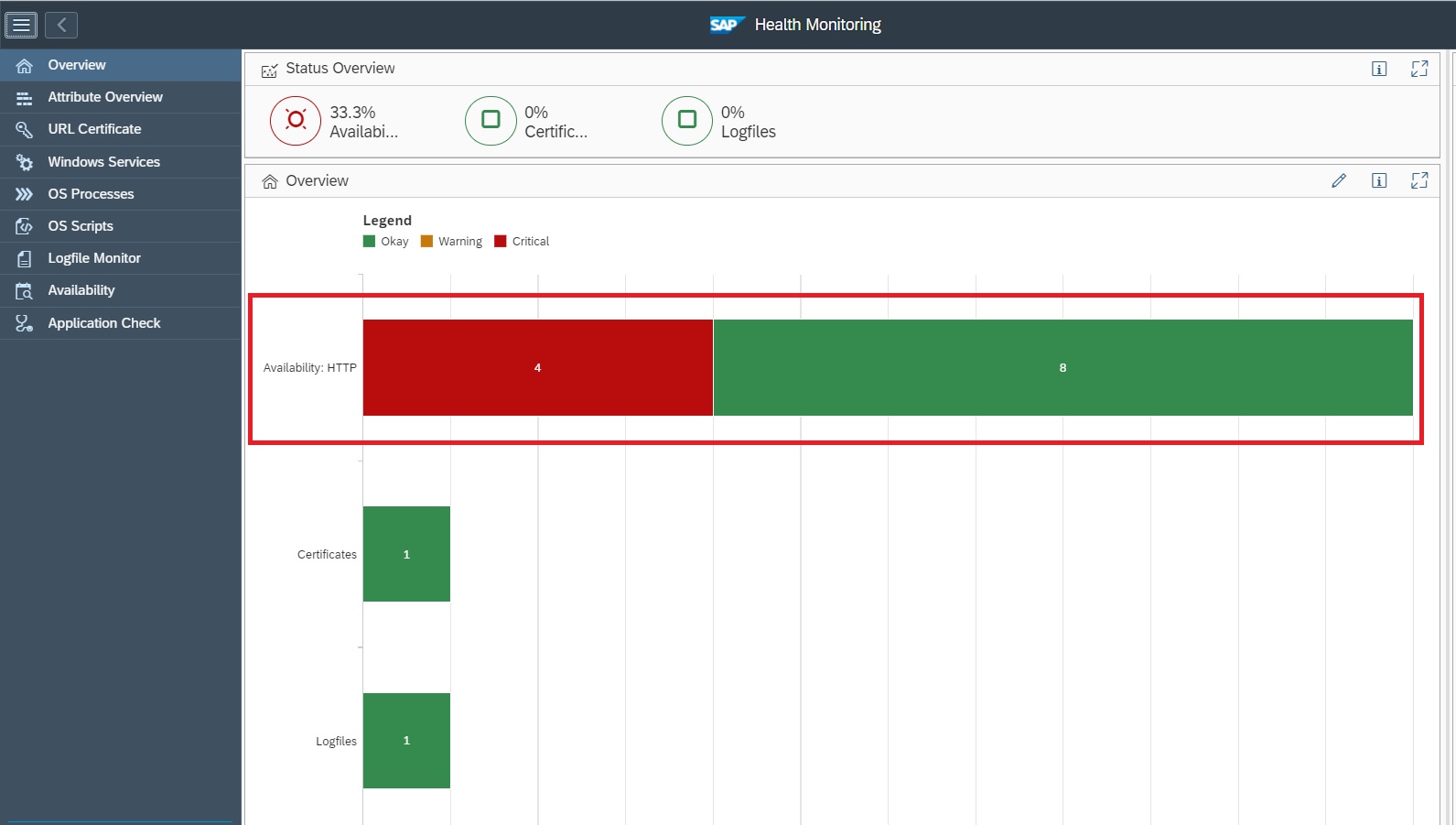
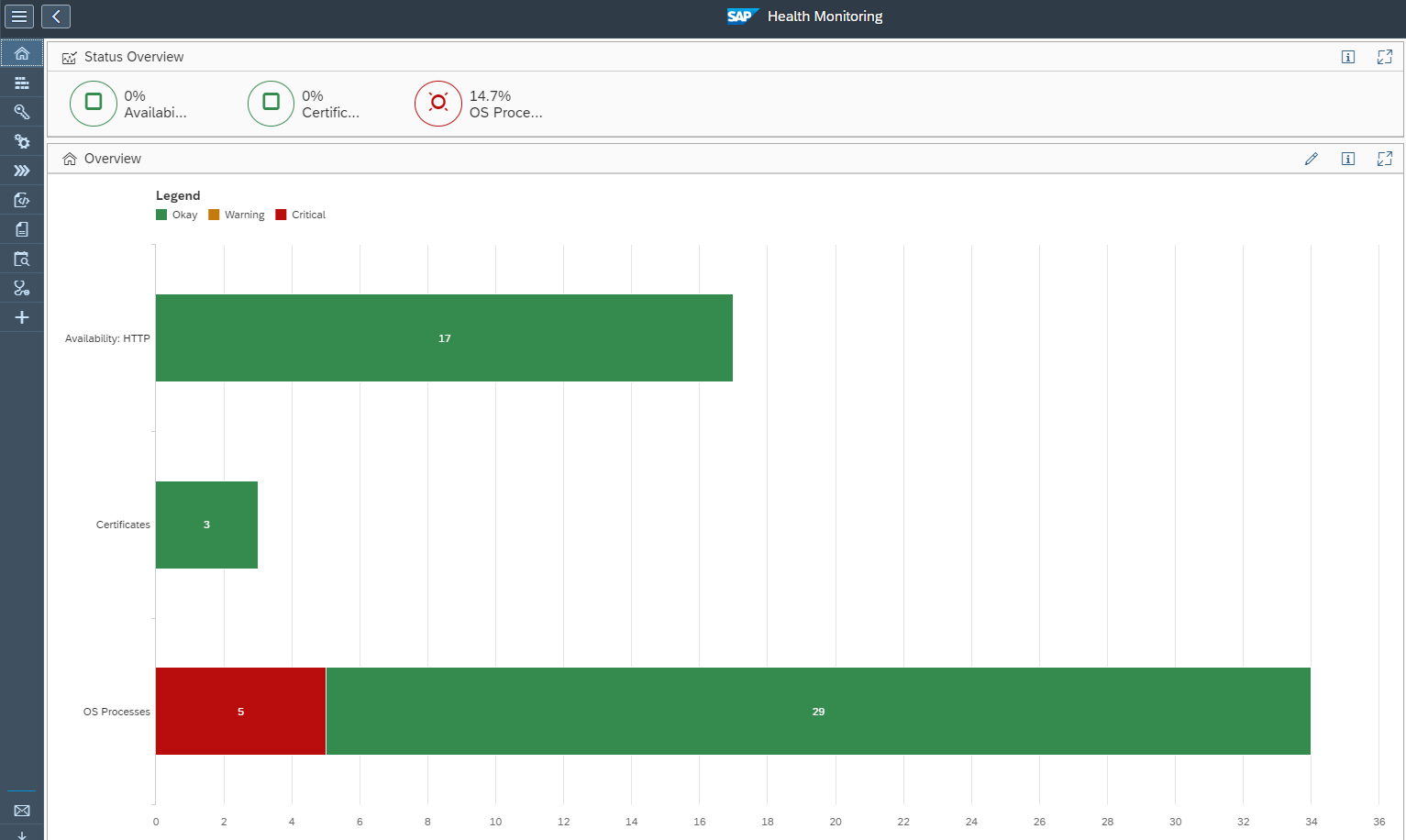
The overview screen opens:

From the overview you can immediately zoom to the error by clicking on the red bar:

Health monitoring content update

For updating content of health monitoring, follow the instructions in OSS note 3360399 – Unable to import the FRUN-CONT package FRUNCONT40003_0-80008241.ZIP.

URL availability monitoring

Health Monitoring provides a functionality called Availability Monitoring wherein we can monitor:

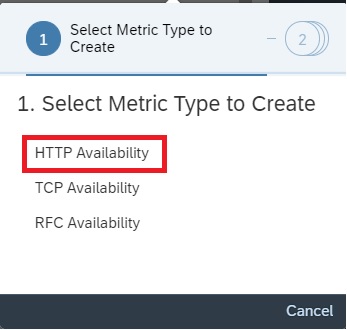
  1. HTTP Availability: Monitoring availability of URLs.
  2. TCP Availability: Monitoring the availability of a TCP port or the availability of a host.
  3. RFC Availability: Monitoring availability of RFCs specifically for measuring availability of an application server instance of an SAP system or the availability of a message server port of an SAP system.

In this blog we will explain how you can configure a HTTP Availability monitor to monitor availability of a URL.

Setup of URL availability monitoring

Step1: Assign Agent for data collection

The HTTP availability is measured by making a URL http or https call by a designated Simple Diagnostic Agent from your specific customer network in the Focused Run system.

The first step is to assign a Simple Diagnostic agent as the collector for this metric.

For this open the Health Monitoring App from the Focused Run launchpad.

Navigate to Configuration area by clicking on the Configuration button.

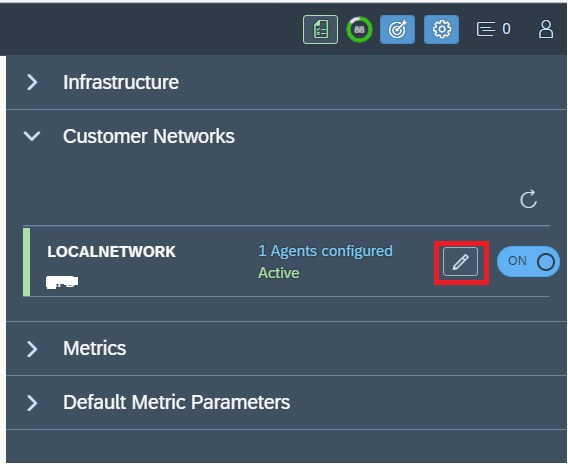
Expand the Customer Networks node and click on the change button.

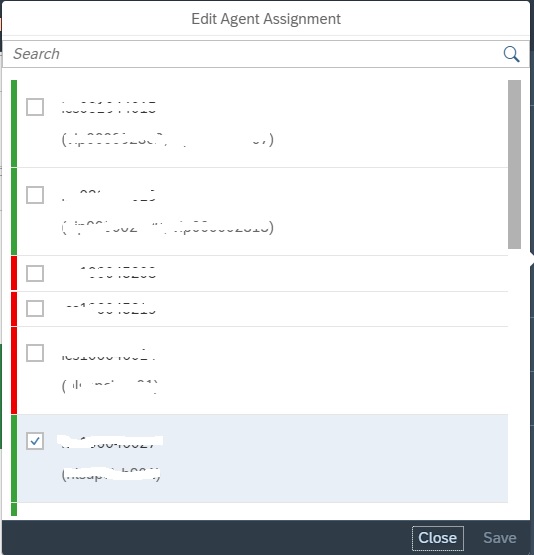
In the next popup select the agent from the list of all connected agents to this customer network.

Step2: Configure HTTP Availability Metric

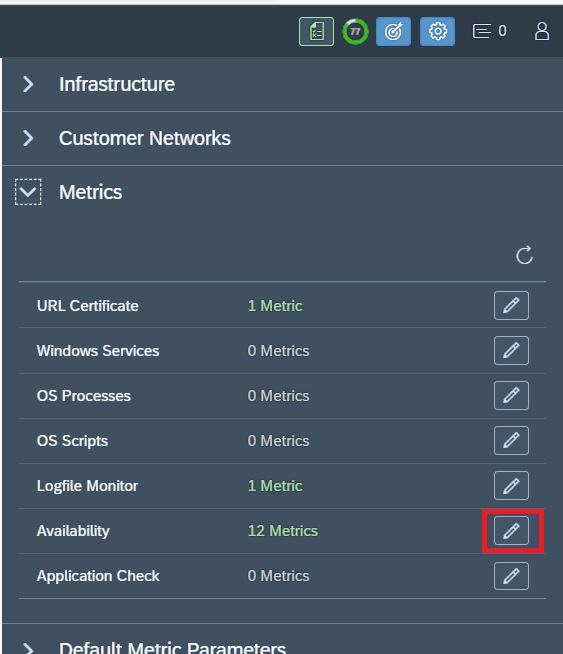
In the Configuration area expand the metric node and click on the change button for Availability under Metrics node.

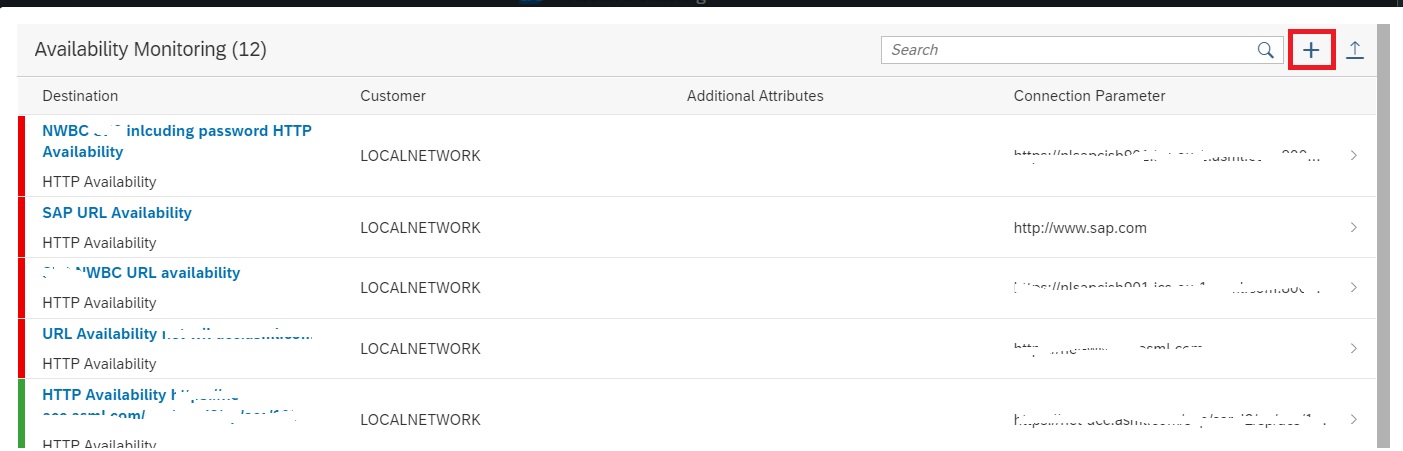
In the next pop-up screen click on the Plus button to add a metric.

In the next pop-up screen select HTTP Availability

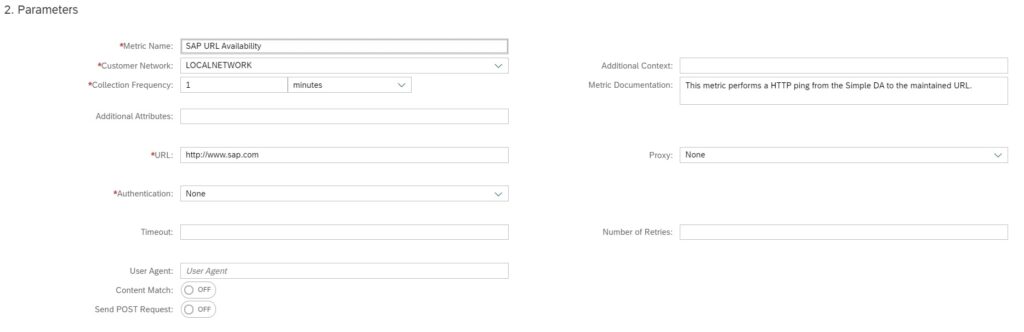
Enter the following details for a basic URL Availability check.

FieldDescription
Metric NameA descriptive name for the metric
Customer NetworkSelect the customer network for which you want to create the metric
Collection FrequencySpecify the collection frequency, how frequently the check should be performed.
URLEnter the URL to be monitored
ProxyEnter the proxy detail if the URL is reached via a proxy from the customer network. Else select None.
AuthenticationEnter the authentication type None or Basic or oAuth and enter the details based on authentication type.
TimeoutPeriod in milliseconds (ms) before a call fails.
Number of RetriesNumber of times the data collector calls a URL until it receives a response.

You can also further customize based on type of call you want to do to the URL for instance sending a POST request. For details you can refer to the SAP documentation here.

Optionally you can also enable alerting and notification in the Alert section of the configuration.

After entering all the details save your configuration to activate the metric.

URL availability monitoring usage

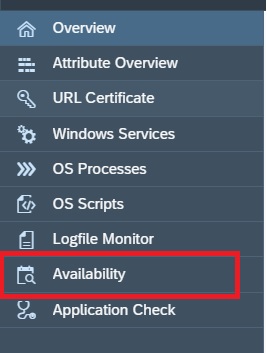
To navigate to the URL availability monitors you can click on the Availability button in the navigation panel.

Or you can also navigate from home screen.

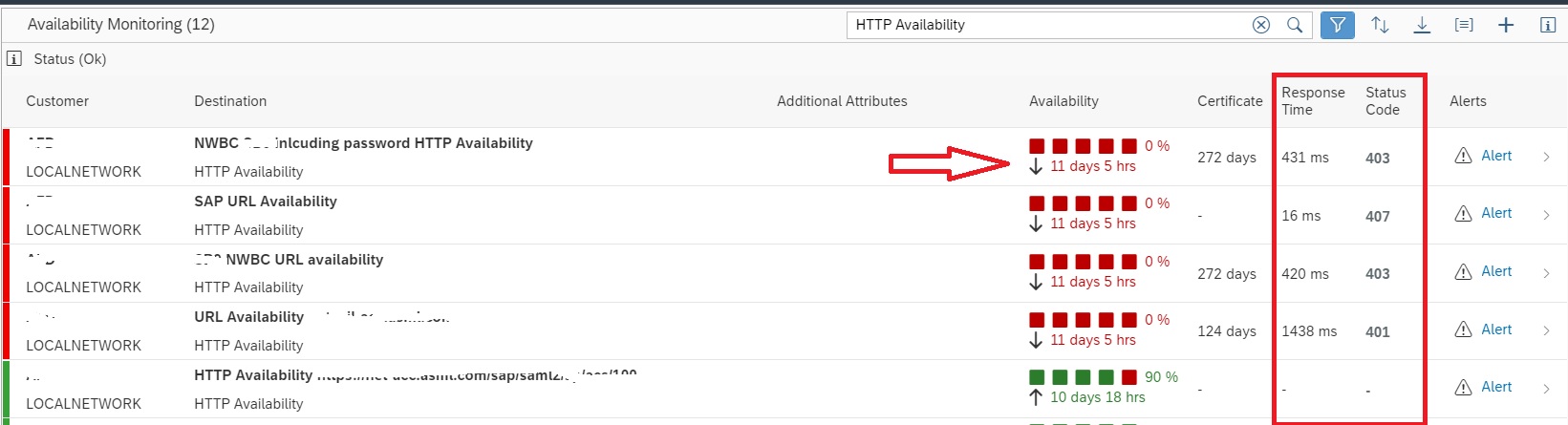
Upon navigating to the Availability monitor metric list you will see the status of all URL availability metrics configured. The metric list view shows us the number of days and hours since the URL is available or unavailable. It also shows us the response time when accessing the URL.

This way you can not only monitor the URL availability but also the performance of an URL with regards to the response time while accessing the URL.

OS process monitoring

With OS Process Monitoring functionality we can monitor the availability of critical OS level processes on any host.

With System Monitoring templates you can also activate custom metric for monitoring OS processes however this will be applicable for all system/hosts for which you activate the template.

For monitoring critical OS processes for specific hosts you need to setup using Health Monitoring functionality.

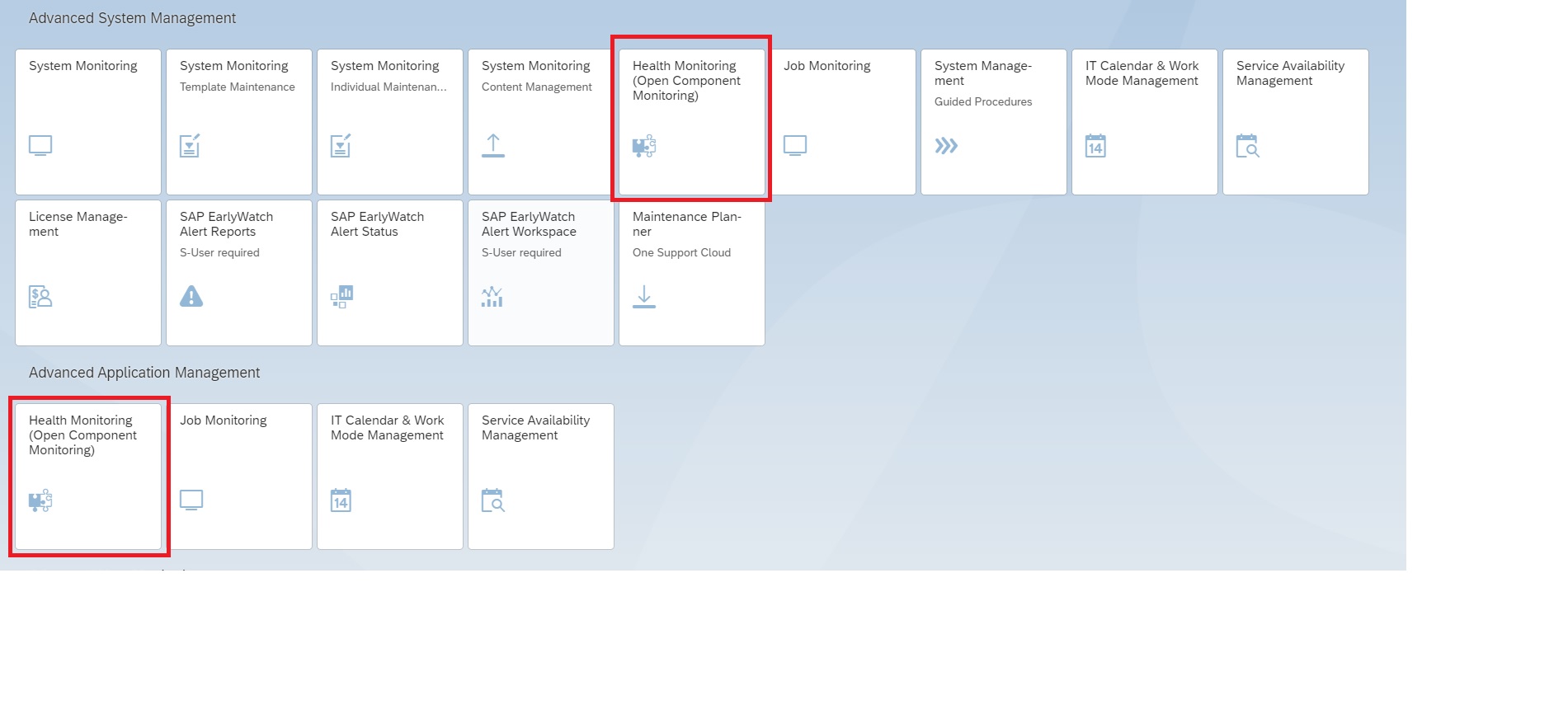
To access Health Monitoring functionality you can navigate to Health Monitoring app in the Focused Run launch pad.

Prerequisite for OS process monitoring

The only prerequisite for configuring OS process monitor in Health Monitoring is that you should have registered the host and deployed Simple Diagnostic Agent (SDA) on the host where you want to monitor the critical process.

Setup of OS process monitoring

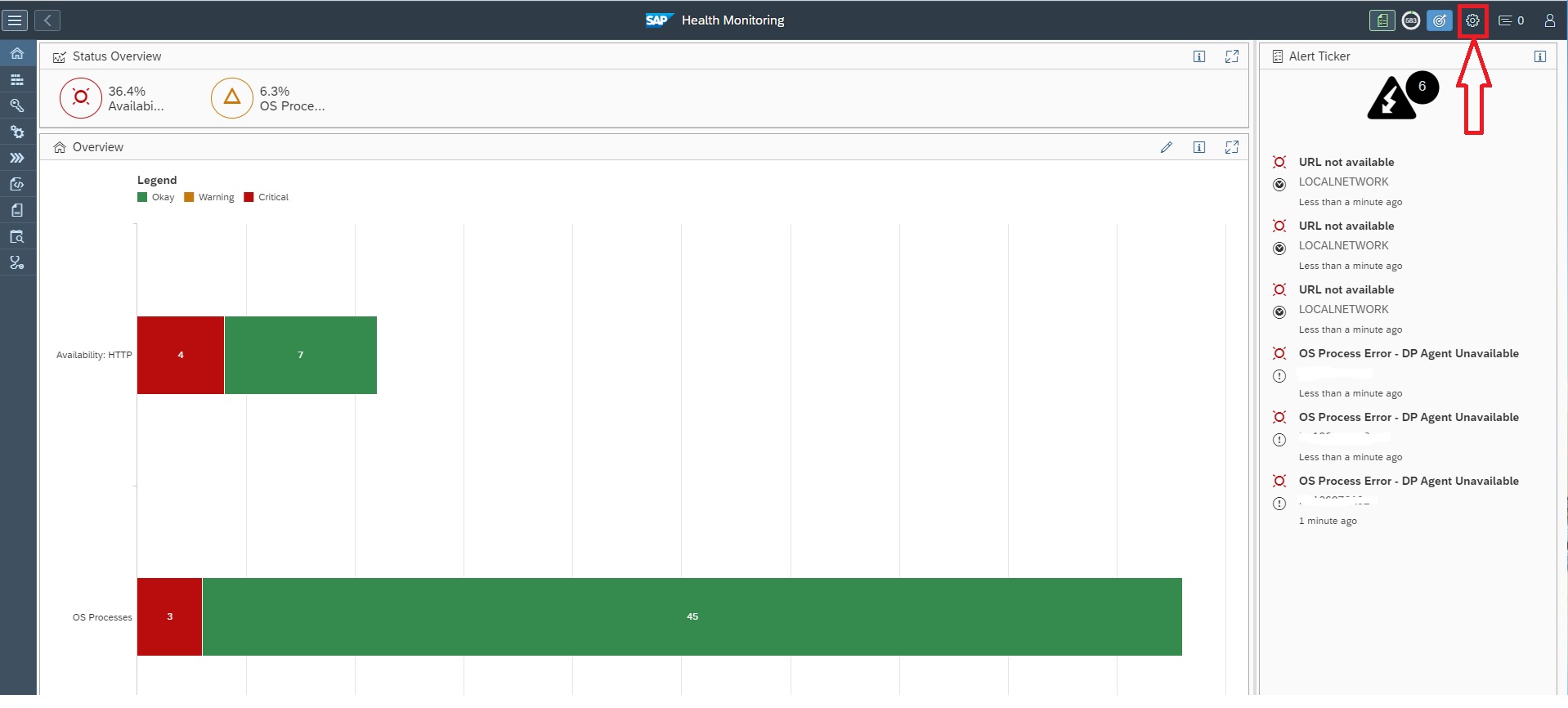
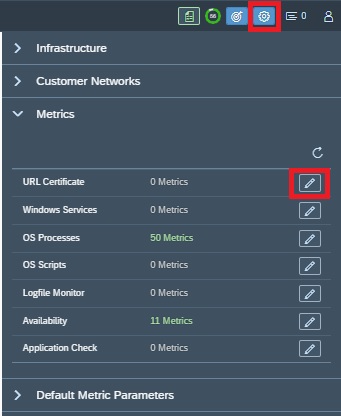
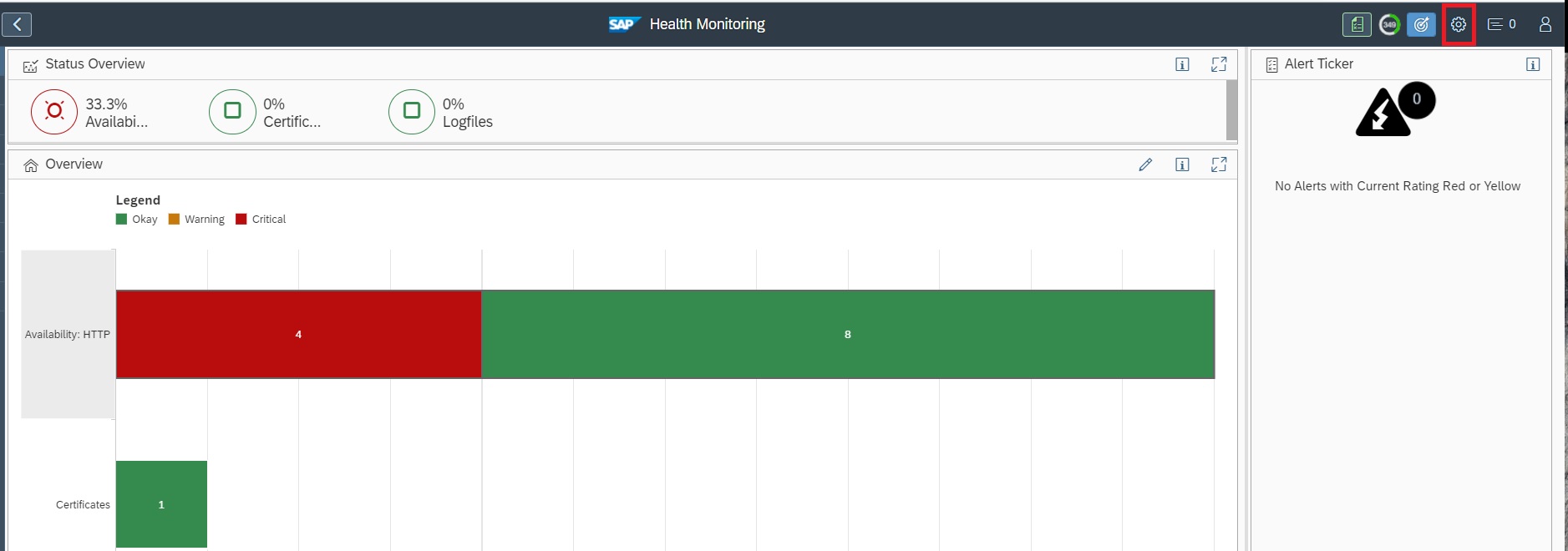
For setting up the OS process monitor you need to navigate to the settings page of the Health Monitoring App.

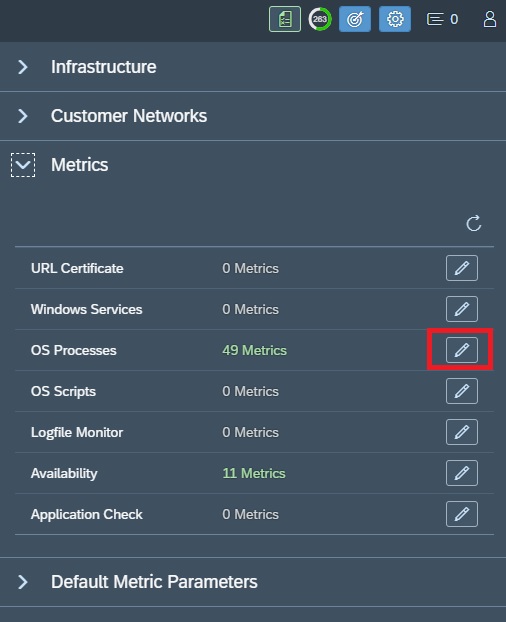
In the settings area expand the metrics node and click on the pencil button (Edit Metric) for OS Processes.

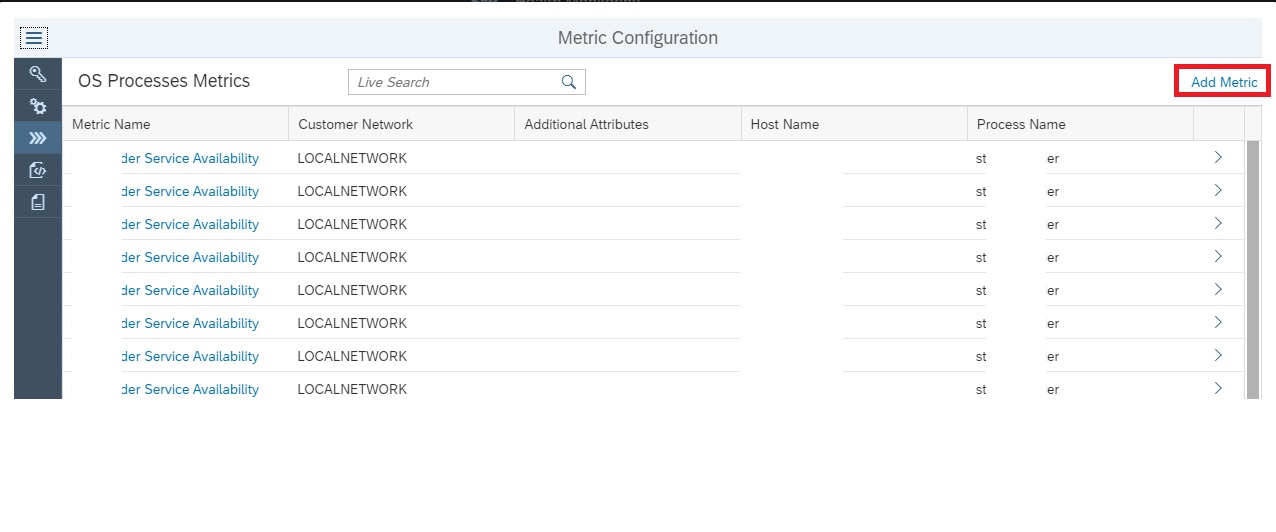
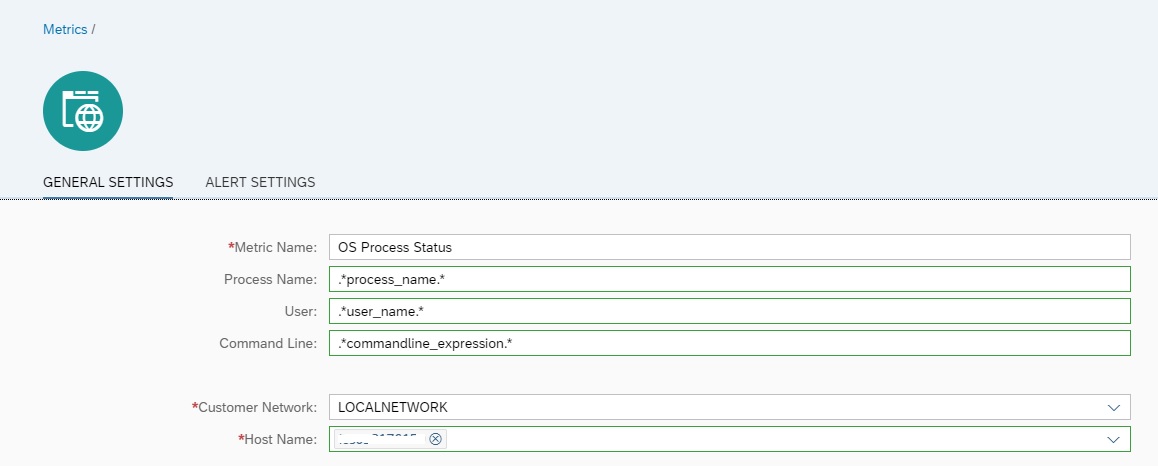
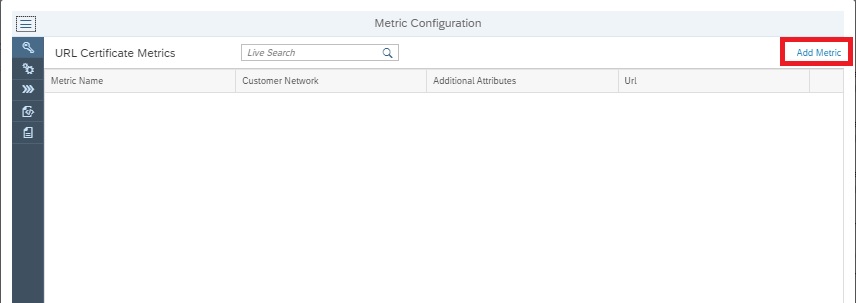
In the OS Process edit metric screen click on Add Metric button to start creating the OS Process Metric.

In the OS Process edit metric screen click on Add Metric button to start creating the OS Process Metric.

FieldDescription
Process NameName of the OS process. This parameter needs to be maintained as a regular expression. SDA will use this expression for searching for the respective OS process at OS level.
User (Optional)You can further restrict the search for processes running through a specific user. You need to enter the name as a regular expression
Command Line (Optional)You can further restrict by the specific command line with which the process is running . This is specifically useful if there are multiple processes running with the same name but you want to monitor the process which is running with a specific argument or parameter. This also needs to be maintained as regular expression.
HostnameName of the host where the process to be monitored. You can select from a list of all hosts connected (also SDA deployed) to the Focused Run system.

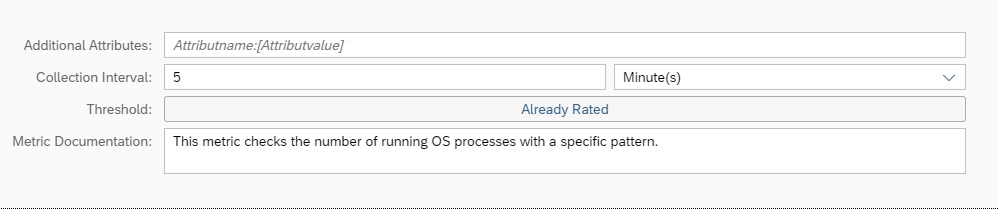
In the General Settings tab you can also specify the data collection frequency and the threshold. By default 5 minutes frequency and Already Rated threshold is set.

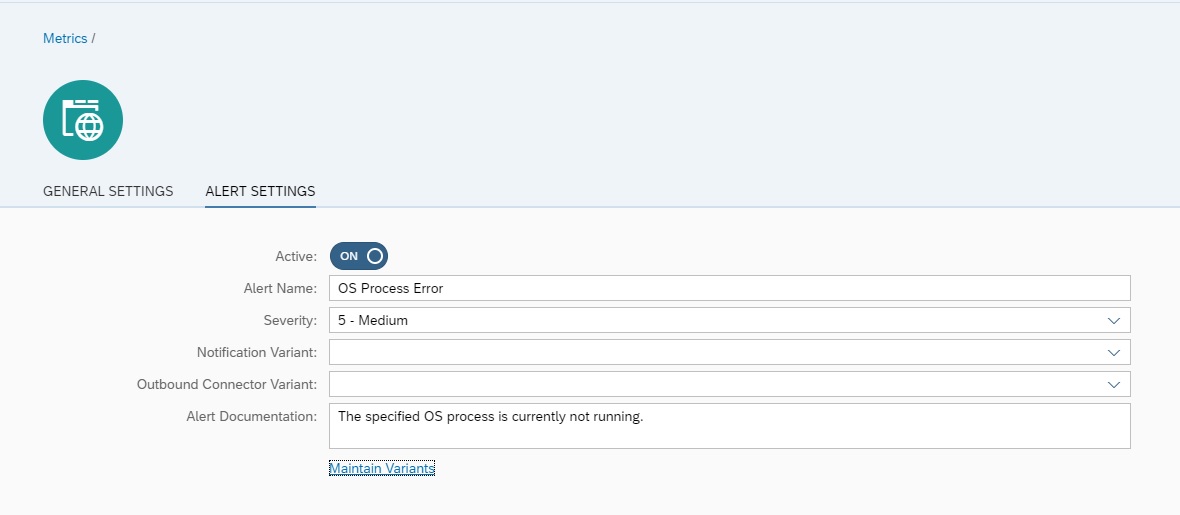
Optionally you can update the alert settings for this metric in the Alert Settings tab. By default alerting is active with medium severity.

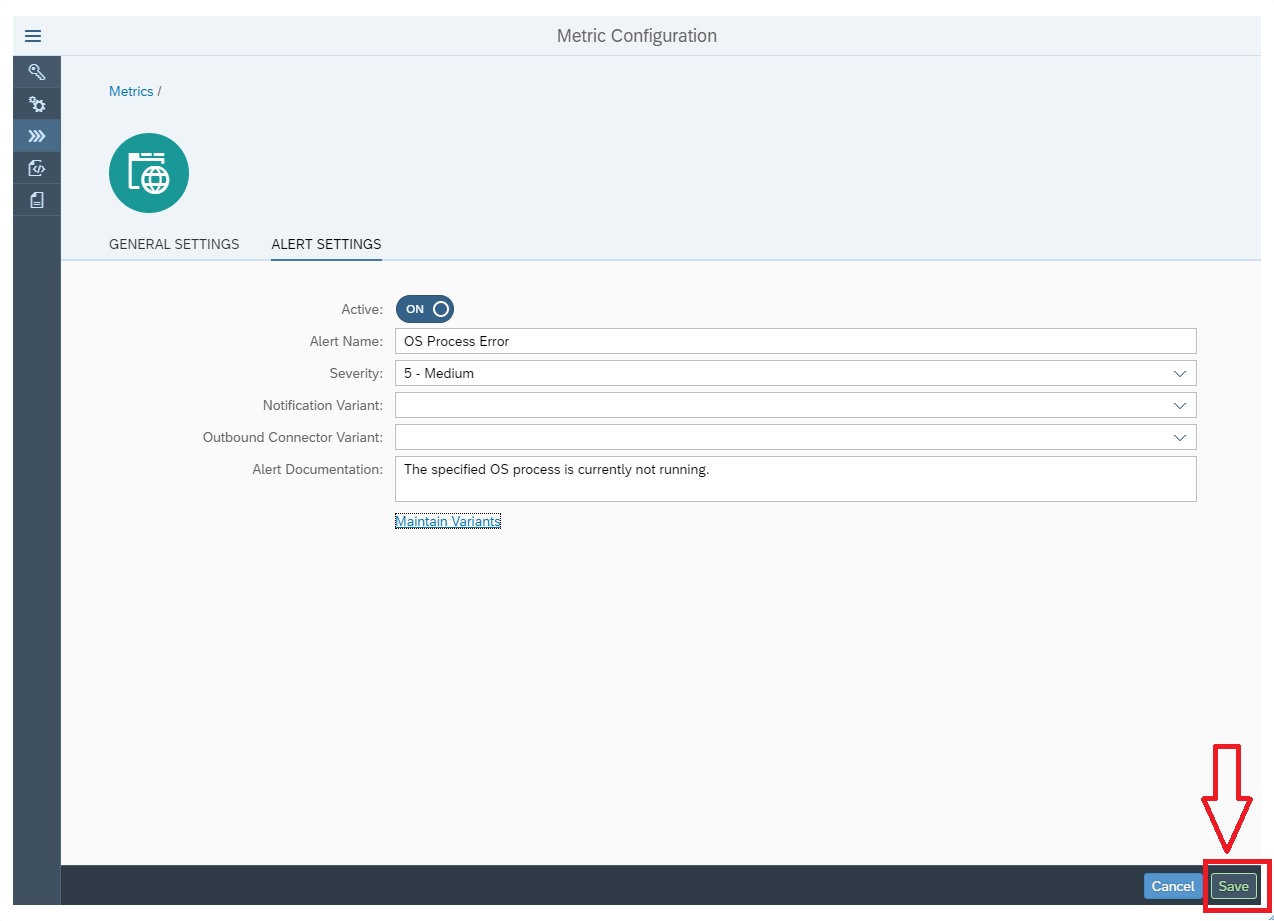
After entering all details, to activate the metric click on Save button.

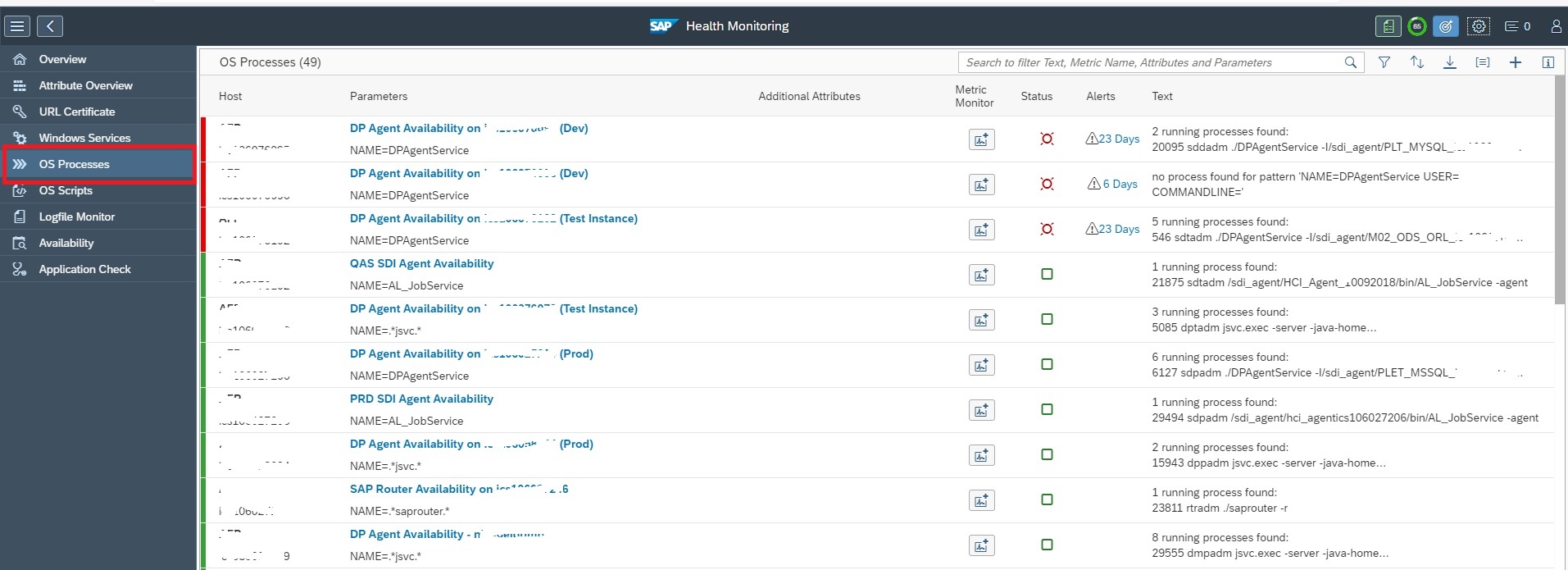
You can monitor all you OS process metrics in the OS Processes tab of the Health Monitoring App.

SSL certificate monitoring

You can configure monitors to monitor the SSL certificate of a URL using Health Monitoring functionality in SAP Focused Run system. This monitor measures the remaining validity (in days) of a SSL certificate for a https call to a URL. The URL is called by Simple Diagnostics Agent of a designated host in your customer network.

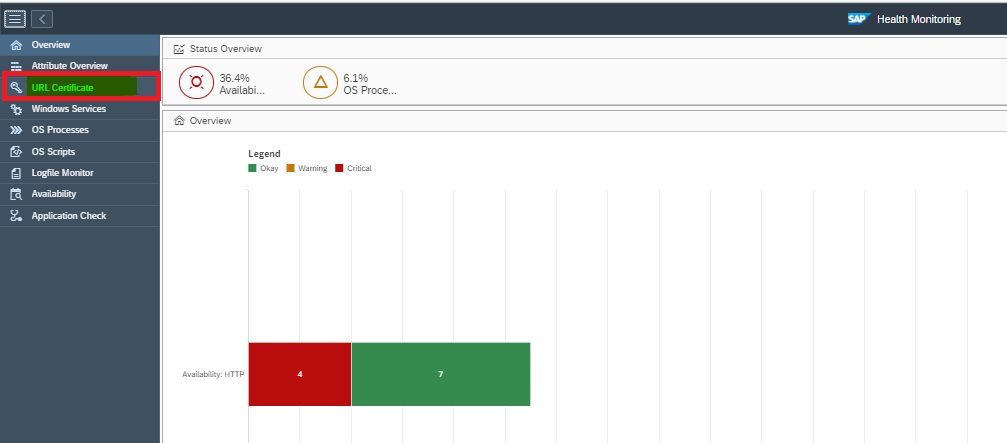
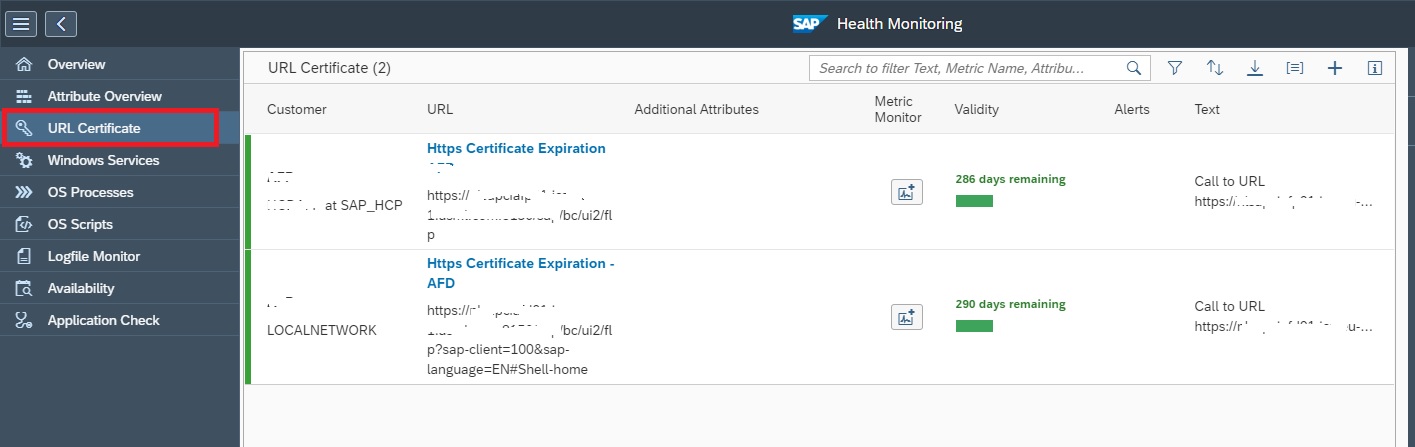
The Health Monitoring app also provides a separate section called as URL Certificate Monitor where in you can centrally monitor expiry of SSL certificates of any https URL.

To navigate to URL Certificates monitor you can click on the URL Certificate button as shown below in the navigation panel of the app.

Setup of SSL certificate monitoring

To configure URL Certificate monitors , navigate to the Configuration area, expand the Metrics node and click on the change button.

In the popup window click on the Add Metric.

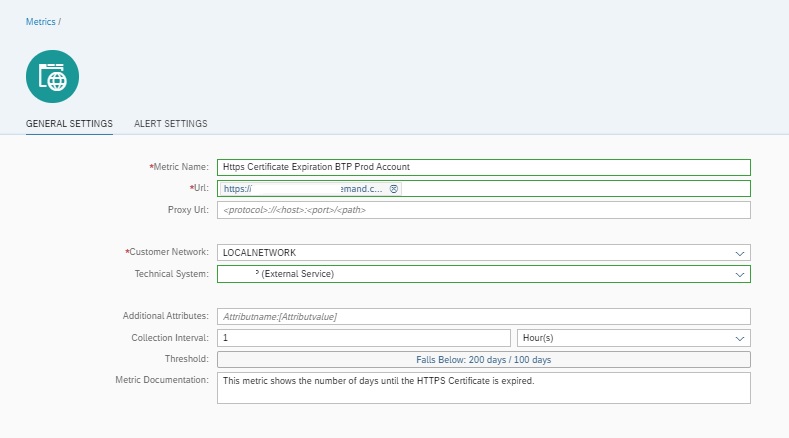
In the Metric Configuration window enter the following details in the General tab.

FieldDescription
Metric NameA meaningful name to the monitor
URLURL whose certificate to be monitored.
Proxy URL (Optional)The Proxy URL if the URL is accessible via a proxy URL
Customer NetworkThe Customer Network to which this URL belongs. The designated SDA from this customer network will be performing the check.
Technical System (Optional)You can optionally link this monitor to a specific cloud service you have registered in your LMDB. This is the Cloud Service you would have created if you are using AIM scenario for Cloud Service Monitoring. Select from the drop down.
Collection IntervalFrequency of data collection. Select from available options.
ThresholdThreshold for remaining days for expiry. By default 200 Days for Yellow and 100 days for Red.

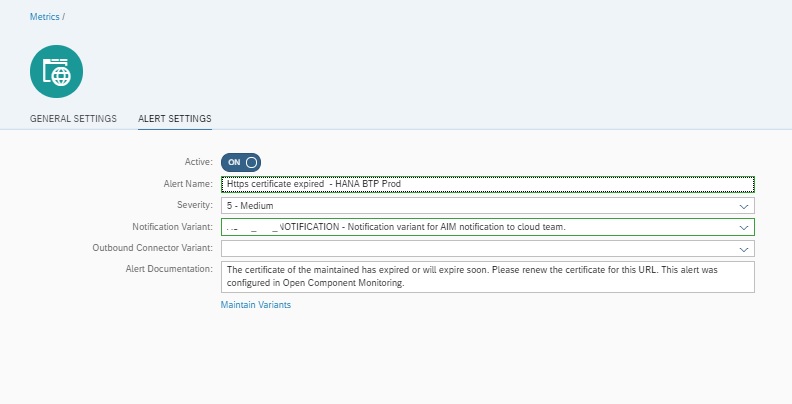
Additionally and optionally in the Alert Settings tab you can activate alerting and notification settings as shown below.

That’s it, now your monitor is active.

Using SSL certificate monitoring

To monitor navigate to the URL Certificate tab in the Health Monitoring App.

You can also refer to this SAP documentation to know more about various features available with Focused Run Health Monitoring.

<< This blog was originally posted on SAP Focused Run Guru by Manas Tripathy and Frank Umans. Repost done with permission. >>

SAP Focused Run service availability management

manage the figures you need for service availability management:

  • Uptime of the system
  • Planned and unplanned downtime of the system

All service availability management functions are present using this Fiori tile:

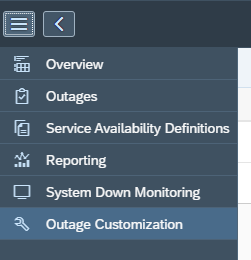
On the left hand side there is the menu with all options:

Service availability management definitions

There are 2 definitions we need to configure:

  1. The outage customization
  2. Service availability definitions

First we start with the outage customizing:

Make the required settings for planned and unplanned downtime.

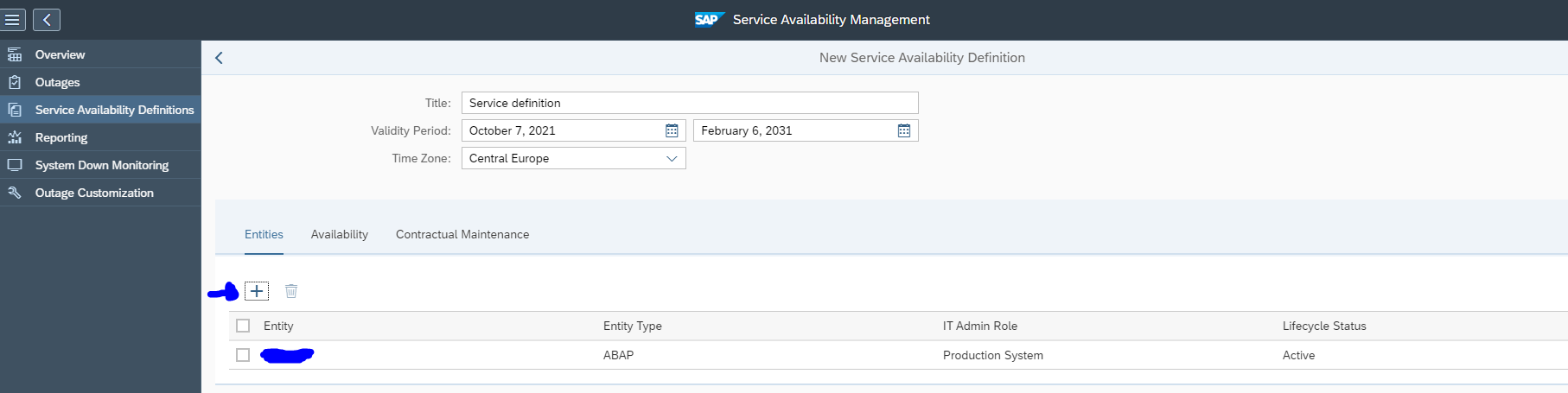
Now you add a new service management definition:

Provide a name and validity date for the definition and use the + symbol to add systems for which the definition is relevant.

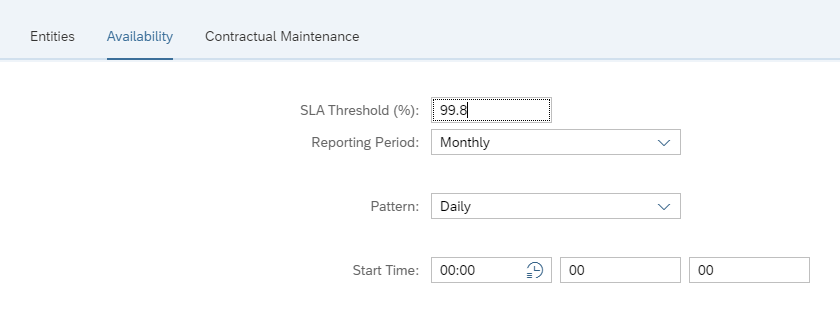
In the tab availability set the SLA threshold for the availability percentage:

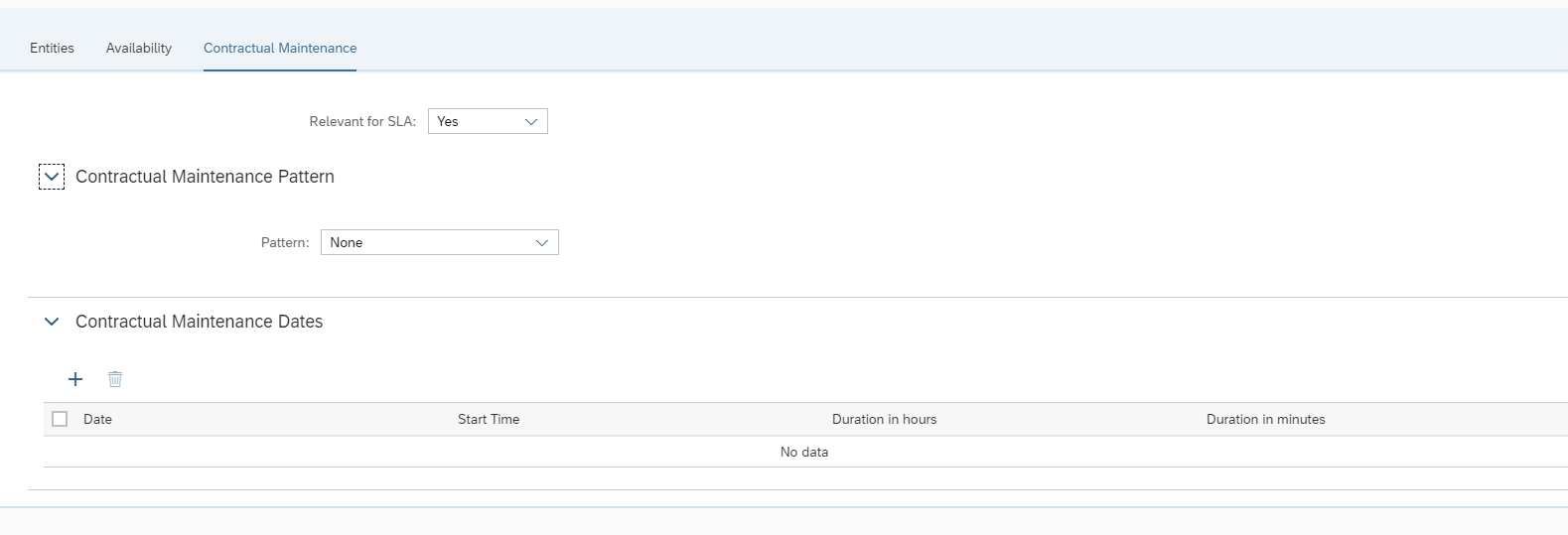
If relevant you can set specific contractual maintenance time in the last tab:

Example of use for this tab: you are running your SAP system hosted on for example AWS or Azure. Those platforms can have scheduled maintenance as well. That is not in your control.

Carefully check your entries and definition before saving. They cannot easily be changed later!

You cannot delete an active definition. To make it inactive you need to change the end date of the definition to today, and then delete it next day.

Each system can only be in one SLA definition!

Classifying the outages

On the Outages overview you can see the outages. The outages can be 0, or there can be open and/or confirmed outages:

Click on the open alert to classify it (click once for the line, click on the line for the details):

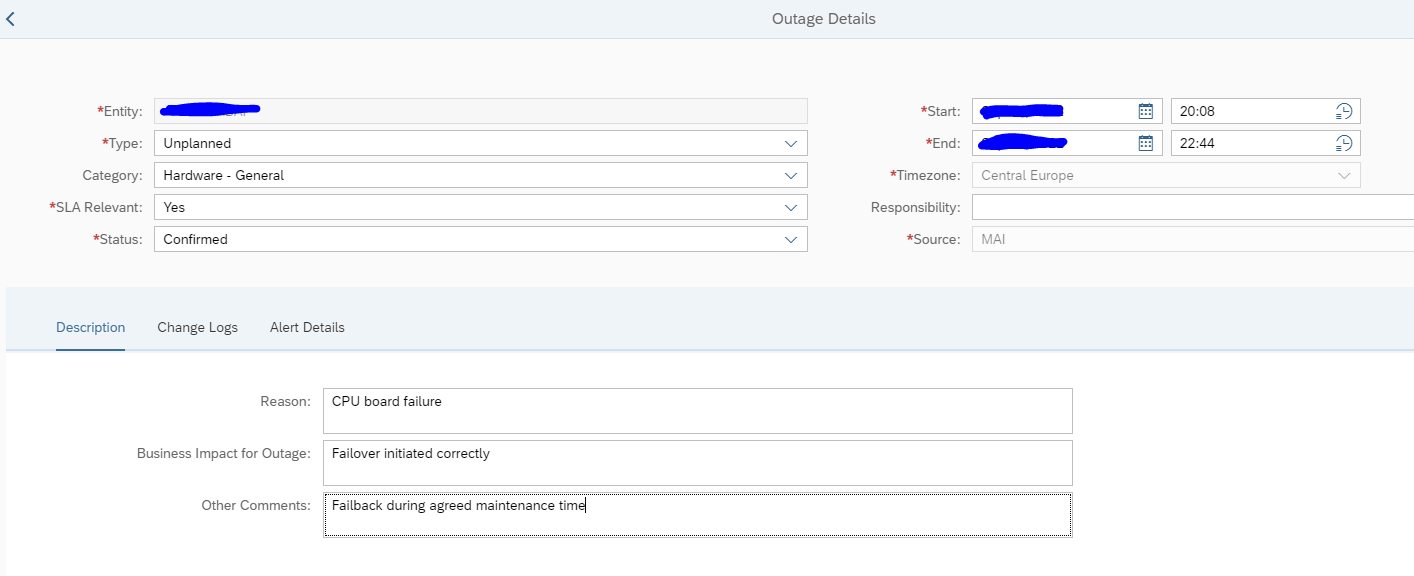
Classify the outage (planned/unplanned) and set the status. Fill out the text to clarify. And then save the update.

Outage reporting

There are 2 main reports. The uptime and outage reporting. The uptime reporting shows how long your system is up since the last reported planned or unplanned downtime. This overview is not so useful.

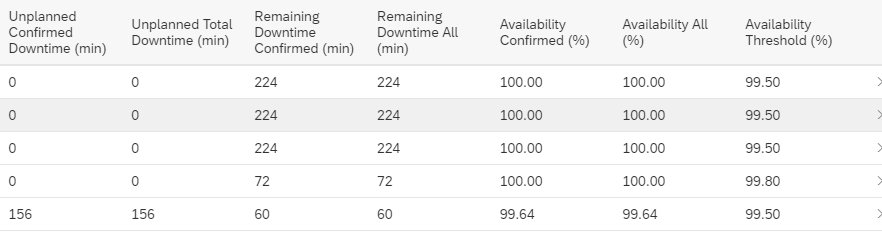
The useful overview is the outage reporting which shows you the downtime per system and per month:

In the example above 1 system had outage, but that was short enough to still meet the SLA target. Availability was 99.64% versus SLA target over 99.5%.

<< This blog was originally posted on SAP Focused Run Guru by Frank Umans. Repost done with permission. >>
SAP Focused Run workmode management

There will be planned maintenance on SAP systems, databases, operating systems and the below infrastructure. During this planned maintenance, you don’t want any alerts and mails from SAP Focused Run, since the application is not available for a planned time.

Using the work mode management function you plan these maintenance events.

Questions that will be answered in this blog are:

  • How can I set up planned maintenance for systems monitored by SAP Focused Run to temporarily suppress the alerts during maintenance?
  • How can I see the current maintenance and planned upcoming maintenance?
  • Can I make a public page for the IT calendar?

Planning maintenance

Goto the IT calendar and workmode management tile:

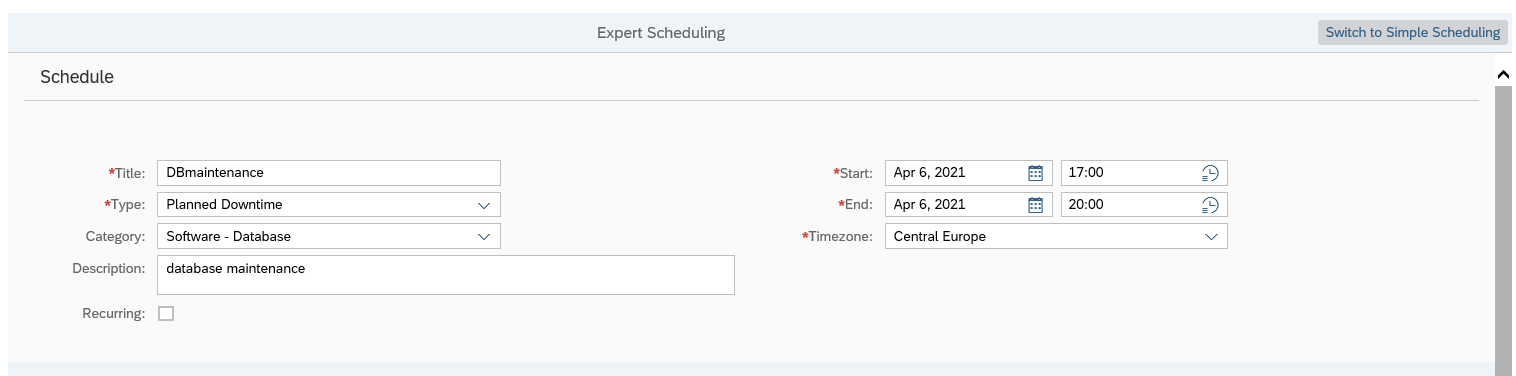
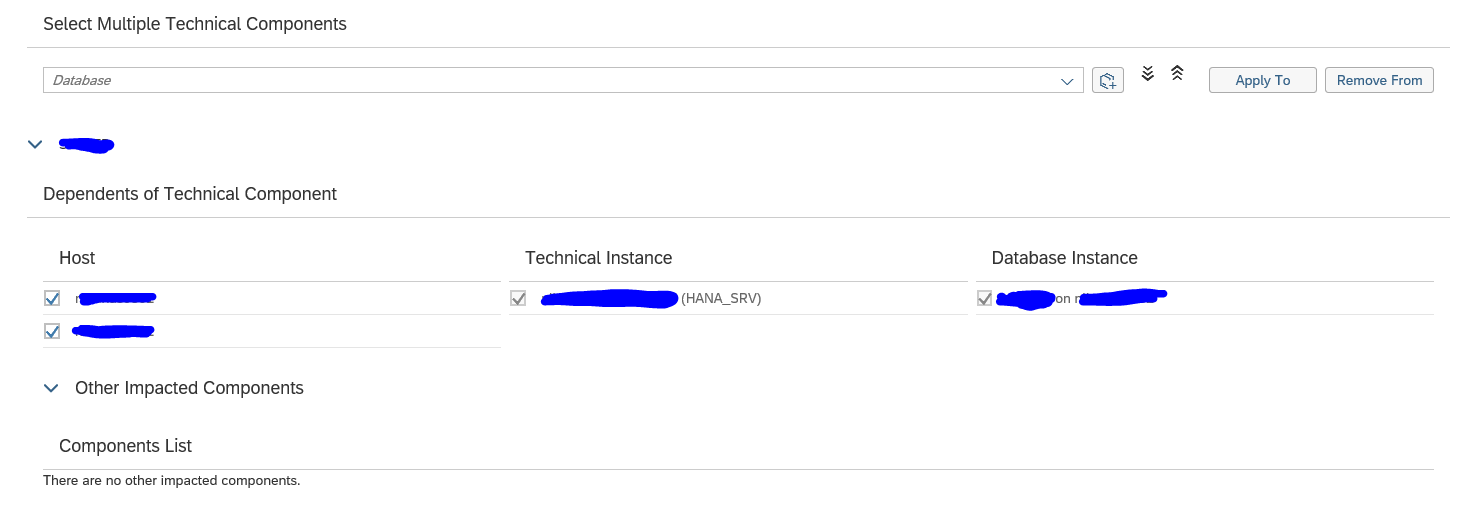
Select the system (or select multiple systems in one go) and create the work mode for maintenance, and immediately switch to Expert Mode:

With expert mode you can simply set start and stop date and time.

You also should check the scope (the system will make a proposal) and extend if needed:

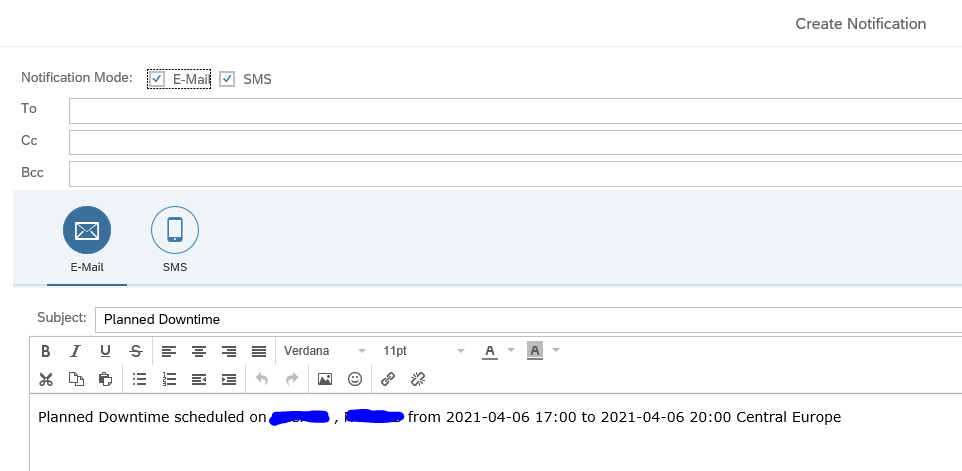
After saving, you can send notification via mail on the planned maintenance:

You can now see the planned maintenance in the calendar mode.

Overview of upcoming events

If you are in the calendar mode there can be a lot of systems. The overview screen for upcoming events will filter on the systems which have maintenance mode planned:

Actual maintenance

Actual maintenance can be seen in the System Down monitor:

You will only see maintenance that is currently running in the system down monitor, not the upcoming events.

Alert suppression

Alert suppression is in details set in table ACWMGLOBALDIR (maintenance via transaction SM30). See also this OSS note 3142800 – Health Monitoring Alerts generated during an active workmode in Focused Run for all the details.

Tips and tricks

Can I select multiple systems for planned maintenance in one go? Yes you can, this will save you a lot of time to input.

Can I make a recurring maintenance? Yes you can, in the scheduling screen mark the maintenance as recurring.

IT Calendar access for Non-SAP Focused Run Users

During the maintenance the alerts are suppressed. The same information can also be made generally available to serve as a IT calendar for all interested persons. This can be people for the IT department and the business. These users are mainly interested in planned downtime of the IT systems.

Use of the IT calendar for non-SAP focused run users

After the setup each person can now use this URL:

https://<host>:<port>/sap/bc/ui5_ui5/sap/itcal_external/index.html? FILTER_VARIANT=<public_variant-name>&sap-client=<client>

End result looks like this:

Setup of IT calendar access for non-SAP focused run users

The basic steps are described in OSS note 2926433 – IT Calendar access to Non-SAP Focused Run Users.

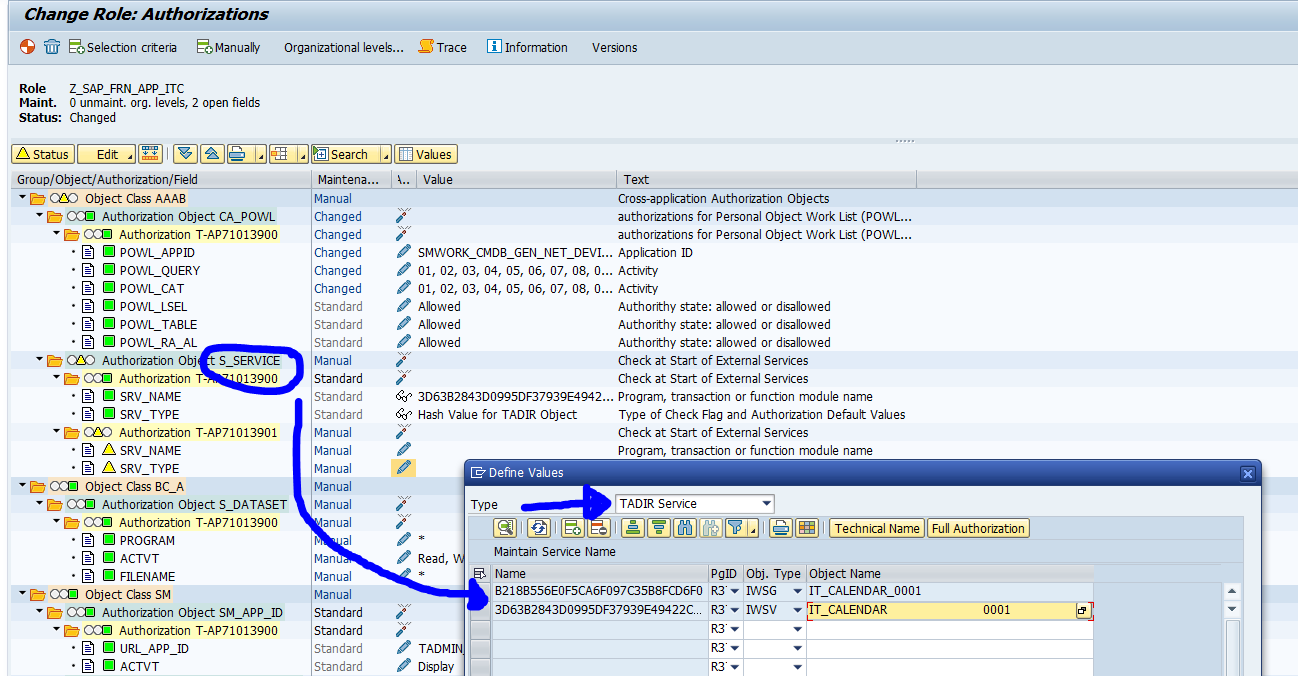
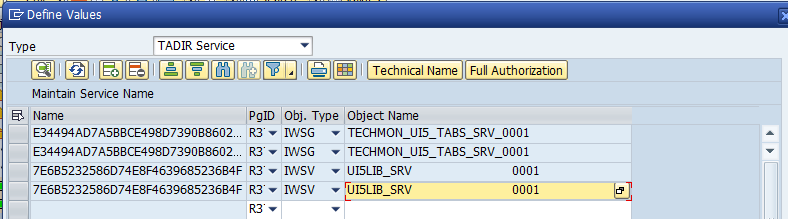
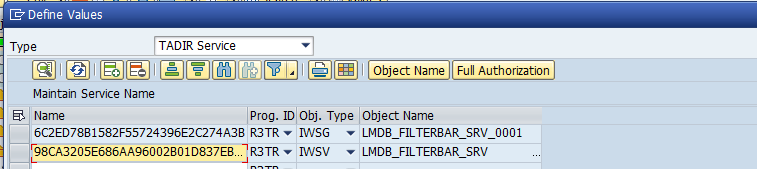
Create a system user with copy of role SAP_FRN_APP_ITC role and update it with the UI5 application “itcal_external”(IWSG and IWSV).

Also add these 4 not documented authorizations:

  1. Display for service availability management:

2. Display for work modes:

3. Add generic services:

4. Add filter bar rights:

Activate and save this role.

Activate these 2 SICF services:

  • /default_host/sap/bc/bsp/sap/itcal_external
  • /default_host/sap/bc/ui5_ui5/sap/itcal_external

On the Logon tab of these 2 services set the user ID and password of the newly created system user.

Do the same for the external system alias /sap/itcalnonsolman (also in SICF transaction): also here set the user ID and password for the newly created system user with the assignment of the newly created role.

After settings are done, execute testing. Most issues are coming from lack of auhtorizations.

OSS note for IT calendar function

Relevant OSS notes:

  • 2926433 – IT Calendar access to Non-SAP Focused Run Users
  • 3150979 – Number of systems in scope is limited, while using External IT Calendar

<< This blog was originally posted on SAP Focused Run Guru by Frank Umans. Repost done with permission. >>

SAP Focused Run tactical dashboard

ultiple systems. Items that are part of the tactical dashboard is database backup status, performance, logged on users, software maintenance status.

Questions that will be answered in this blog are:

  • How to use the Focused Run tactical dashboards?
  • How to fine tune the tactical dashboards?
  • How to setup your own tactical dashboard?

Tactical dashboards usage

To start the tactical dashboard, click the corresponding Fiori tile:

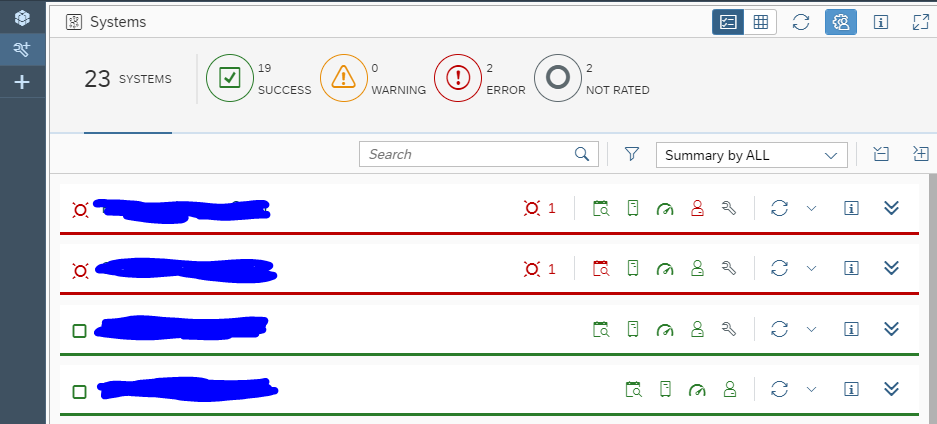
You now reach the tactical dashboard overview screen:

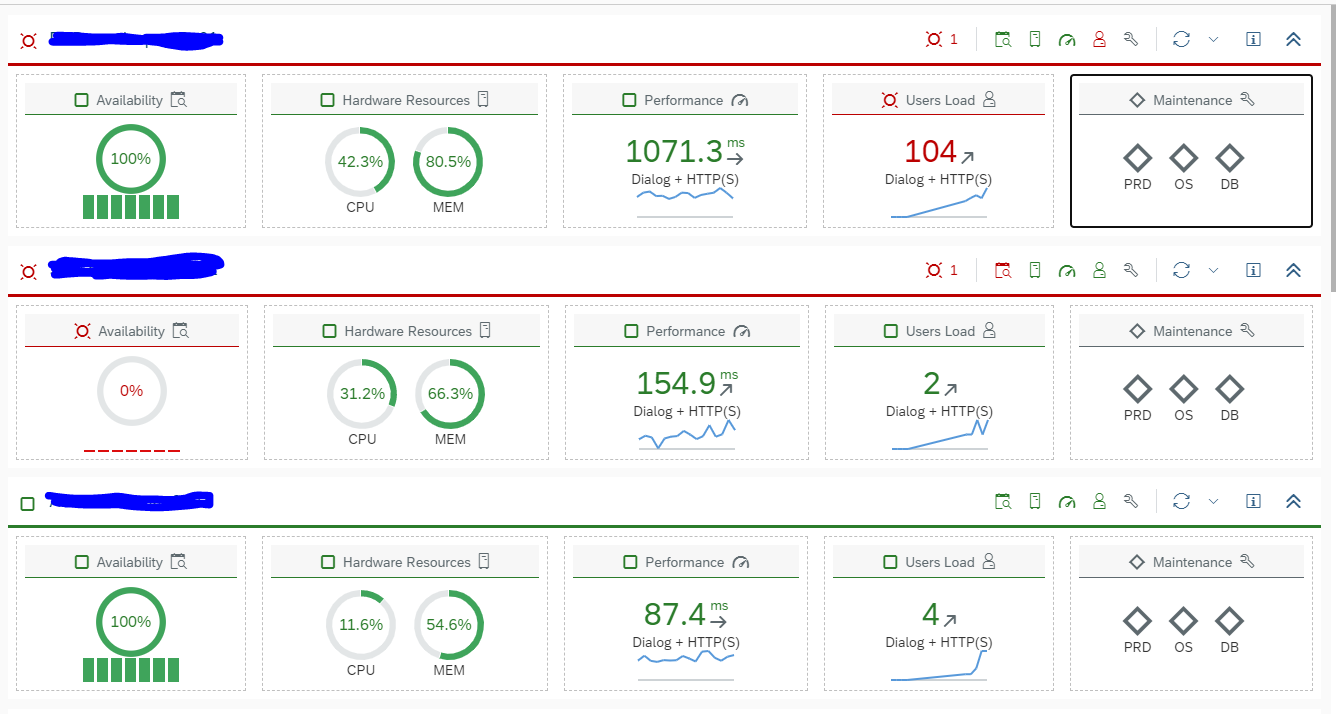
By clicking the Expand Group icon at the right you get first level of details:

By clicking the tile you are interested in you get the details.

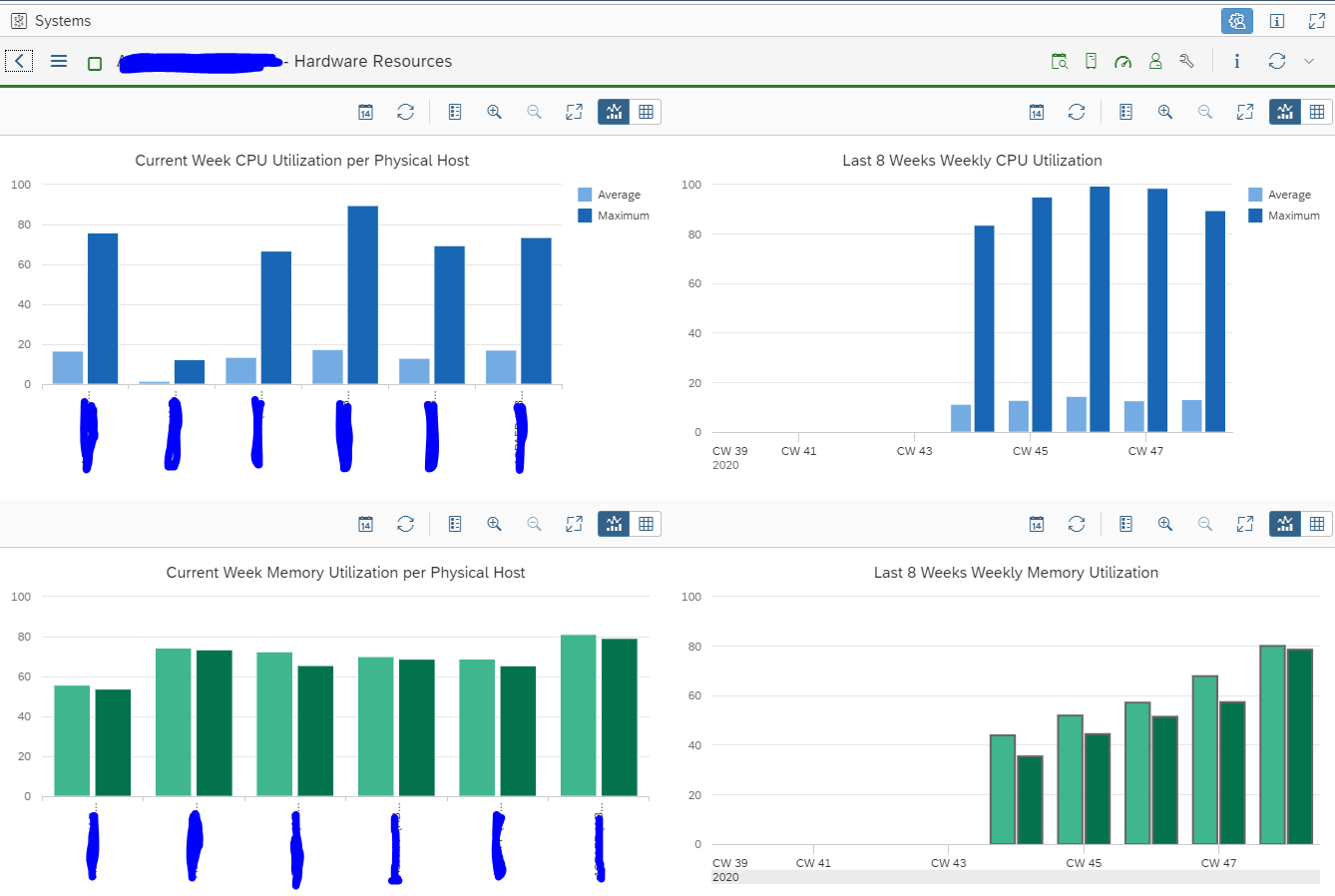
Examples are hardware resources for current week and last month:

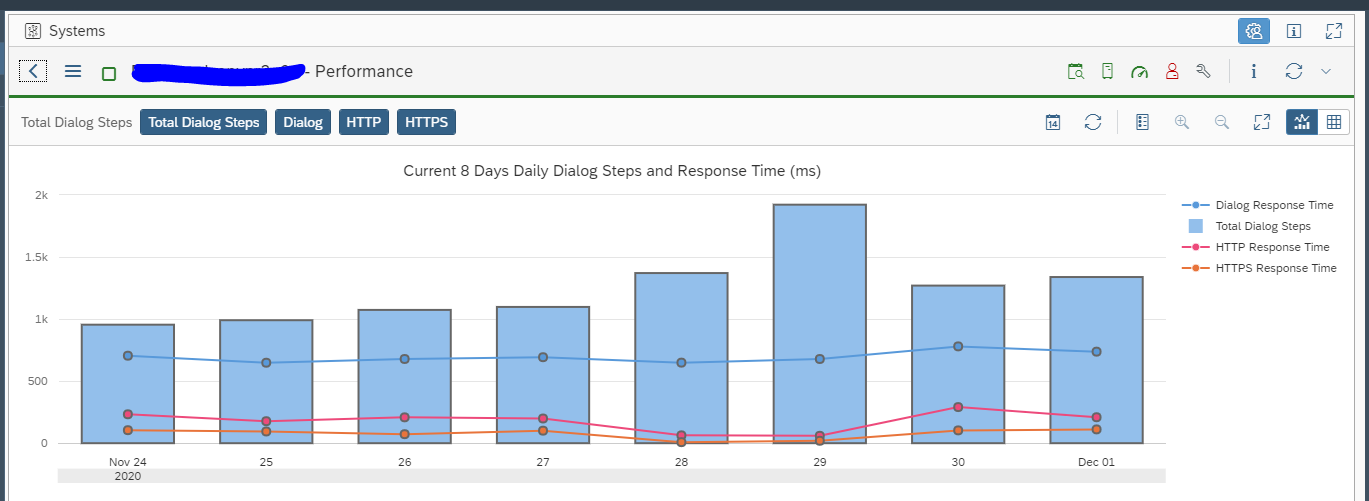
Dialog response times:

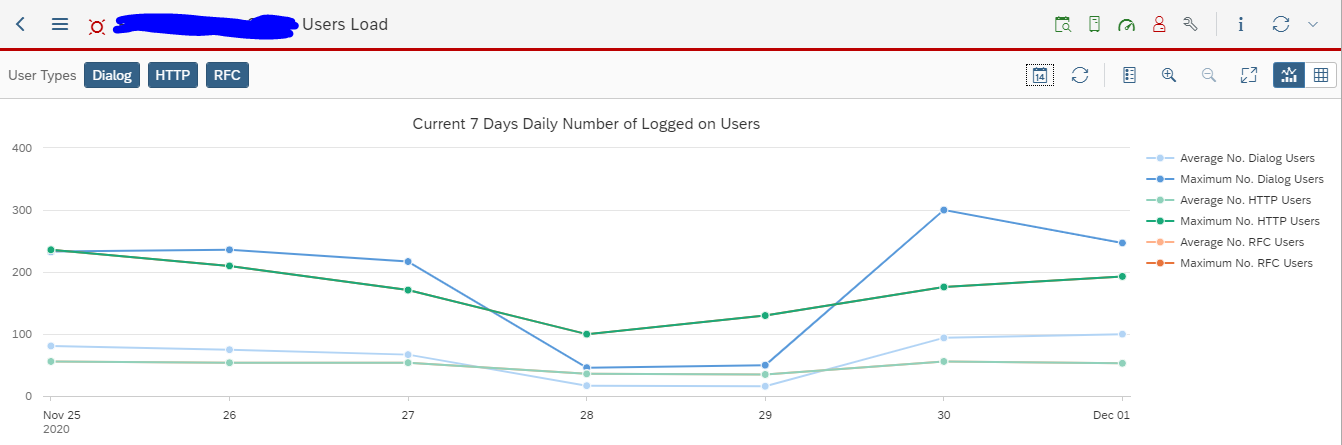
Amount of logged on users:

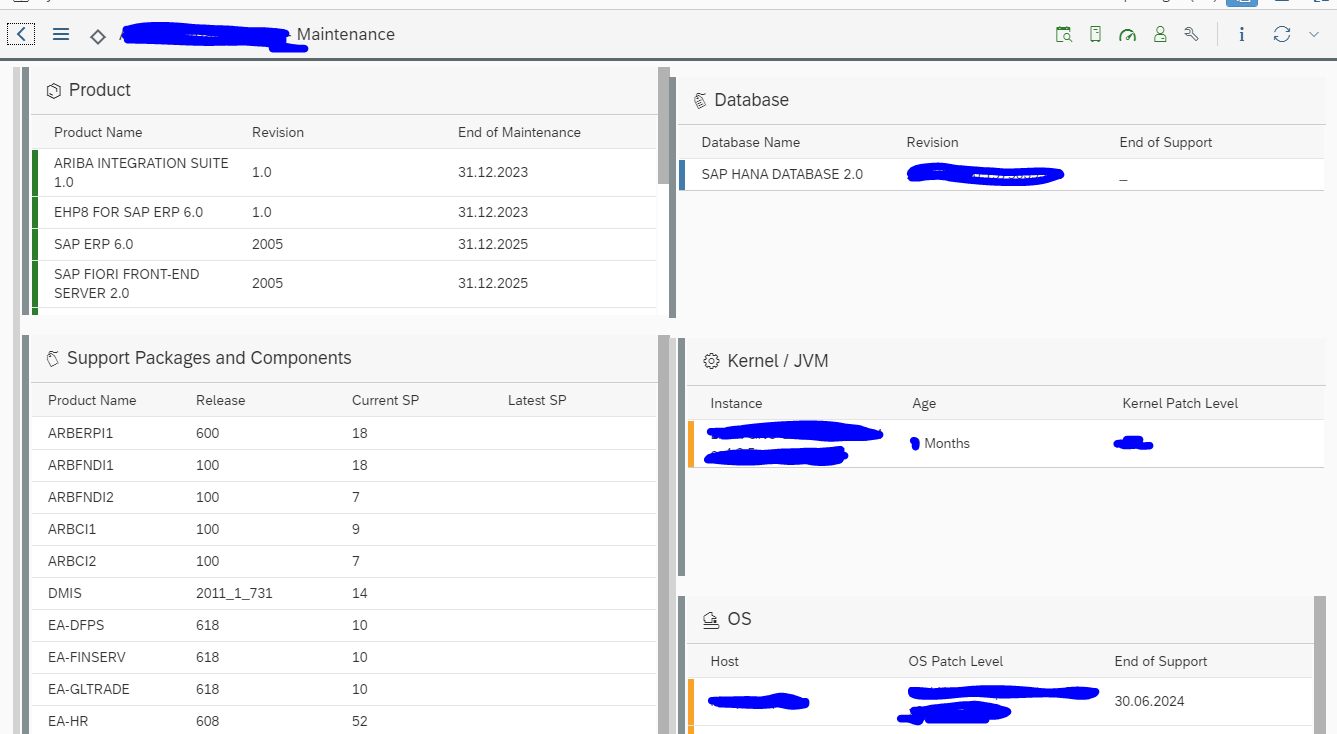
And software maintenance status for detailed components:

An alternative for manageming software components is via Security and Configuration management. More details be found in this detailed blog. The tactical dashboard is nice for 1 system. The configuration validation tool is useful for overview of components across multiple systems.

Configuration of the tactical dashboard

By clicking the personalization button top right:

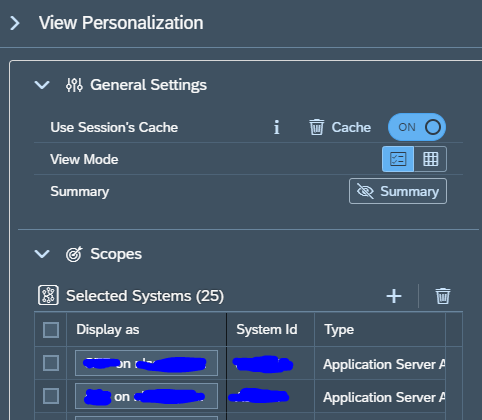
you will reach the configuration screen. Here you can add and delete systems from the overview:

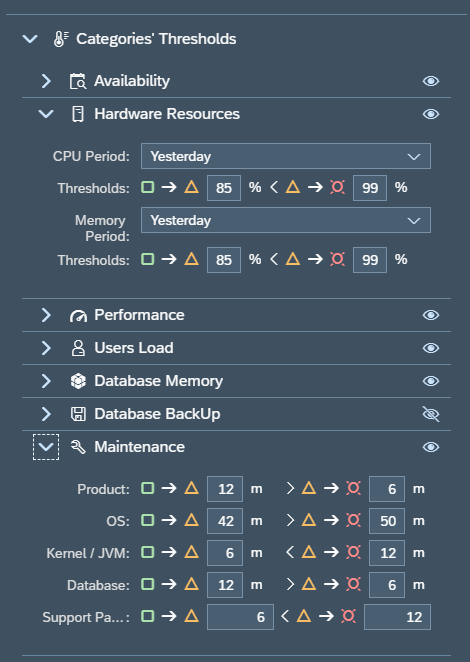
And you can set the view properties and thresholds for each of the categories:

This fine-tuning you do as per your companies needs. By clicking on the Visibility symbol, you can hide an aspect from your overview. Like above the Database backup was put to invisible.

Creating your own tactical dashboard

You can create your own tactical dashboard for your own specific needs. We will take the example here to make a dedicated dashboard for the backups. Since we want to check daily in the overview if the backups were successful.

Start by clicking top left on the big + symbol to add a new dashboard:

The personalization view screen will open:

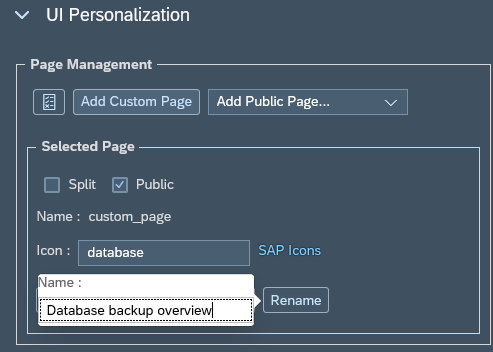
Important here are a few things. Set the tick box Public if you want to share this dashboard. Find the keyword for the right SAP icon (use the SAP icons link and read this blog). Rename the dashboard by clicking the Rename button.

Now Save the page. Close the personalization. You are now in the empty screen. Open peronalization again to add the system(s):

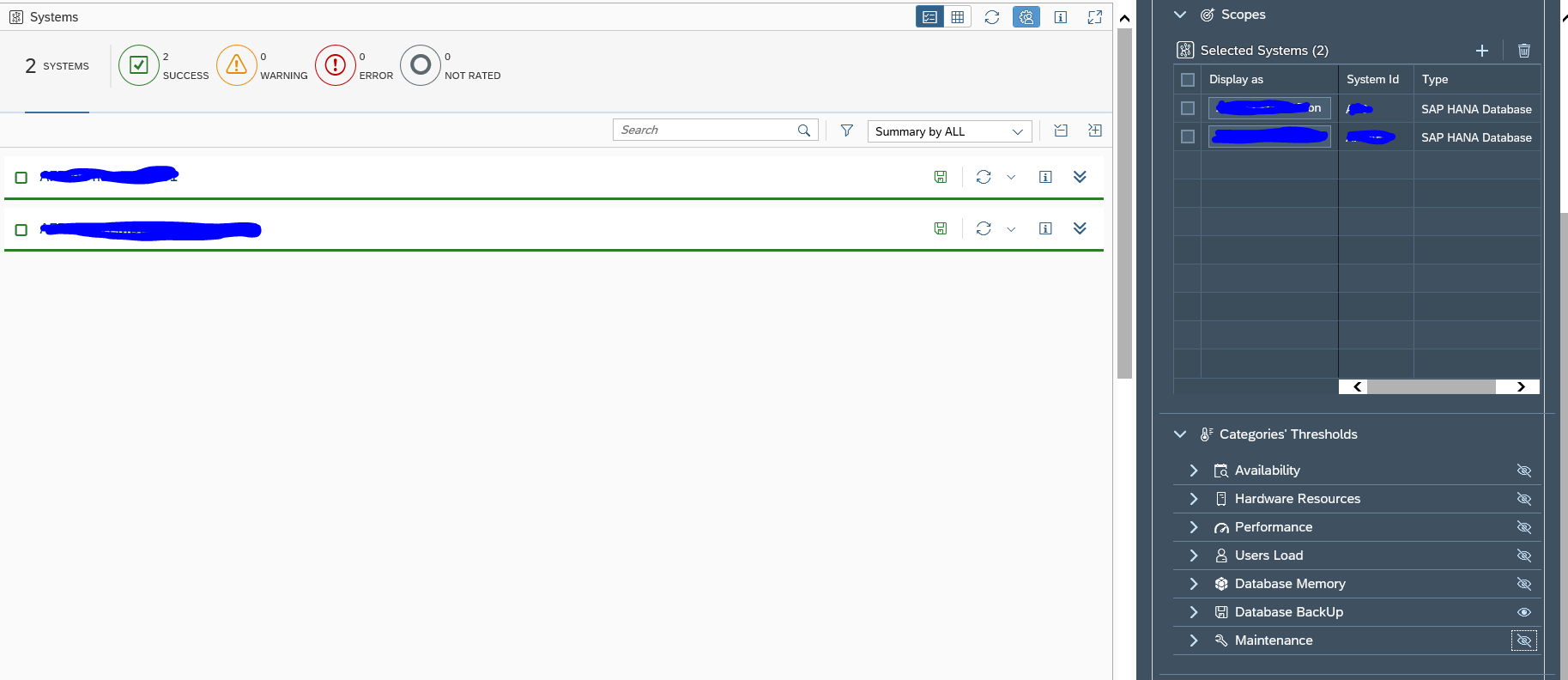
Also hide the not needed views. On the left hand side you can immediately see the result updating.

Hint: start with one or two systems only when making a new dashboard. First fine tune what you want to see. When all is ok, add the systems later. If you have a lot of systems, the updating of the left hand screen will be slowing you down.

Don’t forget to save off course.

Using a dashboard created by a different user

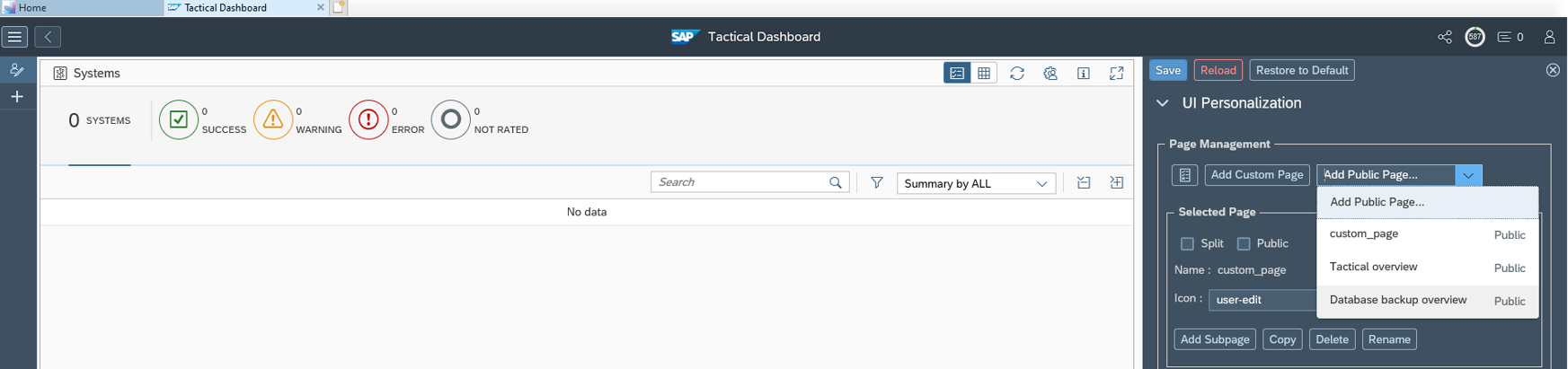
If you want to use a dashboard created by a different user, go to the personalization option and select the add page option:

Now you can select any created dashboard, which has been set to public.

If you don’t see the correct dashboard, check with the owner that he made it public.

SAP Focused Run self monitoring

When using Focused Run you monitor systems. But how about the health and stability of the monitoring tool itself? Here is where self monitoring plays an important role.

Questions that will be answered are:

  • What to check in self monitoring?
  • How much metrics are collected and stored in my Focused Run installation?
  • How can I check all grey metrics in system monitoring?

Self monitoring

Self monitoring can be started with the Self Monitoring Fiori tile:

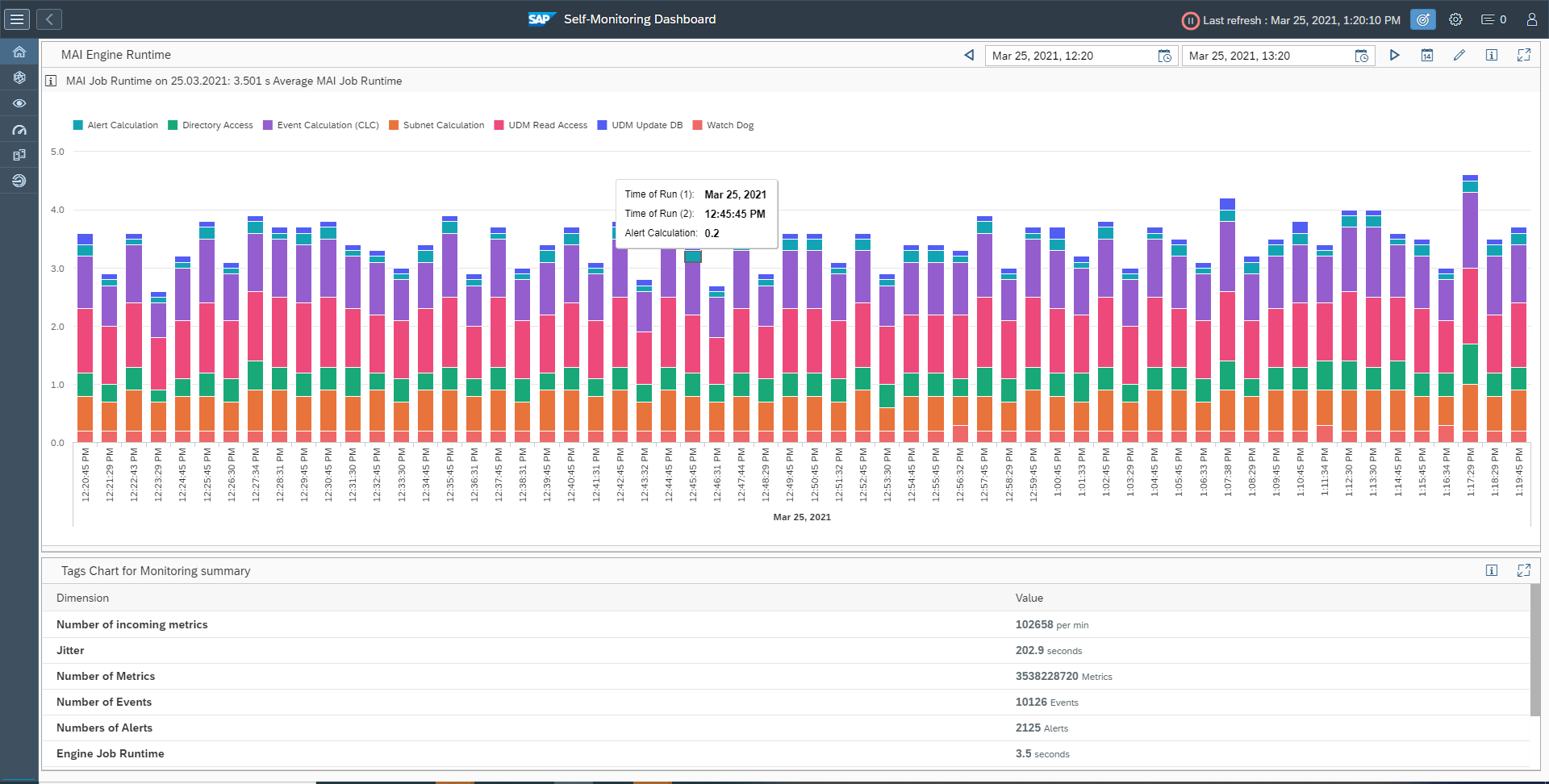
If you click the tile the overview page comes (this page will take time to load):

The interesting part is unfortunately hidden in the below screen (you need to scroll), which is the CPU utilisation.

The other interesting part is the amount of data collected and stored. This is not so interesting for yourself, but more interesting for your manager to show how much data HANA can handle, or to show how much work is really automated.

Simple diagnostics agent

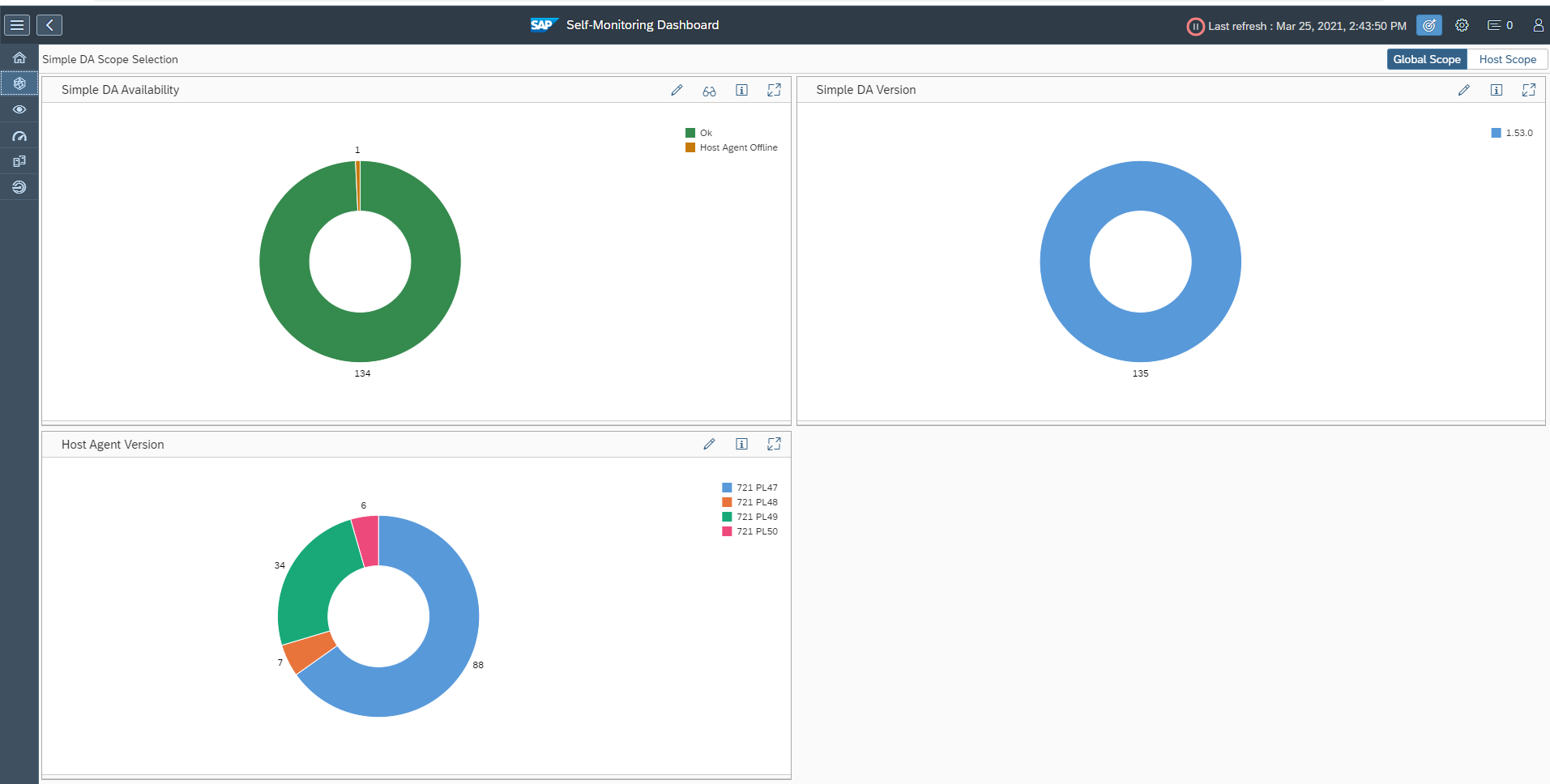
On the top left icons, click on the Simple DA agent button to get the agent overview screen:

Important here:

  • Check that all agents are up
  • Check that all agent versions are not too old

Monitoring and Alerting Infrastructure

The next option is to check the MAI (monitoring and alerting infrastructure) data collection:

Important here is to fix the systems in error.

Wily Introscope

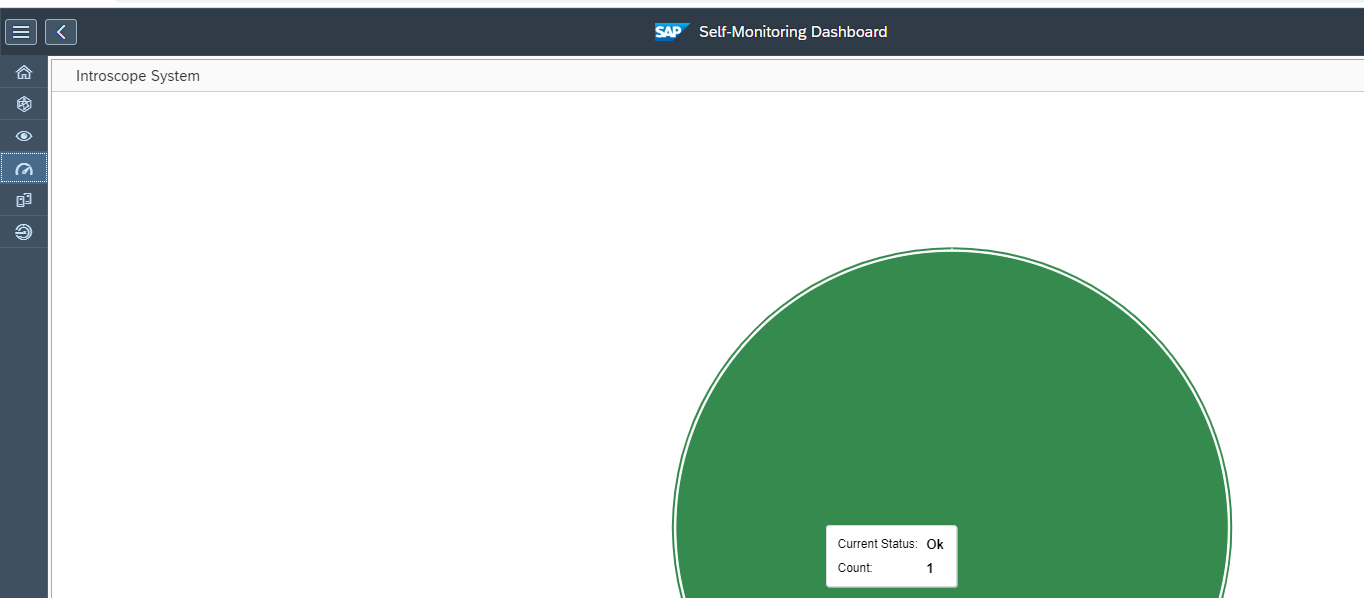
The Wily option will show if your Wily Introscope connected to Focused Run is ok. Wily is used for special use cases like JAVA and Business Objects products.

Managed system overview

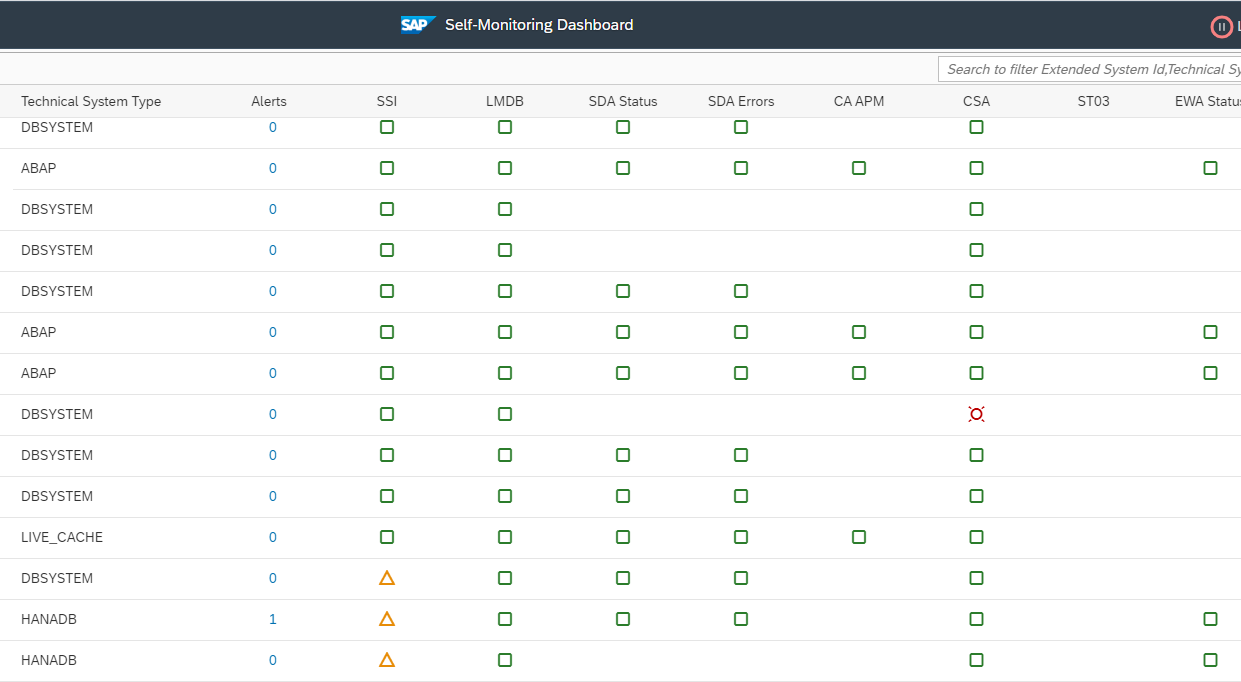
The managed system overview gives the overview of the diverse systems and application status:

Any red or yellow item can mean a setup issue. But it can also be because of missing authorizations and privileges of the Focused Run technical user in the connected managed system.

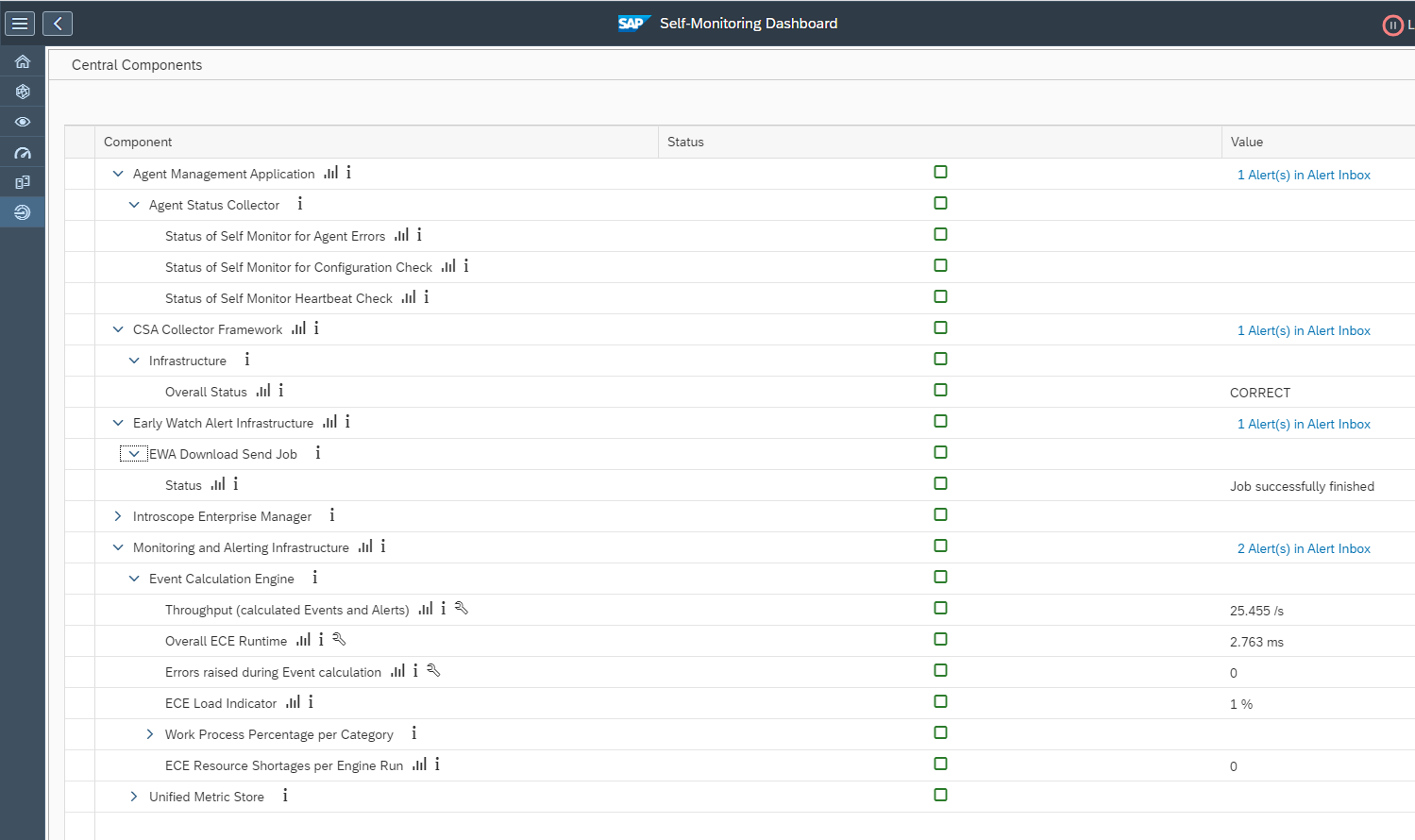
Central component monitoring

The central component monitoring shows the overview of the central components:

Identifying all grey metric in System Monitoring

In SAP Focused Run there is no standard mechanism to identify and display all grey metrics in System Monitoring, a grey metric can cause critical situations not being captured and alerted in monitoring hence we need to monitor such grey metrics.

In this blog we explain how you can list all the grey metrics by directly reading from database tables that store the monitoring data.

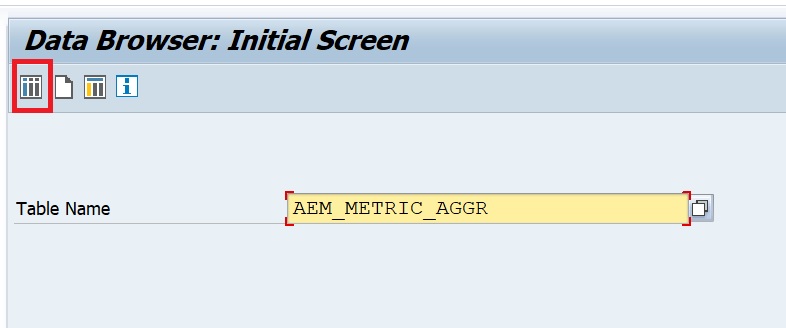
Focused Run system monitoring metric aggregate data is stored in table AEM_METRIC_AGGR. We can filter on metric status = Grey to see the list of grey metrics.

Open the table in transaction SE16:

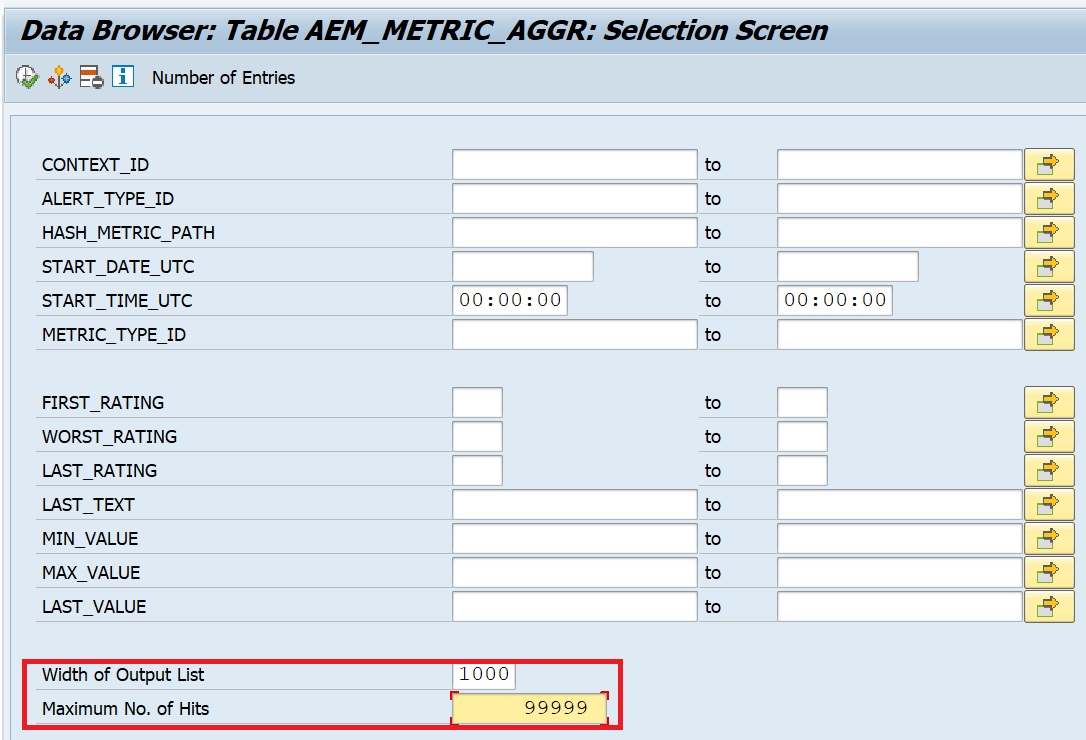
Increase the width and no of hits and click on execute:

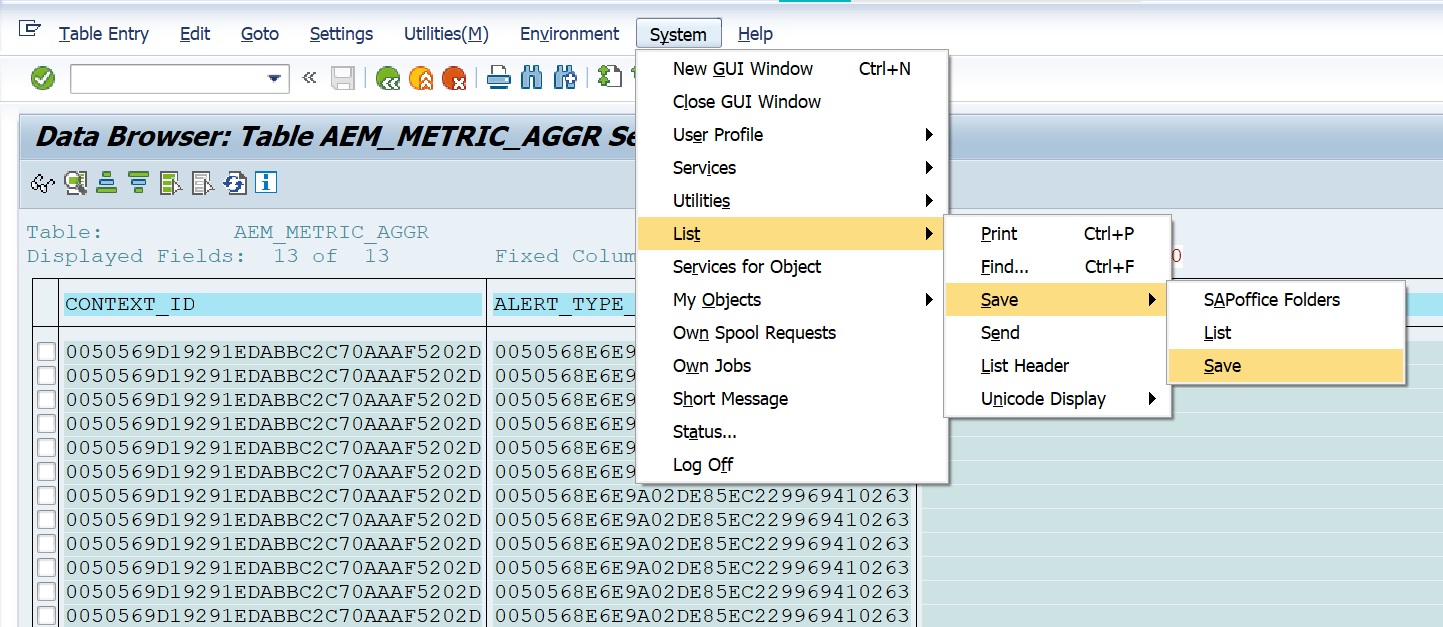
Now you have all the data that you can export to an excel sheet. For this select the following menu option.

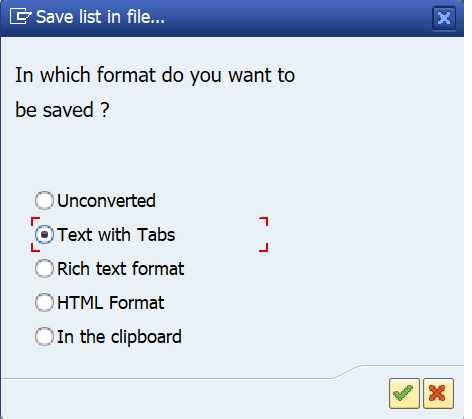
Select file type as Text with Tabs.

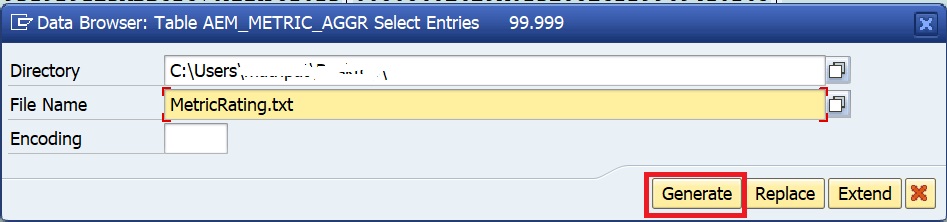
Provide the path and filename to save the file and then click on Generate button.

Now open the .txt file in MS Excel.

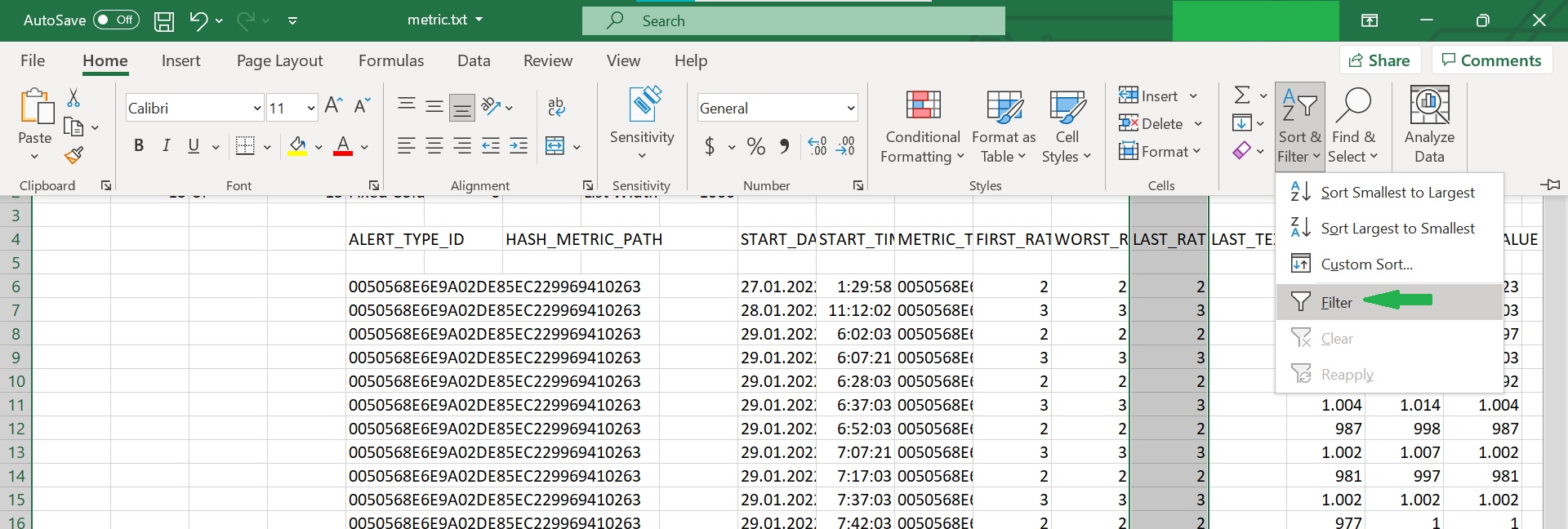
In the Home tab select option for filtering as shown below

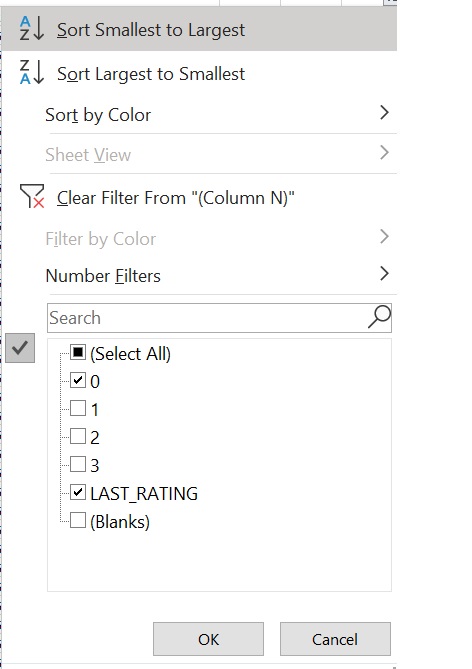
Now set the following filter for the column LAST_RAT

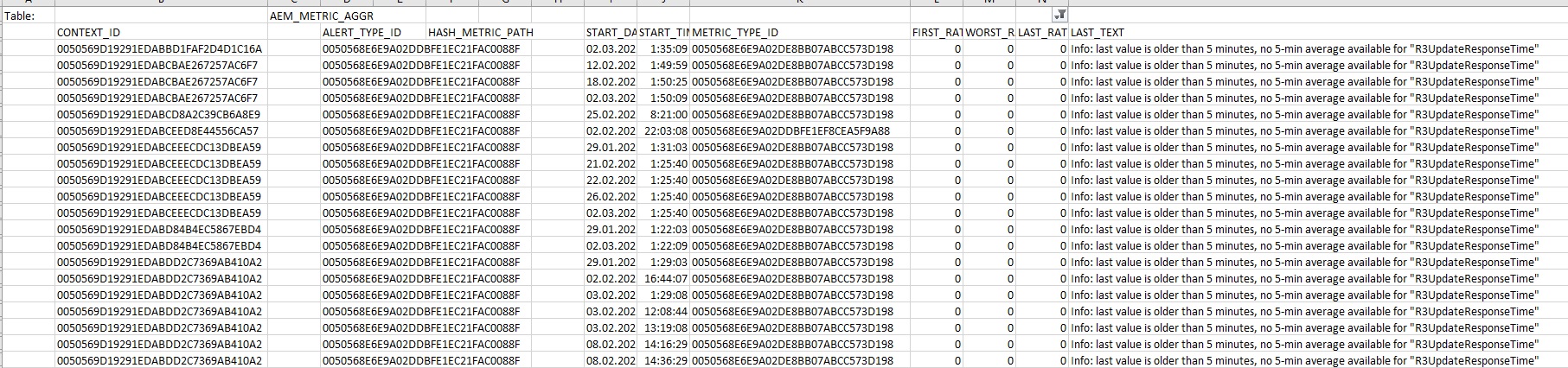
Now you will get the list of all grey metrics as shown below.

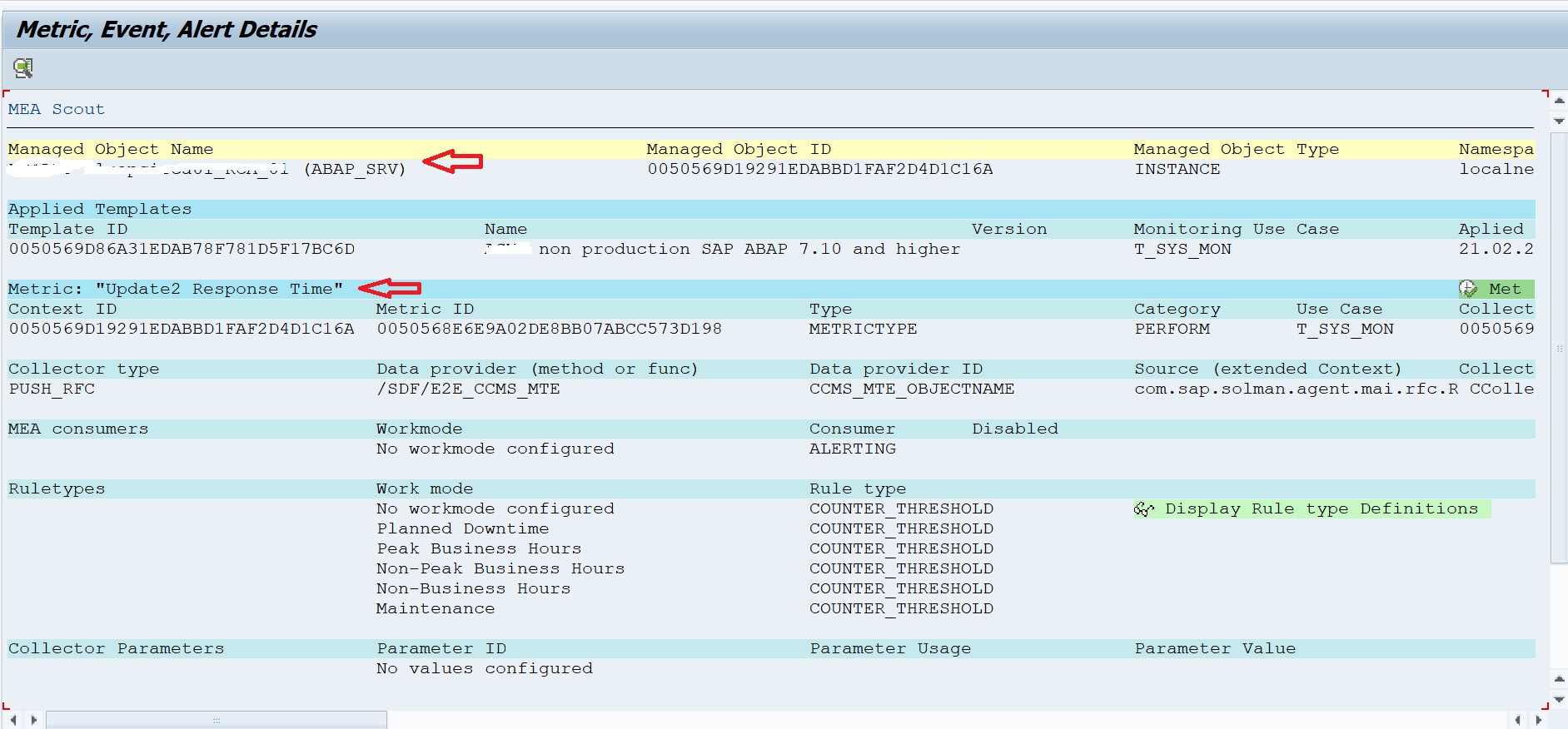
Note: The Context_ID value will give you the ID of the managed object, Metrtric_type_ID will give you the ID of the metric name and the Last_text will give you the return text of the last data collection which will give you the reason for grey metric.

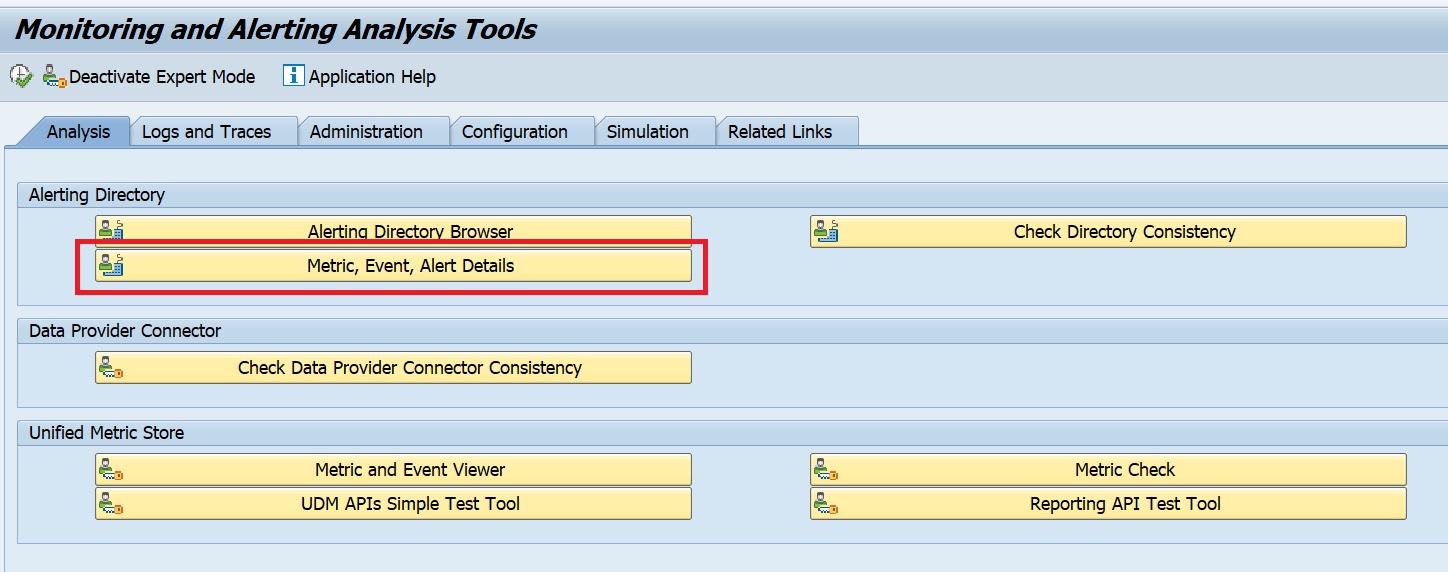
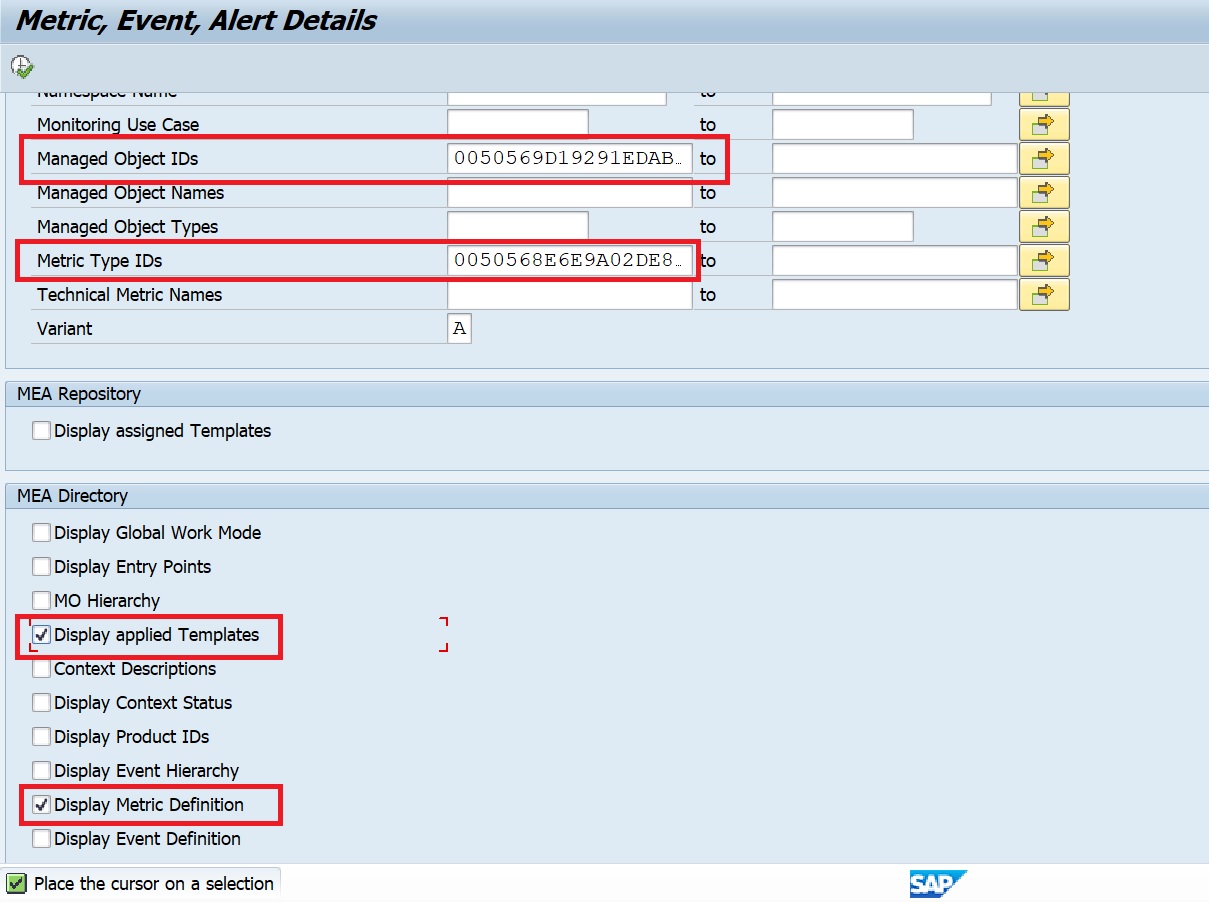
In order to get the managed object name and metric type you can use the following in transaction MAI_TOOLS –> Metric Event Alert Details.

In the selection screen for Managed Object ID enter the Context ID from the excel and for Metric Type ID enter the same from the excel. Also select the checkboxes as shown below and execute.

Now you will get the info on the Template as well as the Metric name which is currently in grey.

SAP instructions for grey metrics

You can also check the instructions from SAP in OSS note 2859574 – How to list all current Grey Metrics in FRUN.

Alerting on critical metrics turning grey

It is essential to activate alerting on critical metrics turning grey in order to avoid missing critical issue not getting detected by Focused Run.

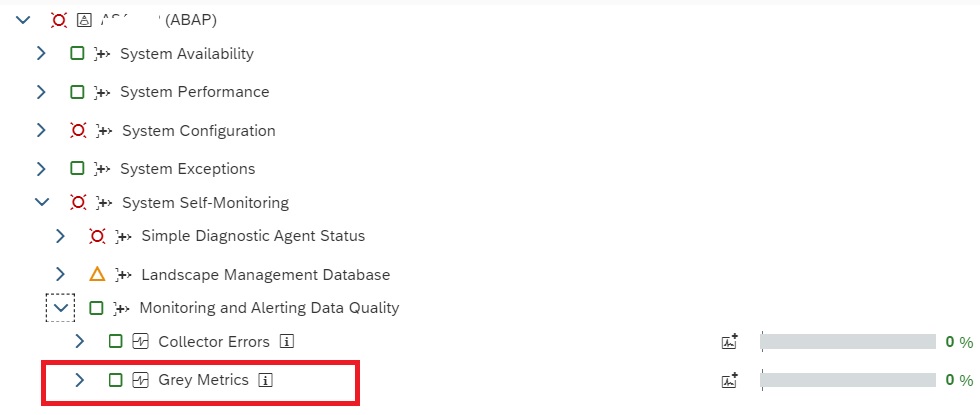
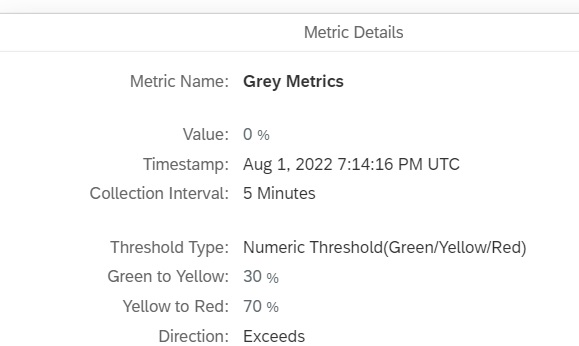
Since SAP Focused Run 3.0 FP2 , a new metric has been added to the self monitoring template in System Monitoring, the Grey Metrics metric measure what percentage of critical metrics in Grey.

This metric by default uses threshold 30% for Yellow and 70% for Red rating. You can change this threshold to show red if value crosses more than 1% so that if there are any critical metric that is in grey then alert is raised.

Note: This metric considers only those metrics which are marked as critical in Self Monitoring app. The percentage is calculated based on how many metrics out of the metrics designated as critical metrics in Self Monitoring app are in Grey.

To designate a metric as critical metric navigate to Self Monitoring App in Focused Run launchpad –> Infrastructure Administration.

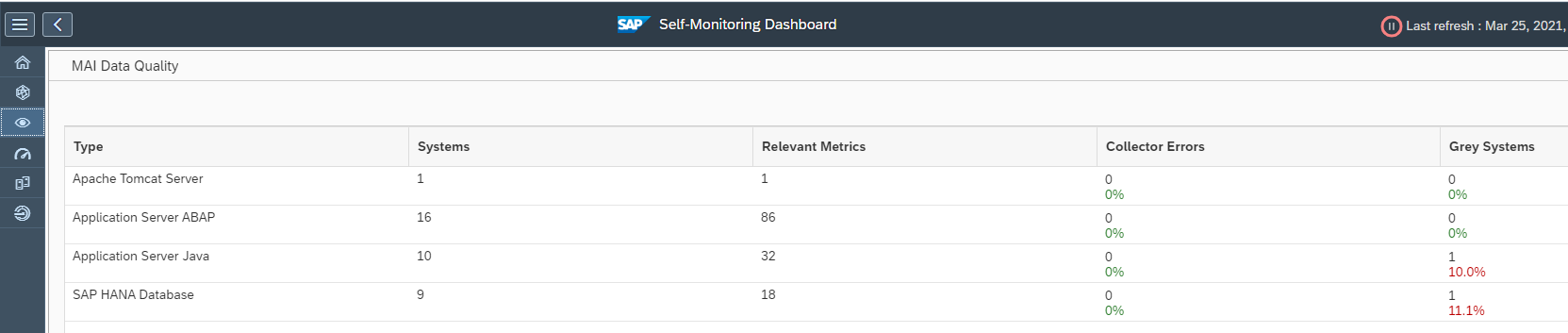
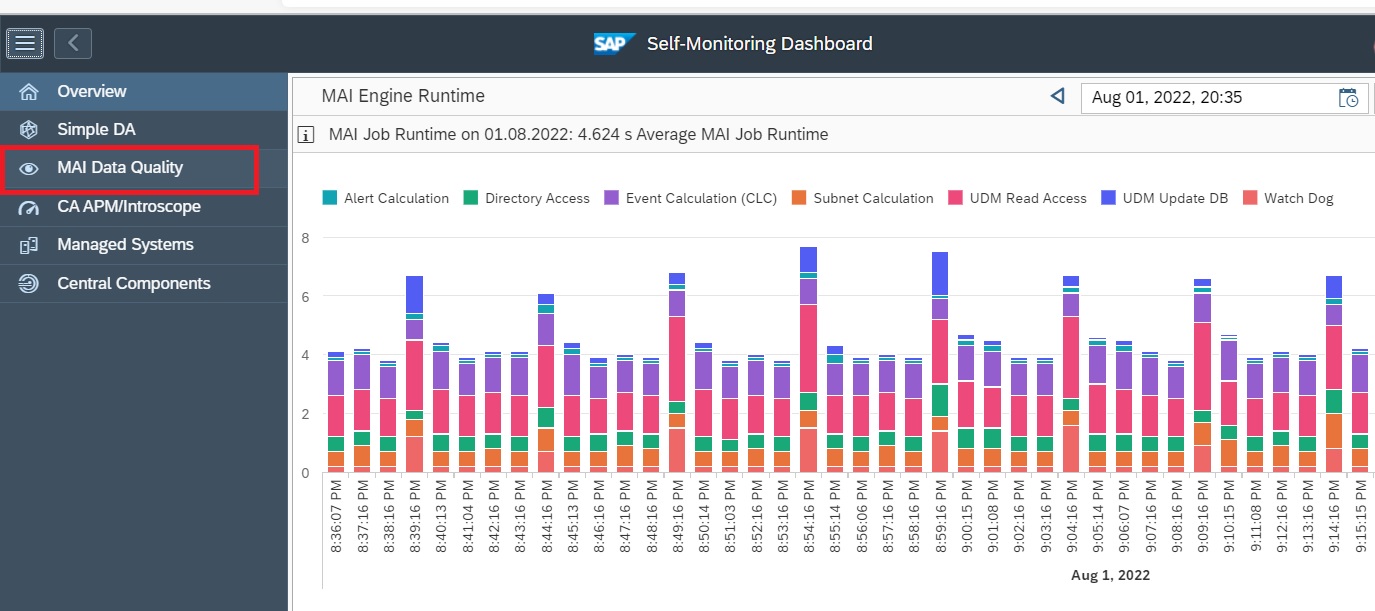
In the Self Monitoring app navigate to MAI Data Quality.

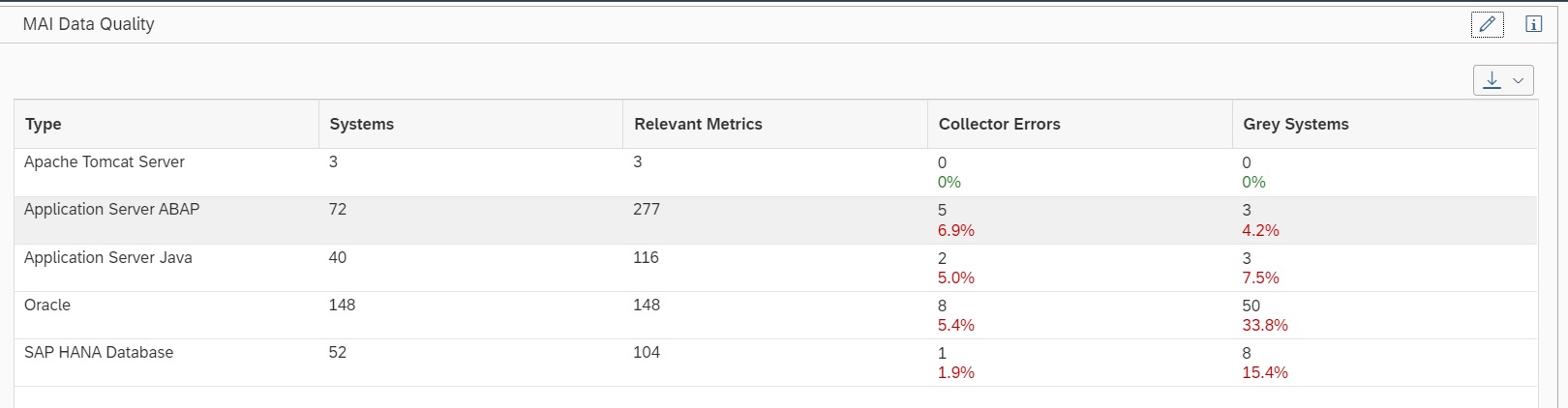
In the Overview screen select the Managed System type to go to its details screen.

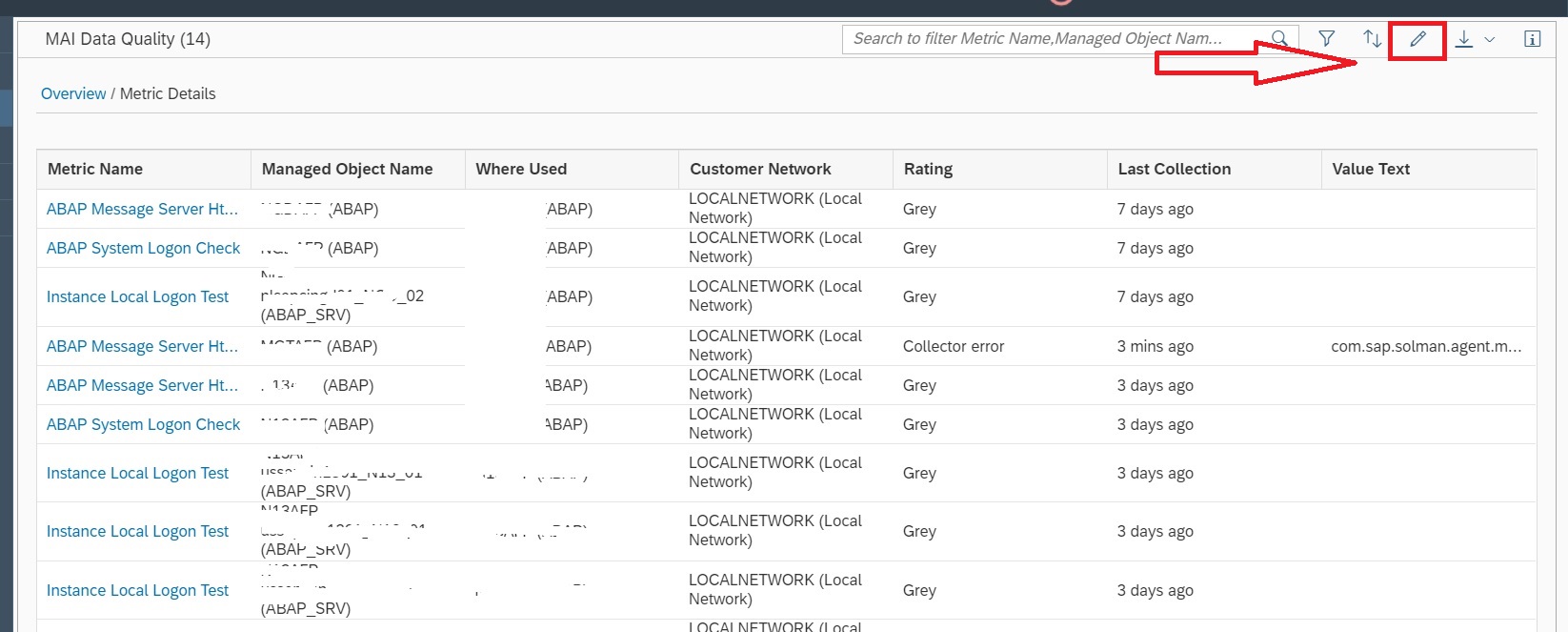
In the Details page it shows list of systems with their critical metrics that are in grey. To modify the list of designated critical metrics click on the chnage button.

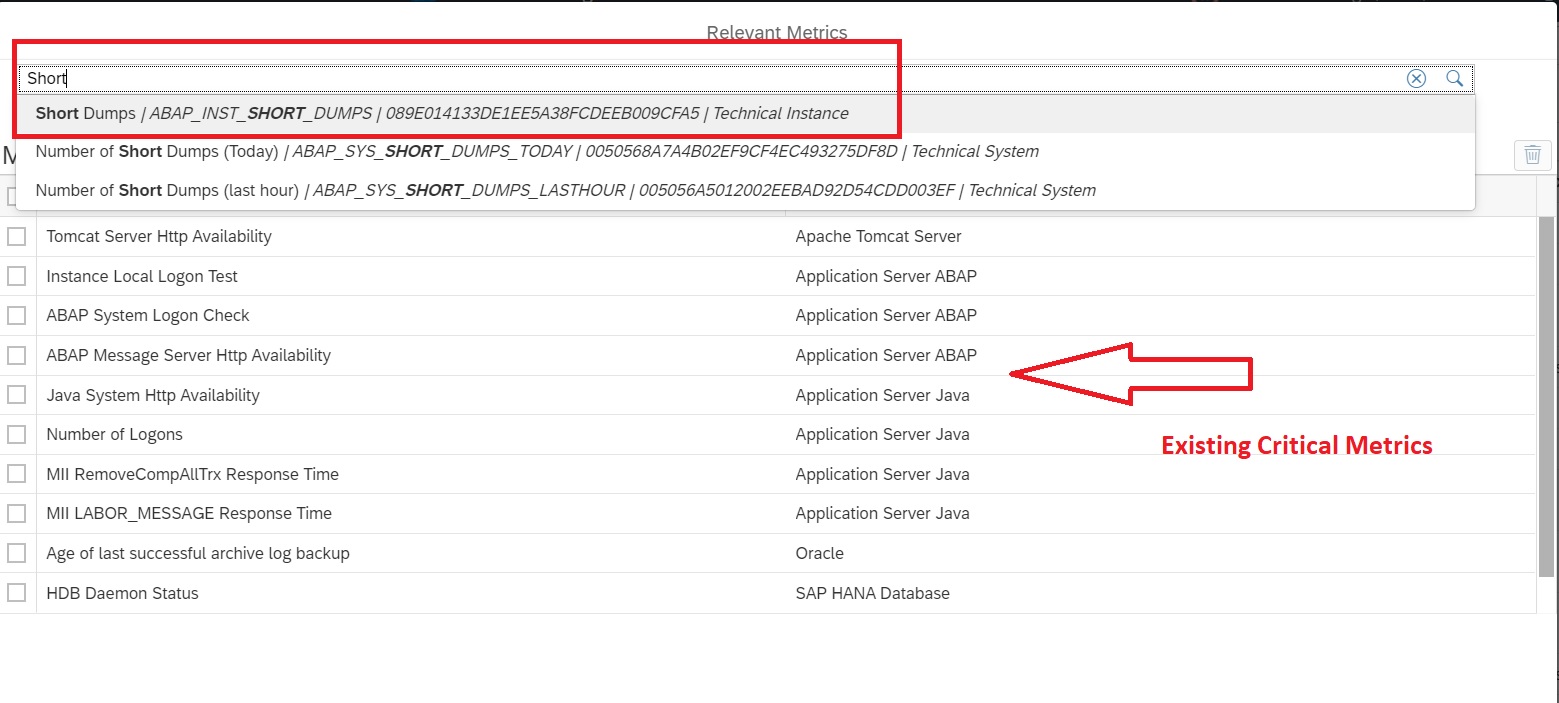
In the new popup use the text search button to enter the text of the metric you want to add to the list.

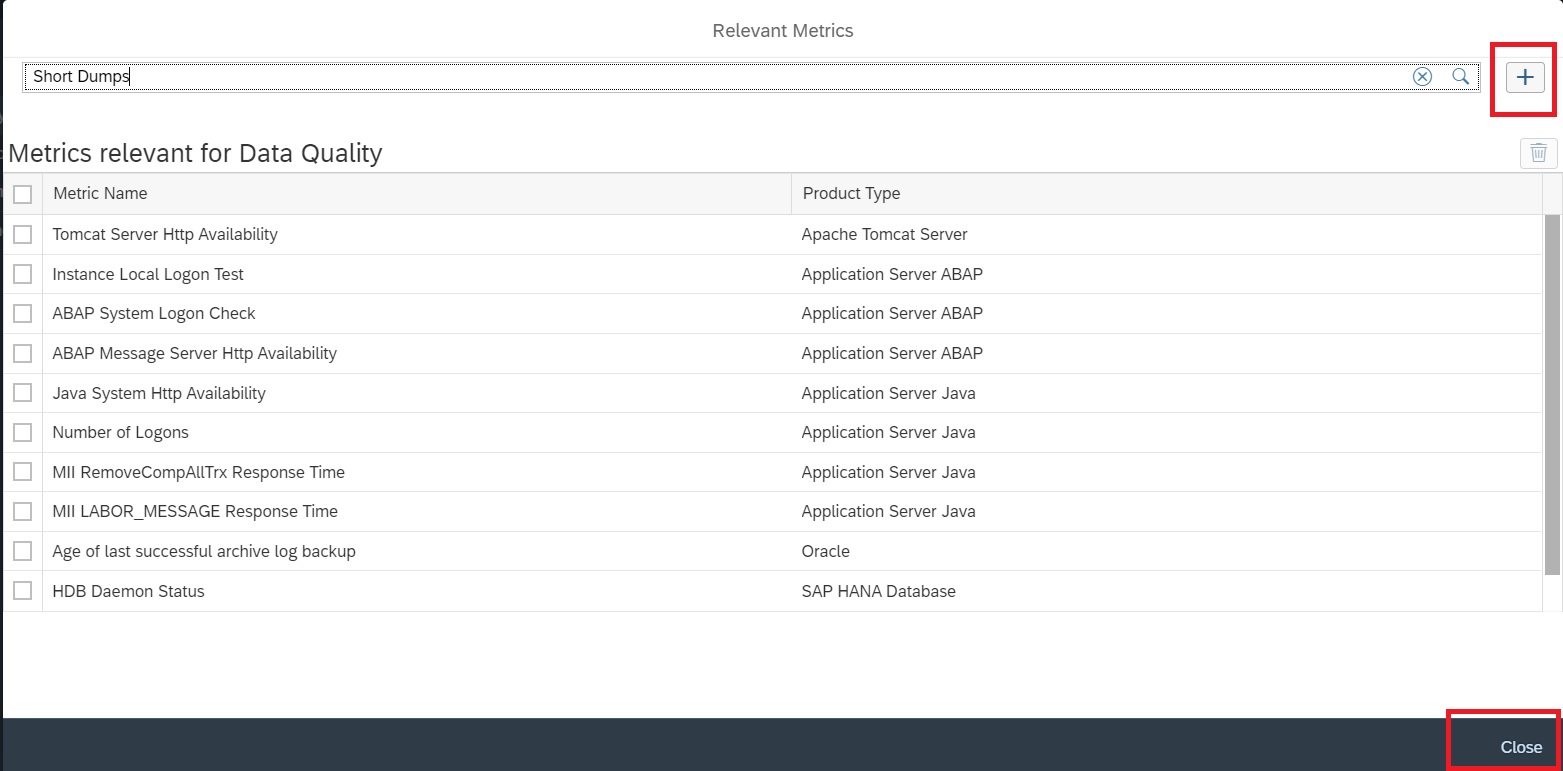
Finally click on the “+” button and then click on close to save the added metric in the critical metric list.

Now the added metric will be considered as critical metric while calculating % of Grey Metrics.

<< This blog was originally posted on SAP Focused Run Guru by Frank Umans and Manas Tripathy (Simca). Repost done with permission. >>

Activating early watch report (EWA) for ABAP and JAVA managed systems in SAP Focused Run

EWAs in Focused Run

When you have performed Simple System Integration (SSI) for the connected managed system on the Focused Run system, by default SSI itself activates the SAP early watch (EWA) reporting for a managed system, provided the managed system has IT Admin Role defined as Production system. For more information on how to set IT Admin Role read this blog.

For non productive systems you can also manually activate EWA.

Additionally for all ABAP systems (Production and Non-production), you will need to configure SDCCN in managed system so that EWA data is sent to the Focused Run system.

Note: In an Focused Run environment, EWAs are not generated on the Focused Run system, but rather at SAP side. Only data is collected at the Focused Run side and the EWA is then available in Service Messages at SAP. For accessing the EWAs you can navigate from the launchpad using the EWA Workspace tile. For more details click here or here.

General EWA tips and tricks can be found in this blog.

Steps for activating EWA for ABAP Systems

STEP 1: Activate EWA on Focused run System

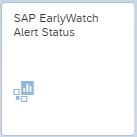
Goto Launchpad and click on the SAP Early Watch Alert Status tile.

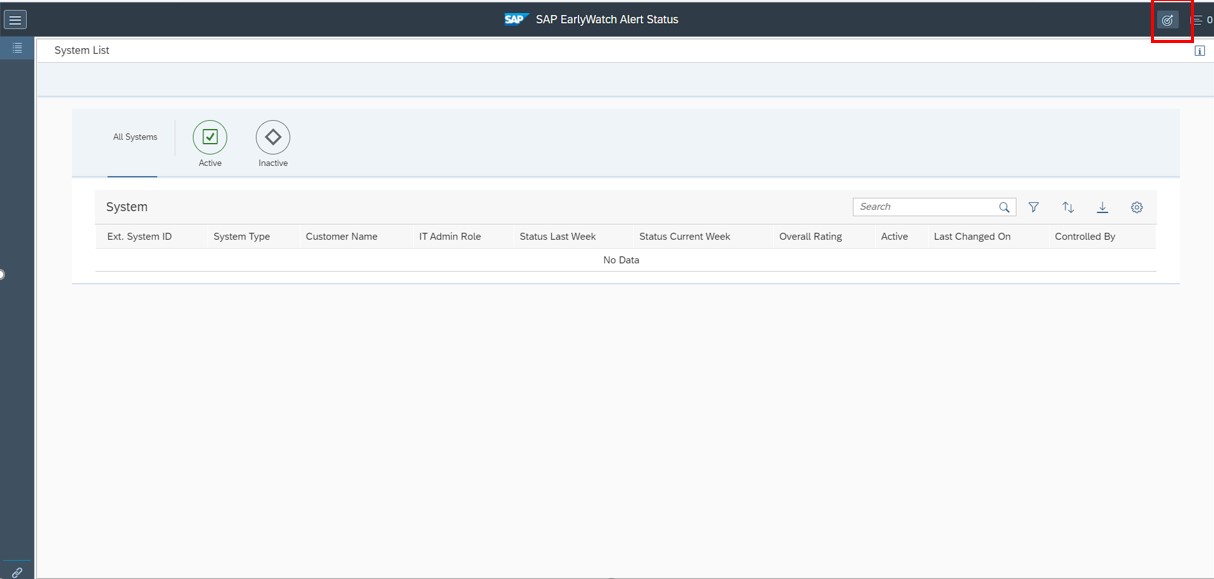
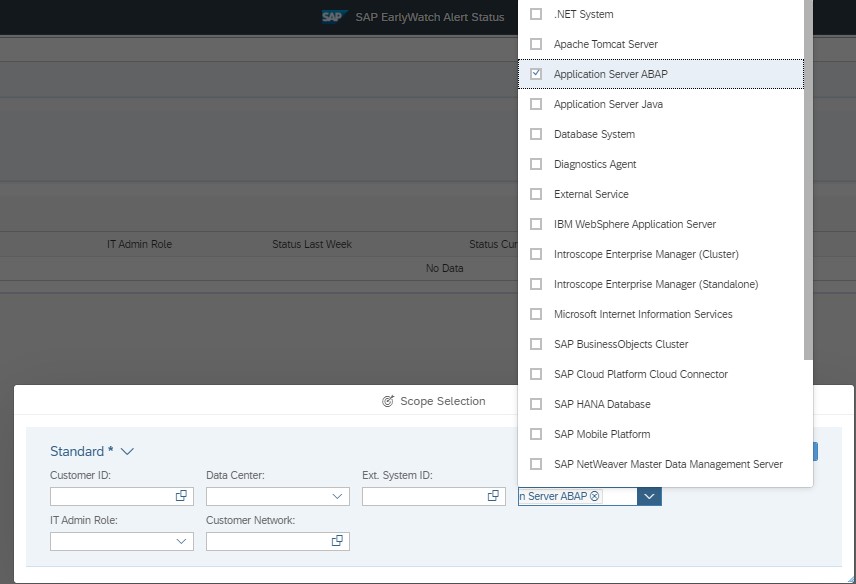
In the EWA Status Application first you need to select scope to include all ABAP systems as shown below.

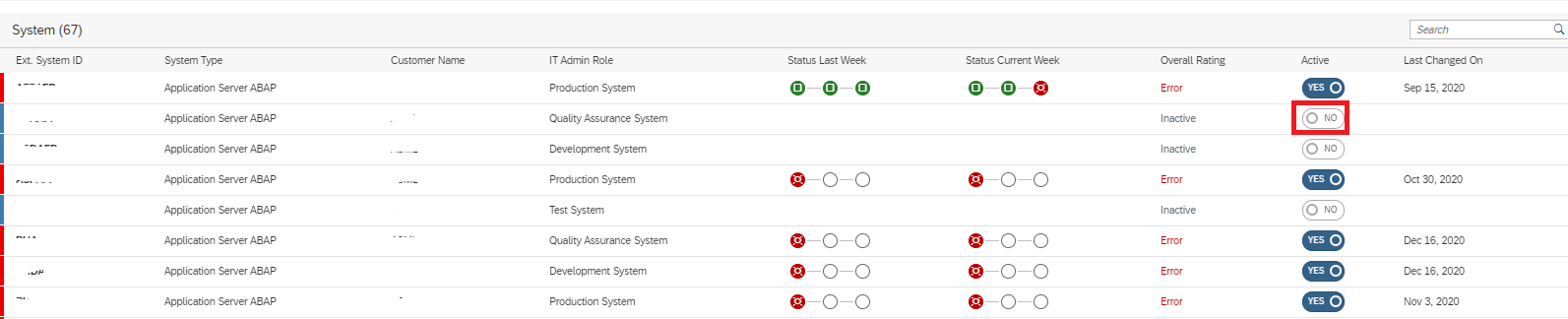
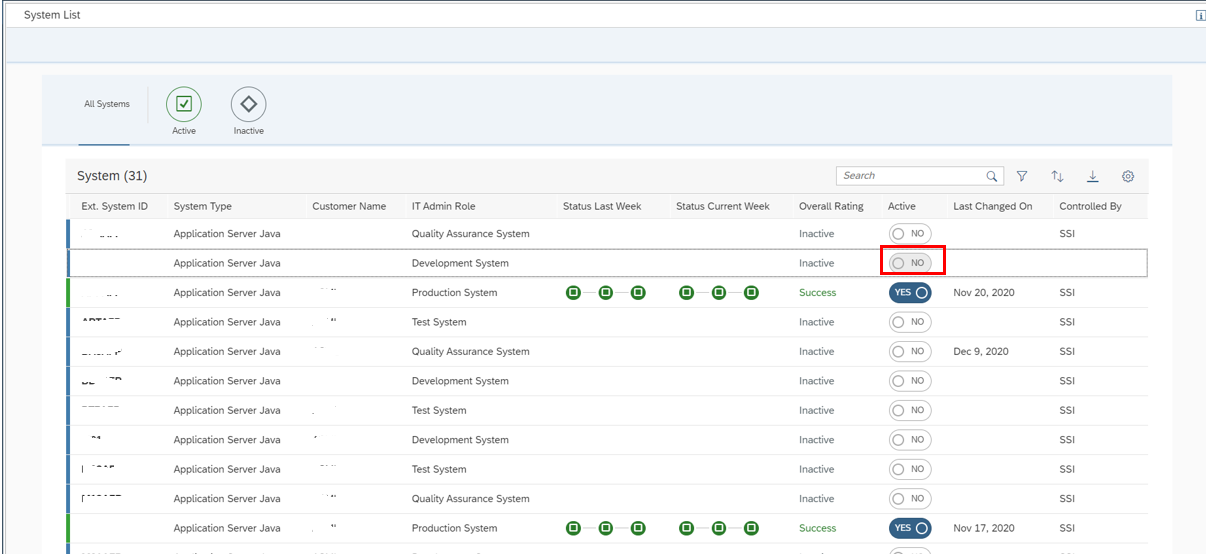
To activate EWA, change under Active column from NO to YES for the respective system.

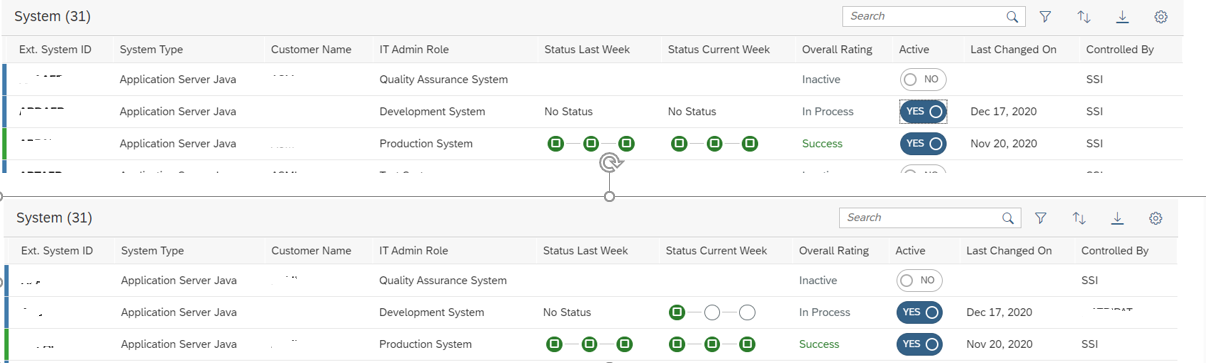
After Activation status changes as shown below. Refresh after 5 minutes to ensure that the first circle is Green.

STEP 2: Configure SDCCN on Managed System

Once EWA session for an ABAP system is activated, the SDCCN of the respective ABAP system must read the EWA session data from Focused Run system. For more details read OSS note 2359359 – SDCC Enhancement for ABAP Systems Connecting to Focused Run.

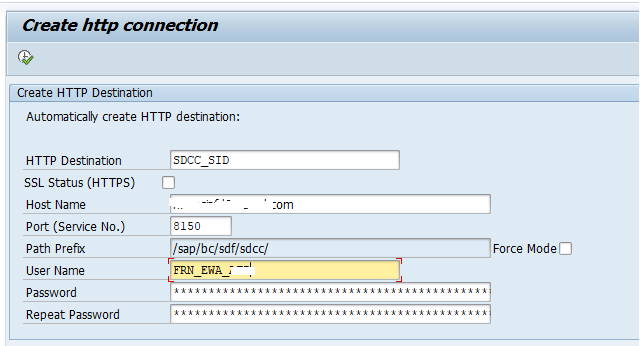
For this first create a HTTP destination from the managed ABAP system to Focused Run system using report /BDL/CREATE_HTTP . Provide the following input and execute the report.

  1. HTTP Destination: By default, it shows as SDCC_SID, you’d better change the SID to the real target system id. This is the suggestion, but you can specify any name if you want.
  2. SSL Status(HTTPS): This checkbox means whether you want to use HTTPS for the communication. By default, it will only use HTTP.
  3. Path Prefix: By default, the service used by SDCCN is /sap/bc/sdf/sdcc/. You cannot change this unless you mark the checkbox “Force Mode”.
  4. User Name: FRN_EWA_<FRUN SID> which you have created during the initial setup of FRUN system
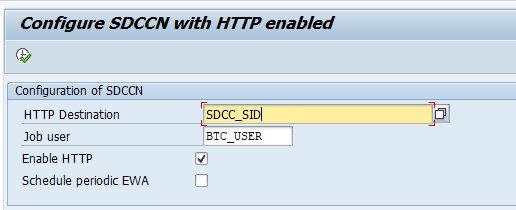
  5. Run report /BDL/CONFIGURE_SDCCN_HTTP to activate SDCCN. Provide the HTTP destination that created in step 2 and change the job user. Only the first check box must be  selected (only on FRUN 1.0 both check boxes must be selected).
  6. The job user must have authorization SAP_SDCCN_ALL

After running this report with above parameters, the SDCC_OSS RFC will be removed from RFC destinations, and the new HTTP destination will be added to RFC destinations.

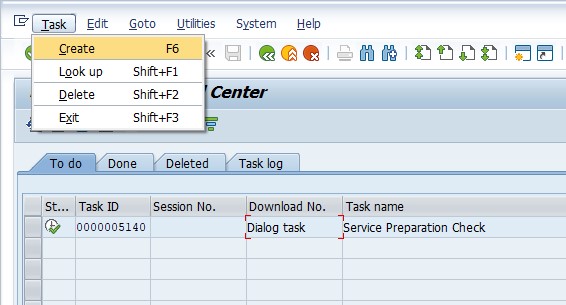
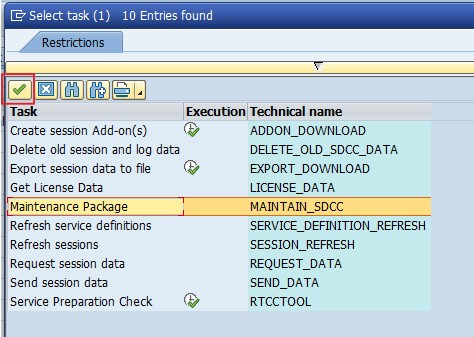
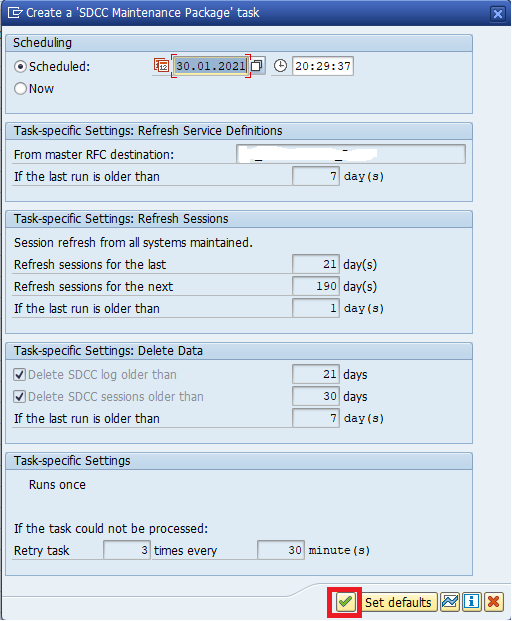
STEP 3: Create Maintenance Package on SDCCN in Managed System

Now you need to create a maintenance package in transaction SDCCN of managed system.

To Ensure the EWA activation is properly completed, goto transaction SDCCN on the managed system and ensure that the EWA sessions for the managed system is registered.

When EWA Data is sent to Focused Run and processed at the SAP side, you will see all circles in Green for the respective ABAP system as shown below.

Activating EWA for JAVA Systems

Goto Launchpad and click on the SAP Early Watch Alert Status tile.

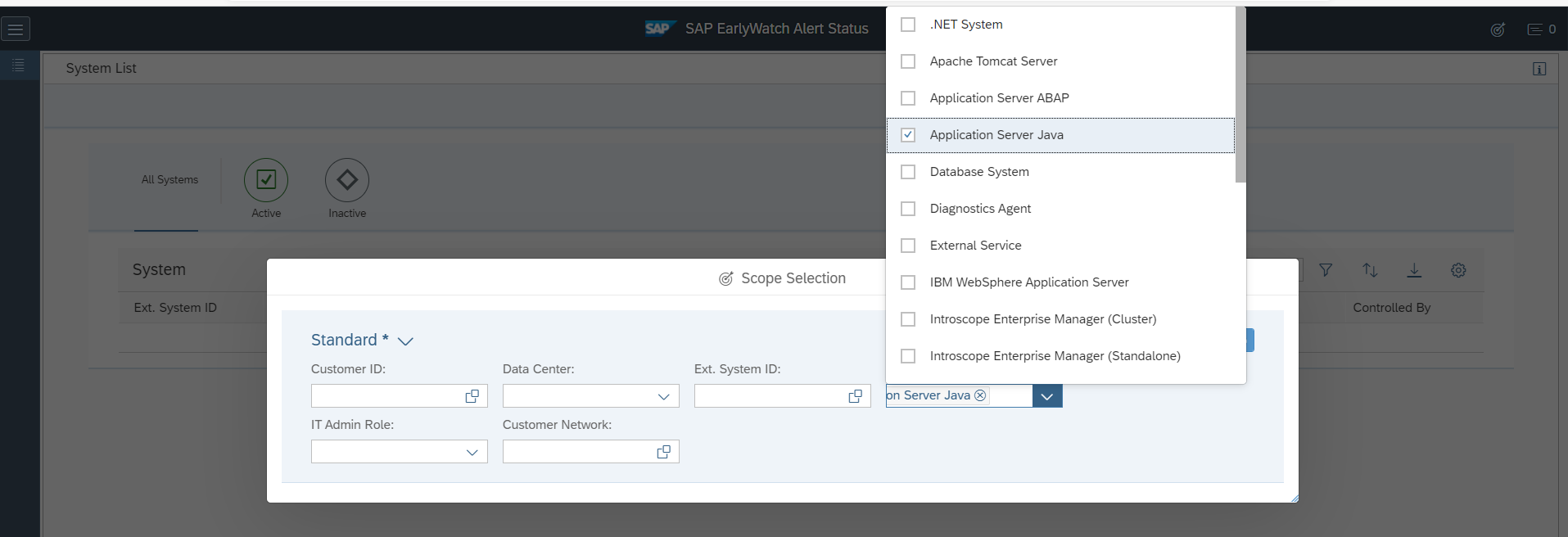
In the EWA Status Application first you need to select scope to include all java systems as shown below.

To activate EWA, change under Active column from NO to YES for the respective system.

After Activation status changes as shown below. Refresh after 5 minutes to ensure that the first circle is Green.

To Ensure the EWA activation is properly completed, goto transaction SDCCN on the FRUN system and ensure that the EWA session for respective Java system is registered.

When EWA Data is sent to FRUN and processed, you will see all circles in Green for the respective JAVA system as shown below.

EWA troubleshooting

In case of issues you can follow the link to the troubleshooting guide of SAP:

Data retention

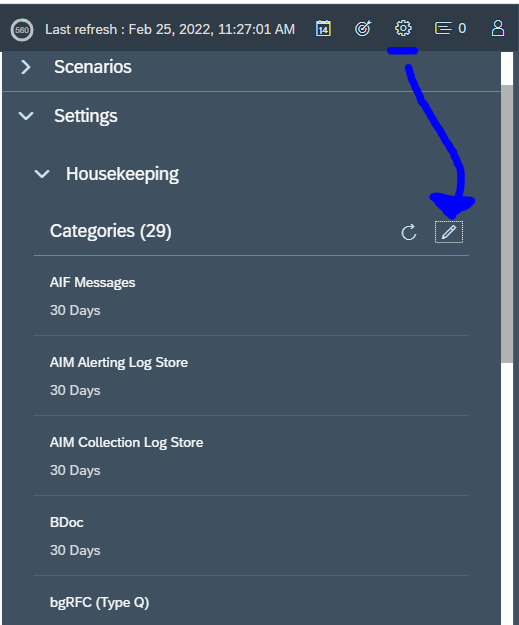
The EWA data is kept for 1 year. To change this, read the blog on housekeeping settings.

Relevant OSS notes

OSS notes:

Guided answers

SAP guided answers:

<< This blog was originally posted on SAP Focused Run Guru by Manas Tripathy from Simac. Repost done with permission. >>

SAP Focused Run cloud monitoring overview

The integration and cloud monitoring function of SAP Focused Run consists of 2 main functions:

  • Cloud monitoring between on premise and cloud SAP products
  • Interface monitoring between SAP systems (read more on interface monitoring in this blog)

This blog will give an overview of the Cloud monitoring between SAP on premises systems and SAP cloud solutions.

Questions that will be answered in this blog are:

  • How does the Cloud monitoring in SAP Focused Run look like?
  • How much details and history can I see in SAP Focused Run interface monitoring?
  • Can I link an Cloud monitoring event to and alert?
  • Which Cloud monitoring scenarios are supported?
  • How to monitor message to and from SAP CPI?
  • How to setup the monitoring towards SAP CPI?
  • How to monitor message to and from SAP Ariba?
  • How to setup the monitoring towards SAP Ariba?
  • How to setup alert notification from SAP BTP?

Cloud monitoring

To start the cloud monitoring click on the Fiori tile:

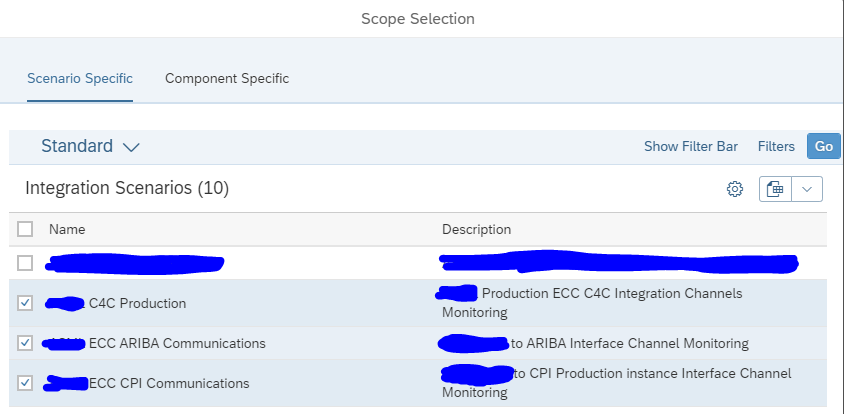
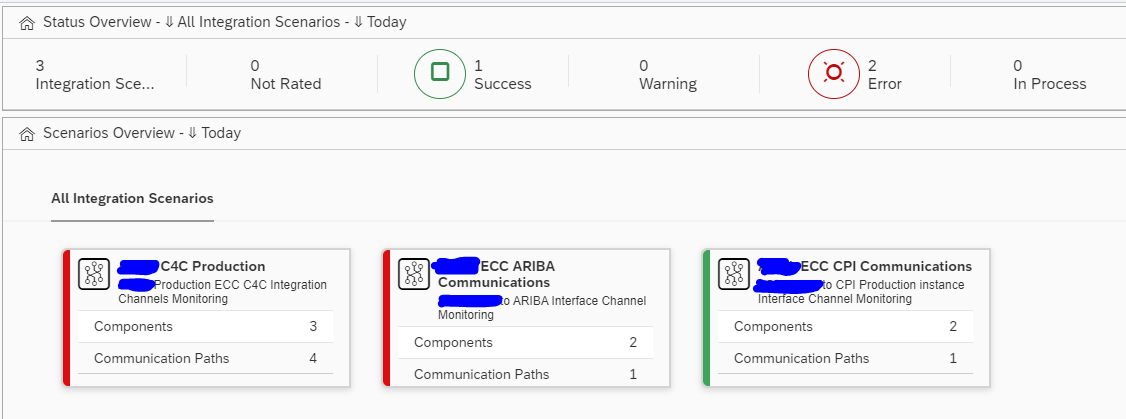
Select the cloud scenarios:

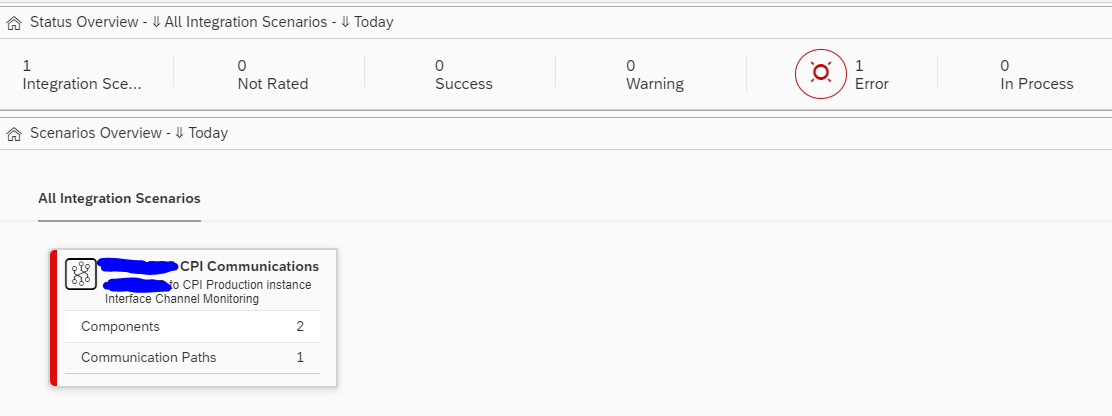
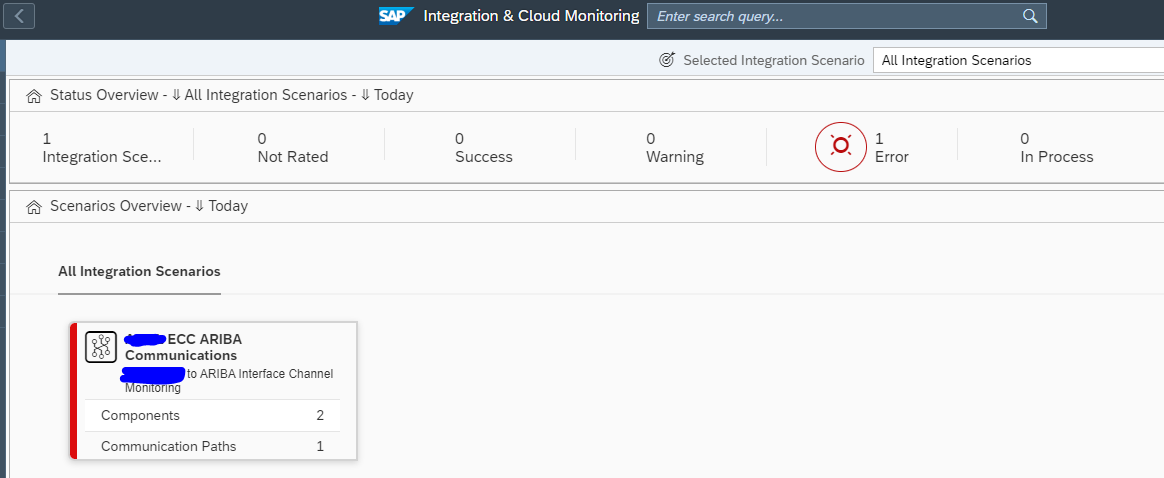
You now reach the scenario overview screen:

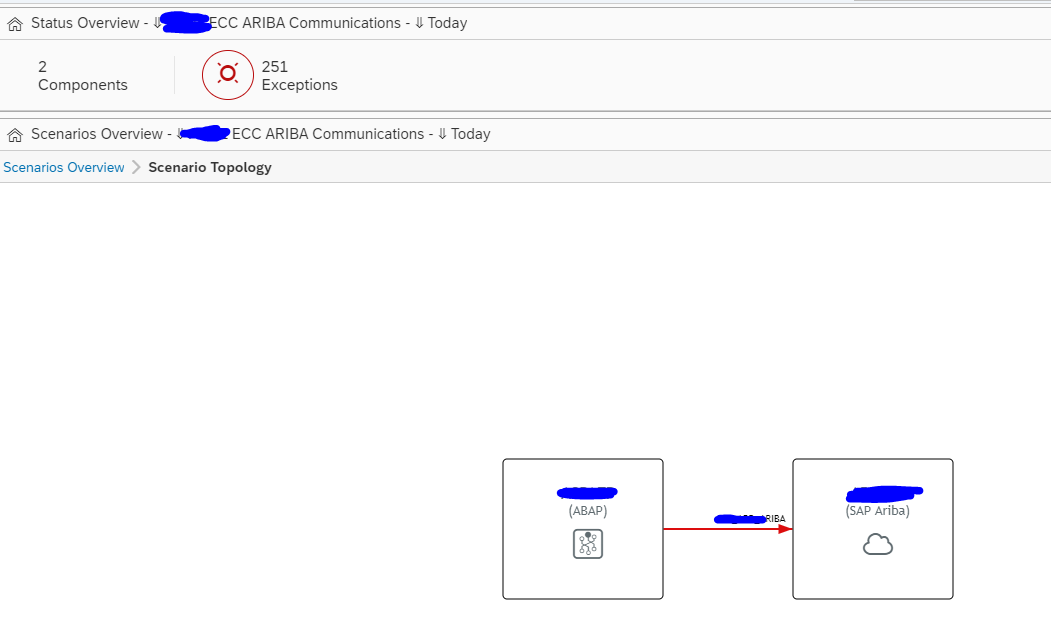
Click on the tile for details (we will take Ariba as example):

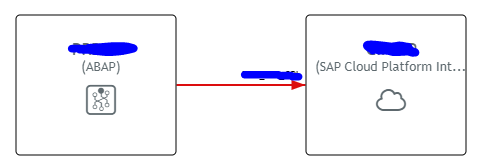
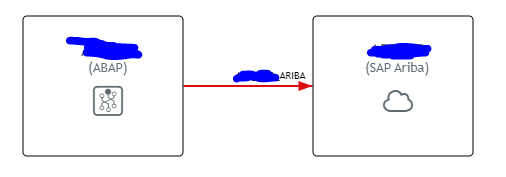
Click on the red line between the on premise and the cloud system:

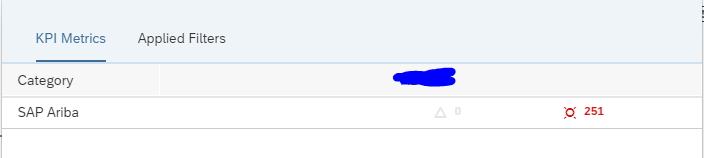
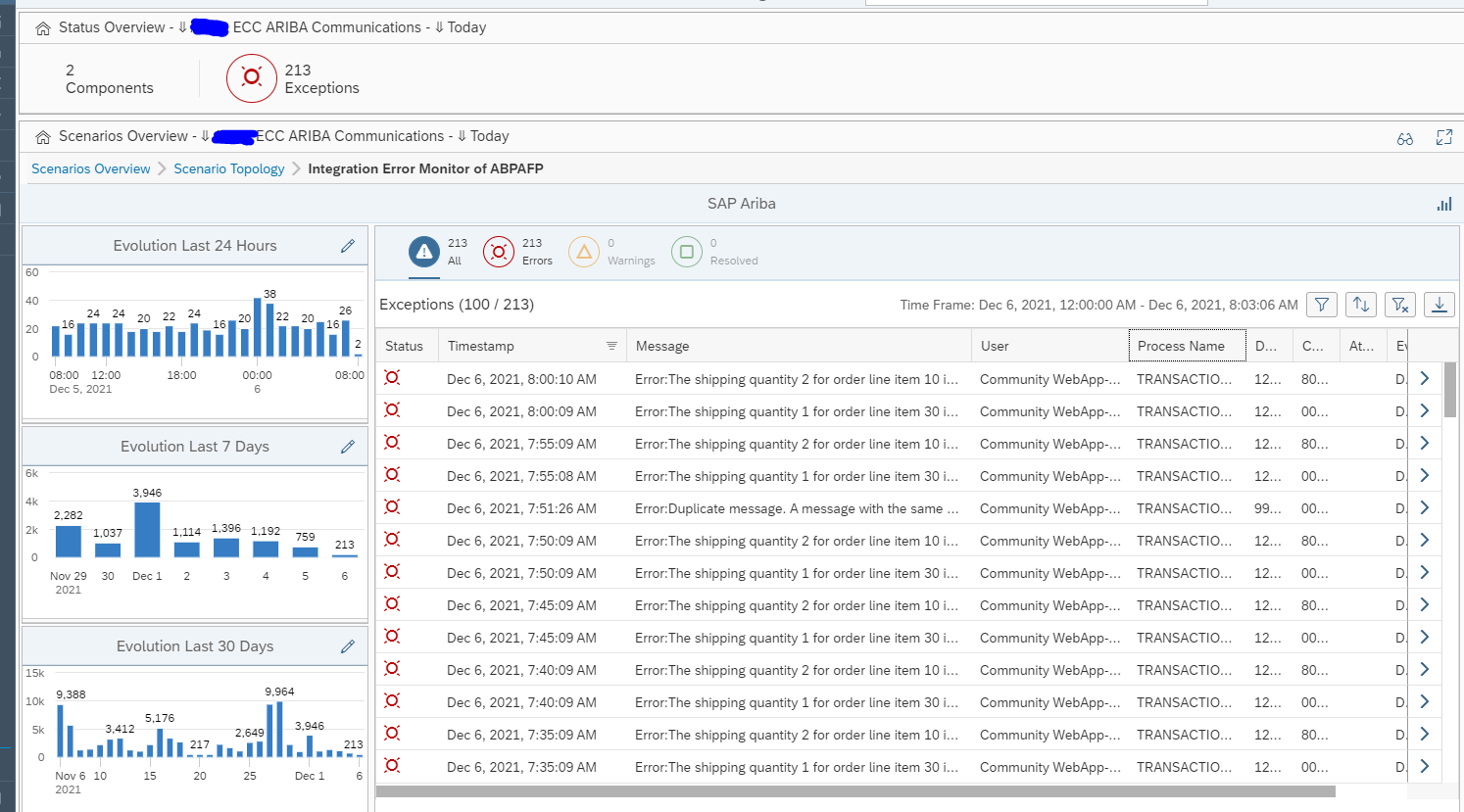
Click on the red errors number for the error overview:

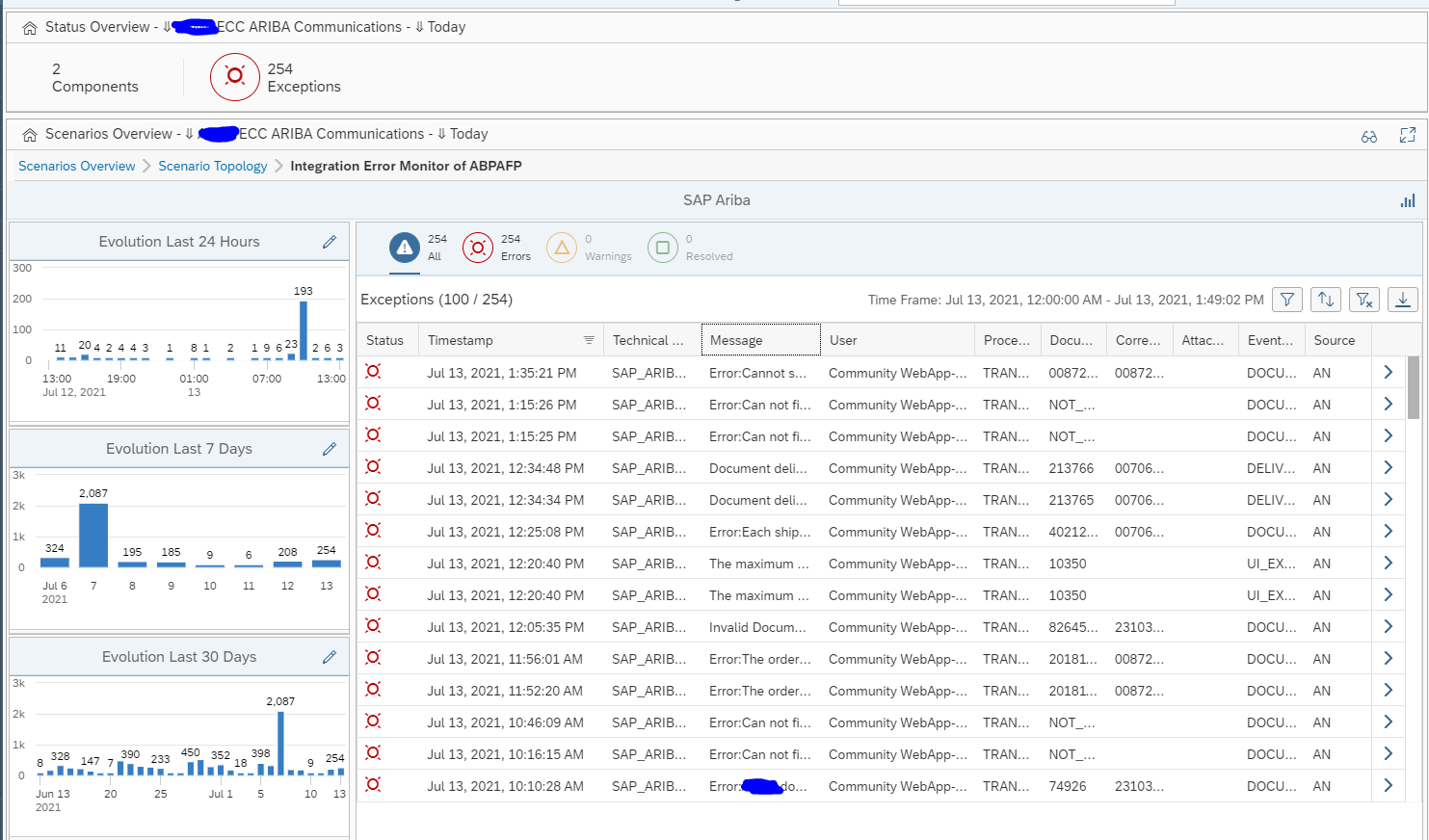
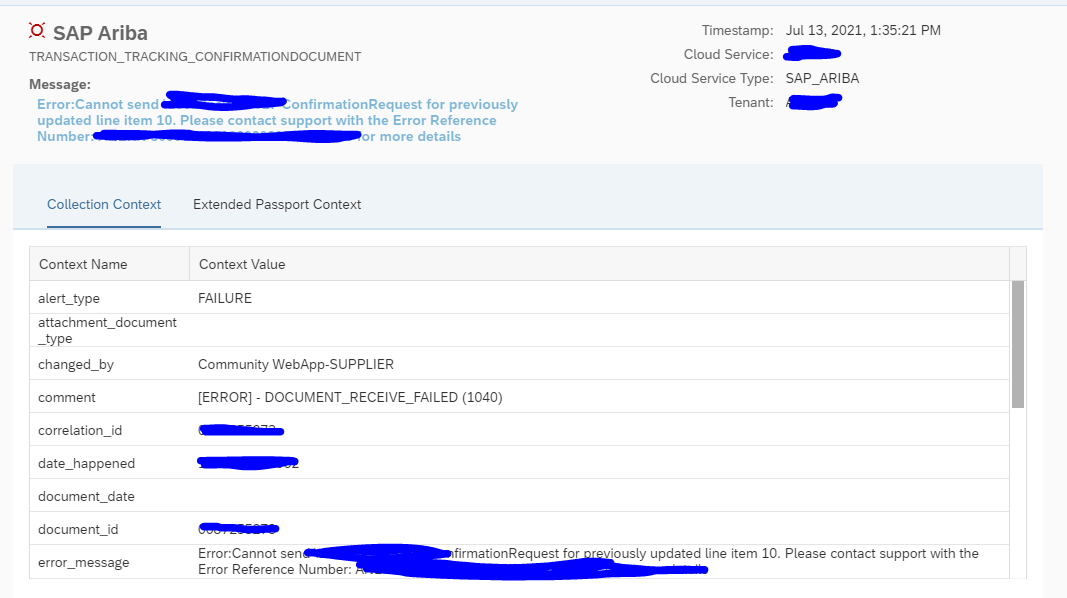
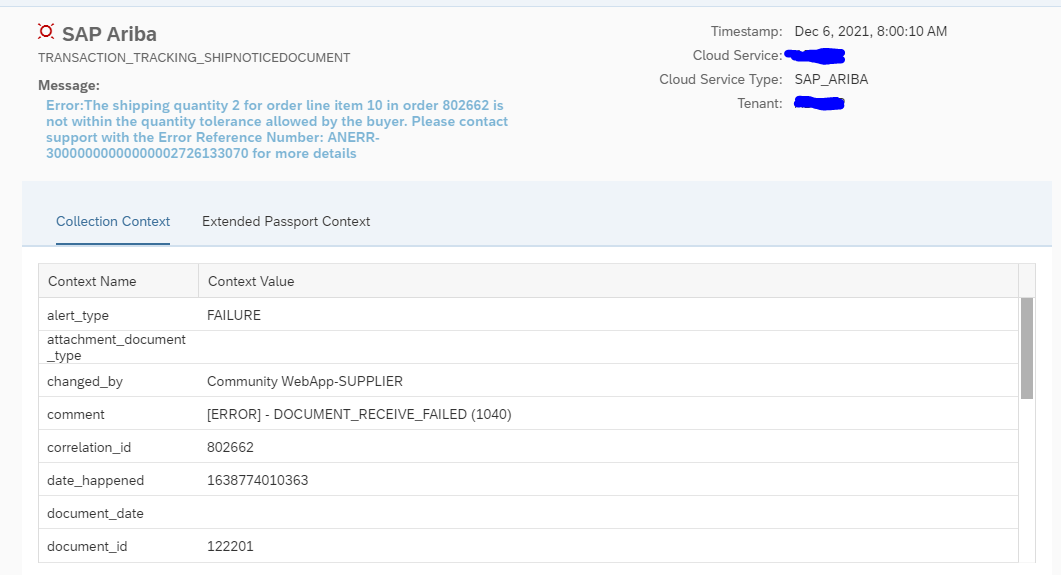
Click on specific error:

Supported cloud scenarios

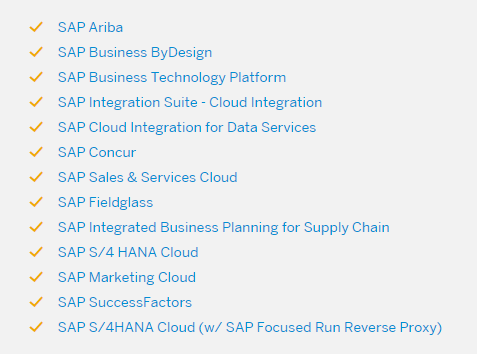
Not all cloud products and scenarios of SAP are supported via SAP Focused Run Cloud monitoring. On the SAP Focused Run Expert Portal the following scenarios are currently published:

Read the scenario details carefully! Inside the details there might be less monitored than you were expecting.

CPI message monitoring

SAP Focused Run Cloud Monitoring can be used to monitor messages to and from the SAP BTP CPI solution. CPI stands for Cloud Platform Integeration.

End result of CPI message monitoring

The configuration of the scenario is described in the next chapter. We start explaining the end result.

Select the scenario and the overview tile appears:

Click on the card to go to the scenario topology:

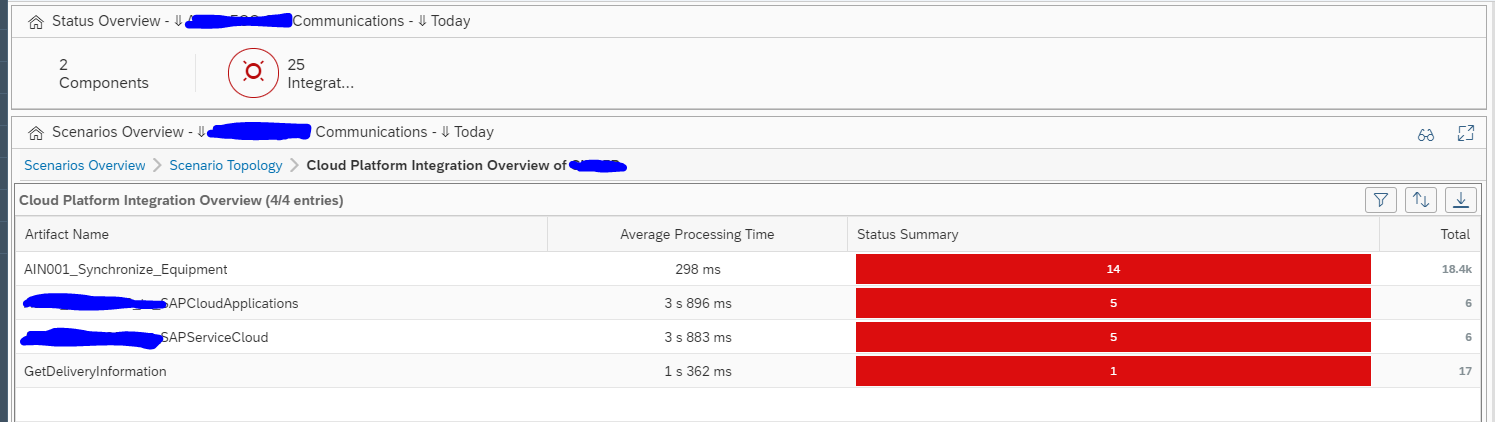
Zoom into the overview screen of the errors:

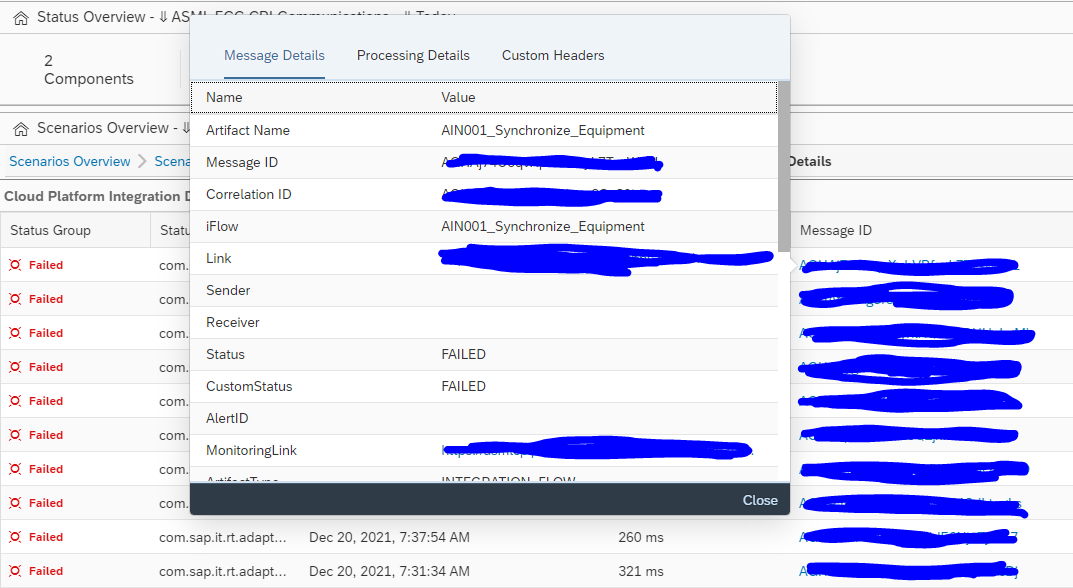
And drill down to any specific error:

Set up of the CPI monitoring scenario

llow the steps from the SAP expert portal for CPI monitoring to setup the STRUST in SAP Focused Run for the CPI URL.

Validate in the SAP Focused Run ABAP stack that these two parameters are set in RZ11:

  • icm/HTTPS/client_sni_enabled = TRUE
  • ssl/client_sni_enabled = TRUE

If this is done, go to the cloud setup FIORI tile:

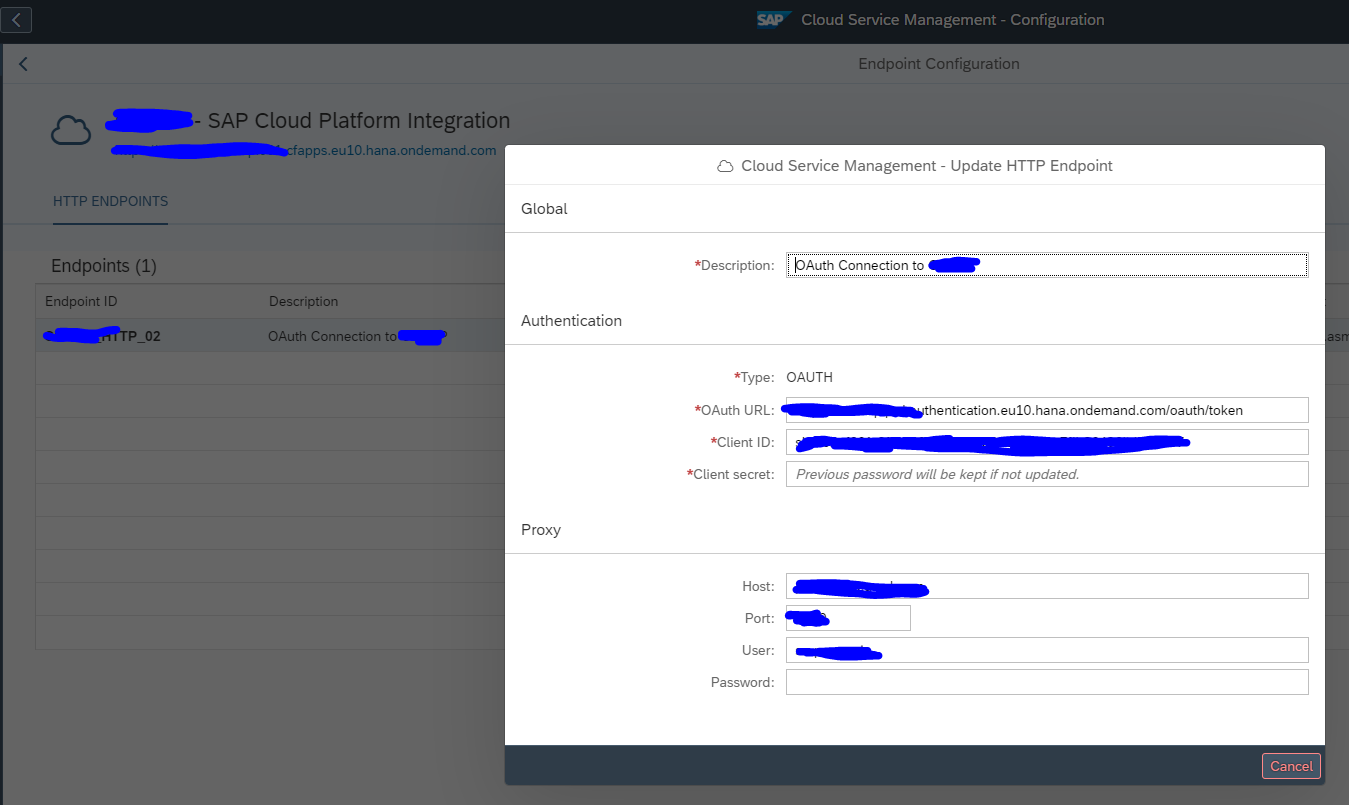
Add a new end point for CPI:

The application key, client ID and client secret will need to be provided by the basis person or functional consultant maintaining the CPI interface configurations on the BTP cloud. Depending on the security setup, a proxy is required as well.

After entering the details check the connection that connectivity is working as expected.

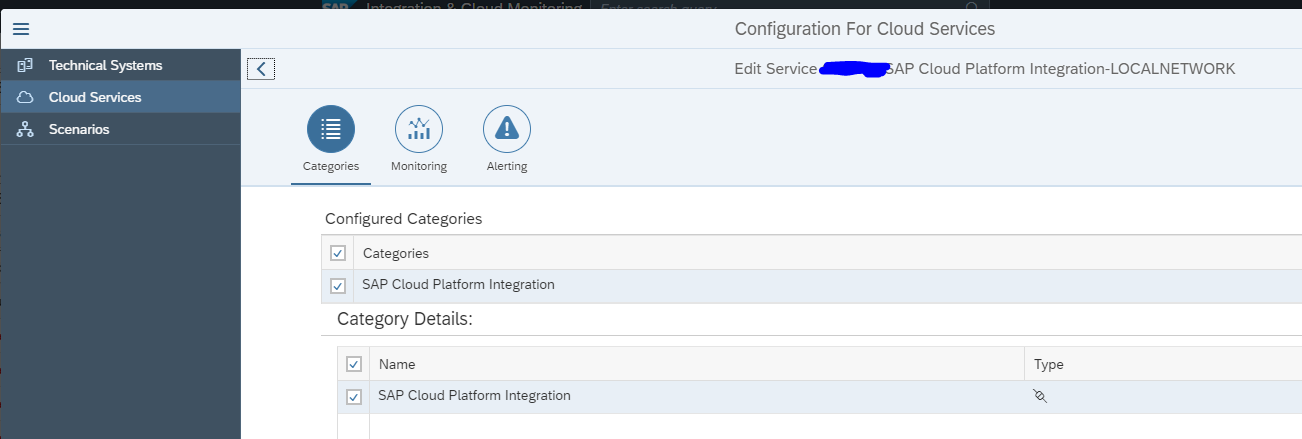
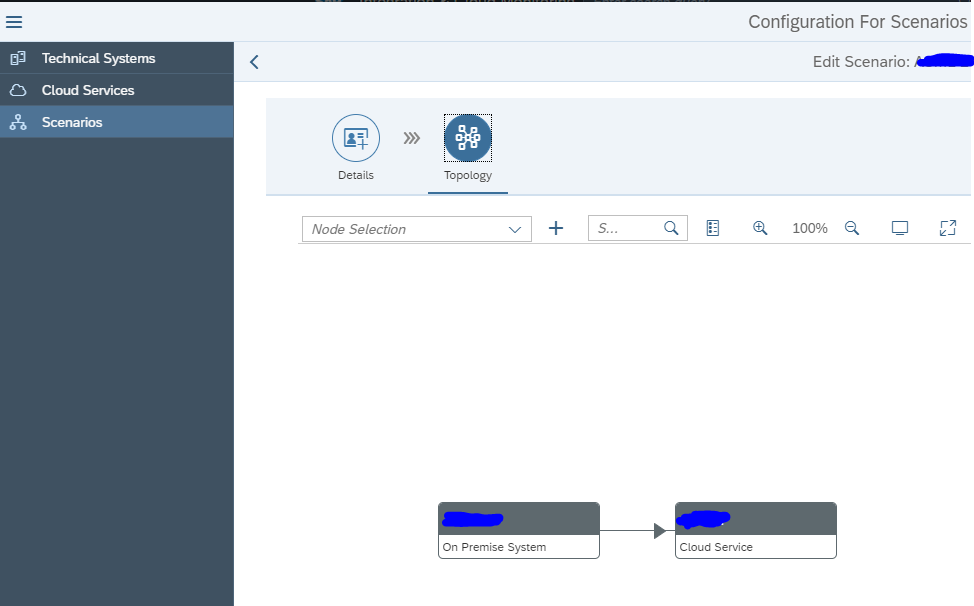
Now go to the configuration of the interface scenario and create a new cloud service for Cloud Platform Integration:

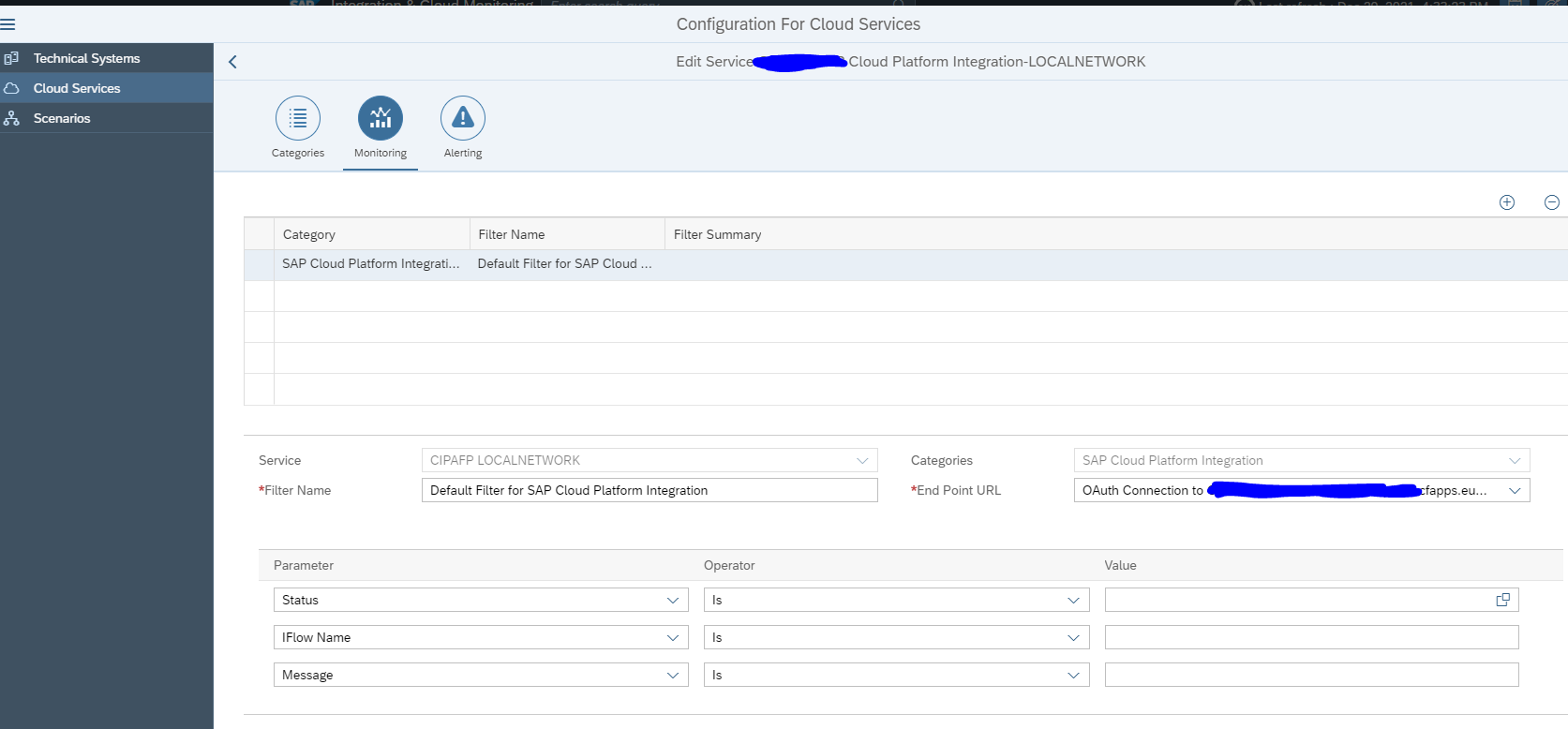
On the monitoring screen specify filters for specific IFlows if requiered:

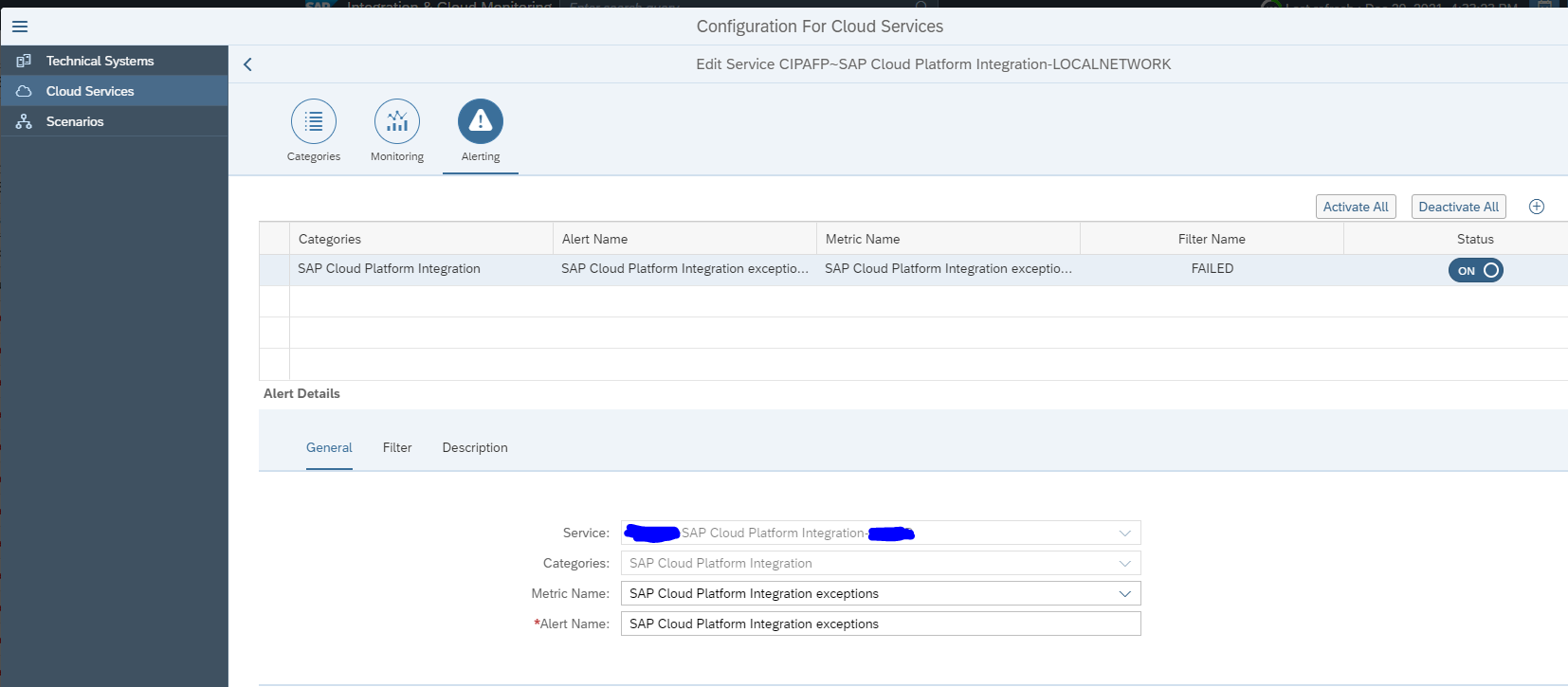
On the alerting tab you can set up any alerting wanted:

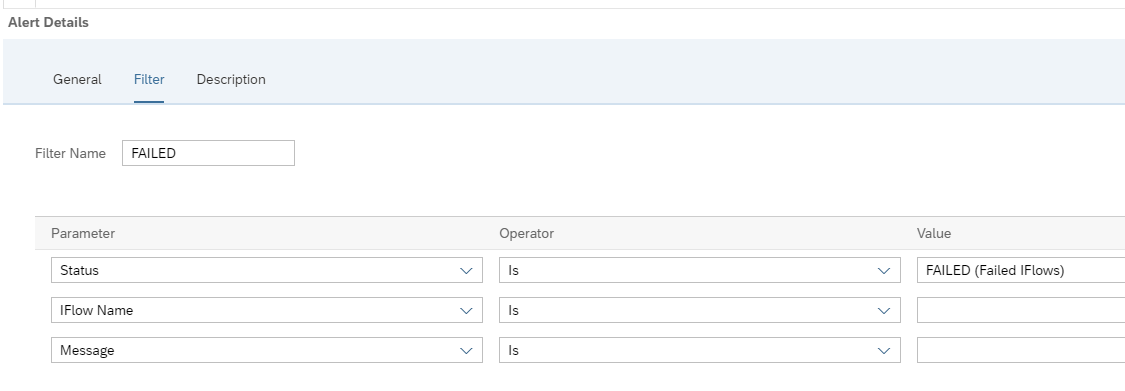
Set the filter for alerting (in this case all failed flows):

Assign alert receivers and make sure everything is saved and activated.

Now you can model the scenario graphically as well:

Cloud monitoring: Ariba

SAP Focused Run Cloud Monitoring can be used to monitor messages to and from the Ariba solution.

End result of Ariba cloud monitoring

The configuration of the scenario is described in the next chapter. We start explaining the end result.

Select the scenario and the overview tile appears:

Click on the card to go to the scenario topology:

Click on the red line to zoom into the communication error details:

Click on the message to zoom into the details:

Set up of the Ariba monitoring scenario

ollow the steps from the SAP expert portal for Ariba monitoring to setup the STRUST in SAP Focused Run for the Ariba URL.

Validate in the SAP Focused Run ABAP stack that these two parameters are set in RZ11:

  • icm/HTTPS/client_sni_enabled = TRUE
  • ssl/client_sni_enabled = TRUE

If this is done, go to the cloud setup FIORI tile:

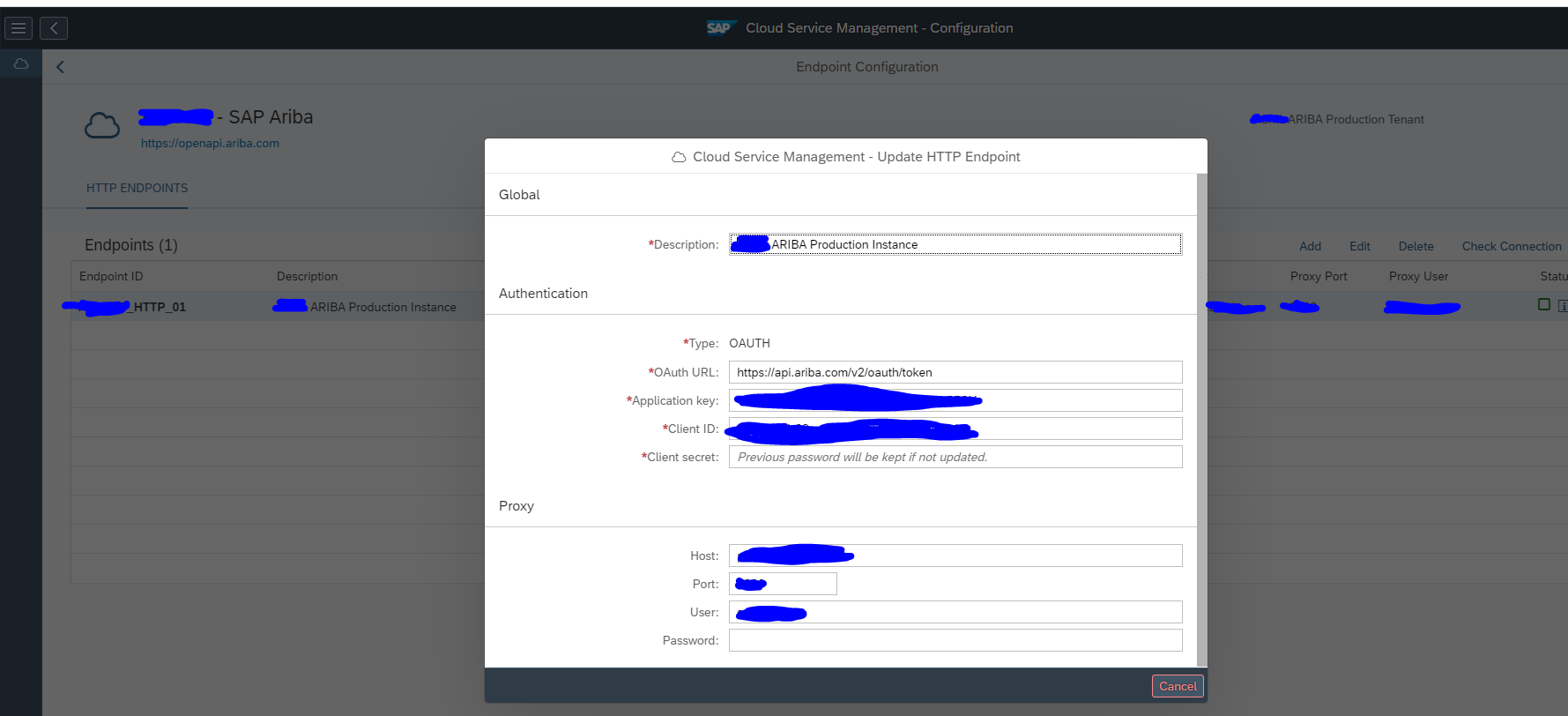
Add a new end point for Ariba:

The application key, client ID and client secret will need to be provided by the basis person or functional consultant maintaining the Ariba interface configurations on the Ariba cloud. Depending on the security setup, a proxy is required as well.

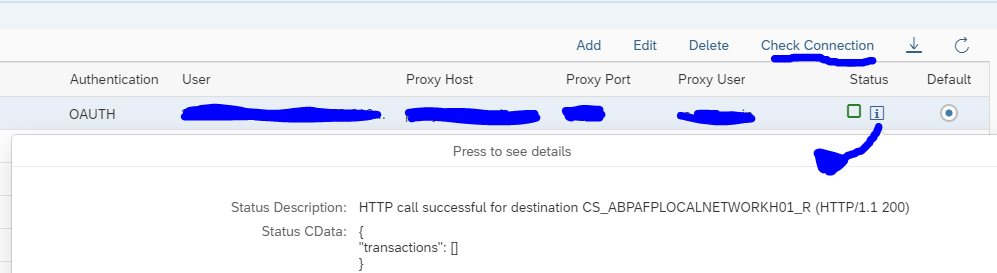
After entering the details check the connection:

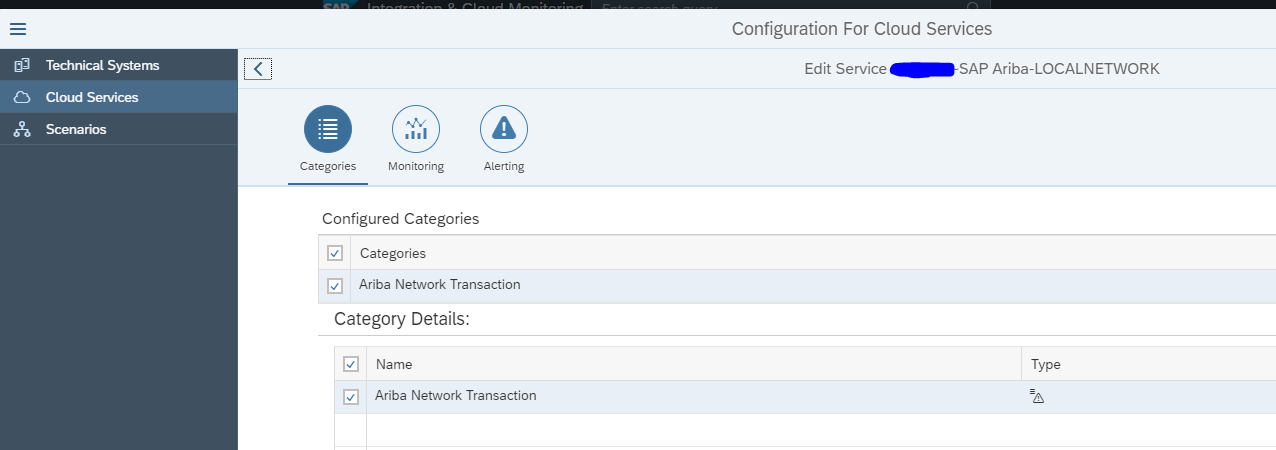
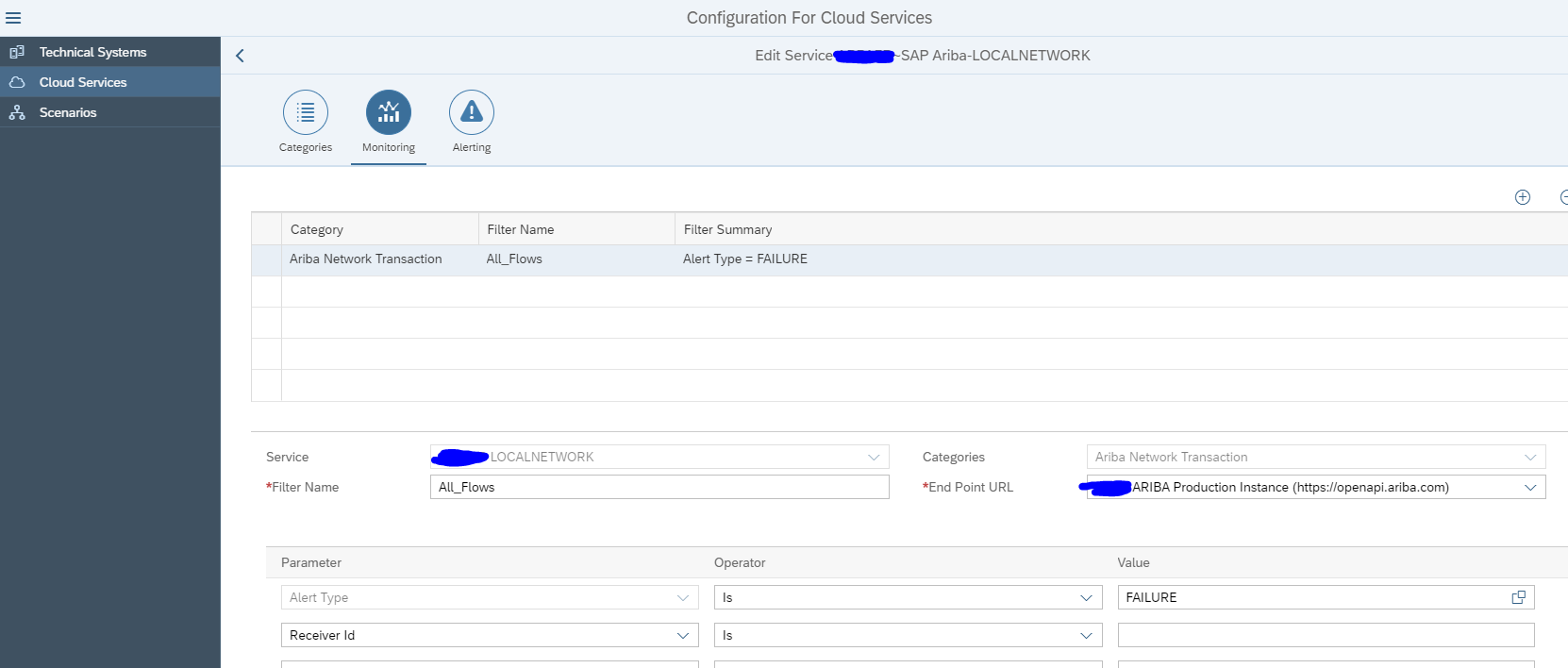
Now go to the configuration of the interface scenario and create a new cloud service for Ariba Network Transaction:

On the Monitoring tab connect to the end point create above and set the wanted filters:

If you want, you can also set up alerting in the third tab.

Save and activate the setup.

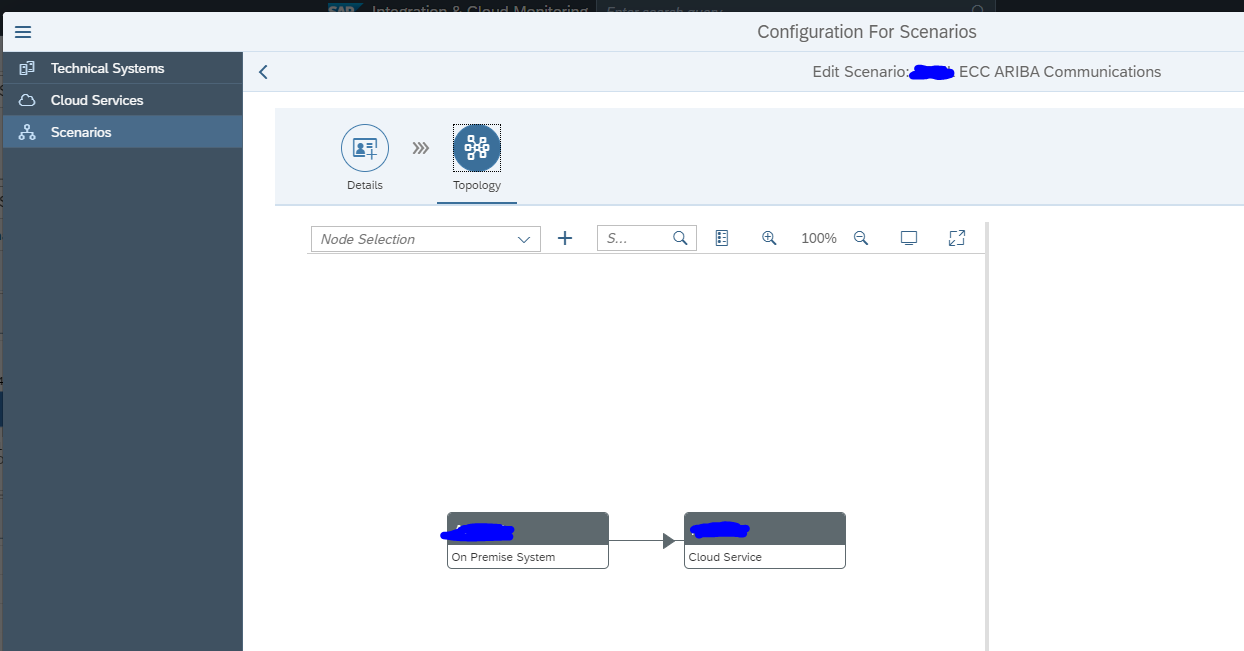
Now you can model the scenario graphically as well:

Alert notification from BTP

The BTP platform has a function called Alert Notification. This is a generic function that can be used to send alerts. It can be used to send alerts from applications, but also to send alerts from the HANA Cloud database.

SAP Focused Run can pick up these alert notifications form the BTP platform. From there Focused Run can be used to further relay the alert to notification teams.

Setup of the scenario

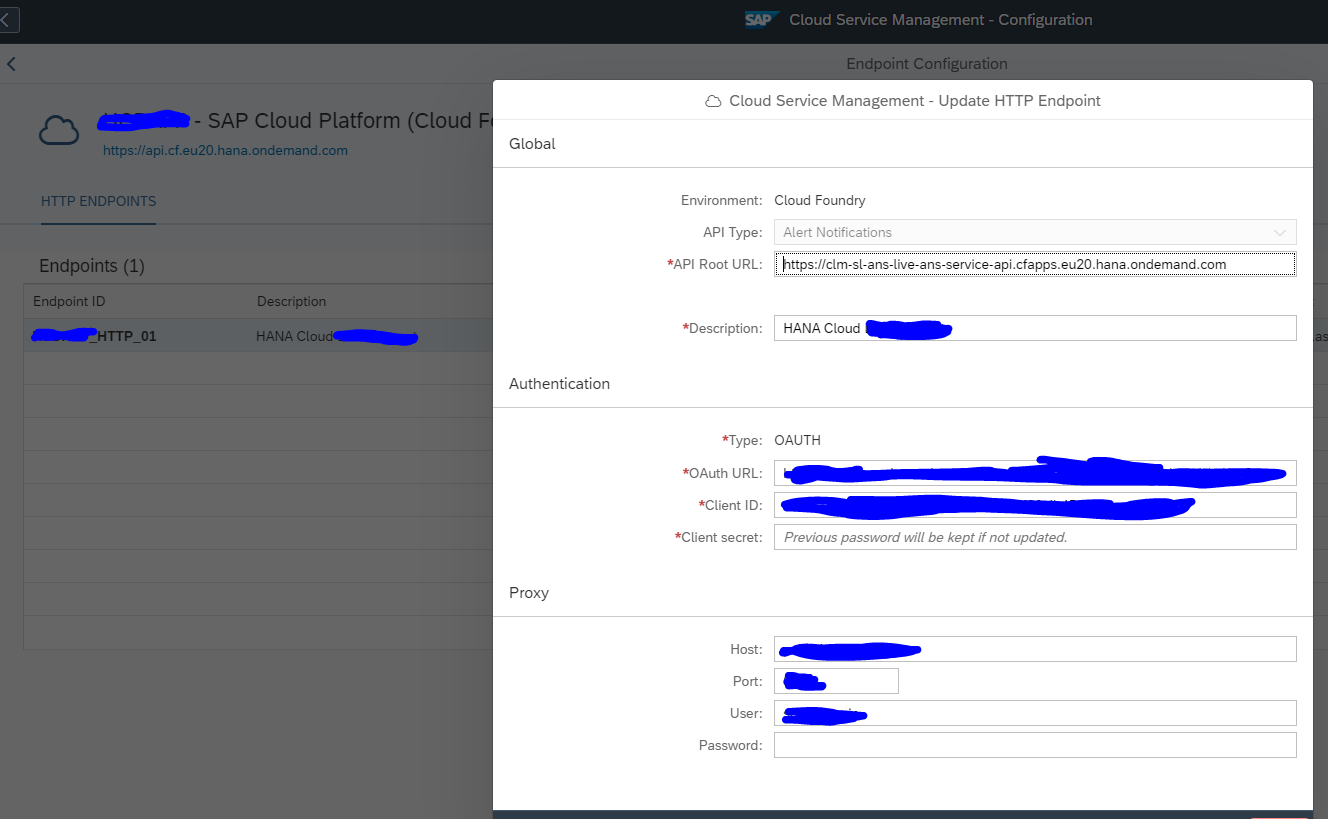
First you need to prepare your BTP environment to allow SAP Focused Run to collect data from the Alert Management application from your tenant and subaccount. This will give you the URL, client ID and client secret (be careful this is only shown once). To do this, follow the steps on the SAP Focused Run expert portal in this link.

For the setup of the scenario in SAP Focused Run, go to the FIORI tile for cloud setup:

Set up the OAUTH end point:

After the setup save the details and test the connection.

Now this end point can be used in the scenario setup.

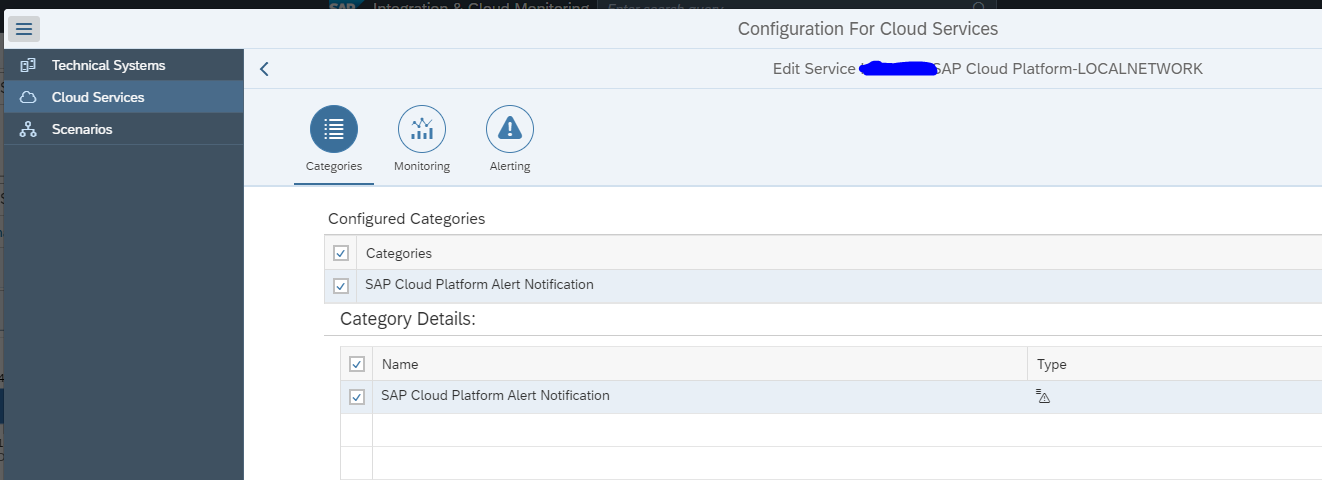
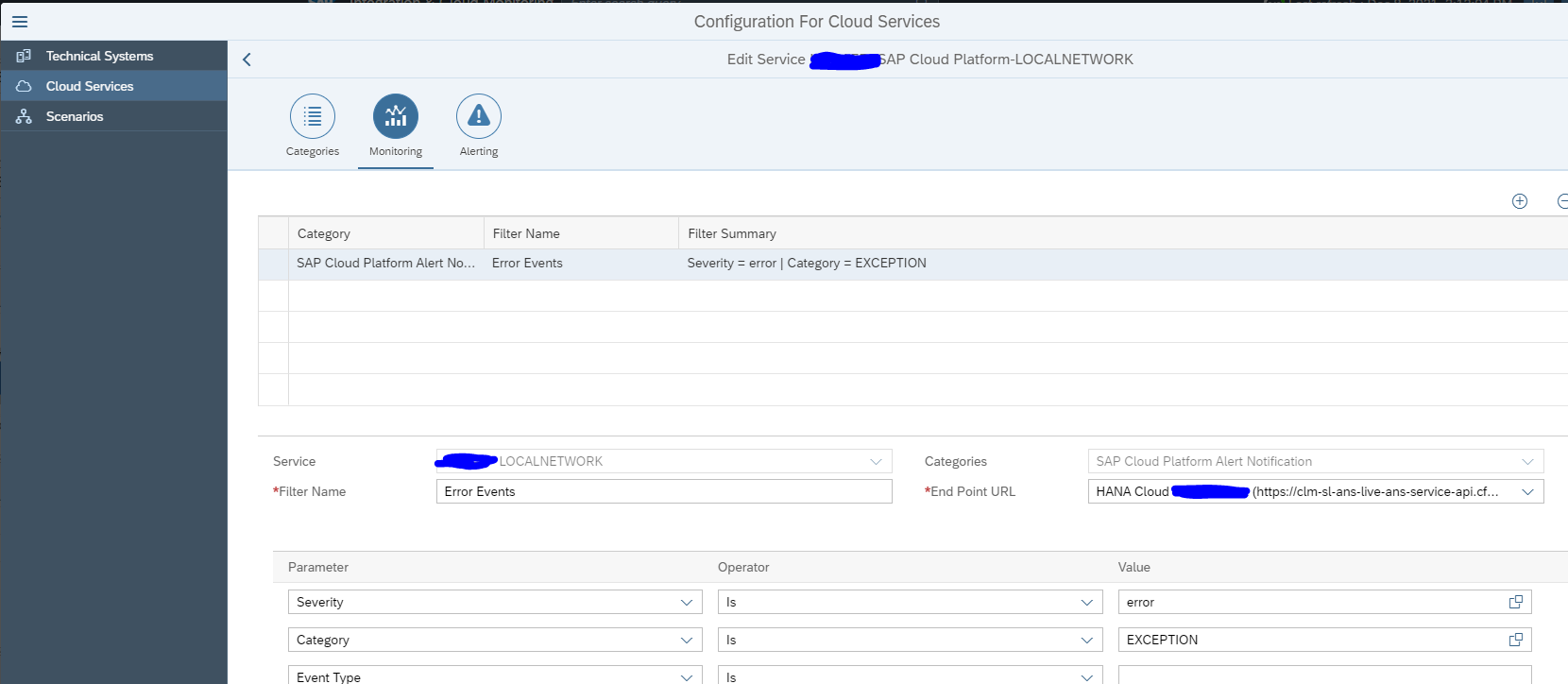
In the Scenario configuration create the Cloud Service and select the SAP Cloud Platform Alert Notification Service:

In the monitoring details set the Endpoint you just created and filter on the events:

In the third tab Alerting you can set up the alerts if wanted.

Save and activate.

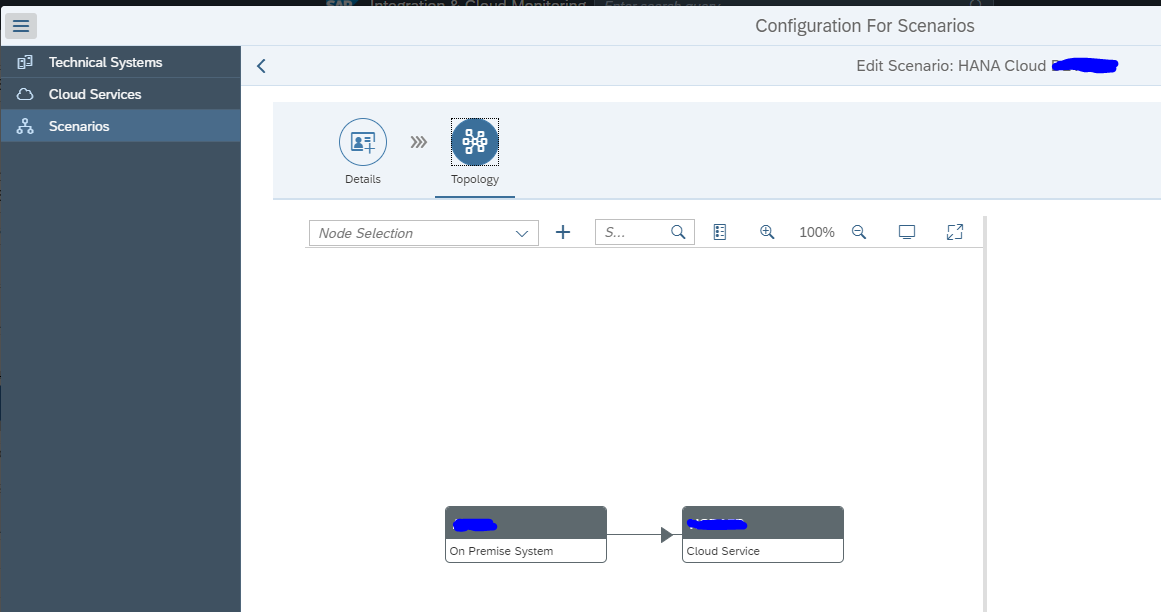
In the scenario modelling you can now use an on premise system and the Cloud Service you set up above to model a graphical scenario:

End result of alert notification from BTP

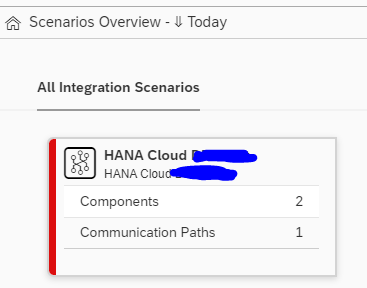
Select the configured scenario:

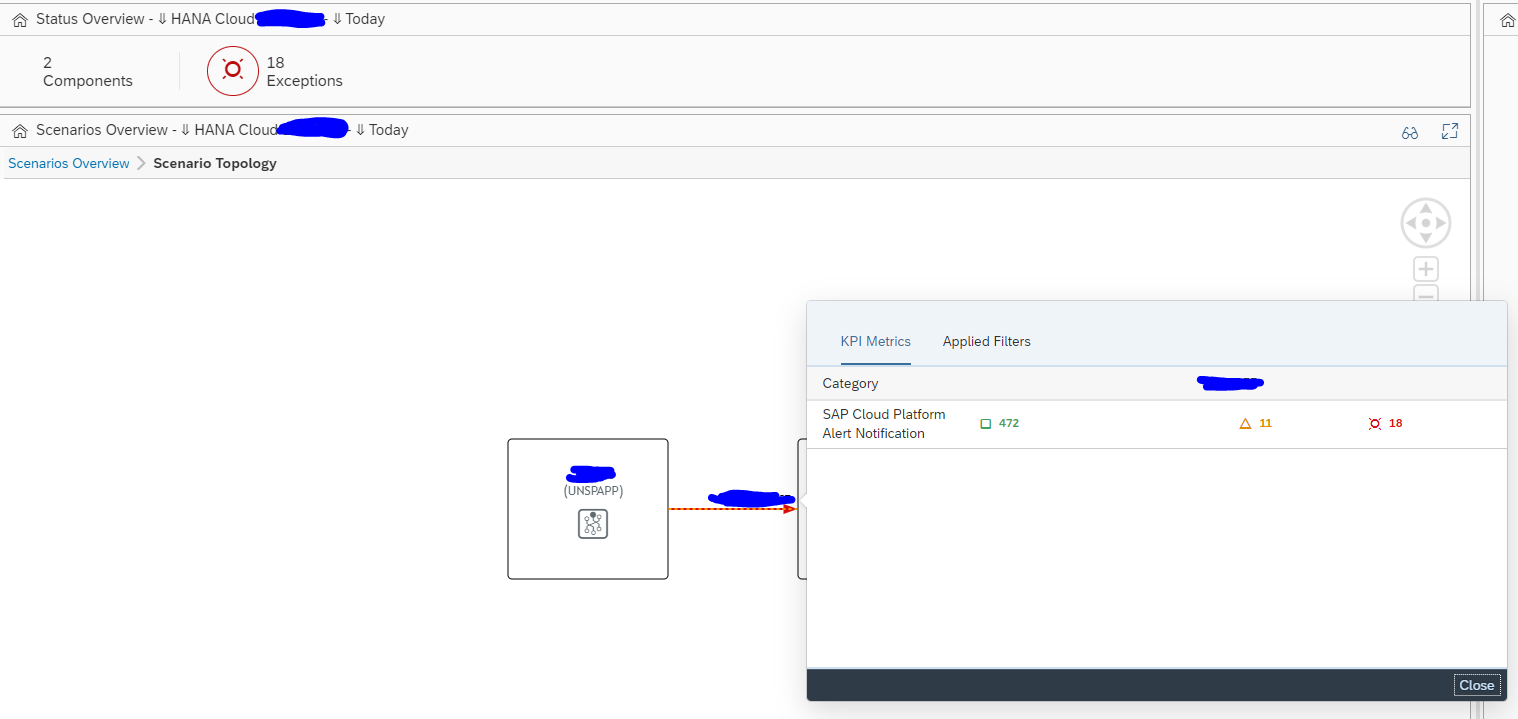
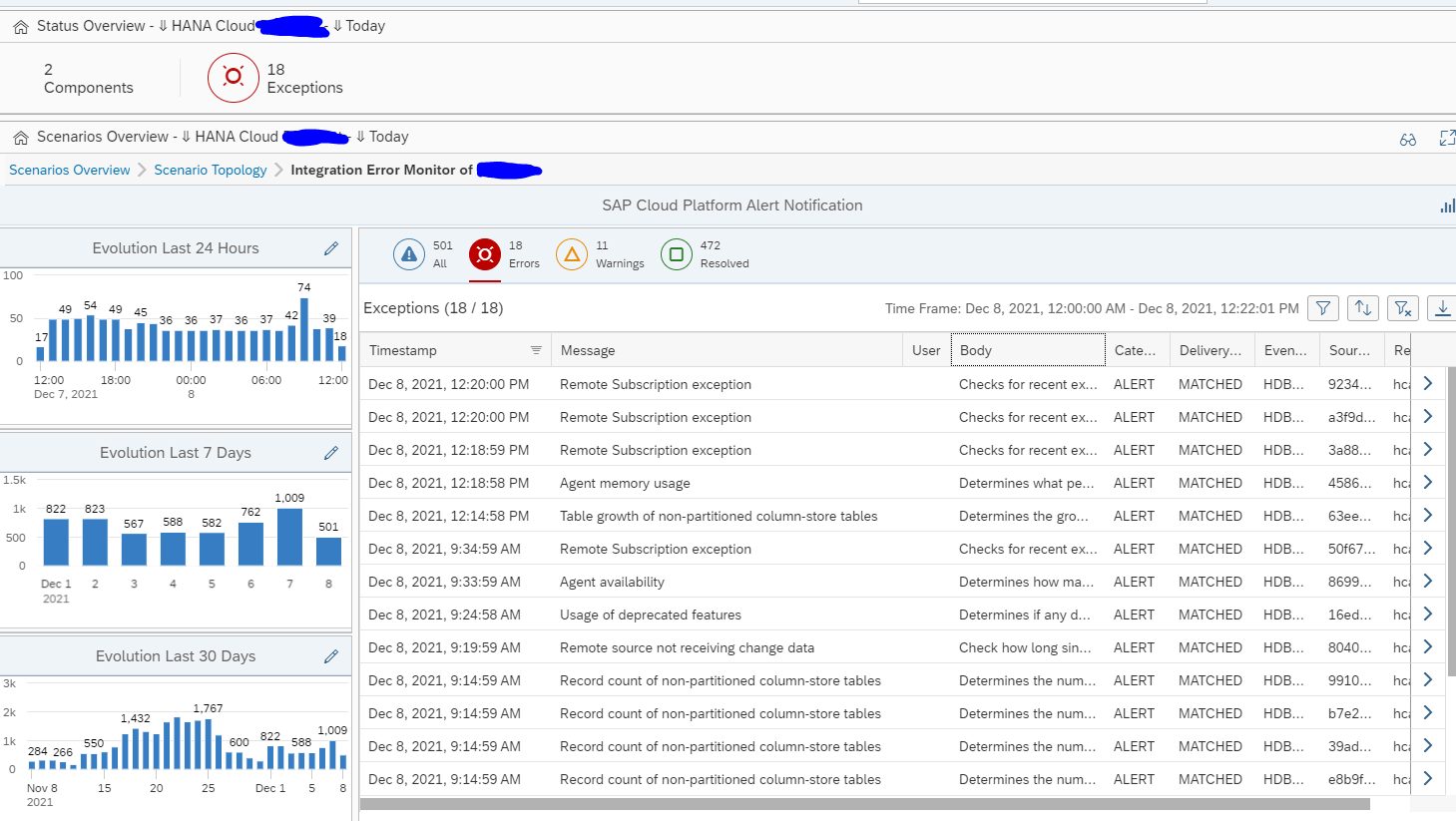
In this case we have setup the alert notification for HANA Cloud. Click on the card tile for details, and click on the interface line:

Now select the errors and the overview screen opens:

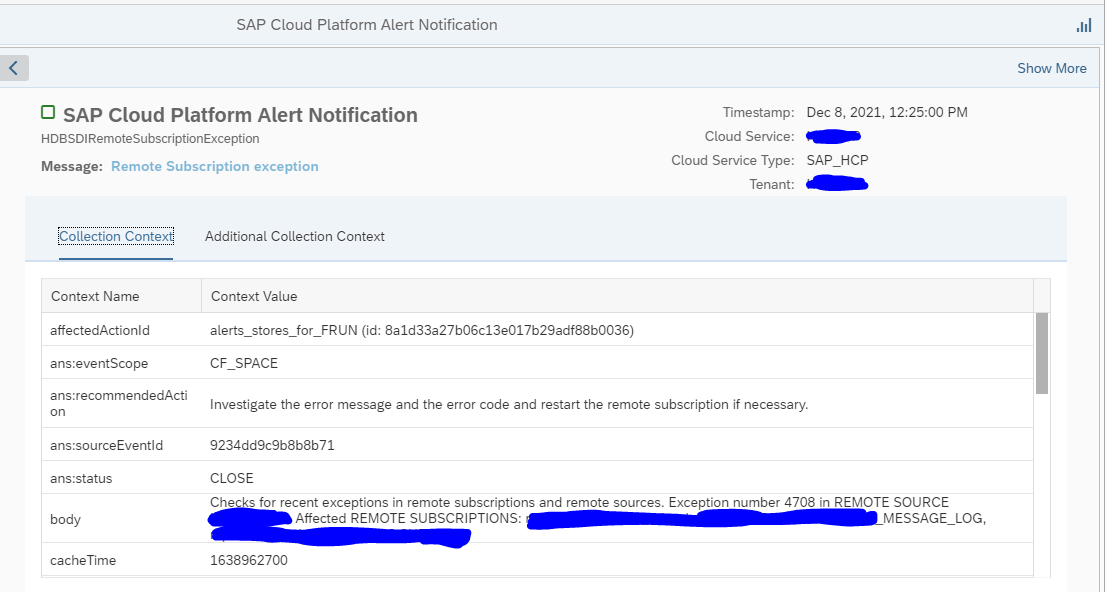
Click on a single line to go to the specific error details:

<< This blog was originally posted on SAP Focused Run Guru by Frank Umans. Repost done with permission. >>
SAP Focused Run demo system and OpenSAP course

The SAP site for Focused Run has a link to the online Focused Run demo system and link to videos.

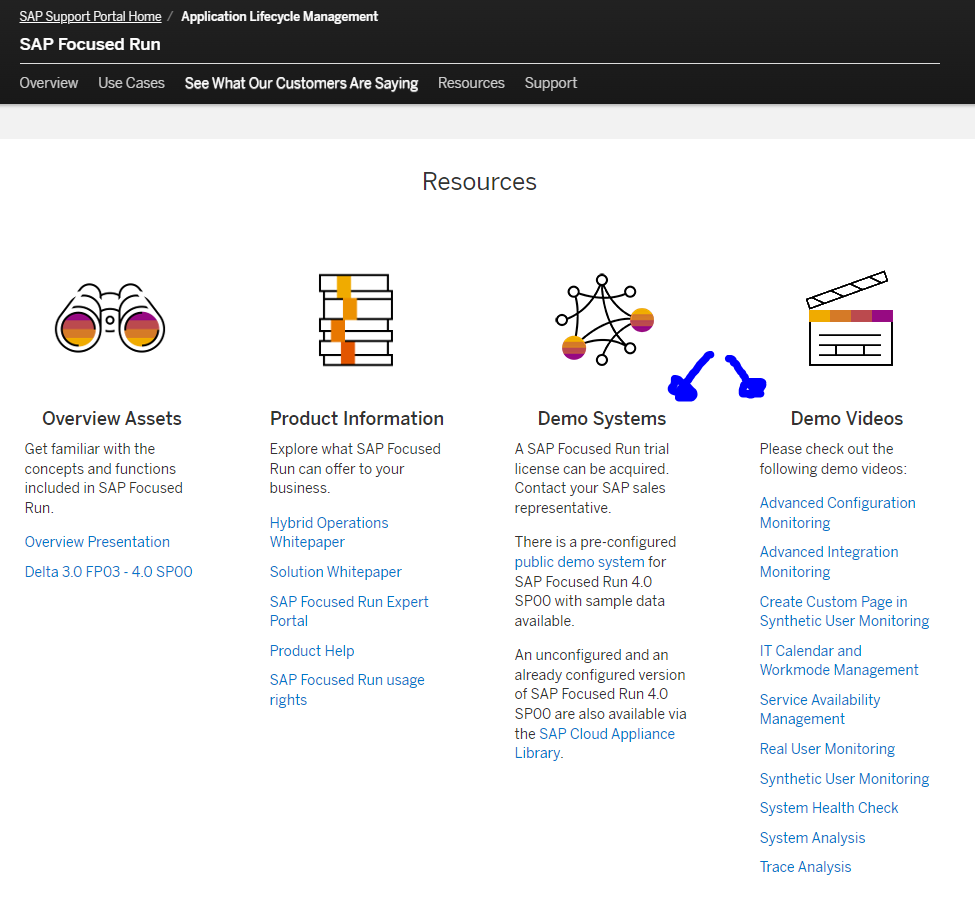
First visit the general SAP Focused Run site. Now scroll down to the resources part:

On the right hand side are the video.

In the middle the Demo System link. You can also access it directly via this URL.

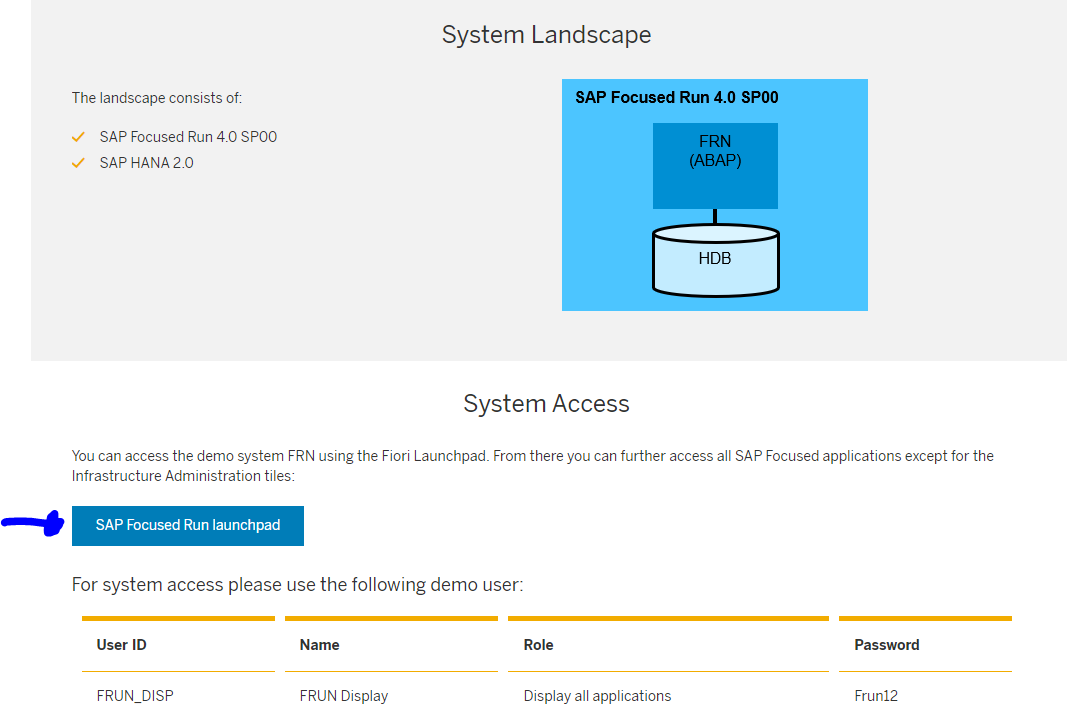
Scroll down to the landscape overview. To access the system press the blue “SAP Focused Run launchpad button”.

The user ID and password is in the table below the button.

SAP training on SAP Focused Run

SAP is providing a free training on SAP Focused Run. Follow this link for the main training.

Content of the training:

  • Week 1 Unit 1: Focused Run overview
  • Week 1 Unit 2: Architecture and demo system
  • Week 1 Unit 3: Integration and exception monitoring
  • Week 1 Unit 4: Real user monitoring
  • Week 1 Unit 5: Synthetic user monitoring
  • Week 1 Unit 6: Job & automation monitoring
  • Week 2 Unit 1: Health monitoring
  • Week 2 Unit 2: System monitoring
  • Week 2 Unit 3: Alert management
  • Week 2 Unit 4: Operations Analytics (overview)
  • Week 2 Unit 5: Operations Analytics (dashboard examples)
  • Week 2 Unit 6: Operations Intelligence
  • Week 3 Unit 1: Configuration and security analysis
  • Week 3 Unit 2: System analysis
  • Week 3 Unit 3: Trace analysis and file system browser
  • Week 3 Unit 4: Operations automation
  • Week 3 Unit 5: IT calendar & work mode management
  • Week 3 Unit 6: Service availability management
  • Week 3 Unit 7: Focused Run summary

Older background material

Some older, but still useful, background material can be found on this link.

<< This blog was originally posted on SAP Focused Run Guru by Frank Umans. Repost done with permission. >>
SAP Focused Run housekeeping and technical clean up

Housekeeping in SAP Focused Run is needed for 3 reasons:

  1. Keep performance high
  2. Reduce data footprint on the database
  3. Stay within the licensed volume (see more on licenses of SAP Focused Run in this blog)

Questions that will be answered in this blog are:

  • Which housekeeping settings can I make in SAP Focused Run?
  • Which technical clean up can I do in SAP Focused Run?

Housekeeping for alert and event management

For alert and event management housekeeping program:

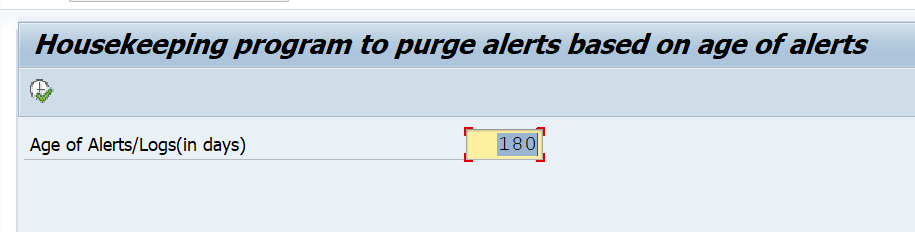
AEM_HOUSEKEEPING

Housekeeping for system analysis and root cause analysis

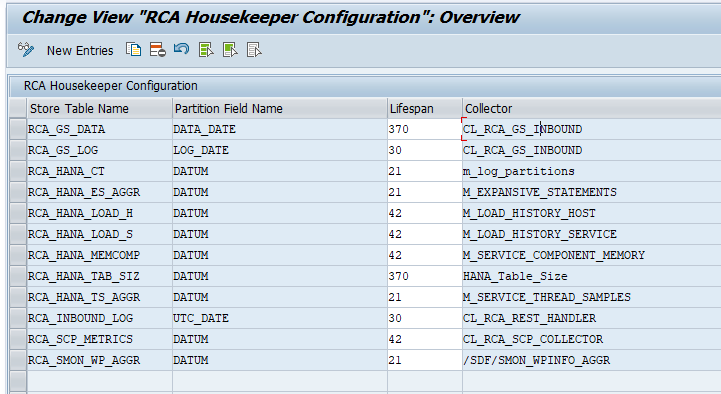
For system analysis housekeeping schedule program SRAF_LOG_HOUSEKEEPING and WEA_AGG_STORE_PARTITIONING. For root cause analysis schedule program RCA_HOUSEKEEPING.

Detailed settings for RCA housekeeping are done in table RCA_HKCONFIG. You can maintain this table with SM30:

Housekeeping for application integration and exception monitoring

For application integration monitoring housekeeping schedule program /IMA/HOUSEKEEPING for older releases and /IMA/HOUSEKEEPING_NEW for FRUN 3.0 FP01 onwards.

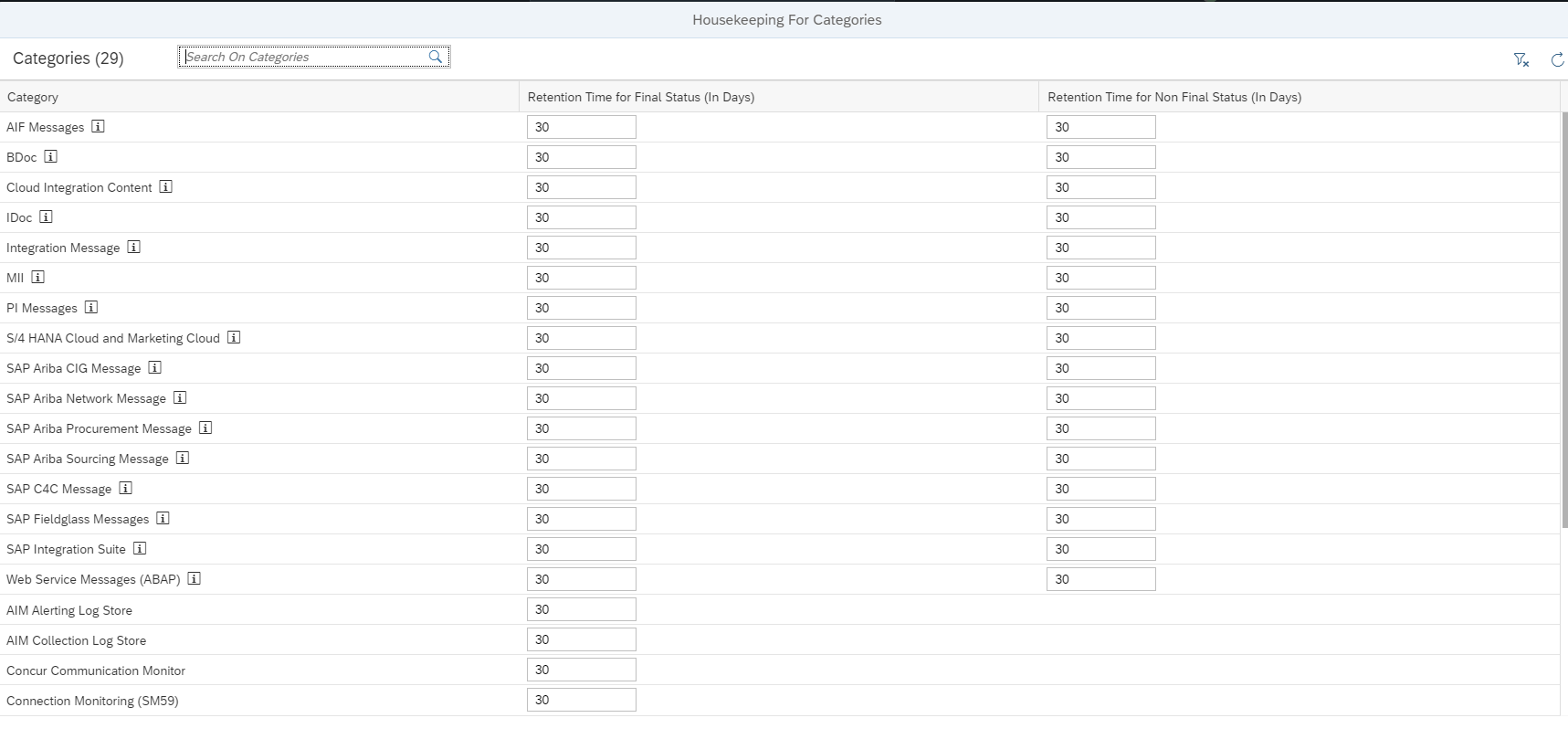
In the tile for integration monitoring you maintain the detailed settings and retention periods:

Press the change button to alter the data retention periods towards your need:

A fine tuning might be required in table EXM_HK_SETTINGS.

Housekeeping for EWA data

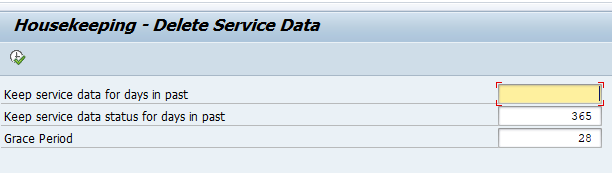
For EWA data housekeeping schedule program FRUN_DELETE_SERVICE_DATA:

Important year: default 1 year of EWA data is kept. If you need more, increase the days kept. If you want to clean up more, you can reduce the days.

Housekeeping for health monitoring

For health monitoring housekeeping, schedule program OCM_HOUSEKEEPING.

Housekeeping for statistical records

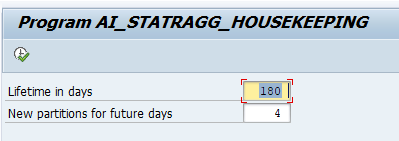
For housekeeping of statistical records, schedule program AI_STATRAGG_HOUSEKEEPING:

Read also this note explaining it will take time before clean up is reflected: 3478938 – Housekeeping of System Analysis data in SAP Focused Run.

Housekeeping for work mode management

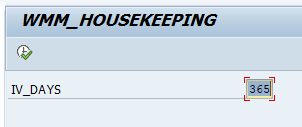
For housekeeping of work mode management, schedule program WMM_HOUSEKEEPING:

Housekeeping for security and configuration validation

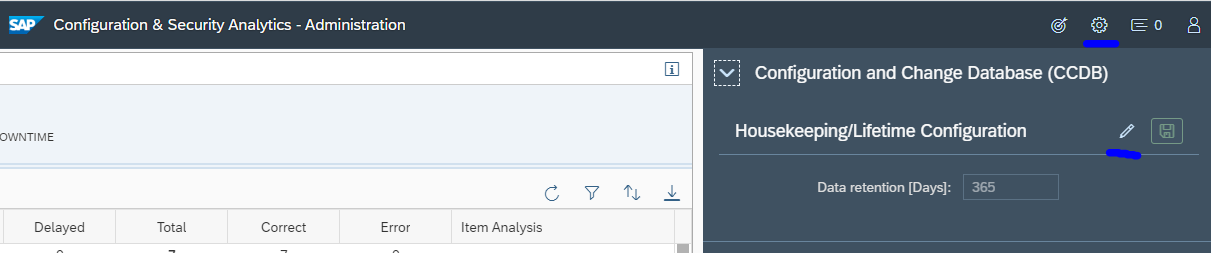
In the Configuration and configuration analytics Administration tile, choose the configuration icon:

Here you can set the retention period.

Housekeeping for Application and Integration Monitoring

Make sure job SAP_FRN_AIM_HOUSEKEEPING (program /IMA/HOUSEKEEPING_NEW) is running. See OSS note 3331046 – Unexpected growth of table EXM_COLL_CTXT to also have program EXM_REGULAR_HK as a backup.

Technical clean up

There are also technical tables that might grow fast in SAP Focused Run that will consume memory in your HANA database.

Fast growing table LMDB_P_CHANGELOG

See OSS note 2610122 – Cleaning up the change history in the LMDB: run program RLMDB_CLEAR_CHANGELOG.

Fast growing SISE_LOG table

Run program SISE_LOG_DELETE to clean up SISE_LOG table. See OSS note 2984789 – Scenario F4-help not working for SISE_LOG_DELETE report.

Idoc and PI monitoring data fast growing

If you get too much data for idoc monitoring, apply OSS note 3241688 – Category wise table cleanup report (IDOC, PI). This note delivers program /IMA/TABLE_CLEANUP_REPORT for clean up.

Invalid entries in MAI_UDM_PATHS

If table MAI_UDM_PATHS is getting large, follow the instructions from OSS note 3030652 – Cleanup invalid entries from database table mai_udm_paths to clean up. It is explained in more detail in OSS note 3250729 – Housekeeping for metric paths. And read OSS note 3424812 – MAI housekeeping does not allow ad hoc execution for ad hoc clean up.

<< This blog was originally posted on SAP Focused Run Guru by Frank Umans. Repost done with permission. >>