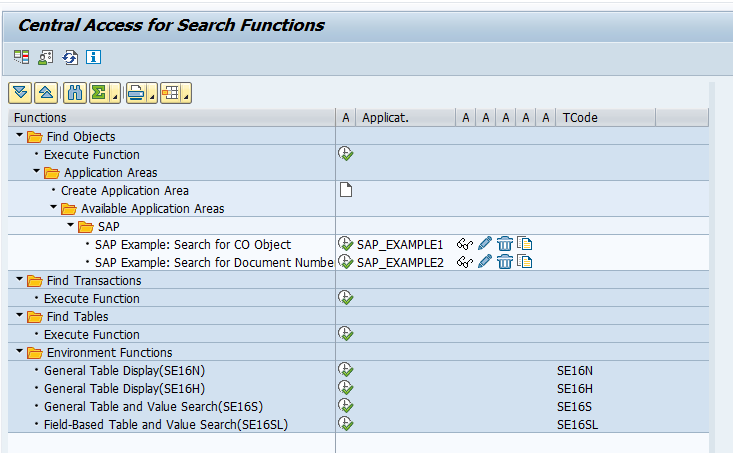
There are quite some SE16 data browser tools and search tools. SE16T collects them all.
Reference to SE16 blogs:
Background OSS notes on SE16T:
Blog for SAP technical guru's: SAP basis, SAP security and authorization, SAP ABAP, SAP Focused Run
basis

There are quite some SE16 data browser tools and search tools. SE16T collects them all.
Reference to SE16 blogs:
Background OSS notes on SE16T:
Some SICF services might be activated from the past. For security they might pose a risk. The best action is to pro-actively disable them.
| /sap/bc/bsp/sap/bsp_veri /sap/bc/bsp/sap/certmap /sap/bc/gui/sap/its/CERTMAP /sap/bc/bsp/sap/certreq /sap/bc/gui/sap/its/CERTREQ /sap/bc/echo /sap/bc/error /sap/bc/FormToRfc /sap/bc/bsp/sap/icf /sap/bc/srt/IDoc /sap/bc/idoc_xml /sap/bc/report /sap/bc/soap/rfc /sap/bc/webrfc /sap/bc/xrfc /sap/bc/xrfc_test | 1422273 *1417568 1417568 *1417568 1417568 626073 626073 626073 1422273 *1487606 1487606 626073 1394100 979467 626073 626073 |
Remarks on the (*): these services still might have a business need, double check these before de-activating.
Critical services according to note 887164:
/sap/bc/bsp/sap/bsp_model
/sap/bc/bsp/sap/htmlb_samples
/sap/bc/bsp/sap/it00
/sap/bc/bsp/sap/it01
/sap/bc/bsp/sap/it02
/sap/bc/bsp/sap/it03
/sap/bc/bsp/sap/it04
/sap/bc/bsp/sap/it05
/sap/bc/bsp/sap/itmvc2
/sap/bc/bsp/sap/itsm
/sap/bc/bsp/sap/sbspext_htmlb
/sap/bc/bsp/sap/sbspext_phtmlb
/sap/bc/bsp/sap/sbspext_table (see note 2948239)
/sap/bc/bsp/sap/sbspext_xhtmlb
/sap/bc/bsp/sap/system_private
/sap/bc/bsp/sap/system_public
Source: SAP security baseline.
You might use SAP FIORI. After some time older FIORI tiles and corresponding ODATA services are move to newer FIORI or different applications. Or users might stop using certain FIORI applications (mostly due to lack of functions that are present on SAP GUI and missing on FIORI). From security point of view, you want to de-activate these non-used FIORI SICF services and ODATA services.
To identify, check the early watch, or check the instructions in OSS note 3261151 – SAPUI5 Apps – Identify unused ICF services. Mass clean up is described in OSS note 2989913 – SAP EarlyWatch Alert Dashboard: How to deactivate unused ICF services with the mass processing tool.

The SAP audit log records transactions, program executions and much more. But it cannot answer questions that are more sensitive. For example, how can you proof that your employee did or did not see a bank account number, or a basic salary pay? Here is where the RAL read access logging function will help. It will record if a user did have display access to a sensitive field (and the value shown to the user). It can be used to proof a user did see. Or when there is no logging (and the logging is setup correctly), help the employee to proof he/she did not see any sensitive data.
This blog will explain the technical setup. Please do check carefully any privacy, legal, HR and other implications of switching on this functionality.
The product is in most cases part of the Netweaver license. Do check with your SAP account manager.
Questions that will be answered in this blog:
Activate in SICF transaction the following services:
If needed set in RZ11 the parameter sec/ral_enabled_for_rfc to 1.
Now start transaction SRALMANAGER:
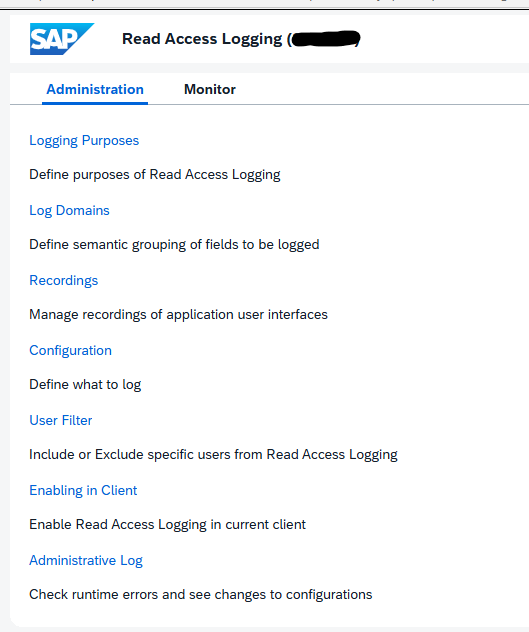
Choose the option Enabling in Client:
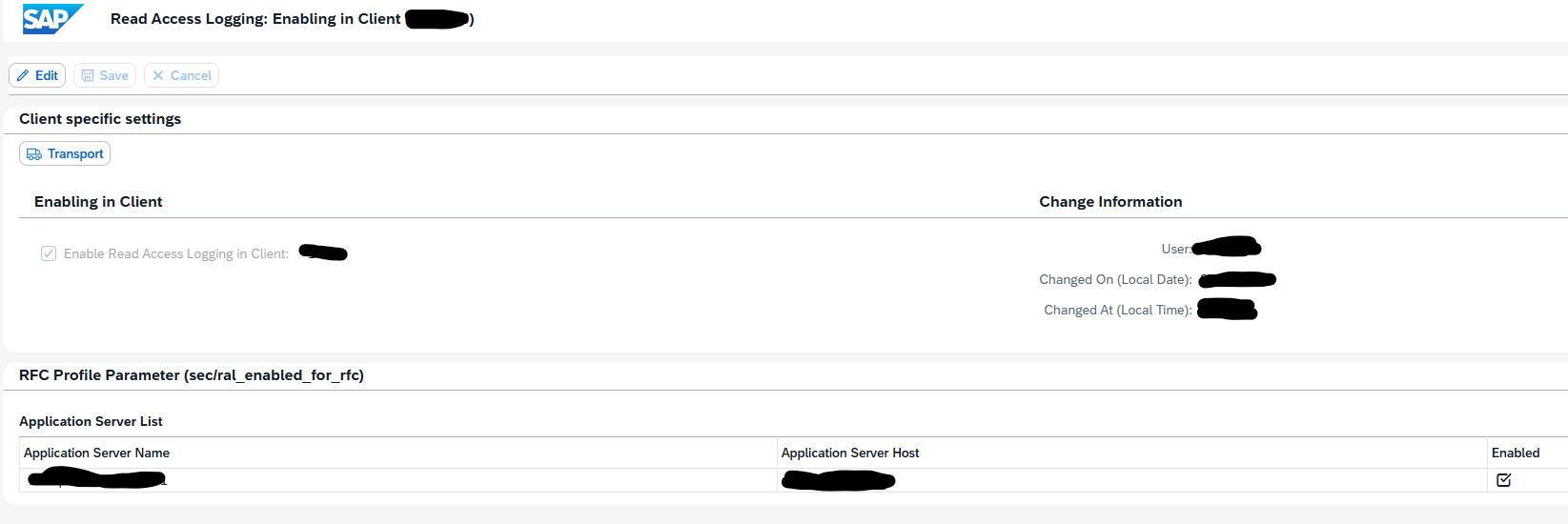
Press change, enable, and Save.
You can run program SRAL_CHECK_PREREQUISITES to see if all activations are done correctly (oss note 2158630 – RAL: Program to check prerequisites).
A recording is needed to indicate which fields need to be added to the read access log. In transaction SRALMANAGER, choose recordings and then create a new one:
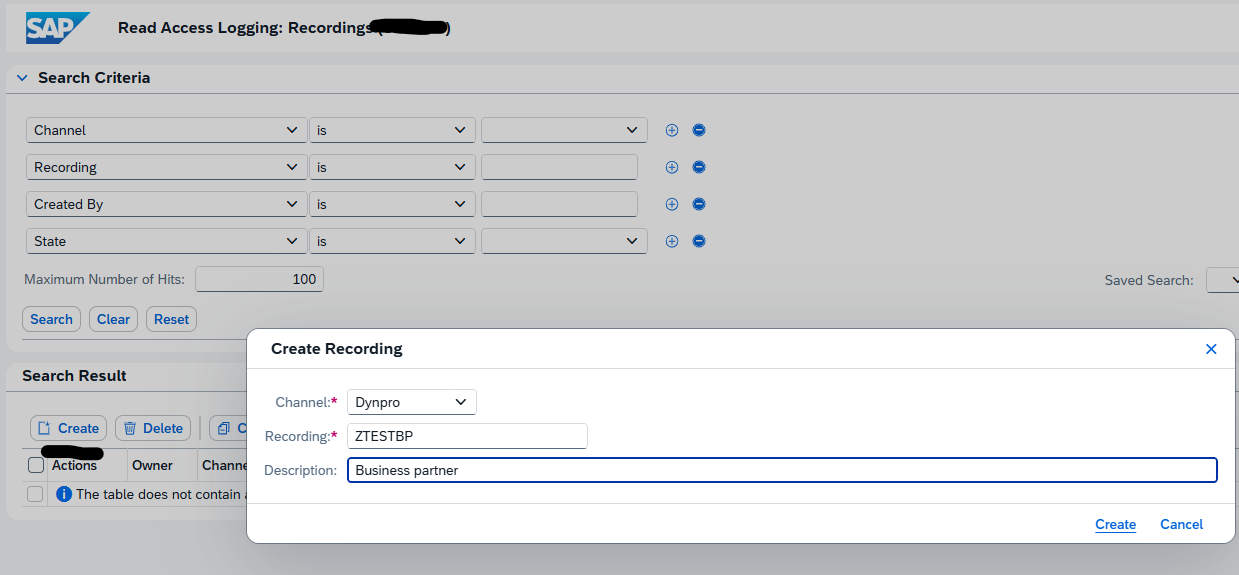
We use the example ZTESTBP for business partner.
In the line for the recorder there are 3 buttons:

First one is to display.
Second one to start the recording.
Third one is to add the recording user.
Start the recording:
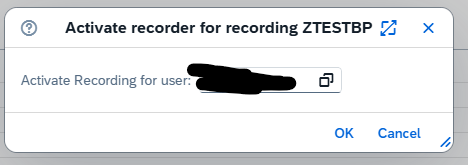
Now important: keep the web session open.
Go to the SAP GUI and execute your transaction. When you want to add a field to the RAL logging, select the field, press CTRL, right click and select the option “RAL: record field” or use the CTRL+L shortcut.
If you do not add fields the recording is empty!
When completed go back to the RAL admin web screen and press the icon to Stop the recording.
Now you can display the recorded fields:
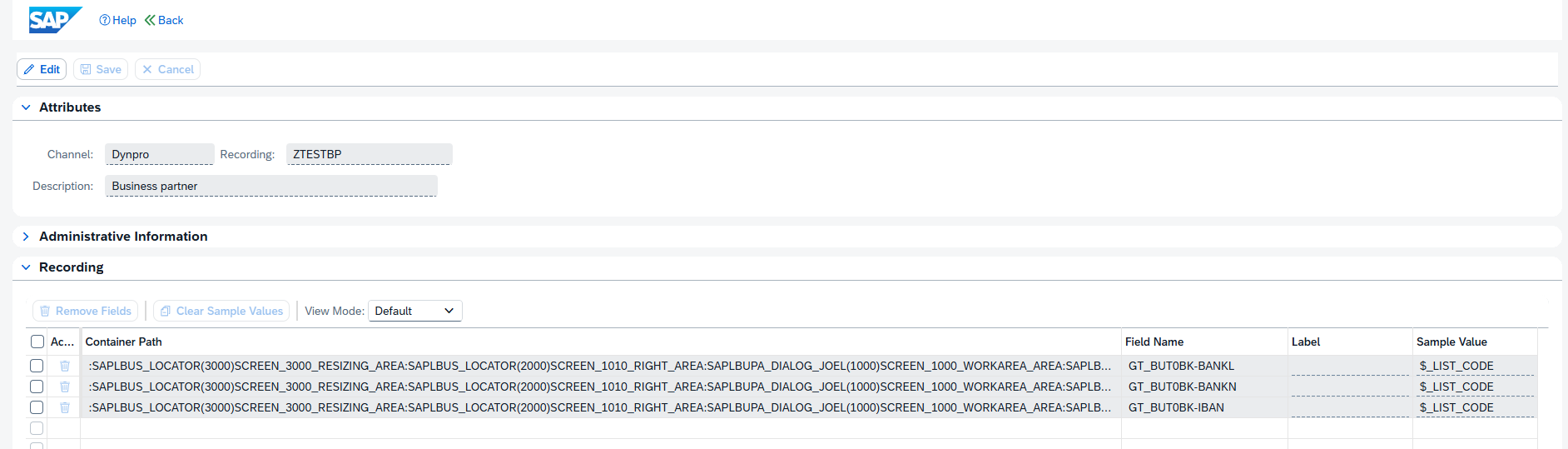
We can now use the recording to create a configuration. In the transaction SRALMANAGER choose configurations and create a new one:
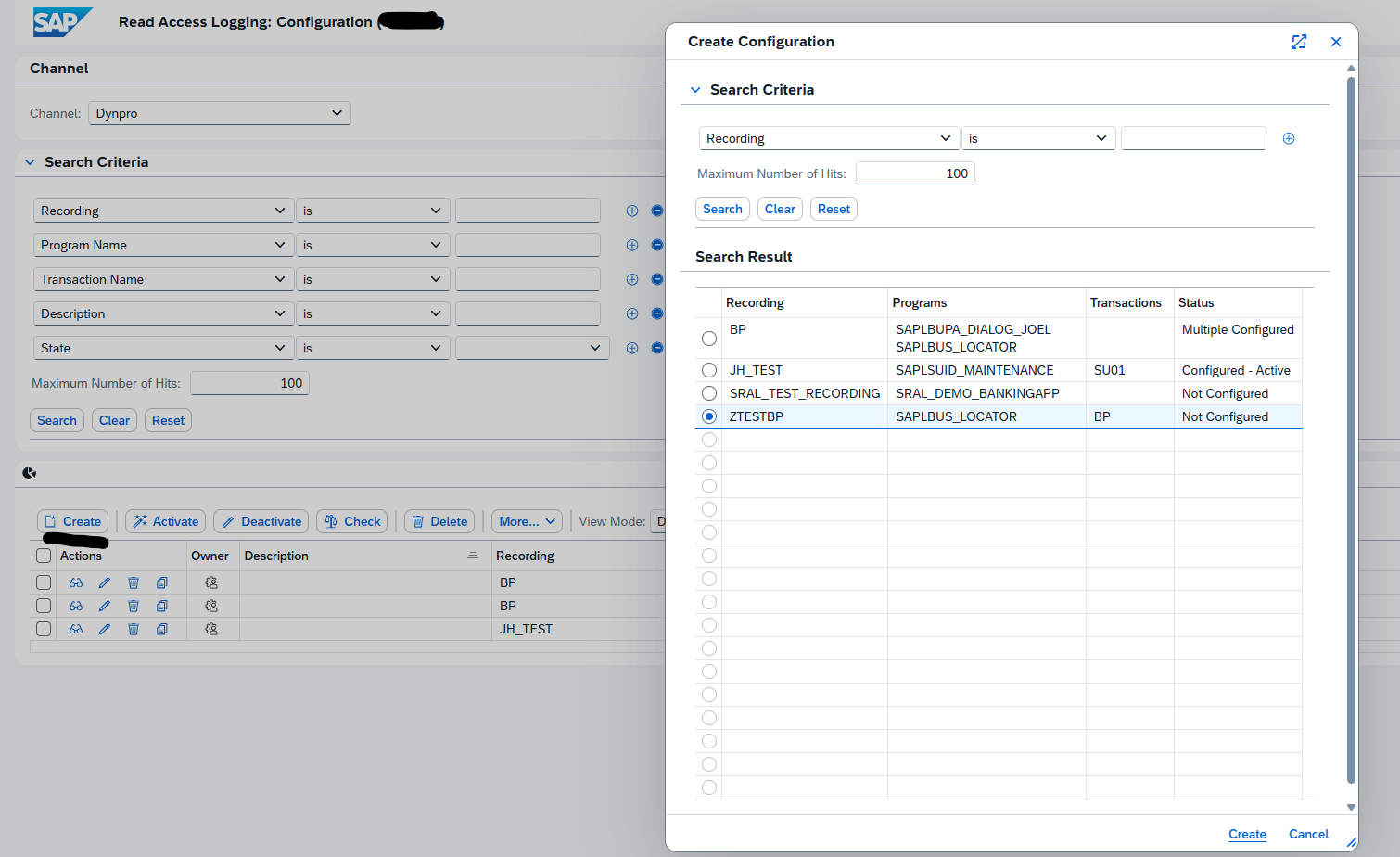
In the new complex screen, create a new log group. Then drag and drop from the field list on the bottom left to the target fields:
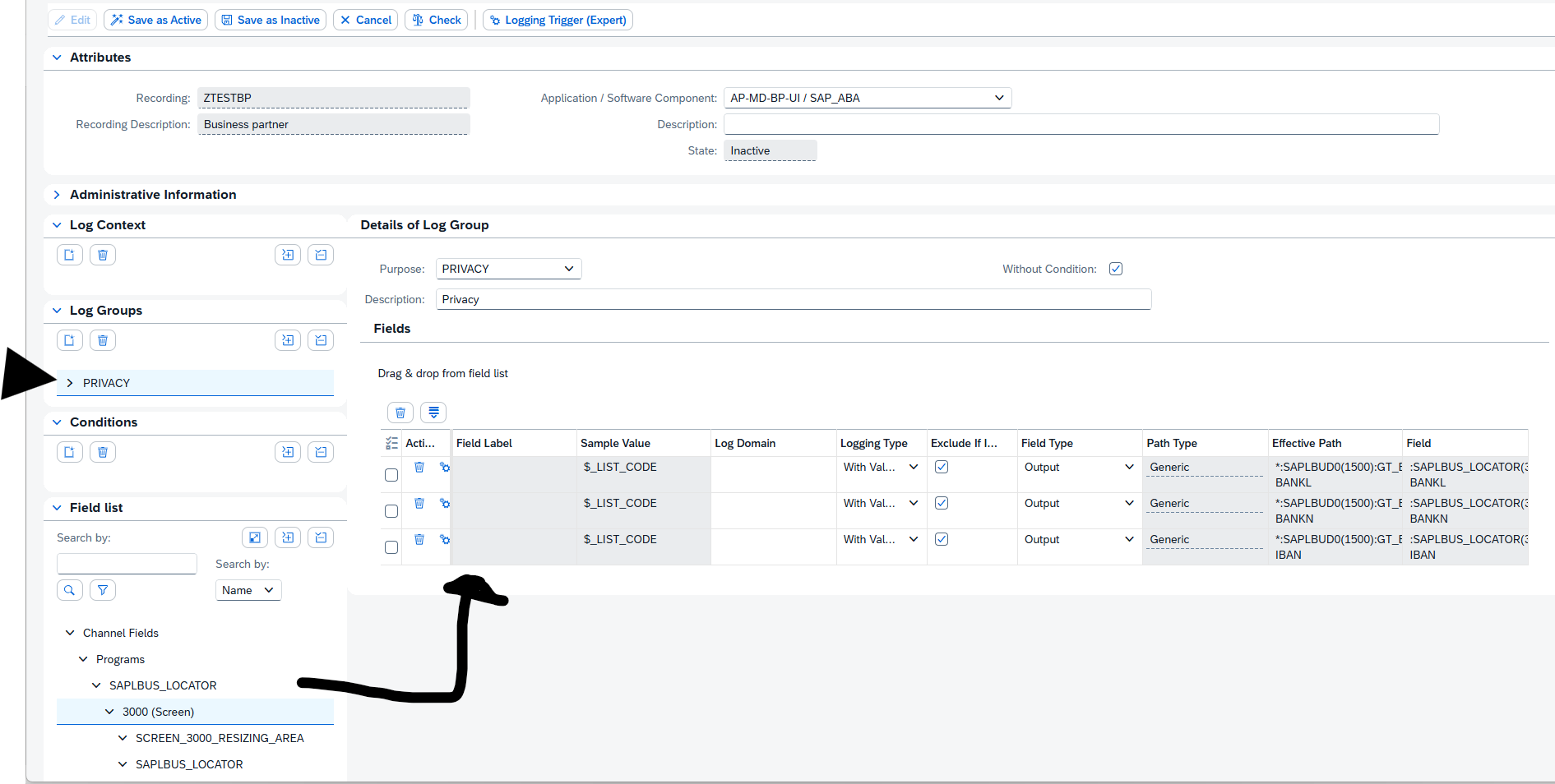
Then first Check the consistency and when ok, activate the configuration:

In the administration use the second tab for monitoring, or use transaction RALMONITOR to jump directly to the monitoring database. Important here: select the RAW database first! Then select your criteria:
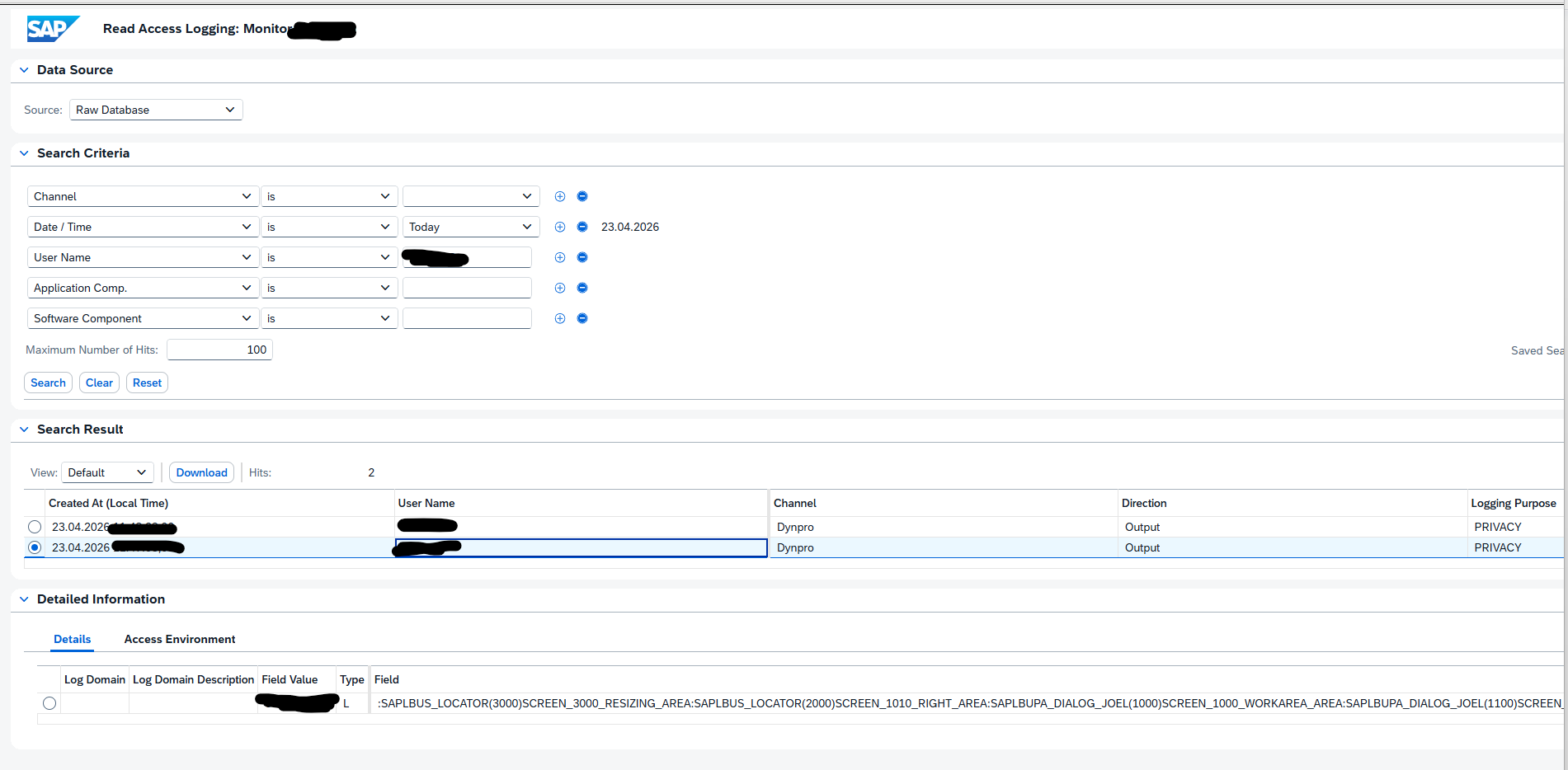
In the search results you can select the details. In the Field Value at the bottom, you can see the actual value that the user has seen on its screen.
In the help file there is this warning:
Using RAL requires system resources. This can have a strong impact on your system performance, depending on the number and type of logs.
So activate only what is required.
RAL help file: Read Access Logging | SAP Help Portal.
Background on recording function: Read access logging(Recording functionality) – SAP Community.
Background on dynpro: Read Access Logging – Dynpro Configuration Step-by… – SAP Community.
Background OSS notes:
Bug fixes:
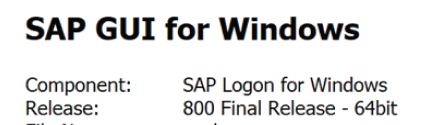
SAP GUI comes with a 32 and 64 bit version. The advantage of the 64bit version is the performance. The setback is its dependency on, and its compatibility with, the 64bit Microsoft Office products.
A user cannot have both versions installed on a single machine. It is either the 32bit or 64 bit version.
Download location: 3398259 – Where to download 64-bit patches for SAP GUI for Windows 800. – SAP for Me.
Keep track of the SAP GUI build in this blog. With the upcoming SAP GUI 8.10 the information below (which is valid for 8.0) might be different.
The main differences are describes in OSS note 3218166 – SAP GUI for Windows: Functional differences of the 64bit version compared to the 32bit version.
The better performance of the controls and download functions are described in this OSS note: 2724656 – SAP GUI NWRFC Controls: 64bit support for Logon, Table, Function and BAPI controls – SAP for Me.
The Office compatibility issues are described in the following OSS notes:
Basic rule: when SAPGUI 64bit is to work with Office products, make sure also the Office products are installed with 64bit version.

Secure Network Communication (SNC) is a key requirement in enterprise landscapes where SAP BTP interacts with ABAP systems via SAP Cloud Connector (SCC). Enabling SNC ensures encrypted RFC communication, mutual authentication, and end‑to‑end protection of sensitive data.
This blog provides a generic, implementation‑ready guide for enabling SNC between SAP Cloud Connector and SAP ABAP systems.
It combines the official SAP documentation with hands‑on technical steps commonly followed in real projects.
Background OSS note: 3536285 – SAP Cloud Connector – How to set up general SNC settings for SAP Cloud Connector.
SNC provides:
SNC is increasingly mandatory in SAP landscapes, especially when integrating BTP services with ERP systems.
Below is the complete workflow followed during SNC enablement.
On the SAP Cloud Connector host:
libsapcrypto.so (Linux)sapgenpse toolThis directory holds the Personal Security Environment (PSE) used by SNC.
Set the following environment variables:
SECUDIR=<path to sec directory>
SNC_LIB=<path to SAP crypto library>
setenv SNC_NAME=<p:CN..>
Restart the Cloud Connector service after updating.
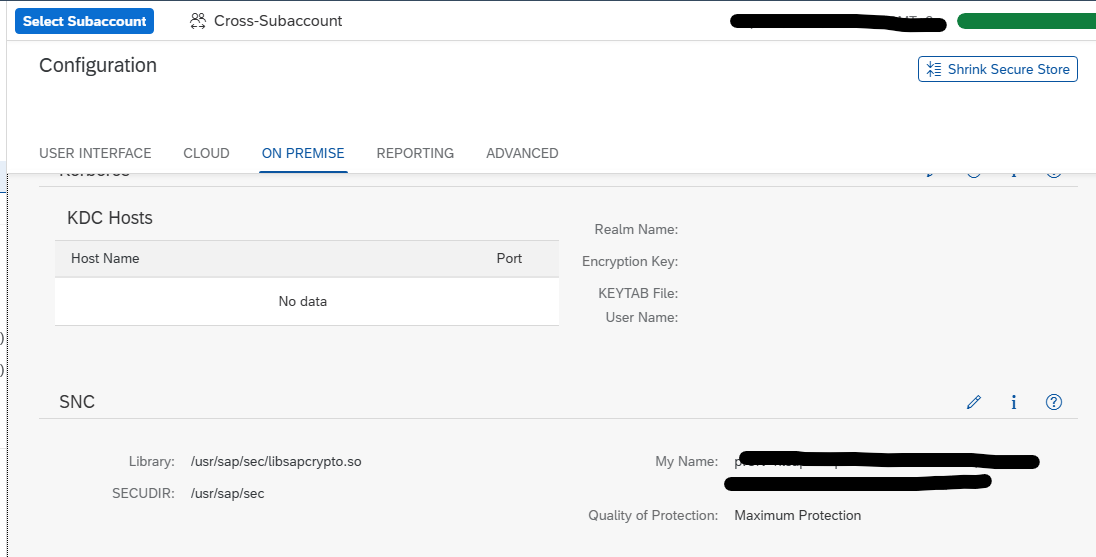
Using sapgenpse, generate a PSE & Sign the Certificate through Your Internal Certificate Authority.
This converts the self‑signed PSE into a fully trusted SNC PSE.
Please read the blog on Certificate Automation for Linux based: https://www.saptechnicalguru.com/automating-sap-certificate-management-using-sls/ for the detailed instructions.
In the SCC Admin UI:
Configuration → On-Premise → SSL/SNC
Verify:
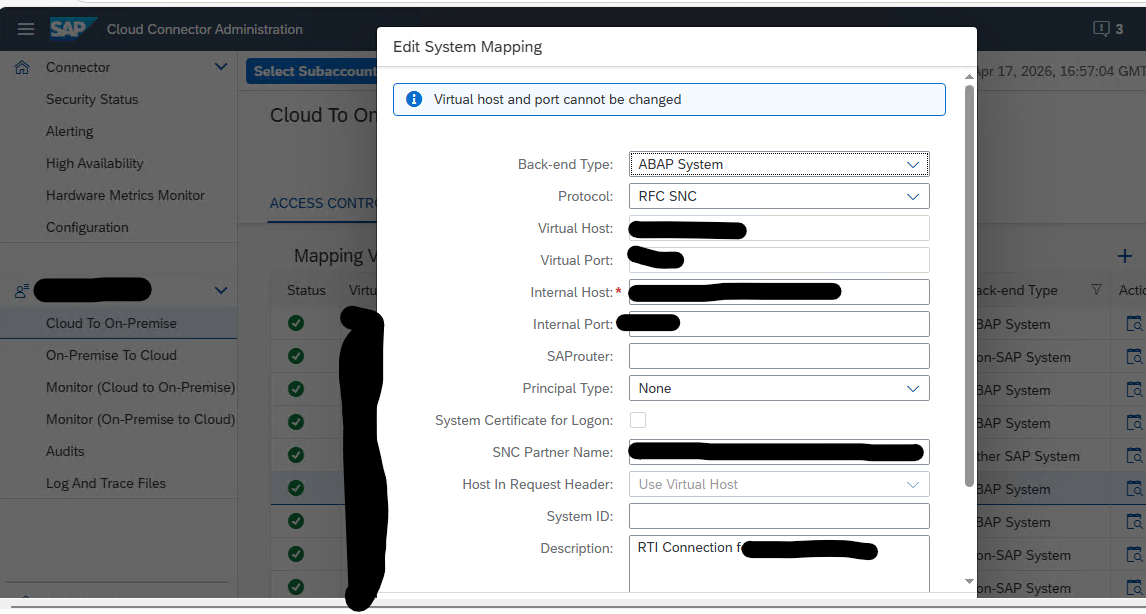
In SAP BTP Cockpit:
Connectivity → Cloud Connectors → ABAP Systems
For each RFC connection:
In the on‑premise ABAP system:
snc/enable and snc/identity/as are setRestart the cloud connection if profile parameters are updated.
For each RFC destination:
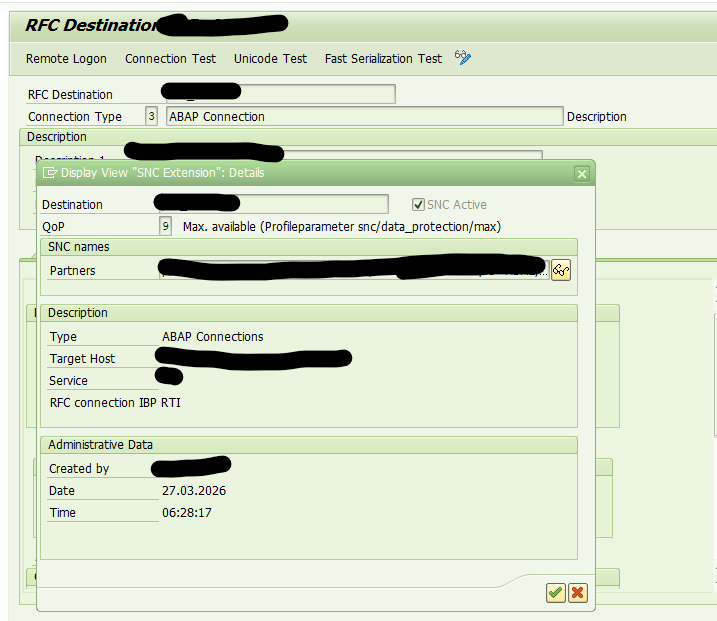
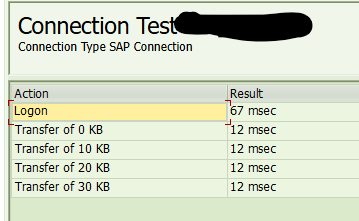
Test the RFC connection to verify SNC handshake.
For outbound connections from BTP:
Test communication via integration flows or services.

Functional teams should validate:
All connections should show SNC encryption enabled.
This blog will explain how to archive idocs via object IDOC. Generic technical setup must have been executed already, and is explained in this blog.
Go to transaction SARA and select object IDOC.
Dependency schedule:
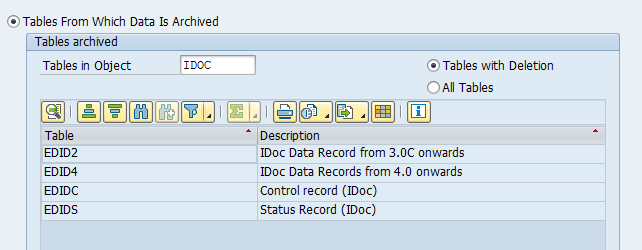
Main tables that are archived:
Write program: RSEXARCA
Delete program: RSEXARCD
Read program: RSEXARCR
Reload program: RSEXARCL
Relevant OSS notes:
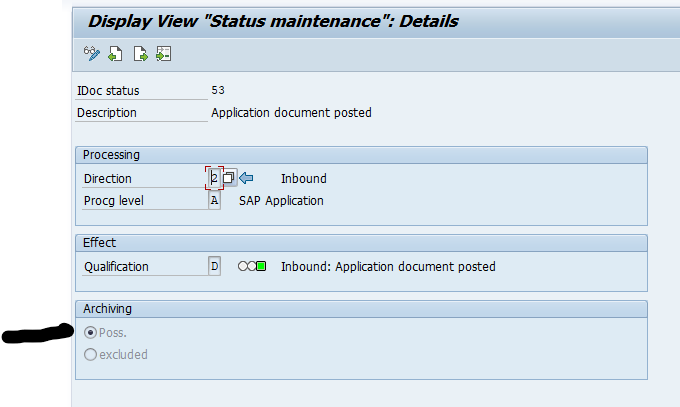
In transaction WE47 the idoc status must be set to archive-able:
In transaction SARA, IDOC select the write run:
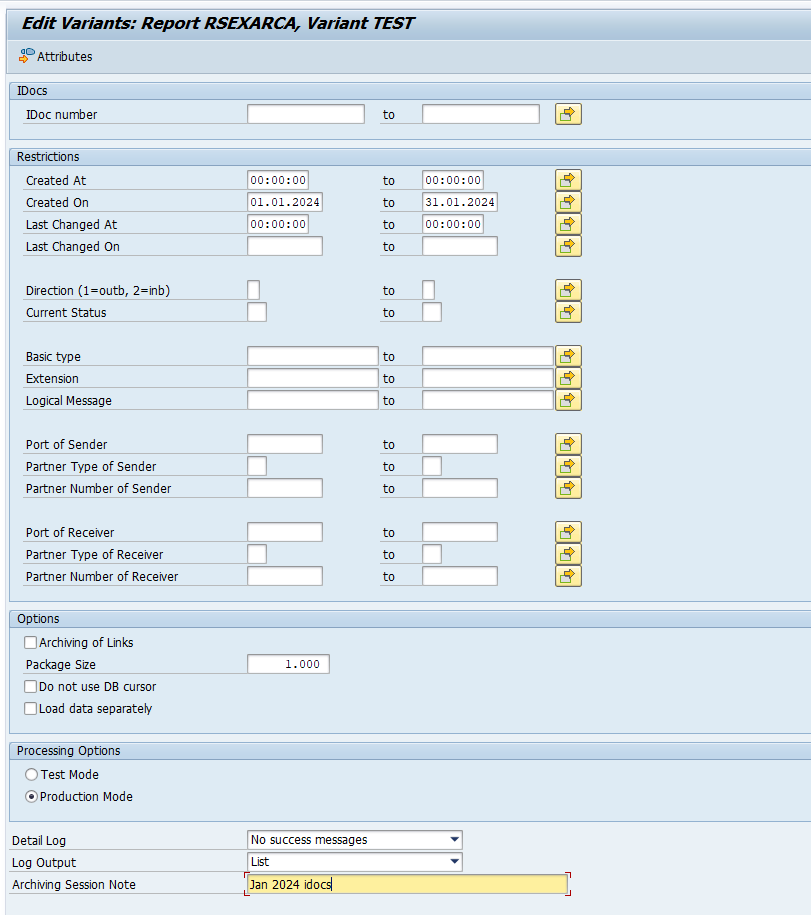
Select your data, save the variant and start the archiving write run.
Give the archive session a good name that describes idoc type and year. This is needed for data retrieval later on.
After the write run is done, check the logs. IDOC archiving has average speed, and high percentage of archiving (up to 100%). Mostly errors are not archived due to status (transaction WE47).
Deletion run is standard by selecting the archive file and starting the deletion run.
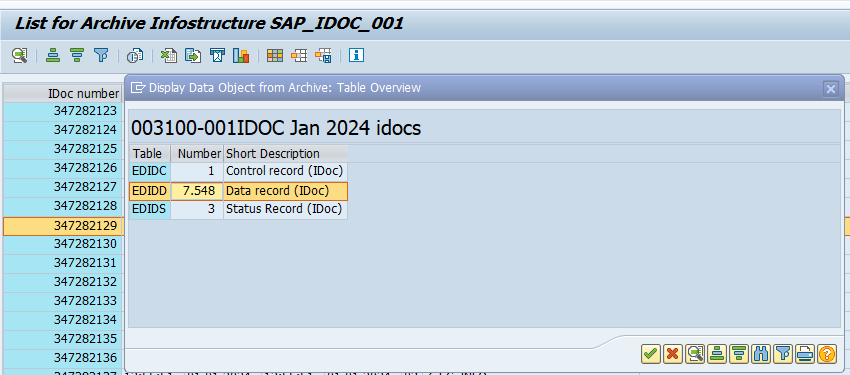
Data retrieval is via program RSEXARCR is extremely poor. Setup archive infostructure SAP_IDOC_001, and use transaction SARI (with IDOC and SAP_IDOC_001) to search and retrieve the idocs:
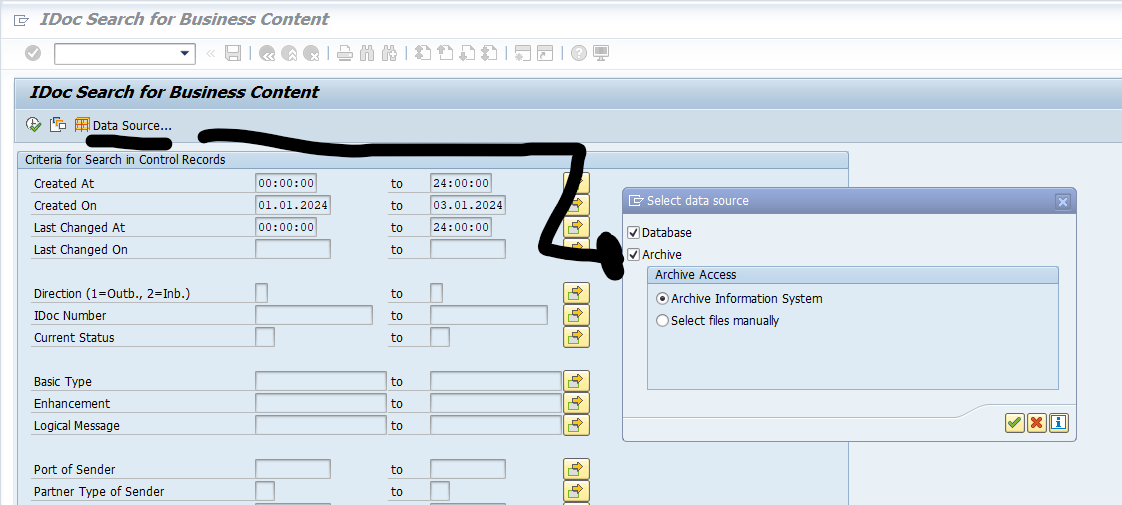
Or use WE09 transaction and include the selection for Archive:
On me.sap.com there is a support maintenance overview page. You can reach this page via this direct URL: Reporting – SAP for Me. A full explanation of all functions can be found on this blog. The below is the quick manual.
When you start the page you get the total overview:
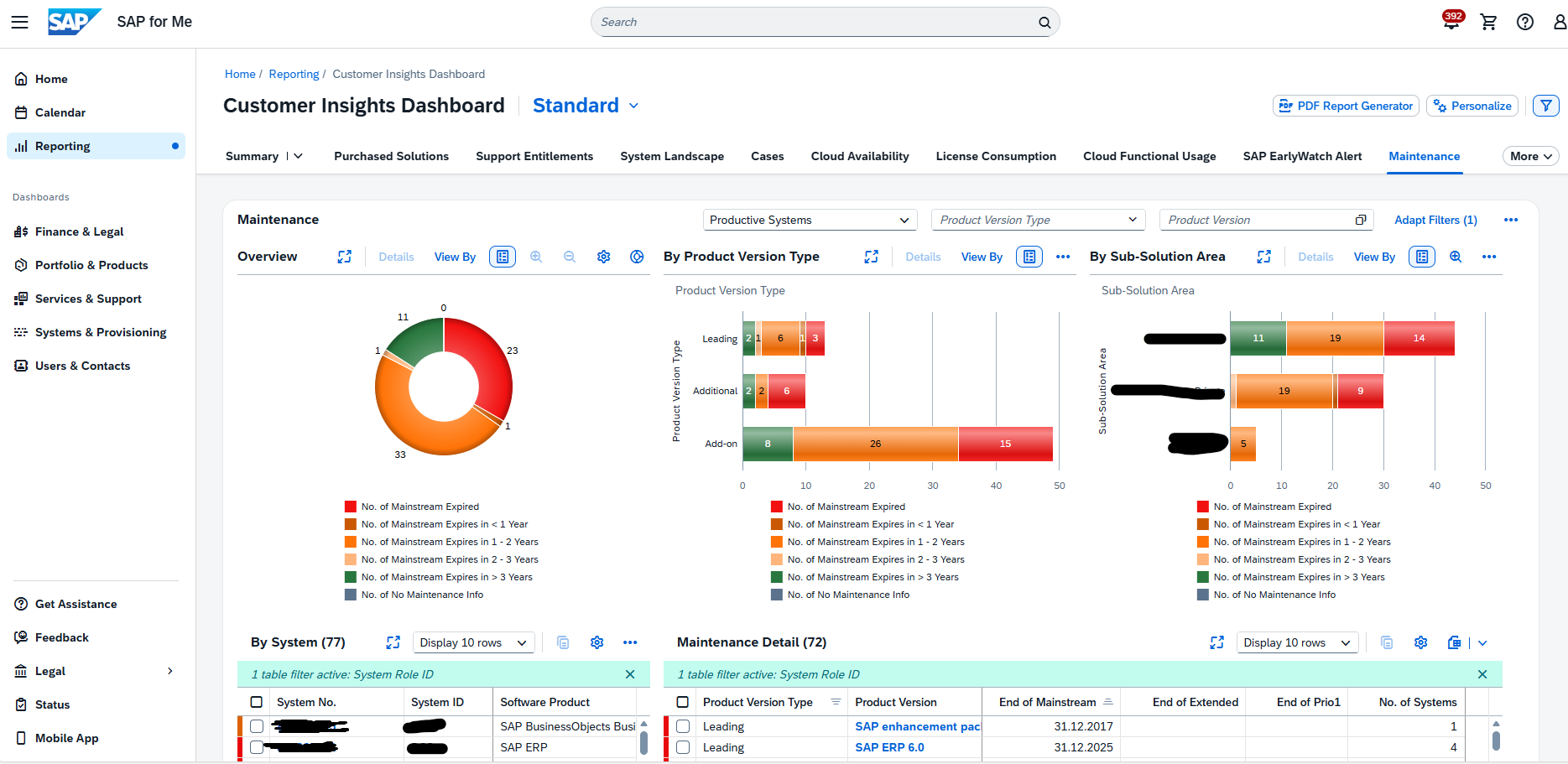
By clicking on a segment, you can zoom in:
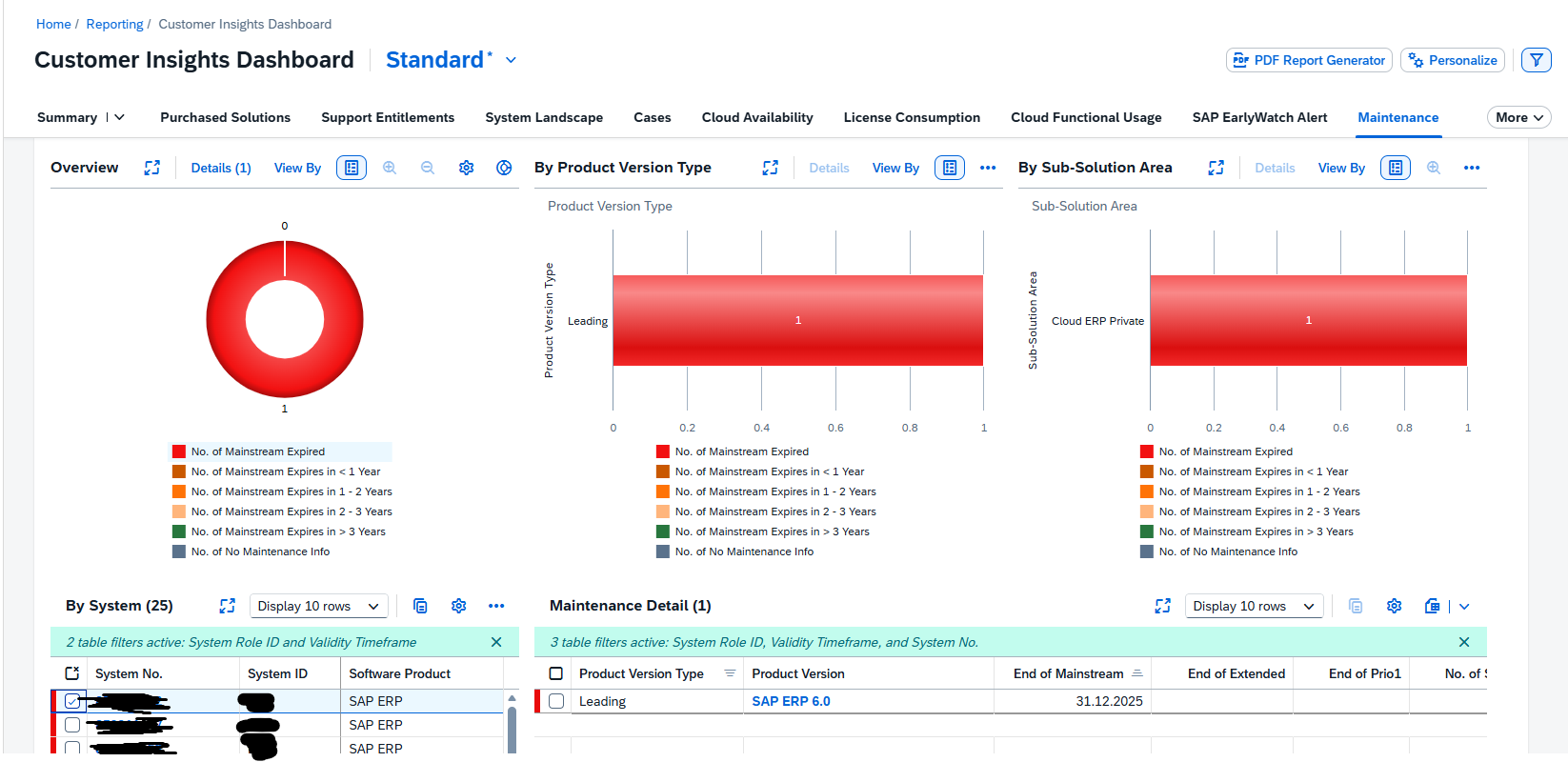
By clicking on the system number you can go to the system administration details:
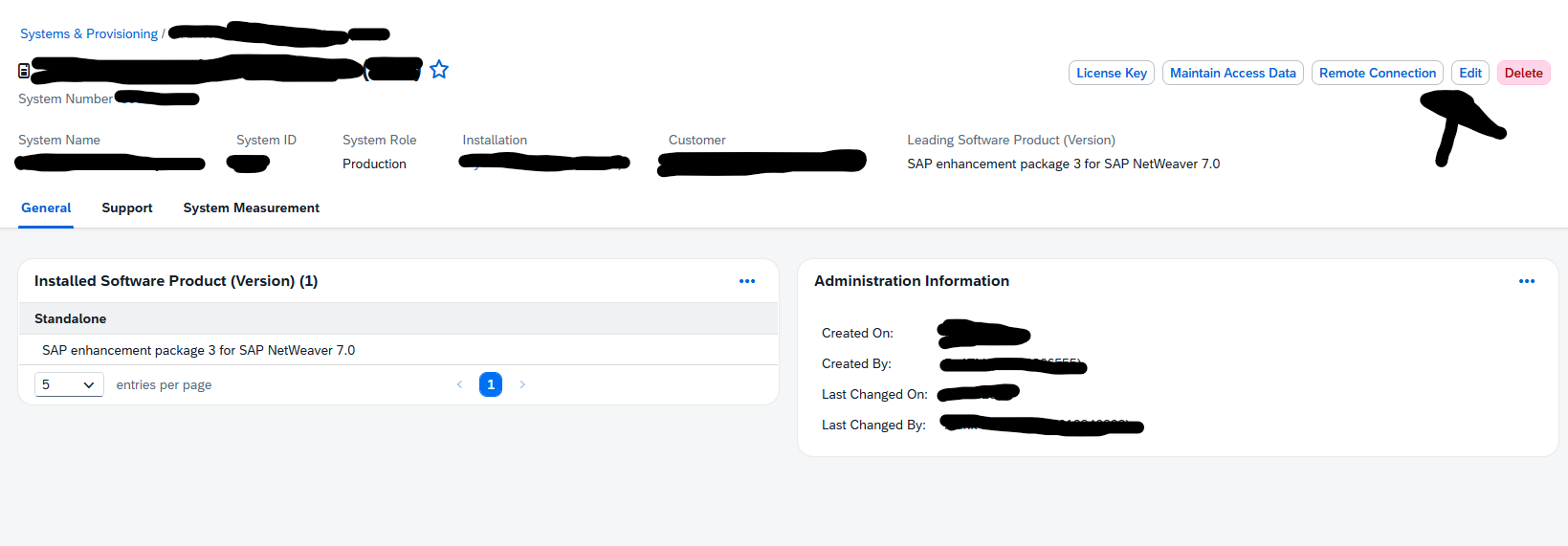
This can be used to update wrong old information, or to delete systems which have been decommissioned, but are still present in the SAP administration.
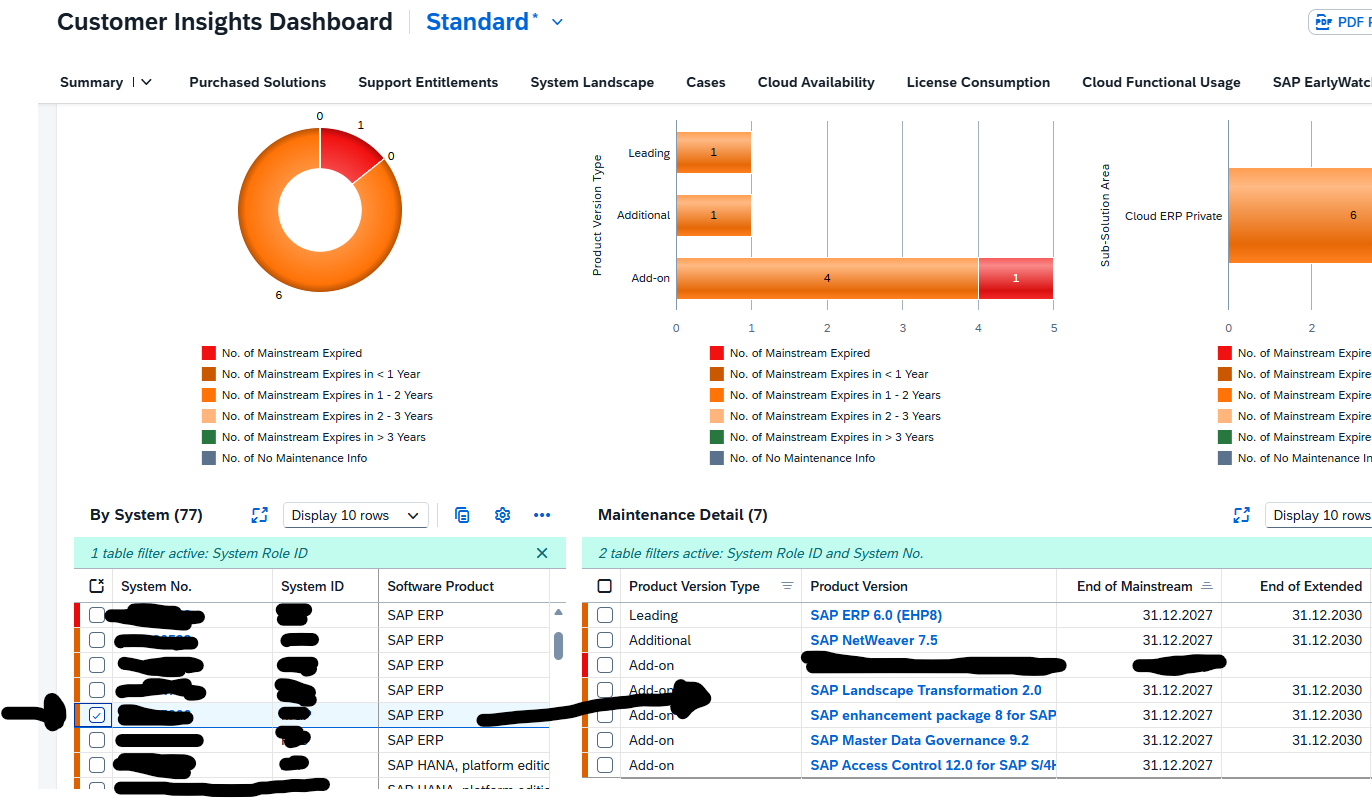
You can navigate from the System to the products and addons. Do this by selecting the system in the left part:
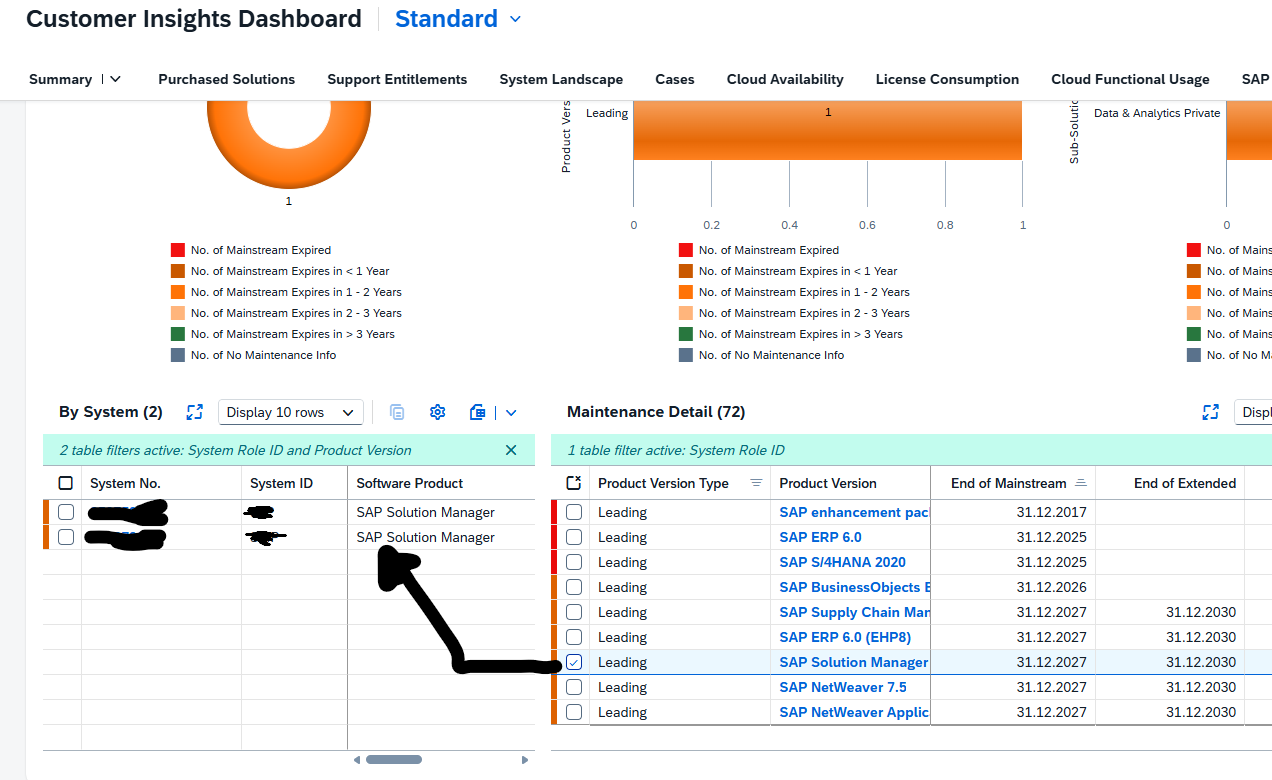
Another option is to start with the leading product or addon to see on the left side, which systems have this component installed:
MaxDB has 3 main use cases for SAP:
Basically the current 7.9 version is the last supported version until 31.12.2027. Prepare for new solutions if you are still using MaxDB.
End of support:
Generic database features of MaxDB:
S4HANA supports livecache as embedded option. Read more in this blog.
You can use a central system like SAP solution manager, SAP Focused Run or SAP GRC system to setup a central MaxDb management. For each MaxDB server setup a DB02 secondary database connection.
Then you can use transaction DB59 to get the central overview:
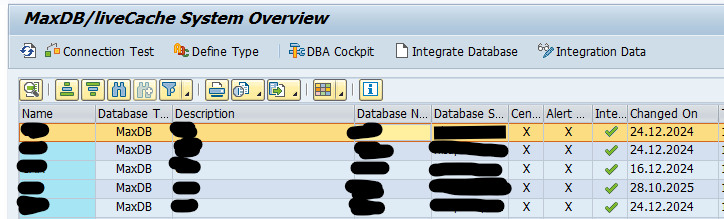
From here you can jump to DBA Cockpit, or run the connection test:
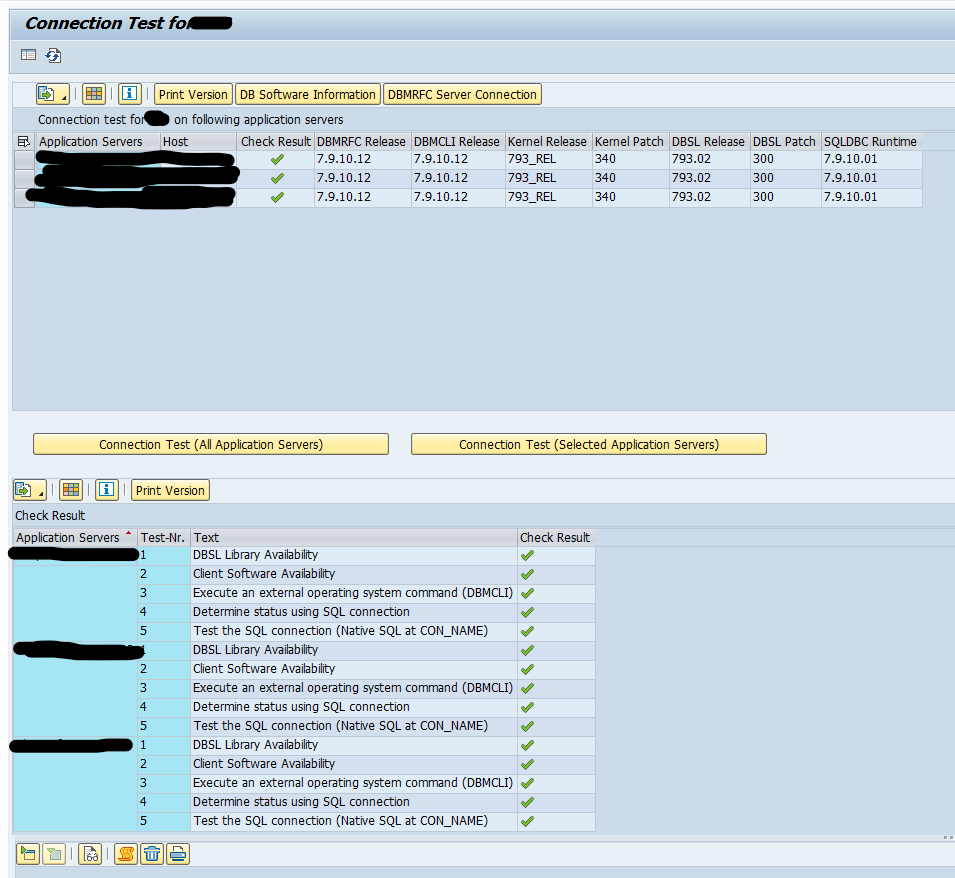

If you are running SCM – APO solution, you need to consider what to do with the functions running there. The extended support of the SCM – APO solution will end by 31.12.2030.
To check the current usage and potential solutions, you can run the SAP readiness check for SAP Supply Chain Solution.
Install the check program by applying OSS note 3477050 – SAP Readiness Check for SAP Supply Chain Solutions.
Then start program RC_SCM_COLLECT_ANALYSIS_DATA and execute it:
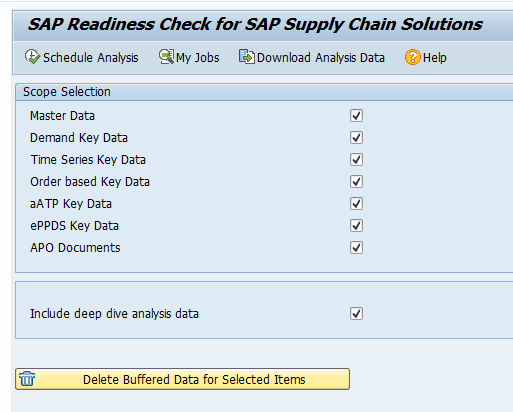
Schedule the analysis in batch job. When the batch jobs are completed, use the Download Analysis Data button to download the results to your laptop.
Upload the results in the SAP readiness site: https://me.sap.com/readinesscheck .
After uploading the analysis will take a few minutes. When completed, you can see the results:
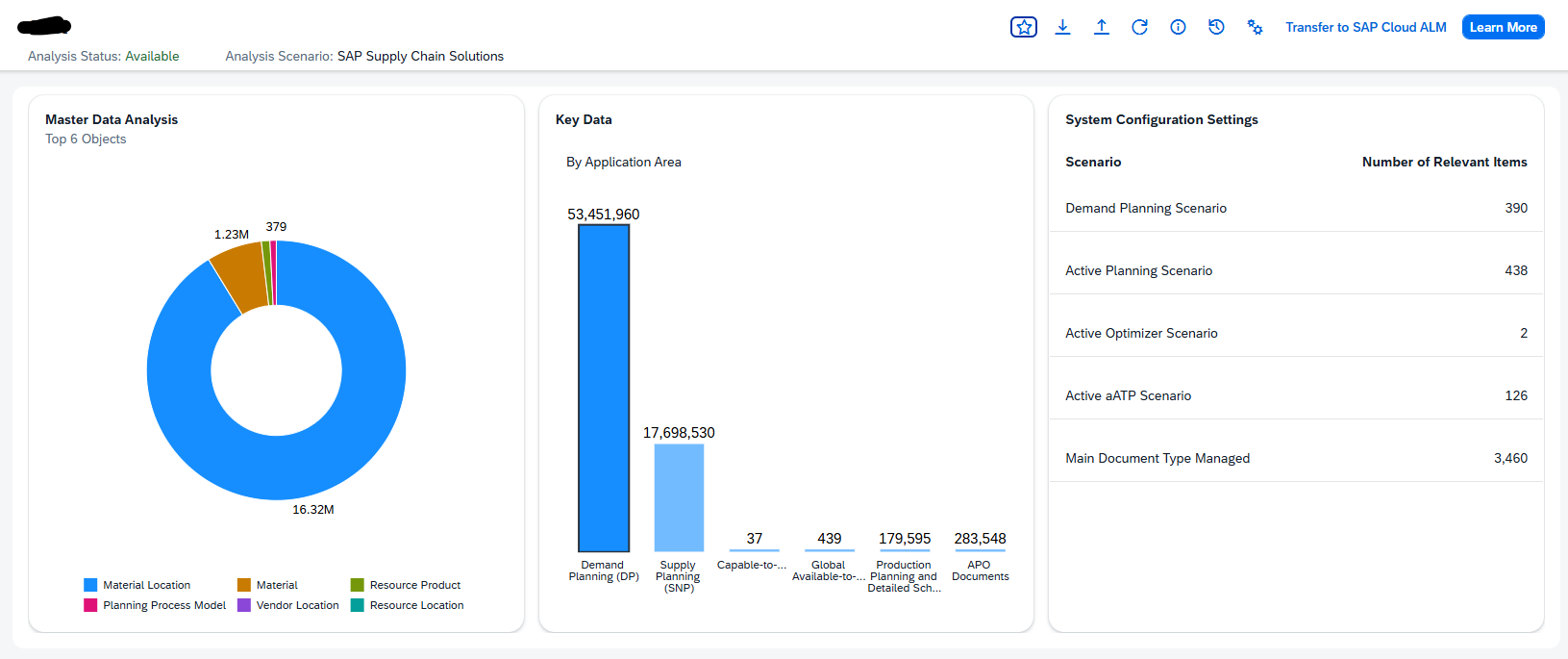

This blog is a continuation of the generic setup explained in the blog on this page.
Many SAP components running on Linux (Host Agent, Web Dispatcher, Message Server, and HANA) store their certificates in local PSE files instead of STRUST.
To automate certificate enrollment and renewal, these components use two tools:
This page describes the generic and simplified approach for automating certificate enrollment and renewal for:
All of them use the same command‑line workflow.
This PSE is used by the system to authenticate with Secure Login Server (SLS).
sapgenpse gen_pse -p <PSE_PATH>/ra.pse “CN=<SystemID>
Note: It is recommended to use password‑less certificates for automated renewals to ensure the process runs smoothly without requiring manual input.
sapgenpse maintain_pk -p <PSE_PATH>/ra.pse -a <Root_CA_File>.cer

This allows the RA PSE to trust your PKI.
sapgenpse get_pse -p <pse_path>SAPSSLS.pse -r csr.txt “CN=<Server-FQDN>”
Generates the HTTPS certificate request (CSR). Used for Host Agent, Web Dispatcher, Message Server, HANA, etc..
Before performing the first enrollment:
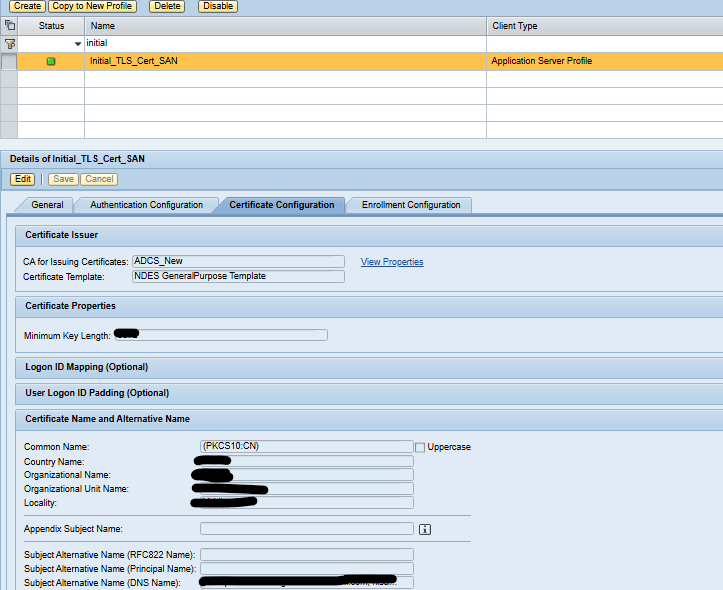
This ensures the certificate is issued correctly.
/<sapslscli_path>/sapslscli enroll -r /<pse_path>/ra.pse -i -e ‘SLS_enrollemnt_metadata’
This will:
Enrollment is one-time only.
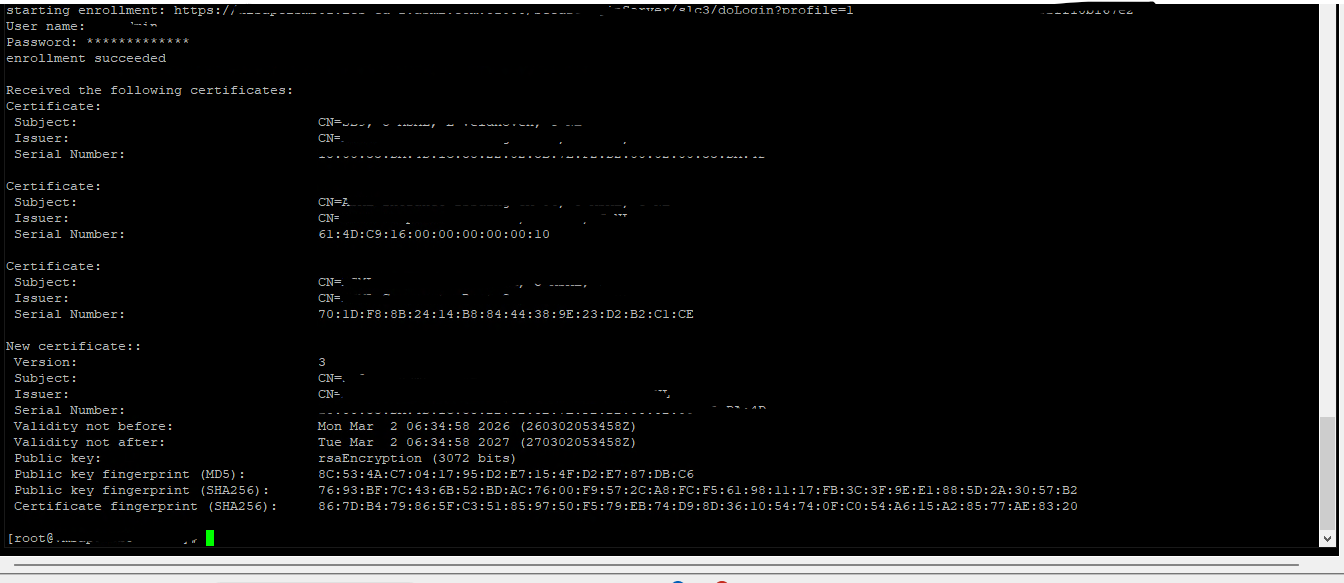
/<sapslscli_path>/sapslscli renew -r /<pse_path>/ra.pse -p /<pse_path>/SAPSSLS.pse -g 365 -e ‘SLS_Renewal_Profile_URL’
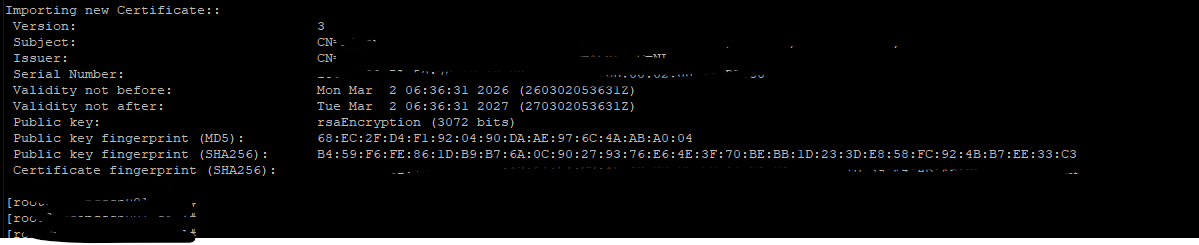
-g 365 = renew 365 days before expiry. (you can adjust it)
Each SLS certificate profile has its own metadata URL.
Renewal replaces the certificate in the PSE automatically
To enable automation, configure a cron job that periodically executes the renewal command with the corresponding SLS certificate profile.
We use background job in SAP ABAP and Job Scheduler in SAP JAVA system. In case of non-ABAP non-JAVA systems we can use OS tool like Cron jobs to execute this script on daily basis.
| Placeholder | Meaning |
|---|---|
<PSE_PATH> | Directory where PSE files are stored (e.g., /usr/sap/<SID>/<INSTANCE>/sec) |
<sapslcscli_path> | Directory containing the sapslcscli executable (e.g., /usr/sap/<SID>/<INSTANCE>/exe) |
<SLS_Renewal_Profile_URL> | Metadata URL of the specific SLS certificate profile used for renewal |
-g 30 | Renews the certificate 30 days before expiry (you can adjust this) |
Now all certificates can be renewed automatically using command line tool of SLS server and it will save manual efforts by enabling automation using SLS certificate life cycle management functionality.