Before activating roles, please make sure you have enough shared objects memory (RZ11 parameter abap/shared_objects_MB). Otherwise you wait very long to get this error:
To activate content role start transaction STC01 and select task list SAP_FIORI_CONTENT_ACTIVATION:
Task list look like below:
In the select SAP business roles for FLP content activation select the wanted business roles:
You might be tempted to select all or a lot: don't. Only select 2 to 5 maximum each time. The unpacking and activation is an intensive long running process.
Now let the task list run (be patient). If the task list run is completed, assign the generated PFCG BR roles to your user ID. Now start FIORI launchpad with /UI2/FLP and the tiles should be visible and working.
Search setup
Most FIORI apps use the S4HANA embedded search function. See this blog for setup of search.
FIORI notification setup
For setting up FIORI notifications, read this dedicated blog.
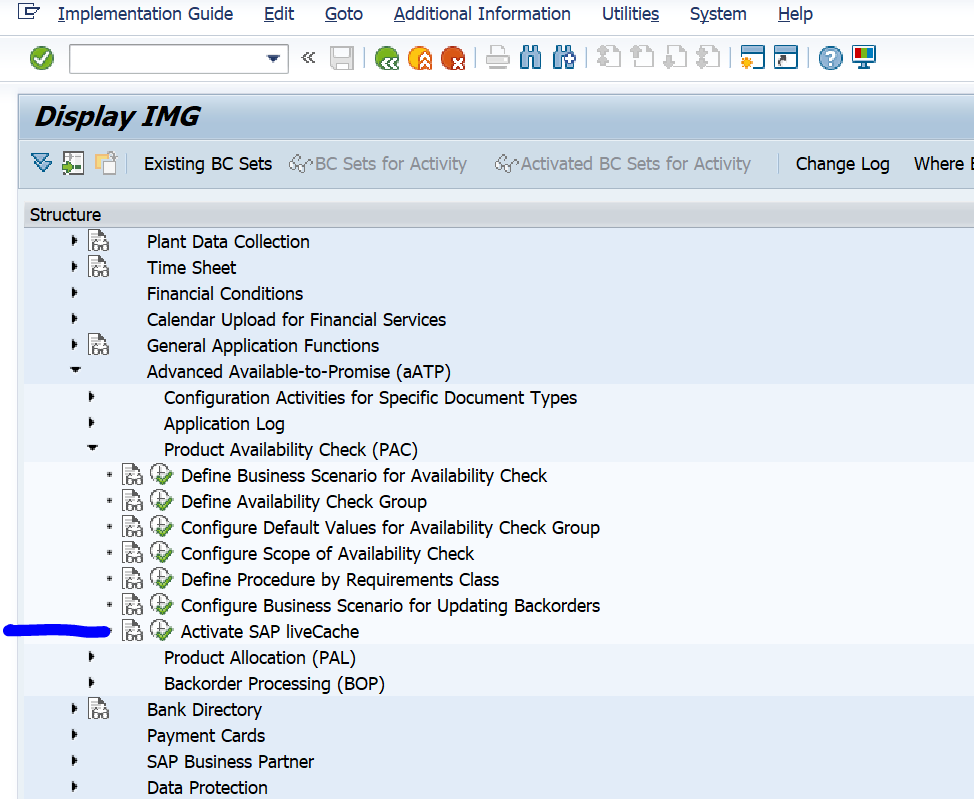
Not all tiles will work via this procedure. Some tiles have exceptions or additional work to do. The additional work and generic background information of S4HANA embedded content activation can be found in OSS notes:
You have just upgraded to S4HANA in your sandbox or development system. SPAU and SPAU_ENH processing are done. Next step is the S4HANA custom code adjustments.
Questions that will be answered in this blog are:
How to import the SCI variants for S4HANA custom code adjustments?
How to import the latest simplification database into your system?
How to run the S4HANA custom code adjustments in ATC tool?
How to enable quick fixes in Eclipse?
Importing the SCI variants
Goto transaction SCI and select the option Utilities and then Import Check Variants. This action will import the required variants. Check that the variants are present now.
In case you don’t want to do the field length extensions checks, choose the variant with _NO_FLE at the end.
Otherwise: in the SCI variant, you can leave everything as delivered out-of-the-box with the exception of the material length option. If you keep the material field business wise to 18 (which most customers do), you need to change the variable from 40 to 18.
Use transaction SYCM to upload the file. Select option Simplification Database and then Import from ZIP File.
Running the ATC tool
Now you can start to setup the ATC tool. For details see this blog.
The ATC variant to run should like like this:
Important here:
Select the desired S4HANA readiness check SCI variant
Set the package to Z* to select your custom code
Tick the box for Calculate quick fix proposals
Now you can start the ATC run:
Set the results to Active to see all the results in Eclipse as well. Pending on your system size lower the default number of processes from 10 to for example 5.
If you run into ATC tool issues for the S4HANA custom code adjustments run: first increase memory parameter rsdb/obj/buffersize in RZ11 to at least 150 MB. Then run again.
Processing the results
The ATC tool will now give a lot of results:
The results from the ATC tool can be distributed to more members by changing the Contact Person. To do this select one or more findings and right click on the Contact Person column, and select the option Change Contact Person.
The basic order of processing the results:
Check simplification OSS note
Fix code
Apply relevant pragma (directly or in Eclipse via quick fix)
Apply exemption
For the exemptions: you can raise them, but different person needs to approve them.
If you run the ATC tool weekly, you can use it to track the progress. In the ATC results screen there is a specific button Statistics View:
Default sorting is by type of issue to be solved:
This view can also be sorted on Contact Person. This will enable you to check the progress of each developer with his or her work list.
Using quick fixes with Eclipse
Using quick fixes with Eclipse is a fast way of going through the list. The Eclipse list is based on Contact Person and active results. So you only see in Eclipse the results for your user account.
In Eclipse first select the appropriate views:
Now you can start processing. You will get online help and you can apply the quick fix proposed automatically in stead of keying it in by hand.
To enable ABAP backend for Eclipse: follow this link.
Using the S4HANA custom code migration app
You can also use the S4HANA custom code migration app. After completing the setup above and activating the S4HANA embedded FIORI (see this blog), you simply follow the steps in this blog for the setup.
ABAP clones
In the past copies of standard SAP might have been made. These are so called clones. You can use the clone finder tool to detect the clones. Consider to delete the clones completely. Most of the times the clone is no longer required. This will save you work on the code migration. How to run the clone finder tool can be read in this dedicated blog.
Use of unreleased standard SAP objects
Developers might have been using standard SAP objects, which formally have an unreleased status, and might no longer be supported by S4HANA. Read this blog to find out how you can scan your custom code for use of unreleased standard SAP objects.
How can I avoid large spool outputs in background jobs?
How can I setup LOCL printing?
How to delete old spools?
Spool number range and status
If your spool system for printing is getting out of numbers, the printing stops and even endangers your complete system. The signal is shortdump COMPUTE_BCD_OVERFLOW as described in OSS note 2208342 – Shortdump COMPUTE_BCD_OVERFLOW.
You can store a print list in the data archive. For setup see this blog.
Avoiding large spool in background job output
If you have a batch job with large spool output and you never look at it, you can also setup device type NULL to immediately delete the output. This way the spool system is not filled up. For setup see this blog.
Transaction SPOOL
Transaction SPOOL contains links to most important spool transactions. See this dedicated blog.
Setup of LOCL printing
For setup of LOCL printing, read this dedicated blog.
Spool error for LOCL printing
When a user is trying to use the LOCL printer as printer for background job, off course the background job cannot reach the printer and will throw an error message:
HTTP/2 is the successor of the HTTP 1.1 protocol. It has some performance advantages. The main advantages are the capability of multiplexing and server push. The HTTP/2 protocol was designed for faster page loading even when having longer latency times.
Questions that will be answered in this blog are:
Where can I find more background on the HTTP/2 protocol?
Are there any pitfalls and prerequisites?
How do I switch on the HTTP/2 protocol on my FIORI server?
The prerequisite for support of the HTTP/2 protocol for FIORI and other ABAP web applications is a sufficiently high version of the ABAP stack and webdispatcher (if in use): NetWeaver Gateway version 7.51 or higher, Web Dispatcher 7.49 or higher. The HTTP/2 protocol also has higher security requirements and does require COMMONCRYPTOLIB version 8.4.31 or higher.
How to switch on HTTP/2 protocol support?
In the ABAP system parameters RZ11 switch the parameters icm/HTTP/support_http2 to value TRUE. This can be done dynamically. In Google chrome developer tools the UI developer can see the usage of HTTP/2 protocol (on http call right click on the call to show the Protocol field as well).
If you are using web dispatcher set parameter icm/HTTP/support_http2 to value TRUE as well as wdisp/support_http2_to_backend to TRUE.
Kernel patch
The HTTP/2 protocol implementation is done on kernel level. If you want to switch on the HTTP/2 protocol on your systems, do check the OSS notes with the keyword icm/HTTP/support_http2. You might see there are a few kernel patch OSS notes (using component BC-CST-IC) that solve issues in your area that you use. In case of issues in a productive system with HTTP/2: switch the value of icm/HTTP/support_http2 back to FALSE.
Diverse tools use SAP GUI scripting: test tools to perform regression testing, load testing, solution manager CBTA, etc. Also robotizing tools often use GUI scripting.
Questions that will be answered in this blog are:
How to enable GUI scripting in the SAP system?
How to make sure only the allowed users run GUI scripting?
How can I record an SAP GUI script and execute a playback of the recorded script?
Server side enabling GUI scripting
First you need to allow GUI scripting on the server side. This can be done by setting system parameter sapgui/user_scripting to the value TRUE. This is done in transaction RZ11.
Client side enabling GUI scripting
In your SAP gui, goto the options. In the Accessibility & Scripting part, enable the scripting.
At the top part you can see the installation status of scripting tools from SAP itself.
Securing scripting
If you want to securely control which user is allowed to use and execute scripting, you have to set the system parameter sapgui/user_scripting to TRUE. Now any user who is having the authorization object S_SCR is allowed to perform scripting. User who lack the authorization object will cannot run the script.
If you are in an SAP transaction and you are confronted with a strange error message, you would like to know if there are OSS notes for this message you are having.
As example we take a message in ME21N transaction. If you have the error, double click on the error message for the details:
Now press the SAP Notes/Search KBA button highlighted in the screen shot above. The system will now search in OSS notes for this specific message and situation. Since our case is simple we get a nothing found message:
This blog will explain how to debug a background batch program with real background mode (SY-BATCH is X).
Questions that will be answered are:
How to debug a running job?
How to debug a completed job?
Starting the debug mode for batch job
First we plan a single run of the batch job. In our example we run program RSWAITSEC which does nothing more than wait.
In SM37 show the job run:
Select the job and in the command line enter the background debug command JDBG:
Now the debugger starts first in the batch job part. Hit F7 a few time (F7 = jump back out of routine) until you reach the real program:
As you can see here the SY-BATCH variable is X, which means you are debugging with real background mode on.
SM50 background debugging
If you want to debug a running job, you have to goto SM50 and select the background process. Then choose the menu option Administration / Program / Debugging. Confirm the prompt:
Wait until the running SQL statement has completed and debug mode will start.
Please be very careful with this kind of debugging in a productive system. If you cancel the debug session there might be a rollback work statement triggered, which can cause database inconsistencies.
If you want to prevent same job from starting, while a previous instance is still running, you need to add program RSBTONEJOB or RSBTONEJOB2 as first step in the batch job. This step will detect if the previous instance is still running and abort to avoid the next steps from being executed. More background in OSS note 557610. The scope of both programs is in principle limited to be used for idocs and CUA. To extend the scope or in case of issues, read the instructions in note 3225033 – Behavior of program RSBTONEJOB, RSBTONEJOB2 not as expected.
Forcing a batch program to wait
If for some reason you need a batch program to wait between steps, you can use program RSWAITSEC as a step. This program will only do a wait for x amount of seconds.
Setting current date in the TVARVC table for the RV variables
The RV variables for current date, month and year are often used in month end closing batch jobs. Running program RVSETDAT will set the current dates for RV TVARC variables.
Checking basis background job system settings and working
If you want to validate if the background job system function itself is working properly, start transaction SM65 background processing analysis tool.
Result is shown correct working, number of batches and wait time:
Start transaction ST13 and start tool BACKGROUND_JOB_ANALYSIS. Or directly start program /SSA/BTC.
Pending on your selection you get a graphical overview or a full list for you to speed up your analysis.
Mass stop and start of batch jobs
Programs BTCTRNS1 and BTCTRNS2 can be used for mass forced stop and start of batch jobs. See this blog for more details.
Batch job interception
For more information on batch job interception, please read this blog.
Ignoring large spool output of a batch job
In some cases a batch job will generate a large amount of spool output which is clogging the spool system, but is never used. In this case you can set up the job to put the output to output device NULL. For setup read this blog.
Archiving spool as print list
If you want to store the spool as print list in the archive, please read this blog.
If you want to quickly check which user ID’s are use inside batch job steps, it is best to quickly go to table TBTCP. Here you can quickly see across many batch jobs which step users are used.
Check batch job headers
Sometimes you need to report and check data on batch job header level. This data is stored in table TBTCO. Example: if you have performance issues with jobs and you have multiple application servers, you can use table TBTCO to check on which application server the troublesome jobs are running.
Solving inconsistencies in batch job tables
In rare cases there might be inconsistencies in the batch job tables TBTCO and TBTCS. In this case you need to run program RSBTCCNS to check and delete the inconsistencies.
You can mail the spool result of a batch job to one or more mail addresses. Also with newer SAP netweaver versions you can mail if job was successful or not. Read this blog in detail.
Debugging batch jobs
For debugging batch jobs, please read this dedicated blog.
Batch jobs full
If there are no batch processes free any more, you might see this screen in SM37:
When you face this situation check in SM66 if there are BTC processes available.
Standard batch jobs in S4HANA are planned via transaction SJOBREPO. For more details read the dedicated blog.
Batch job server groups
If you have a large production system with many application servers you can setup batch job server groups to have batch jobs run on a set of dedicated application servers. To set up batch job server groups start transaction SM61 and click the button Job server groups:
In quite some cases the basis team is asked: in which batch job variant is this company code XXXX used? Or we need to add another sales organization to all the batch jobs, can you provide us a list with jobs using sales organization YYYY? How to get this data is answered in this dedicated blog.
How to check health of batch job scheduler
Start transaction SM61. Now select the Time-Driven scheduler. Select the server and choose the health check tab. Now press the check button:
Batch job event triggers
Batch jobs can also be triggered using events. Read more in this blog on batch job event triggers.
Mass job changes
Mass job changes can be done via program BTC_MASS_JOB_CHANGE. Changes with mass changes options variants, step and job user, execution target.
Batch job monitoring
Batch job monitoring can be done with SAP Focused Run. Read more in this blog.
Transaction codes
Transaction codes that can help:
SM37: generic batch job transaction
SM37DSIP: generic batch job transaction, display only
Second program you need to run on production. So you first need to transport all the notes to production. The notes are large and can take up to 20 minutes import time. So take a quiet time at the productive system to import them.
Start program RC_COLLECT_ANALYSIS_DATA in your productive system:
Select your target version and press execute. This will launch multiple batch jobs. Wait for all the jobs to finish and start program again to download the ZIP file to your PC.
The newer version of S4HANA readiness report has option analyze the financial data quality. This is important, since a lot of time and effort during the conversion is spend on the financial data migration.
Hit the start New Analysis button and upload the file from the RC_COLLECT_ANALYSIS_DATA program. Wait for the SAP site to finish the analysis. It will be visible on the site as Recent Analysis.
Don’t forget to push the update analysis button to upload the second file with the custom code analysis from program SYCM_DOWNLOAD_REPOSITORY_INFO.